
Options | RS On-prem
What are Options?
Options are settings that configure how Assets behave.
How are Options useful to my organization?
Options enhance security and consistency by letting administrators configure how Assets behave once, site-wide, instead of setting the same behavior on each Asset individually.
How do I access the Endpoint Automation page?
- Use a Chromium-based browser to sign in to your Remote Support URL.
This URL is provided in the BeyondTrust welcome email and includes your site URL followed by /login. - From the left menu, click Asset Management.
The Assets page opens and displays by default. - At the top of the page, click Options.
The Options page displays.
The Options page
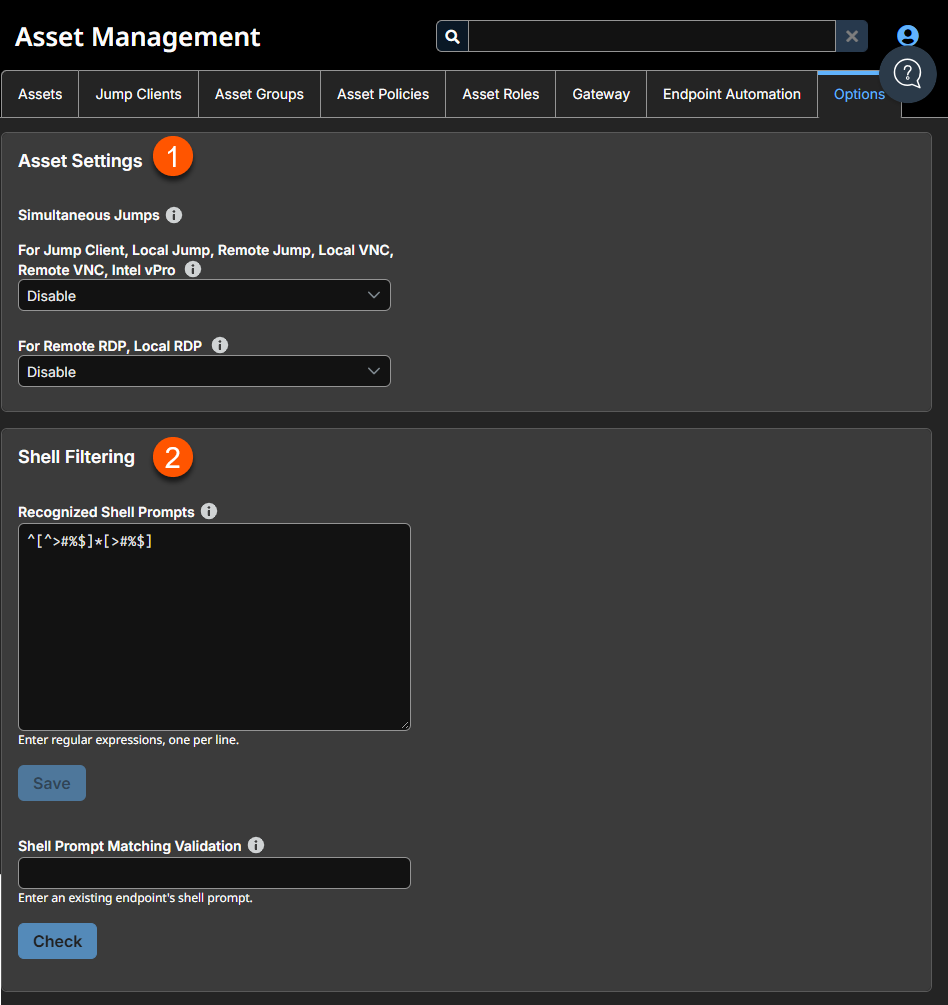
Asset settings
Simultaneous connections
Simultaneous connections provide a way for multiple users to gain access to the same Asset without having to be invited to join an active support session by another user.
- By using the For Jump Client, Local Jump, Remote Jump, Local VNC, Remote VNC, Intel vPro field, you can create new sessions. The options you can choose are the following:
| Value Name | Description |
|---|---|
| Join Existing Session | Provides a way for multiple users to gain access to the same Asset without an invitation to join an active session by another user. The first user to access the Asset maintains ownership of the session. Users in a shared Session see each other and can chat. Users can join a session that was started from another copy of a Jump Client in a different Asset Group. Session permissions are based on the original Jump Client that started the session. Once the first user is in a session, subsequent users will be able to enter the session. The first user will receive a notification that another user has joined the session, but the first user will not have an opportunity to deny access before other user joins. If this setting is not selected, a user cannot join a session that was started from another copy of a Jump Client, unless it is the same Asset Group. |
| Disable | Ensures only one user can connect to a Asset at a time. Only an invitation by the user who originated the session can allow for a second user to access the session. |
- From the For Remote RDP, Local RDP field, you can create new sessions which connect to a specific RDP Asset. The options you can choose are the following:
| Value Name | Description |
|---|---|
| Start a New Session | Provides a way for multiple users to gain access to the same Asset without an invitation to join an active session by another user. For RDP, a new independent session will start for each user which connects to a specific RDP Asset, and the RDP configuration on the endpoint will control any further behavior regarding simultaneous RDP connections. |
| Disable | Ensures only one user at a time can connect to a Asset. Only an invitation by the user who originated the session can allow for a second user to access the session. |
Shell Filtering
The Shell feature restricts which commands can be executed. It works in conjunction with the values that are configured for an individual on the Command Shell section of the Users & Security > Users page. For groups of users, you can set up session policies on the Users & Security > Session Policies page.
Shell Prompt Matching Validation
A part of the Shell feature is being able to tell when your shell is at a prompt, so regex pattern is used that matches a shell prompt, and a default one that works almost anywhere is given.
Updated about 1 month ago
