
Start a session | RS
Once a Jump Client has been installed on a remote computer, permitted users can use the Jump Client to initiate a session with that computer, even if the computer is unattended.
From the representative console
Jump Clients are listed in the Asset Management Interface.
In addition to Jump Clients, you may also see Assets for Remote Jumps, Local Jumps, RDP sessions, VNC sessions, SSH sessions, and Intel vPro sessions. Collectively, Jump Clients and Assets are referred to as Assets.
- From the left pane, select the Asset Group for which you want to view pinned Jump Clients
Assets are listed in Asset Groups. If you are assigned to one or more Asset Groups, you can access the Assets in those groups, with the permissions assigned by your admin.
Your personal list of Assets is primarily for your individual use, although your team leads, team managers, and users with permission to see all Assets might have access to your personal list of Assets. Similarly, if you are a team manager or lead with appropriate permissions, you might see team members' personal lists of Assets. Additionally, you might have permission to access Assets in Asset Groups you do not belong to and personal Assets for non-team members.
If you are allowed to view Jump Clients in other users' personal lists of Assets, those users appear in a second pane to the left.
- If an Asset Group contains tagged Jump Clients, an arrow appears to the left of the Asset Group name. Click the arrow to show or hide the tags.
- In addition to browsing for Assets, you can search and filter based on multiple fields. Click Add Filter, then select a category. Enter the text you want to filter by into the empty filter. You can add multiple filters as needed.
- Enter a string in the search field and then press Enter. To change the fields you are searching, click on the magnifying glass and check or uncheck any of the available fields.
- To view additional statistics about an Asset, select the Asset. Available statistics appear in the right pane.
If a Jump Client goes offline and does not reconnect to the B Series Appliance for the number of days set by the Jump Client Settings in the /login interface, it is labeled as lost. No specific action is taken on the Jump Client. It is labeled as lost only for identification purposes, so that an administrator can diagnose the reason for the lost connection and take action to correct the situation. In the details pane, you will see the scheduled deletion date if the Jump Client does not come back online.
After a software update, Jump Clients update automatically. The number of concurrent Jump Client upgrades is determined by settings on the /login > Asset Management > Jump Clients page. If a Jump Client has not yet been updated, it is labeled as Upgrade Pending, and its version and revision number appear in the details pane. You can modify and connect to an outdated Jump Client.
Important infoWhen upgrading to a newly built site software package, verify that all certificate stores are managed appropriately and are up to date prior to upgrading to a new BeyondTrust version. Failure to do so may cause a majority of your existing Jump Clients to appear offline.
To start a session, double-click the Asset or select the Asset and click the Jump button from:
- Above the Asset Management Interface
- The right-click menu of the Asset
- The top of the Asset details pane
You can select up to ten Assets and start them with a single click. To start a session with all Assets in an Asset Group, right-click the group and select Start a session with n items. The Asset Group must contain no more than ten Assets for this feature to be available.
Each session opens in its own tab. If an Asset requires credentials and does not have predefined credentials, you are prompted to enter them.
Depending on the permissions set by your administrator, you might also be able to wake up a selected Jump Client by broadcasting Wake-on-LAN (WOL) packets through another Jump Client on the same network. Once a WOL is attempted, the option becomes unavailable for 30 seconds before a subsequent attempt can be made. WOL must be enabled on the target computer and its network for this function to work. The default gateway information of the Jump Client is used to determine if other Jump Clients reside on the same network. When sending a WOL packet, the user has an advanced option to provide a password for WOL environments that require a secure WOL password.
If you no longer need access to a remote system, select the Jump Client and click the Remove button, or right-click the Jump Client and select Remove from the menu. You may select multiple Jump Clients to remove them all at the same time.
If the remote user manually uninstalls a Jump Client, the deleted item is either marked as uninstalled or completely removed from the list of Assets in the representative console. This setting is available at /login > Asset Management > Jump Clients. If the Jump Client cannot contact the B Series Appliance at the time it is uninstalled, the affected item remains in its offline state. If a Jump Client goes offline and does not reconnect to the B Series Appliance for 180 days, it is automatically uninstalled from the target computer and is removed from the Asset Management Interface.
Organize and manage existing Assets by selecting one or more Assets and clicking Properties.
From the API
By integrating with the BeyondTrust API, you can connect to an Asset directly from your systems management tool or ticketing system. To start a session with an Asset from an external program, you must use a BeyondTrust Representative Console Script. A BRCS contains a sequence of commands to be executed by the representative console. Double-click a BRCS file to have it automatically executed by the representative console, or incorporate it into an external application to send commands to the representative console from that application.
One method of creating a BRCS is through the client scripting API. This API is located on your BeyondTrust Appliance B Series at https://support.example.com/api/client_script, where support.example.com is your BeyondTrust site host name.
Optional parameters for the start_pinned_client_session command
| search_string=[string] | If specified, then this is the search criteria used to select a Jump Client. The comments, host name, private IP, public IP, and tag fields are matched against the search string. This field has a maximum length of 1024 characters. Search is partial and case-insensitive. |
|---|---|
| client.comments | If specified, only Jump Clients with the given comments are included in the results. This field has a maximum length of 255 characters. Search is partial and case-insensitive. |
| client.hostname | If specified, only Jump Clients with the given host name are included in the results. This field has a maximum length of 255 characters. Search is partial and case-insensitive. |
| client.private_ip | If specified, only Jump Clients with the given private IP address are included in the results. This field has a maximum length of 255 characters. Search is partial and case-insensitive. |
| client.public_ip | If specified, only Jump Clients with the given public IP address are included in the results. This field has a maximum length of 255 characters. Search is partial and case-insensitive. |
| client.tag | If specified, only Jump Clients with the given tag are included in the results. This field has a maximum length of 255 characters. Search is partial and case-insensitive. |
| session.custom.[custom field]=[string] | The code name and value of any custom fields. These fields must first be configured in /login > Management > API Configuration. Each attribute must be specified as a different parameter. Each custom field has a maximum length of 1024 characters. The maximum total size of all combined custom fields, including the external key, must be limited to 10KB. |
Important infoEither search_string or client._ parameters must be specified, but not both. It is an error to specify both the search_string and a client._ parameter. It is also an error to not specify either one.
Important infoIf multiple client.* parameters are specified, then only Jump Clients matching all criteria are returned.
Query examples: start_pinned_client_session
| Description | Query example |
|---|---|
| Start a session with a Jump Client which has any field containing the string "ABC" | https://support.example.com/api/client_script?type=rep&operation=generate&action=start_pinned_client_session&search_string=ABC |
| Start a session with a Jump Client whose hostname contains "ABCDEF02" | https://support.example.com/api/client_script?type=rep&operation=generate&action=start_pinned_client_session&client.hostname=ABCDEF02 |
| Start a session with a Jump Client whose comments contain "maintenance" and whose tag contains "server" | https://support.example.com/api/client_script?type=rep&operation=generate&action=start_pinned_client_session&client.comments=maintenance&client.tag=server |
| Start a session with a Jump Client whose private IP address begins with "10.10.24" and associate custom attributes with the session | https://support.example.com/api/client_script?type=rep&operation=generate&action=start_pinned_client_session&client.private_ip=10.10.24&session.custom.custom_field1=Custom%20Value&session.custom.custom_field2=123 |
If more than one Jump Client matches the search criteria, then a dialog opens, giving the user the option to select the appropriate Jump Client.
Sending one of the above requests to the API prompts the user to download a BRCS file. After downloading the file, the user can run it to automatically open the representative console and start a session with a Jump Client.
In addition to generating a script from the API, you can run a BRCS via the command prompt. From the command prompt, go to the directory which contains the representative console. Enter the name of your BeyondTrust representative console (sra-rep.exe, for example), followed by one of two commands:
--run-script "action=start_pinned_client_session&search_string=[string]"--run-script-file [path to BRCS file]
ExampleRun a BRCS script from the command prompt:
sra-rep.exe --run-script "action=start_pinned_client_session&search_string=Example%20Co"``sra-rep.exe --run-script-file C:\Users\admin\Desktop\rep-script.brcs-support_example_coAll Jump Clients which this representative is permitted to access are searched. If the search results in only one Jump Client, the session starts immediately. If multiple Jump Clients are returned, select one of the Jump Clients listed in the selection window and click OK.
For more information, see the following:
- Deploy Jump Clients
- For BeyondTrust Representative Console Scripting, the Client scripting API
- For Assets, see the Gateway guide
Start sessions automatically
You can mark a set of active Assets to a startup group which automatically starts sessions after you sign in to the access console.
Add items to the startup group
- In the Asset Management Interface, select the Assets you want to start sessions automatically when the access console opens.
- Right-click the Jump Client and select Add to Jump on Startup group.
- In the left pane window, the entries are added to the Jump On Startup folder.
- Sign out and sign back in to the access console. The items added to the Jump On Startup folder should automatically start a session.
Remove items to the startup group
- In the left pane of the Asset Management Interface, locate the Jump On Startup group.
- Select the item you want to remove.
- Right-click the item, and select Remove from Jump on Startup group.
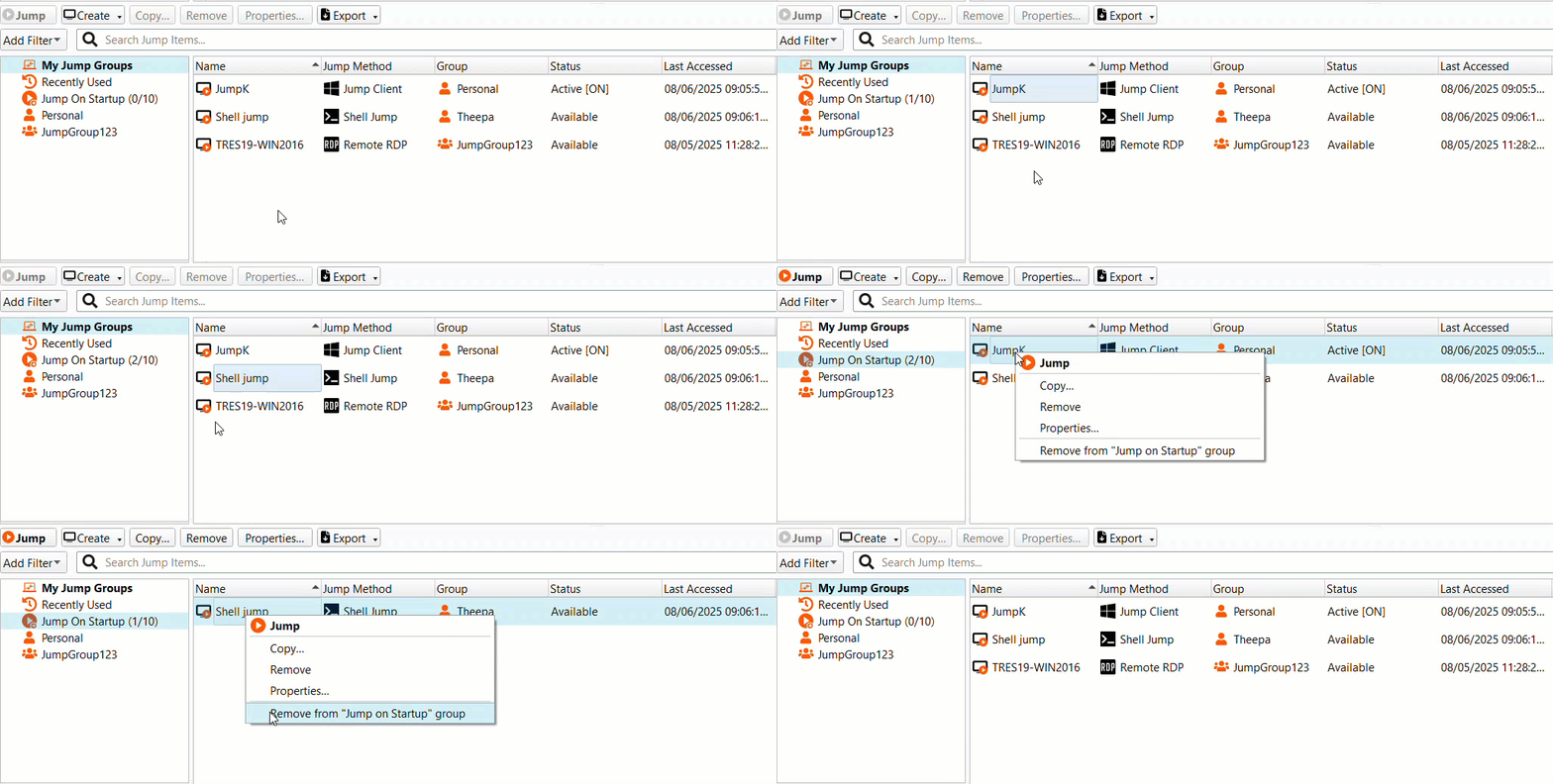
- The maximum number of Jump Clients you can add to the Jump on Startup group is 10.
- You must have the Start Sessions permission enabled on the Asset section on Asset Management > Assets Roles page.
- The items that are added to the Jump On Startup group should be set to Active.
Updated 3 months ago
