
Security | RS Pathfinder
What is the Security page?
The Security page allows users to manage personal security settings, such as enabling One Time Password authentication (OTP) for Assets.
How is the Security page useful to my organization?
The Security page enhances account security by enabling users to implement 2FA, supporting organizational efforts to safeguard sensitive information.
How do I access the Security page?
- Sign into app.beyondtrust.io.
The BeyondTrust Home page displays. - From the main menu, click Remote Support > My Account.
The Profile page opens and displays by default. - At the top of the page, click Security.
The Security page displays.
The Security page
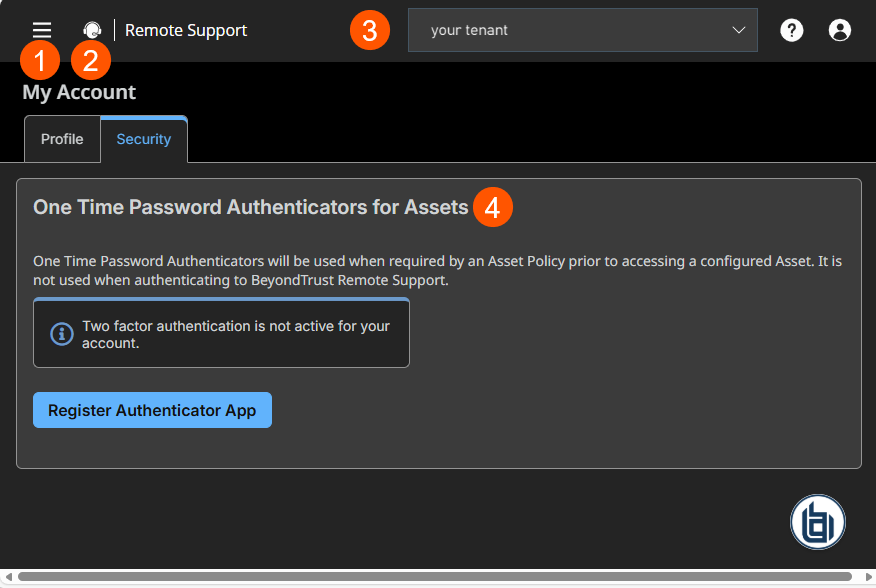
- Left menu: Easy access to all pages in Remote Support, including Status, Consoles & Downloads, My Account, Configuration, Asset Management, Vault, Console Settings, Users & Security, Reports, Public Portals, Dashboards, Management, and Appliance pages.
- Status: Opens the Status page.
- Header: Change your tenant site, manage your profile, and access documentation.
- One Time Password Authenticators for Assets: Turn on one time password authentication when connecting to an Asset.
What is one time password authentication?
One-Time Password (OTP) is a security method that requires you to provide two different forms of identification to verify your identity. This process adds an extra layer of security to protect accounts and systems by combining two factors from:
- something you know (such as passwords, PINs, or security questions),
- something you have (such as a one-time passcode, a hardware security key, or a smart card), and/or
- something you are (a biometric identifier such as fingerprints, facial recognition, or retina scans).
Activate one time password authentication
You can use one time password authentication as a second factor when required by an Asset Policy prior to accessing a configured Asset.
-
In the One Time Password Authenticators for Assets section, click Register Authenticator App.
-
On your mobile device, ensure you've downloaded and authenticated into a time-based one-time password (TOTP) authenticator app (such as Microsoft Authenticator or Google Authenticator).
-
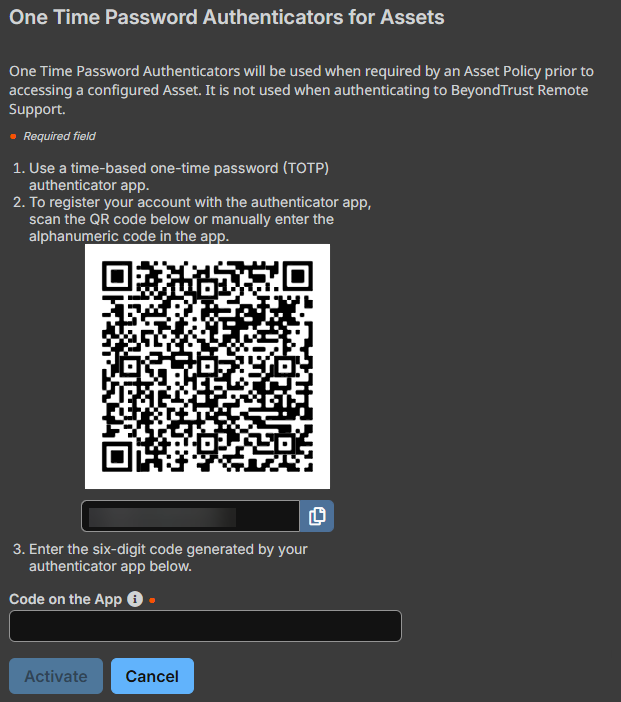
In Remote Support, scan the QR code, or, in your authenticator app, manually enter the generated code below the QR code.
-
In your authenticator app, locate the generated code for your Remote Support site.
-
In Remote Support, enter your Remote Support password and the code in the app.
-
Click Activate.
The one time password authentication activates, and you are required to use it the next time you connect to an Asset requiring one time password authentication.
Change a one time password authenticator name
- In the One Time Password Authentication section, locate the authenticator you want to edit.
- Click the Edit icon.
The Rename One Time Password Authenticator dialog box displays. - Enter a new name.
- Click Change.
The name changes and updates in the list.
Delete a one time password authenticator
Deleting a one time passwordauthenticator is an unrecoverable operation.
- In the One Time Password Authenticators section, locate the authenticator you want to delete.
- Click the Delete icon.
A confirmation message displays. - Click Yes.
The authenticator deletes from your Remote Support account and can no longer be used.
Disable one time password authentication
If one time password authentication was deployed by your administrator, you do not have the option to disable it.
- In the One Time Password Authenticators section, click Disable One Time Password Authentication.
A confirmation message displays. - Click Yes.
One time password authentication is disabled on your Remote Support account, and can no longer be used.
Updated 3 months ago
