
CrowdStrike
CrowdStrike Next-Gen SIEM PUSH for PRA and Remote Support: Step-by-step guide
Complete setup guide: both integration paths, dashboard, and detection rules
Before you start
This guide covers two independent integration paths. You can set up one or both:
Path A, Middleware Engine (ME) SIEM Tool Plugin: CEF session events (session start/end, file transfer, credential injection, etc.) over plain TCP syslog.
Path B, PRA Appliance syslog-over-TLS: appliance-level events (logins, config changes, report generation) over RFC 5424/TLS.
Both paths share the same Falcon LogScale Collector instance and the same CrowdStrike-authored parser, but use different sources in the collector's configuration.
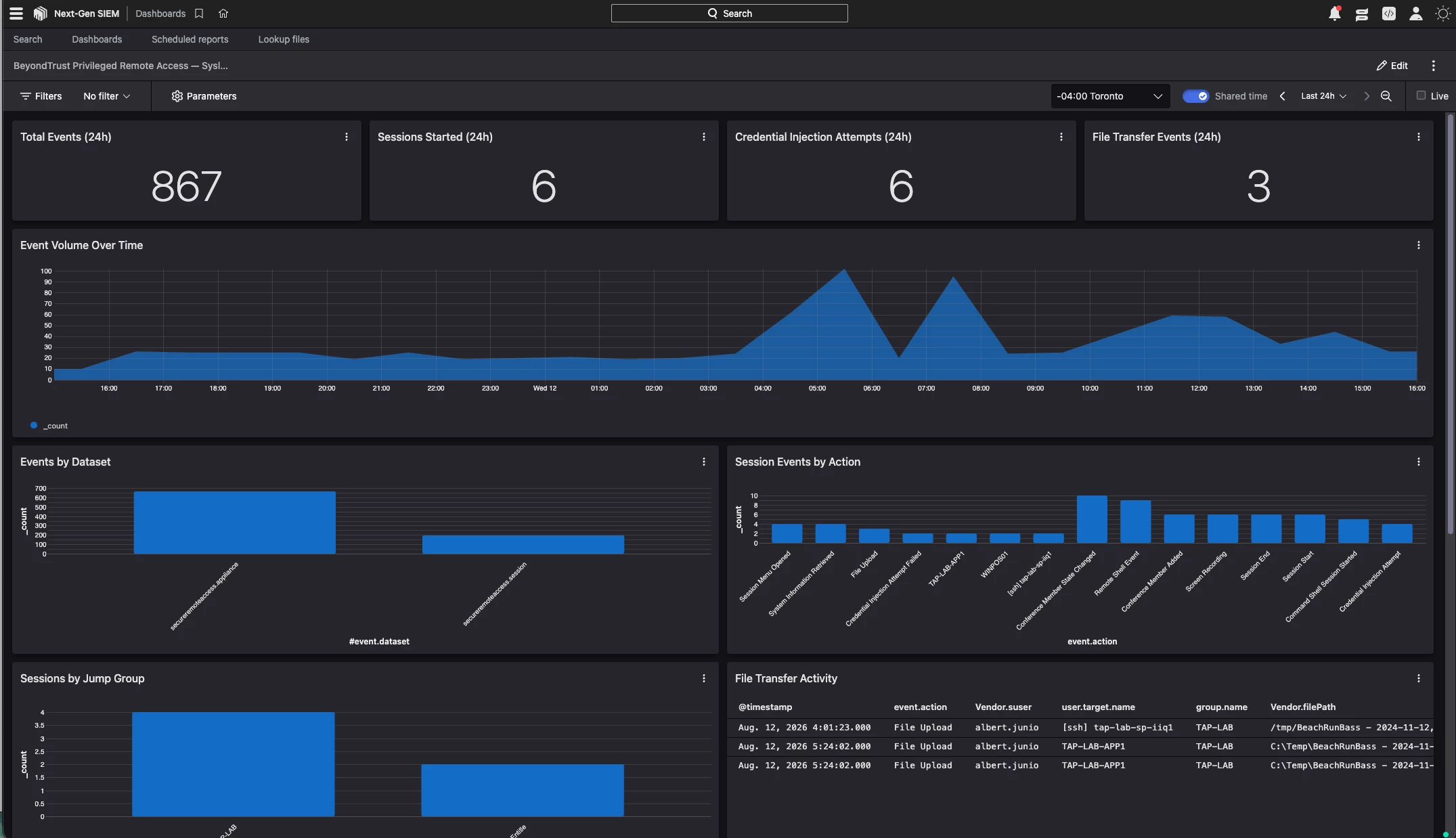
Example Dashboard
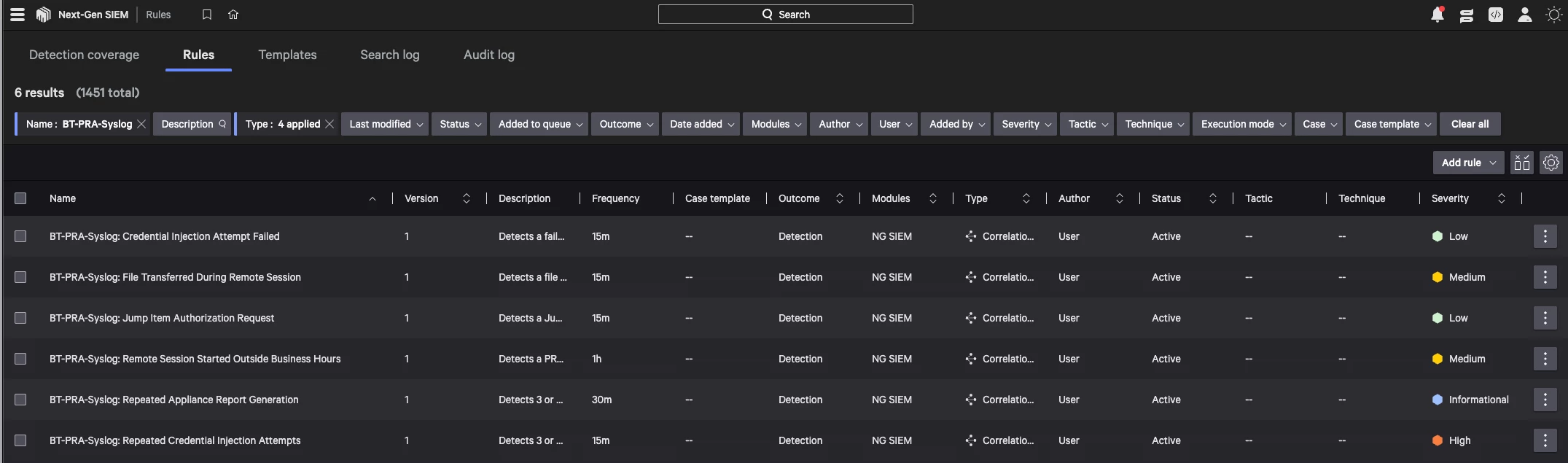
Example Rules
Disclaimer
Any sample or proof of concept code (“Code”) provided on the Community is provided “as is” and without any express or implied warranties. This means that we do not promise that it will work for your specific needs or that it is error-free. Such Code is community supported and not officially supported by BeyondTrust. BeyondTrust and its contributors are not liable for any damage you or others might experience from using the Code, including but not limited to, loss of data, loss of profits, or any interruptions to your business, no matter what the cause is, even if advised of the possibility of such damage.
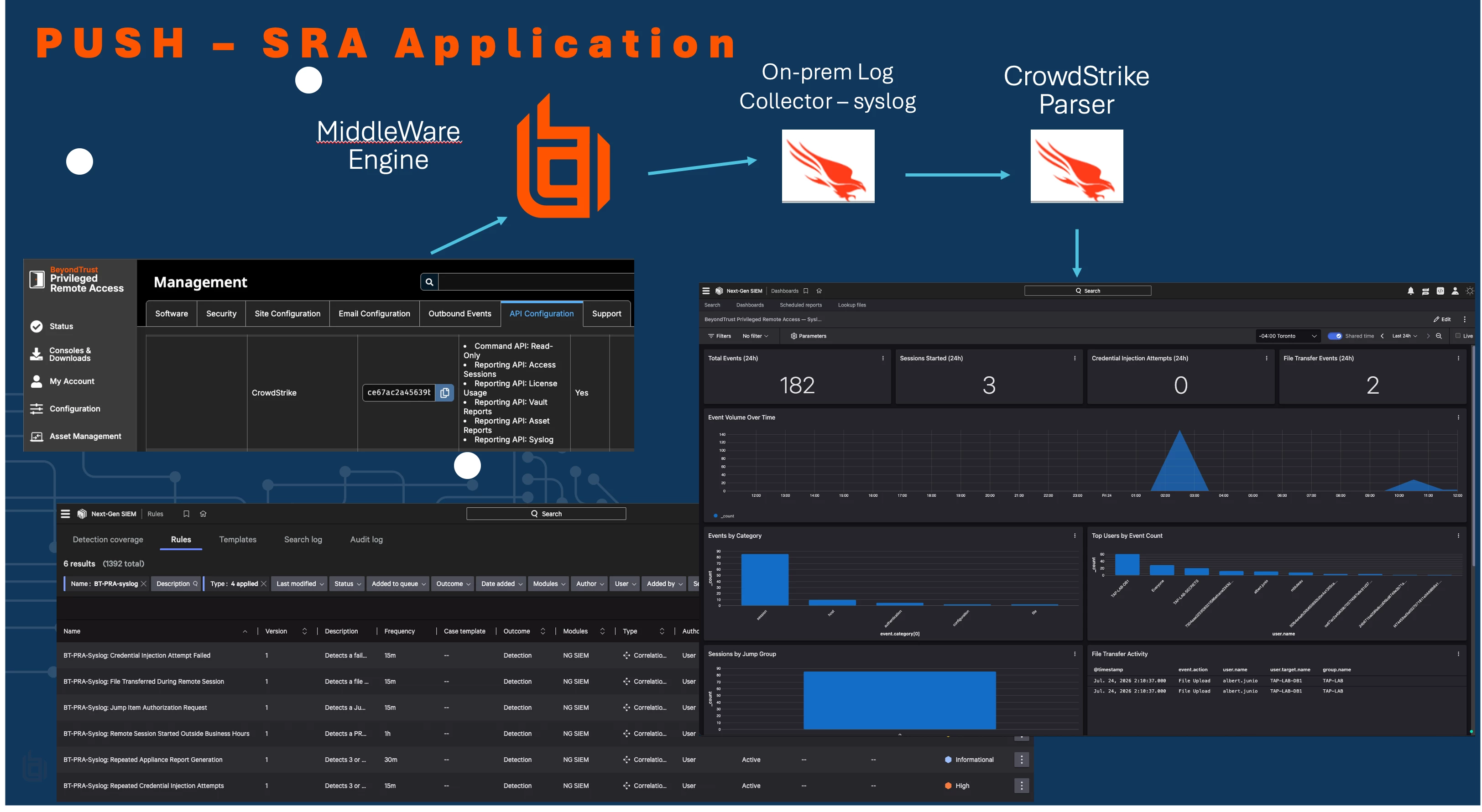
Architecture: Application Logs.
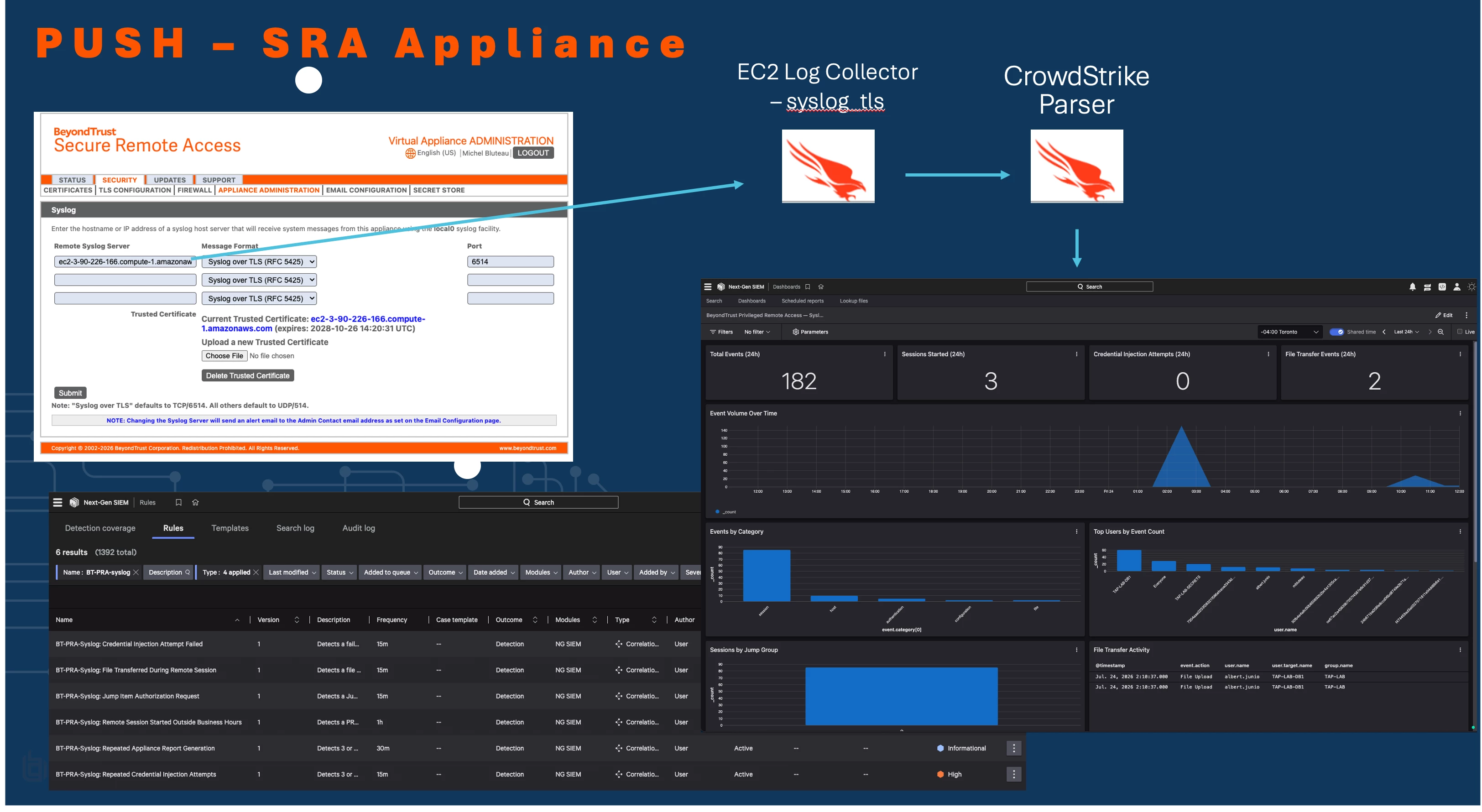
Architecture: Appliance Logs.
Part A, Falcon LogScale Collector: Shared Setup
Complete this section once. Both integration paths build on top of it.
A1. Install Falcon LogScale Collector
- In the Falcon console, go to Support and resources → Downloads, and download Falcon LogScale Collector (also called Falcon Log Collector) for your platform.
- Install it on the host that will receive syslog: this can be the same host as BeyondTrust ME (recommended for Path A) or any host with network connectivity to your PRA environment.
- Confirm the collector service is installed and running before continuing (check your platform's service manager, e.g.
Get-Serviceon Windows,systemctl statuson Linux).
A2. Create the data connector and get your connection details
- In the Falcon console, go to Next-Gen SIEM → Data onboarding → Data connections.
- Create a new data connection for Falcon LogScale Collector, or select an existing one you want to use for this integration.
- From the data connection's detail page, record three values you'll need throughout this guide:
- Repo name: shown as
#repoon ingested events, and referenced as<your_repo_name>throughout this guide. - Customer ID: shown as
#repo.cidon ingested events, and referenced as<your_customer_id>throughout this guide. - HEC ingest token and URL: used in the collector's sink configuration below.
- Repo name: shown as
- Open the connection's Draft editor (the YAML config editor): this is where you'll add sources in the next parts of this guide.
A3. Define the sink
Every source you configure in Parts B and C forwards to the same sink. Add this once, at the top level of your config:
sinks:
  logscale:
    type: logscale
    token: <your_hec_token>
    url: <your_ingest_url>
A4. Import the BeyondTrust PRA parser
- In the Falcon console, select the CrowdStrike-authored BeyondTrust Privileged Remote Access parser.
- Add it to your data connection / repo.
- This single parser handles both the CEF session events (Path A) and the RFC 5424 appliance events (Path B): no additional parser is needed for either path.
Part B, Path A: Middleware Engine SIEM Tool Plugin (CEF)
B1. Add the syslog TCP source
In the same Draft editor from step A2, add this source alongside your sink:
sources:
  network_syslog:
    type: syslog
    mode: tcp
    port: 1514
    bind: 0.0.0.0
    supportsOctetCounting: true
    sink: logscale
This is the fixsupportsOctetCounting: true is the one setting that makes this whole path work. BeyondTrust ME sends RFC 6587 octet-counted framing, and this parameter defaults to false. Without it, events are silently dropped — no error anywhere, but nothing reaches LogScale.
- Save/publish the config. If you're using Fleet Management, allow a minute or two for it to sync to the running collector.
B2. Configure BeyondTrust ME's SIEM Tool Plugin
- On the BeyondTrust Middleware Engine host, open the plugin configuration for the BeyondTrust (PRA) SIEM Tool Plugin.
- Set the destination host to your Log Collector host, and the port to
1514(or whatever port you used in step B1). - Set the output format to CEF. (LEEF also works once
supportsOctetCountingis set, since it uses the same framing, but CEF is what the CrowdStrike parser expects.) - Save the plugin configuration and restart the Middleware Engine service if prompted.
B3. Verify
-
Trigger a real PRA session (start and end a support or access session), or wait for the plugin's next polling cycle (typically every 1 minute) to pick up a recently ended session.
-
In Falcon Next-Gen SIEM, search:
#repo=<your_repo_name> | #event.dataset=secureremoteaccess.session -
You should see session events with populated fields like
event.action,user.name,group.name.
Part C, Path B: PRA Appliance Syslog over TLS
This is a separate feed from Path A: it carries appliance-level events (logins, configuration changes, scheduled report generation), not PRA session data. Configure this independently. It does not require Path A to be set up.
C1. Generate a certificate
The syslog_tls source needs a certificate and private key. A self-signed certificate is sufficient. On the Log Collector host:
-
Using OpenSSL:
openssl req -x509 -newkey rsa:2048 -keyout tls-key.pem -out tls-cert.pem \ -days 825 -nodes -subj "/CN=<your-collector-public-hostname>" -
Or, on Windows without OpenSSL, using PowerShell's native certificate tools:
$cert = New-SelfSignedCertificate -DnsName "<your-collector-public-hostname>" `
    -CertStoreLocation "Cert:\LocalMachine\My" -NotAfter (Get-Date).AddDays(825) `
    -KeyExportPolicy Exportable -KeyAlgorithm RSA -KeyLength 2048 `
    -KeyUsage DigitalSignature,KeyEncipherment -Type SSLServerAuthentication

# Then export the public cert for the appliance to trust:
Export-Certificate -Cert "Cert:\LocalMachine\My\$($cert.Thumbprint)" -FilePath tls-cert.cer
The certificate's CN should match the hostname or address the PRA appliance will actually use to reach this collector.
C2. Confirm network reachability
ImportantIf your PRA appliance is cloud-hosted (e.g. a BeyondTrust-hosted appliance), it reaches this collector over the public internet: it cannot reach a private/internal-only IP address.
If your collector normally runs on a private network, you'll need a publicly reachable endpoint for this specific feed: a cloud VM with a public IP, a reverse proxy, or a VPN path the appliance can use. Scope inbound access to this port as narrowly as you can (ideally to the appliance's known egress IP once you've seen a connection attempt).
C3. Add the syslog_tls source
sources:
  network_syslog_tls:
    type: syslog_tls
    certificateFile: <path-to-tls-cert.pem>
    keyFile: <path-to-tls-key.pem>
    port: 6514
    bind: 0.0.0.0
    sink: logscale
Don't add supportsOctetCounting hereThe syslog_tls source doesn't accept this parameter — the config editor's schema validation will reject it ("Unknown property"). It isn't needed anyway: this feed sends plain RFC 5424 messages without octet-counted framing, and works correctly with the minimal config above.
- Save/publish the config and allow it to sync.
C4. Configure the PRA appliance
- On the PRA appliance, go to Security → Appliance Administration → Syslog.
- Enter the collector's reachable hostname or IP as the Remote Syslog Server.
- Set Message Format to Syslog over TLS (RFC 5425). The port field should auto-fill
6514; confirm it matches step C3. - Under Trusted Certificate, choose Choose File and upload the
.cerfile exported in step C1. - Click Submit. You should see “Syslog server successfully set.”
C5. Verify
-
Wait for a natural appliance event (a scheduled report, a login, a config change) or trigger one manually if your appliance allows it.
-
In Falcon Next-Gen SIEM, search:
#repo=<your_repo_name> | #event.dataset=secureremoteaccess.appliance -
You should see appliance events with fields like
Vendor.event,Vendor.who,Vendor.site.
Part D: Dashboard and Detection Rules
Once either or both paths are confirmed working, import the example dashboard and detection rules.
D1. Prepare the files
- Download the attached
dashboard_pra_syslog.yamland the sixrule_PRA_R01.yamlthroughrule_PRA_R06.yamlfiles. - In each file, replace
<your_repo_name>and<your_customer_id>with the values you recorded in step A2.
D2. Import the dashboard
- In Falcon Next-Gen SIEM, go to the dashboards section and choose the import/create-from-file option.
- Select
dashboard_pra_syslog.yaml. - The dashboard includes 12 widgets covering event volume, session activity, file transfer, credential injection attempts, and the appliance feed: see the companion explainer post for a full breakdown.
D3. Import the detection rules
- Go to Next-Gen SIEM → Correlation Rules → Import.
- Import each
rule_PRA_R0N.yamlfile one at a time.
If import fails on severityCorrelation rule severity must be exactly one of
10,30,50,70, or90. All six example rules already use valid values: if you customize severities, stay within this set.
- Review each rule's schedule and lookback window, and adjust to your environment: the defaults (15-30 minute windows) are reasonable starting points, not requirements.
Part E: Troubleshooting
Common symptoms and what they usually mean, based on issues encountered while building and testing this integration:
| Symptom | Likely Cause | Fix |
|---|---|---|
| No events at all, no errors anywhere | supportsOctetCounting not set (Path A), or wrong port/host in ME plugin config | Re-check Part B1 and B2 exactly: this combination is the most common cause |
| Events land when sent manually but not from ME/the appliance | A stale or cached config file was edited but the running service wasn't restarted, or Fleet Management config wasn't republished | Confirm the config actually synced; check the collector's own log/service for the source binding |
“Unknown property” error on supportsOctetCounting | This parameter was added to a syslog_tls source: it's only valid on the plain syslog (TCP) source | Remove it from syslog_tls sources; it isn't needed there anyway |
| Appliance can't reach the collector at all | Collector is on a private network the appliance can't route to | See Part C2: the appliance needs a publicly reachable endpoint for this feed |
| TLS handshake fails on the appliance side | Appliance doesn't trust the collector's certificate, or the port doesn't match | Re-upload the .cer file in Part C4; confirm port 6514 (or your chosen port) matches on both ends |
| Events appear but fields are empty/unparsed | Parser not yet imported/assigned to the repo | Re-check Part A4 |
Updated about 1 hour ago
