
API configuration | RS On-prem
What is API configuration?
API configuration involves setting up the application programming interface (API) to allow secure and efficient communication between the B Series Appliance and external systems, enabling integration with other services.
How is API configuration useful for the B Series Appliance?
API configuration allows administrators to automate tasks, integrate third-party tools, and extend the functionality of the B Series Appliance, improving workflows and streamlining operations.
How do I access the API Configuration page?
- Use a Chromium-based browser to sign in to your Remote Support URL.
This URL is provided in the BeyondTrust welcome email and includes your site URL followed by /login. - From the left menu, click Management.
The Software page opens and displays by default. - At the top of the page, click API Configuration.
The API Configuration page displays.
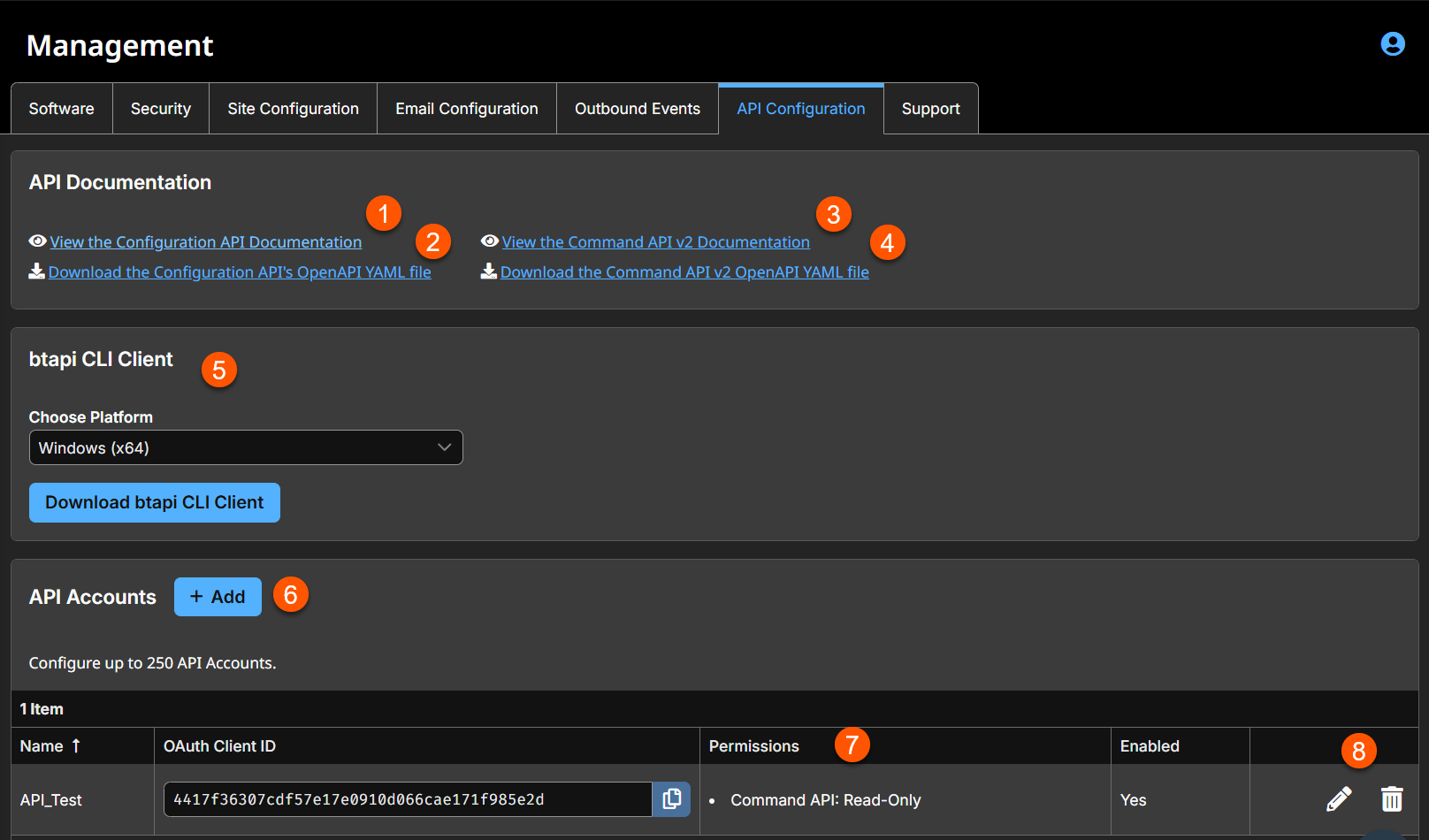
- View the Configuration API documentation: View the in-product instructions to see how to use the available API calls.
- Download the Configuration API's OpenAPI YAML file: Download the YAML file if you want to explore the API in your own tool
- View the Command API v2 documentation: Click to download the API v2 documentation.
- Download the Command API v2 OpenAPI YAML file: Click to download the OpenAPI YAML file.
- btapi CLI Client: Downloaded to make it easier to use and configure APIs and automation scripts, and integrate them with your BeyondTrust Privileged Remote Access installation.
- Add: Add an API account.
- API Account column: A list of API Account columns.
API Account columns
- Name: Displays the name of the account.
- OAuth Client ID: The client id of the account.
- Permissions: List of permissions for the account.
- Enabled: Determines if the account is enabled or not.
- API account options: Edits or deletes an API account.
How to enable the API and set up access
Enable XML API
Choose to enable the BeyondTrust XML API, allowing you to run reports and issue commands such as starting or transferring sessions from external applications, as well as to automatically back up your software configuration.
Only the Command, Reporting, and Client Scripting API calls are enabled/disabled by this setting. Other API calls are configured under Public Portals.
For more information, see the API guide.
View the Configuration API documentation
View the in-product instructions to see how to use the available API calls.
Download the Configuration API's OpenAPI YAML file
Download the YAML file if you want to explore the API in your own tool
CLI client download
The CLI (Command Line Interface) tool can be downloaded to make it easier to use and configure APIs and automation scripts, and integrate them with your BeyondTrust Remote Support installation. The CLI tool is available for Windows (x64), macOS, and Linux (x64) platforms. Select the appropriate platform and click Download BTAPI CLI Client.
The download is a compressed executable file. Extract the file, and save or link it from an executable area (in your PATH).
- For Windows systems: Open the file in a terminal such as Windows Command Prompt or Windows PowerShell.
- For macOS systems: Run the file in the terminal.
The Help information, including options, commands, and variable instructions, displays when the program opens.
For more information on creating APIs with CLI, see Use cases examples in the BeyondTrust Remote Support API Guide
Enable archive API
Choose to enable the state archive API to download logs of the B Series Appliance's state and of events that occurred on a given date.
Add an API account
-
From the left menu, click Management.
The Software page opens and displays by default. -
At the top of the page, click API Configuration.
The API Configuration page displays. -
Select the Enabled XML API checkbox to allow APIs to be enabled or disabled globally. The "XML APIs" include the Command API, Reporting API, Backup API, and Client Scripting API. When enabled, API Account OAuth credentials are still required to authenticate each API request.
-
Click btapi CLI Client Download and select the appropriate platform. The Command Line Interface (CLI) tool can be downloaded to make it easier to use and configure APIs and automation scripts, and integrate them with your BeyondTrust Privileged Remote Access installation. The CLI tool is available for Windows (x64), macOS, and Linux (x64) platforms.
The download is a compressed executable file. Extract the file, and save or link it from an executable area (in your PATH).- For Windows systems: Open the file in a terminal such as Windows Command Prompt or Windows PowerShell.
- For macOS systems: Run the file in the terminal.
The Help information, including options, commands, and variable instructions, display when the program opens.For more information about how to create APIs with CLI, see use case examples in the BeyondTrust Privileged Remote Access API Guide.
-
In the API Accounts section, click Add.
An API account stores all of the authentication and authorization settings for the API client. At least one API account is required to use the API, either in conjunction with the Integration Client, with a third-party app, or with your own in-house developed software.
-
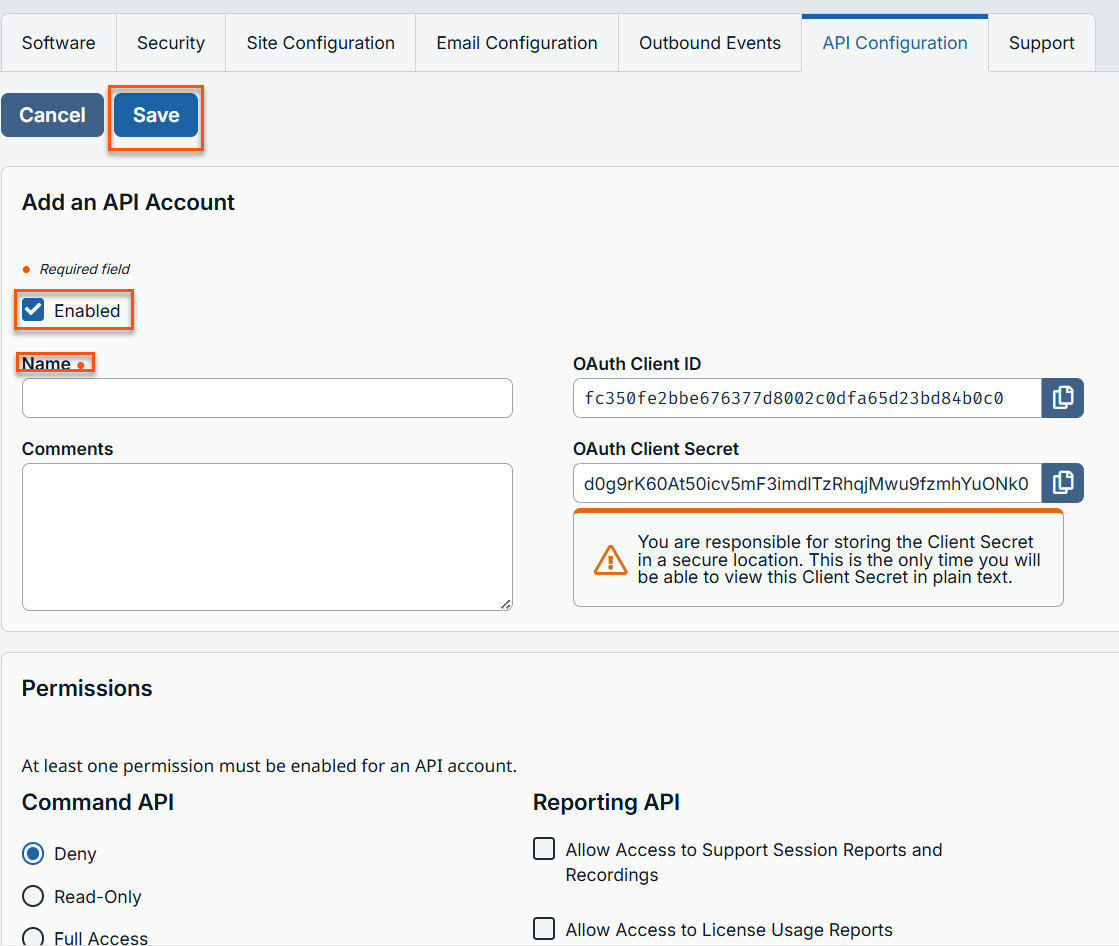
For Enabled, if selected, this account is allowed to authenticate to the API. When an account is not selected, all OAuth tokens associated with the account are immediately disabled.
-
For Name, enter a unique name for the account. This is a required field.
-
For Comments, add a comment to assist in identifying the account.
-
For OAuth Client ID, this is a unique ID generated by the B Series Appliance. It cannot be modified. The client ID is considered public information and, therefore, can be shared without compromising the security of the integration.
-
For OAuth Client Secret, this is generated by the B Series Appliance using a cryptographically secure pseudo-random number generator.
- The client secret cannot be modified, but it can be regenerated on the Edit page. When you regenerate a client secret and then save the account immediately invalidates any OAuth tokens associated with the account. Any API calls using those tokens cannot access the API.
- The OAuth client ID and client secret are used to create OAuth tokens, necessary for authenticating to the API.
-
In the Permissions section, select the areas of the API this account is allowed to use.
For the Command API, choose to deny access, to allow read-only access, or to allow full access.
For the Reporting API, check the allowed permissions:- Allow Access to Access Session Reports and Recordings
- Allow Access to License Usage Reports
- Allow Access to Vault Account Activity Reports
- Allow Access to Asset Reports
- Allow Access to Syslog Reports
- For the Backup API, check to Allow Access and to Allow Vault Encryption Key Access.
- The Configuration API allows for the management and configuration of common tasks in /login, which can be automated and work with your orchestration processes. Check to Allow Access and, if access is allowed, check if this API can Manage Vault Accounts.
- Check to allow access to the Endpoint Credential Manager API.
- The SCIM API allows the option to provision users from a different security provider.
-
In the Network Restrictions section, list network address prefixes from which this account can authenticate.
API accounts are not restricted by the network prefixes configured on the Management > Security page. They are restricted only by the network prefixes configured for the API account.
-
For ECM Groups, The ECM Groups feature provides support for multiple disconnected credential providers. It allows a single PRA deployment to integrate with multiple external credential providers like Password Safe or Privileged Identity. These can be located at various remote locations through multiple ECM instances.
This feature is only present if enabled when your site is built. If it is not present, contact your site administrator. ECMs that are not associated with a group are located under Default. You can configure up to 50 ECM Groups.
Edit an API account
- From the left menu, click Management.
The Software page opens and displays by default. - At the top of the page, click API Configuration.
The API Configuration page displays. - From the API Accounts table, select an account you wish to edit.
- Click the pencil to edit the account.
- Make the necessary changes and click Save.
Delete an API account
- From the left menu, click Management.
The Software page opens and displays by default. - At the top of the page, click API Configuration.
The API Configuration page displays. - From the API Accounts table, select an account you wish to delete.
- Click Yes when the confirmation dialog box displays.
Endpoint automation support
There is support for endpoint automation.
- Use a Chromium-based browser to sign in to your Remote Support URL.
This URL is provided in the BeyondTrust welcome email and includes your site URL followed by /login. - From the left menu, click Management.
The Software page opens and displays by default. - At the top of the page, click API Configuration.
The API Configuration page displays. - Click the View the Configuration API Documentation link.
- Locate the Endpoint Automation section.
- Click the section to expand.
API accounts
An API account stores all of the authentication and authorization settings for the API client. At least one API account is required to use the API, either in conjunction with the Integration Client, with a third-party app, or with your own in-house developed software.
Add, edit, delete
Create a new account, modify an existing account, or remove an existing account.
Add or edit an API account
Enabled
If checked, this account is allowed to authenticate to the API. When an account is disabled, all OAuth tokens associated with the account are immediately disabled.
Name
Create a unique name to help identify this account.
OAuth client ID
The OAuth client ID and client secret are used to create OAuth tokens, necessary for authenticating to the API.
The OAuth client ID is a unique ID generated by the B Series Appliance. It cannot be modified. The client ID is considered public information and, therefore, can be shared without compromising the security of the integration.
Comments
Add comments to help identify the purpose of this account.
OAuth client secret
The OAuth client secret is generated by the B Series Appliance using a cryptographically secure pseudo-random number generator.
The client secret cannot be modified, but it can be regenerated on the Edit page. Regenerating a client secret and then saving the account immediately invalidates any OAuth tokens associated with the account. Any API calls using those tokens will be unable to access the API.
Permissions
Select the areas of the API this account is allowed to use.
Command API
For the command API, choose to deny access, to allow read-only access, or to allow full access.
Reporting API
For the reporting API, check each permission for this account:
- Allow Access to Support Session Reports and Recordings
- Allow Access to License Usage Reports
- Allow Access to Archive Reports
- Allow Access to Vault Account Activity Reports
- Allow Access to Asset Reports
- Allow Access to Syslog Reports
Backup API
Check if this account can use the backup API and has vault encryption key access.
Configuration API
Check if this account can use the configuration API and, if so, if it can manage Vault accounts.
Real-time state API
Check if this account can use the real-time state API.
Endpoint credential manager API
Check if this account can use the endpoint credential manager API.
Network restrictions
List network address prefixes from which this account can authenticate.
API accounts are not restricted by the network prefixes configured on /login > Management > Security. They are restricted only by the network prefixes configured for the API account.
Network address allow list
Enter the network addresses you wish to add to the allow list.
Updated 3 months ago
