
Desktop client user guide | RS for Desktop
Customers on remote desktops, smartphones, and other devices interact with support reps primarily through the BeyondTrust customer client.
They may also see prompts and messages in the context of the public site or support portal. This section details the customer-facing elements of a BeyondTrust remote support session on a desktop or laptop.
For more information on supporting other devices, see:
Public site
The public site is the support portal for your B Series Appliance, where your customers go to request a support session.
On this page, your customer can initiate a session by clicking a representative’s name, submitting a session key, or filling out an Issue Submission form.
A customer can access the public support portal using the URL provided by a representative. If SAML authentication is configured and enabled for the public site, the customer is presented with the Portal Login window. The customer must click Login and then provide credentials to authenticate with the identity provider.
The customer is then taken to the support portal page where they can submit their request for support. The customer's name and any custom fields that are configured, such as email, are automatically populated and are not editable.
A green check mark displays next to the customer's name in the representative console chat window to indicate the user is public portal authenticated.
Real-time chat is an optional integration. If real-time chat translation is installed and enabled, customers and representatives can chat in their preferred language. For example, a customer who prefers to chat in English can chat with a representative who prefers to chat in Dutch, with the chat traffic being automatically translated in real time.
If the issue submission survey is enabled, your customer is asked to select either a representative name or a specific type of issue, depending upon the settings your administrator has configured. Your customer can also enter their name, company name, and a description of the problem. Your administrator optionally might include a Company Code field to help with issue tracking.
Based on the method of session initiation, your customer is placed either in the selected representative’s support queue or in the support queue for the team assigned to handle the selected issue.
For Apple iOS device customers, the iOS-configured support portal is a secure repository of public and private profiles uploaded in the /login interface. Private profiles are only accessible if the representative has generated an iOS access key.
If any customer notices are active for this site, they are displayed in the Important Message section. Notices can alert customers to broadly impacting IT outages for which no support may be needed at this time, thereby eliminating the need for the customer to join a support session unnecessarily.
If a schedule is set for this public site and the current time is outside of the scheduled business hours, session start methods other than session keys are removed from the site, and a portal closed message displays.
For more information, see the following:
Customer client in a session
When your customer starts a support session with you, that session starts either as web-based chat (referred to as click-to-chat) or with the full customer client download, depending on your site settings. If you uploaded a photo avatar to be used with your account, the photo displays in the chat window when using the full customer client.
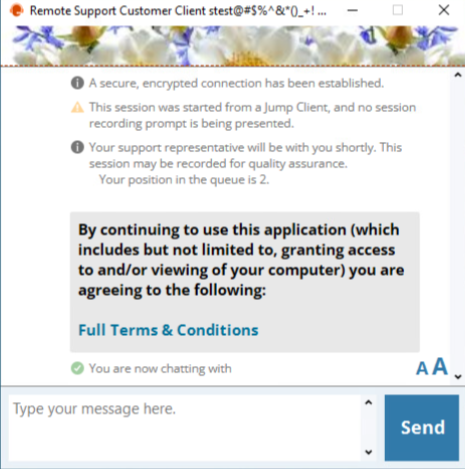
The avatar is not displayed when using web-based chat.
If starting a session as an HTML5 web-based chat, your customer is asked to allow notifications, enabling pop-up notifications to help make your communications with customers more efficient.
Your administrator can determine which messages your customer sees before the session begins. Among the messages that may be displayed are a customer agreement, requiring the customer to accept the terms of entering a support session; a prompt to allow or refuse session recordings; and a greeting, which may include the estimated wait time and the customer's position in queue.
If any customer notices are active, they may be displayed automatically or sent manually to the customer client, giving customers the chance to leave the session if they are experiencing a known issue described in the notice. Customers leaving the session in this manner are not taken to the Exit Survey page, since no service was actually provided by a representative.
A hold message may display periodically, reassuring the customer that they are still in queue and will be attended to shortly. This message may include the estimated wait time and the customer's position in queue.
If no representative is available to take the session, a message displays stating there aren't any representatives available at this time. Optionally, if configured, the customer's web browser can automatically open to a specified URL, such as a knowledge base or contact page.
During the session, the customer can chat with you and can request to send files to your computer. Your customer also can change the font size of the chat display.
If you send a nudge, the customer client is given focus and jiggles, and an audible alert sounds. The chat display shows that a nudge was sent.
To immediately stop screen sharing and disable any permissions the representative might have had, click the STOP SHARING link on the right side of the banner at the top of the chat. The customer can also choose to close the session entirely by closing the chat window. This uninstalls the software from their machine.
STOP SHARING appears when screen sharing is done without any restrictions. If you allow the customer to select which applications to choose, then MODIFY SHARING is displayed, allowing the customer to change or select which applications to share, or to stop sharing altogether, if so desired. In either case, the session can always be terminated by closing the chat window.
Additionally, depending on your site settings, a watermark may appear on your customer's screen while you are in a session. This applies only to Windows and macOS systems.
Customers running Linux must mark the customer client download file as executable before they can install it.
Start a web-based session using click-to-chat
BeyondTrust enables you to start web-based click-to-chat Remote Support sessions from a web browser.
To start a session with click-to-chat, your customer does not need to download the BeyondTrust customer client app. Instead, direct your customer to your public site. Your customer must use a modern browser supported by BeyondTrust.
For click-to-chat to be available, your administrator must have enabled the click-to-chat option for at least one of the session start methods available from your public site. Click-to-chat is enabled from /login > Public Portals > Public Sites.
When your customer starts a session using a method that has click-to-chat enabled, a web-based chat session is initiated.
After your customer enters their name, accepts the prompt to allow chat with a representative, and chooses to allow or refuse screen recording, a support request enters a queue in the representative console. Accept the session to chat with your customer.
During the session, the representative may prompt the user to share their screen. When prompted, the user receives a prompt to allow or refuse the request for the representative to view their screen.
Once the customer allows the request, the customer can choose to share their entire screen or just a window or browser tab. The user must choose an option and click Share.
The representative is then able to see the customer's screen.
If the representative needs to provide support at a level deeper than chat allows, the representative can request the customer to elevate to full remote support.
Accepting the elevation request attempts to open the Remote Support customer client. If the customer client is already installed, the session immediately becomes available. If the customer client is not installed, an executable file is downloaded to the customer's computer. The customer needs to run the executable to install the customer client.
Application sharing
When you request limited screen sharing, an application selection window pops up in front of the customer client chat window.
After screen sharing is granted, the application selection window can be accessed by clicking the Modify Sharing link.
Depending on your site settings, your customer may always be able to select applications from the fly-out menu, even if limited screen sharing was not specifically requested. Application sharing is available when supporting Windows or Mac computers. You may have pre-defined application sharing restrictions applied to the support session by your support team administrator.
Restricted customer interaction
To expedite your support of a remote computer, you can avoid customer interference by disabling the remote user's mouse and keyboard input. The remote user will still be able to see the active desktop. While input is disabled, each remote monitor will display an orange border.
Should you need to work on the remote computer privately, you can enable a privacy screen so that the remote user or passersby cannot see what you are doing. Instead, a courtesy message will be displayed. Your customer can regain control at any time by pressing Ctrl-Alt-Del.
Restricted customer interaction is available only when supporting macOS or Windows computers. In Windows Vista and above, the customer client must be elevated. On Windows 8, privacy screen is not available, and the representative can only disable the mouse and keyboard.
This feature is enabled from the Screen Sharing tab of a support session in the representative console. For more information, see Screen share.
Automatic log on credentials
You can prompt your customer to enter a valid username and password which will allow you to reboot the remote computer and automatically log back into the system without having to know their credentials or requiring them to be present. Follow the steps below to use the automatic log on credentials feature:
- To perform this function, your administrator must have enabled the /login security option to Allow Reboot with Cached Login Credentials.
- Before you can use this feature, you must elevate the support session and start screen sharing.
- The credentials are stored by the OS and not by BeyondTrust. A secure function native to Windows accomplishes this. At no time are the credentials exposed on the network in any form. This functionality is available for Windows OS only and cannot be performed on remote systems running a Mac OS.
- Click on the Power Control Special Action from the menu.
- Select Request Automatic Login Credentials.
- The user should enter their credentials into the prompt.
- Once done, the Power Control Special Actions menu text changes from Request Automatic Login Credentials to Clear Automatic Login Credentials.
- Upon the next reboot, the system will log in with the credentials entered by the user.
Show my screen
When you share your screen with your customer during a support session, you are able to see either your entire desktop or only those applications you have chosen to present. You can continue chatting with your customer throughout.
To enlarge the screen viewing area, your customer can hide the side chat bar by clicking the show/hide arrow on the chat bar. If your customer receives a message while the chat bar is hidden, the show/hide arrow flashes orange.
You can also choose to view your screen at 8 bits for the fastest performance, 16 bits for a medium quality of image and performance, or 32 bits for the highest image resolution. You can also choose to share mouse and keyboard control with your remote customer.
The Linux customer client does not support control of the representative's screen.
Support Button
If you have installed a Support Button on the customer’s computer, that button appears as a desktop or menu shortcut on their computer. If the Support Button has been customized, it appears on your customer’s computer with a custom image and title.
Clicking this button opens a dialog prompting the customer to start a session. If this button has been configured to start a session with a specified representative or team, the customer can begin a session by clicking the Connect button.
Alternatively, the customer can enter a session key or describe their issue. When entering a session key, the customer connects with whichever representative generated the key, regardless of whether the representative is associated with that Support Button or not.
A Support Button cannot be deployed from a session that was started from a SAML authenticated public portal and a Support Button cannot be used to start a session with a public portal that requires SAML authentication.
If any customer notices are active for the public site this Support Button is associated with, those messages are displayed at the top. Notices can alert customers to broadly impacting IT outages for which no support may be needed at this time, thereby eliminating the need for the customer to join a support session.
If a schedule is set for this public site and the current time is outside of the scheduled business hours, session start methods other than session keys are removed from the Support Button, and a portal closed message displays.
If you have embedded a Support Button in an external application, that Support Button appears as a link in the title bar of the application. Clicking this link may open the dialog for all of the session start options, may open the issue submission survey with an issue pre-selected, or may send your customer directly into a team queue with an issue pre-selected.
Customer exit survey
After the session is complete and if a Jump Client is not installed for later access, your customer will be notified that you can no longer see or access their computer and that BeyondTrust has been completely uninstalled.
If your administrator has enabled an exit survey, your customer will then be directed to a survey asking them to rate the session experience. Your administrator can fully customize this survey from the administrative interface and review the answers later from the session reports.
Alternatively, if your administrator has set up a post-session redirect URL, a browser window will open on your customer’s computer, taking them to the specified site.
Updated 3 months ago
