
Manage cluster updates | RS
Base Software 8.4 adds the Cluster Updates section to the Updates page. It lets an Atlas cluster or a failover pair install updates automatically, with every participating node installing at the same time.
The primary node coordinates each update. It publishes a plan that says what to install and when, and each participating node installs the update at that time from its own schedule. No node waits for another, and no node installs an update on behalf of another node.
If you are upgrading an on-premises Atlas cluster or failover pair to Base Software 8.4, the upgrade turns off automatic updates on every node, even if they were turned on before. To turn them back on after the upgrade, turn on Automatically install the latest updates during maintenance day(s) and time on the primary node, and the new setting Install updates on this node together with the other nodes on each node that should install updates with it. For more information, see Upgrade impact.
What the Cluster Updates section shows
The Cluster Updates section appears on every appliance that is in an Atlas cluster or a failover pair. What it shows depends on the role of the node.
On the primary node
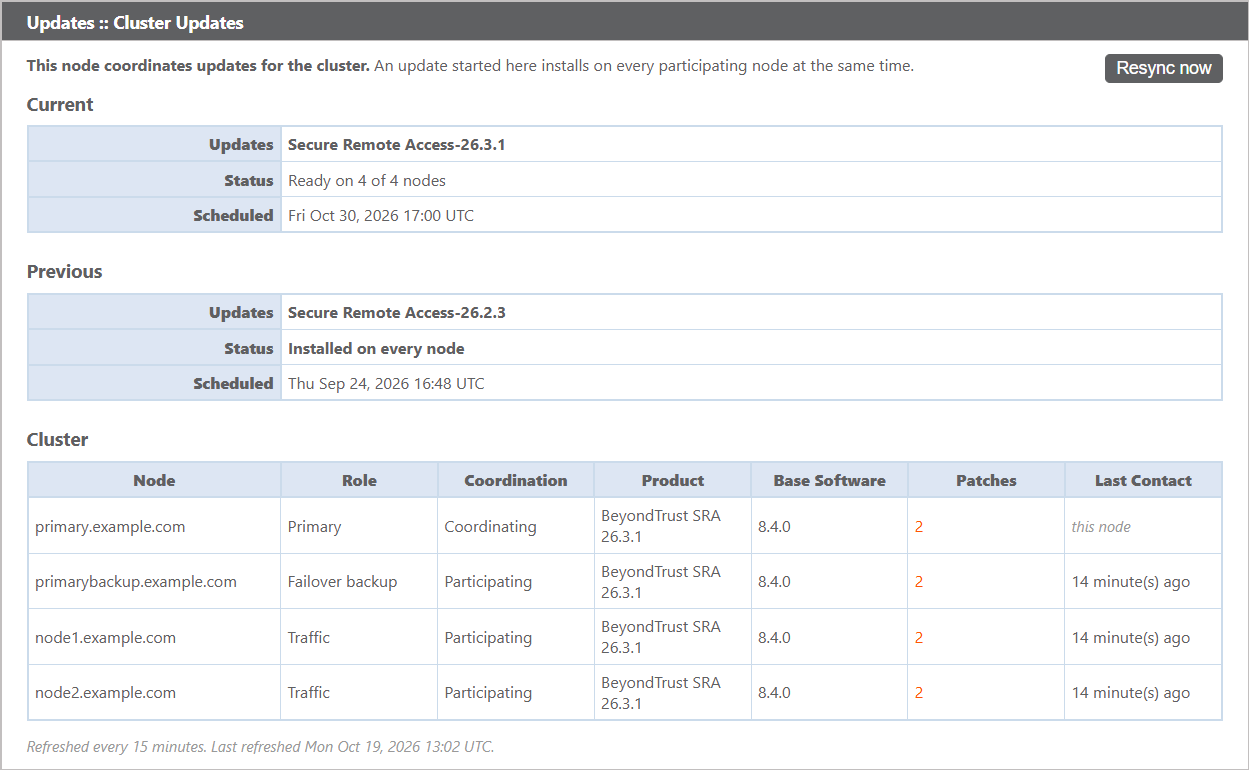
The primary node always coordinates updates. Its Cluster Updates section shows the following:
- Current: The update that is pending or in progress, how many participating nodes are ready for it, and when it installs. Any node that is not ready is listed under the panel with its status. When no update is pending, the Current panel is not shown.
- Cluster: A table that lists every node, its role, whether it participates, and the versions it runs. For column and status definitions, see Cluster updates reference.
- Previous: The outcome of the most recent update.
- Resync now: Refreshes the node list and polls every node immediately instead of waiting for the next scheduled refresh.
On a participating node
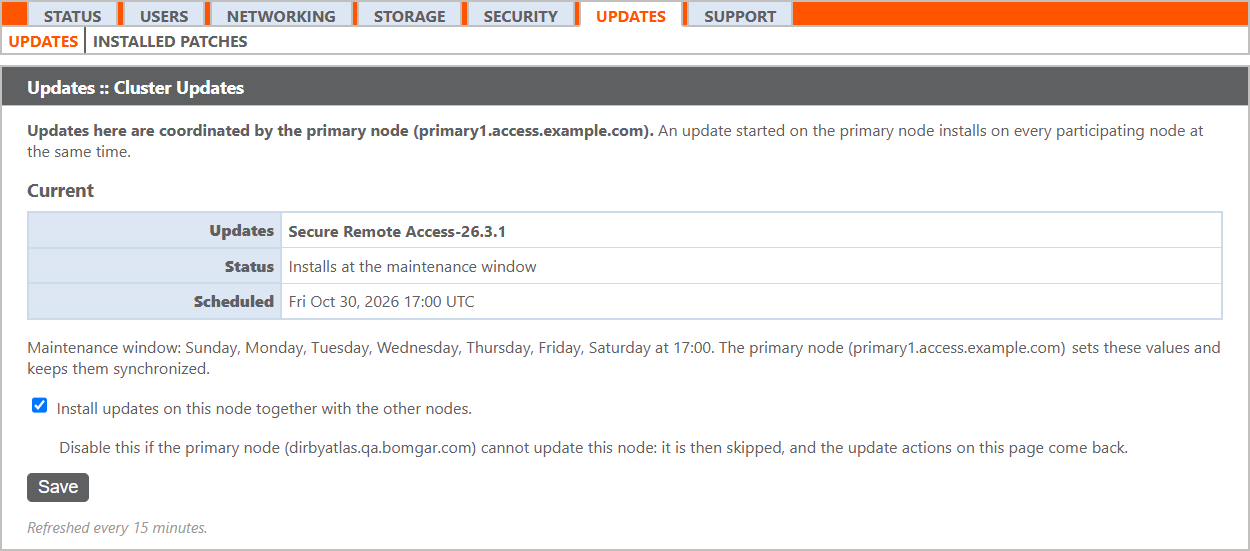
A node that participates shows the update that the primary node scheduled, when it installs, and the progress of this node. The maintenance window shown comes from the primary node.
A participating node does not show Check for updates, the list of available updates, the option to upload an update file, or the Maintenance Window settings. It continues to install patches automatically on its own schedule.
If the primary node is in a failover pair with Enable Automatic Failover turned on, the section also shows Automatic product upgrades are paused on this node. Patches still install.
On a node that does not participate
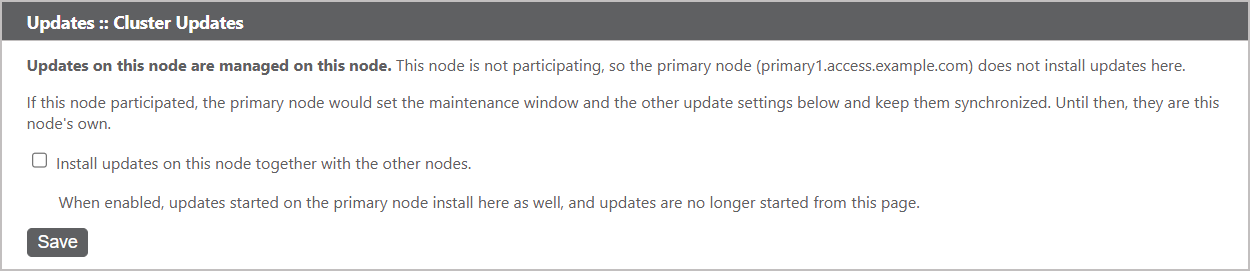
A node that does not participate manages its own updates, and the primary node skips it. The section shows the message Updates on this node are managed on this node. The node has its own update list, install buttons, and Maintenance Window section, like a standalone appliance.
Turn participation on or off
On-premises, each node decides for itself whether it participates. You set this on the Updates page of each node. You cannot change it for another node from the primary node.
The primary node does not show this setting, because it always coordinates. A node that joins a cluster or failover pair after the upgrade to Base Software 8.4 participates from the start.
- On the node, go to /appliance > Updates.
- In the Cluster Updates section, check or uncheck Install updates on this node together with the other nodes.
- If you are turning participation on, confirm the message. The node might start installing updates within minutes to catch up with the rest of the cluster.
- Click Save.
Within 15 minutes, the node takes the update settings from the primary node.
When participation is turned off, the node returns to managing its own updates, including its own maintenance window, update list, and install options. Use this option for a node that the primary node cannot update, or to hold back nodes during a staged upgrade. For more information, see Upgrade a cluster in stages.
On Cloud and FedRAMP deployments, every node always participates, and the setting does not appear.
Refresh node information
The Cluster Updates section refreshes every 15 minutes. To refresh it sooner:
- On the primary node, in the Cluster Updates section, click Resync now.
- Wait a moment, and then reload the page.
The table does not update on its own after you click Resync now. The appliance continues polling in the background, so you must reload the page to see the results.
Resync now refreshes only the node information in the Cluster Updates section. It does not sync site configuration. To sync configuration to traffic nodes, use Sync Now on /login > Management > Cluster.
Test the update service from a participating node
A participating node does not show Check for updates. If the node has not confirmed that it can reach the update service, it shows Test the update service instead. Click it to check the connection.
After the update service responds, the update status area and the button are hidden.
Test the connection to the primary node
If the primary node has not responded to a node recently, that node shows Test connectivity. Click it to contact the primary node immediately and see its response.
Deployment differences
| On-premises | Cloud | FedRAMP | |
|---|---|---|---|
| Failover pairs | Yes | No | No |
| Coordination | Each node chooses whether to participate | Always on | Always on |
| Participation setting shown | Yes, on nodes other than the primary node | No | No |
| Settings turned off at the Base Software 8.4 upgrade | Yes | No | No |
| Can turn automatic updates off | Yes | Yes | No |
| Can turn disruptive critical updates off | Yes | No | No |
| Minimum days notice | 1 to 21 days, default 4 | 1 to 21 days, default 4 | Not adjustable (4) |
The last three rows apply to a node that manages its own update settings. On a participating node, the Maintenance Window section is not shown, and these values come from the primary node.
On-premises, a participating node takes the following settings from the primary node: Maintenance Window Start Time, Maintenance day(s), Automatically install the latest updates during maintenance day(s) and time, Automatic Updates Channel, Automatically install disruptive critical updates during the Maintenance Window, and Minimum days notice before installing updates.
An update file that you upload installs only on the appliance where you upload it. It is not distributed to the other nodes. Install the same update on every node so that all nodes run the same software.
Updated about 22 hours ago
