
Discovery of Password Safe
Password Safe Discovery
You can use Vault to discover and import Managed Accounts and Managed Systems from your Password Safe instance.
The direct integration with Password Safe supports all credential types, with the exception of Application and Kubernetes credentials. To import these credentials, continue using the ECM-based integration. Endpoint discovery and import are available for SSH, web, database, and Windows systems.
Manual Import
Prerequisites
- A valid commercial CA-signed SSL certificate.
- An API registration for the SRA appliance IP address in the Authentication Rules.
- A user must be chosen or created to be used as the impersonating user. The impersonating user must be in a user group with the following properties:
- For Features: Password Safe Account Management and Password Safe System Management (read-only).
- Assigned access to the API registration for the SRA appliance IP address. This is used as a connection in SRA.
- Any Managed Account Smart Groups added to the user group for import must have the Password Safe Requestor role with an access policy assigned that has a 24x7 schedule and view password set to auto-approve.
- To import domain-linked accounts, the domain account must be linked to the asset.
Create connection
Start by creating a connection between the SRA site and Password Safe. Most of the information entered in this step comes from Password Safe; ensure you have that information on hand. To do create the connection:
- From the main menu, click Remote Support > Vault.
The Vault page opens and the Accounts tab displays by default. - Click the Connections tab.
The Password Safe Connections page displays. - Click Add.
- For Name, type a unique name to help identify this role. This is a required field.
- For Password Safe Host, type the name of the Password Safe Host. This is a required field.
- For API Key, copy the information from the Key field in Password Safe for the API registration you created and paste it into the API Key field in PRA. This is a required field.
- For Impersonating Username, select a valid username from one of the following groups: Password Safe's Administrators, Global Approvers, or Secure Remote Access Requestors. This is a required field.
- Impersonating Username Password is determined by the User required password checkbox on the API registration from Password Safe. If the checkbox is not selected, then no password is required for this field in PRA. If the checkbox is selected, then use the password associated with the username on the Password Safe API registration and enter it in this field in PRA.
Initiate a Password Safe discovery job
-
From the main menu, click Remote Support > Vault.
The Vault page opens and the Accounts tab displays by default. -
Click the Discovery tab.
The Discovery tab displays. -
Click New Discovery Job.
The Discovery: New Job page displays. -
You have the following four options to choose:
- Windows Domain
- Local Windows Accounts on Jump Clients
- AWS Secrets
- Password Safe
-
Click Password Safe.
-
Click Continue.
-
For the Password Safe Connection, make sure a valid Password Safe connection exists. Select the connection. This is a required field.
-
Click Continue.
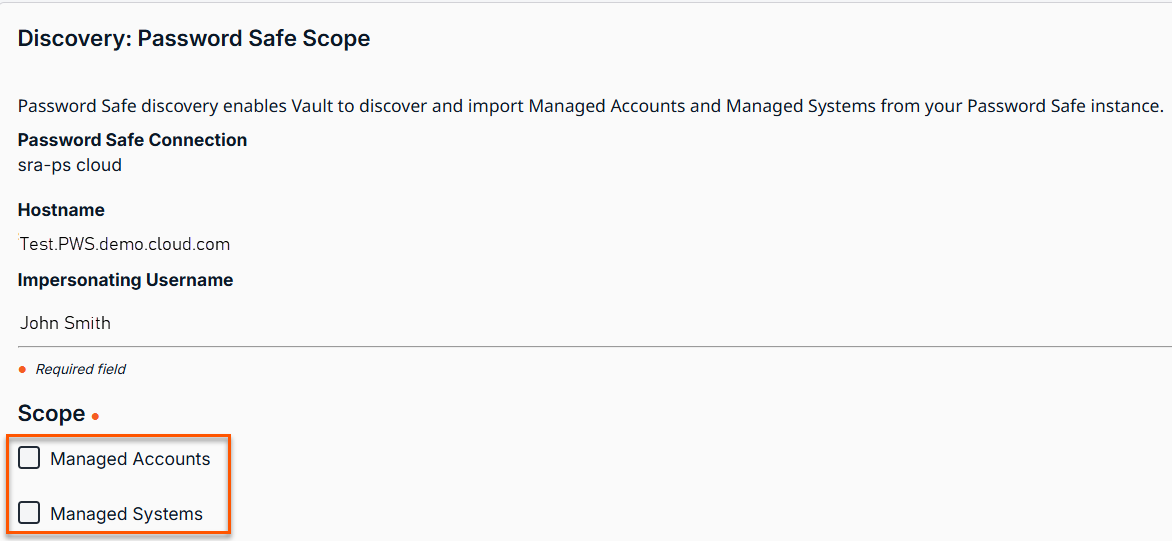
The Discovery: Password Safe Scope page displays. -
Select the appropriate checkboxes you want to receive information for from Password Safe:
-
Managed Accounts
-
Managed Systems
-
-
Click Start Discovery.
The Discovery Progress page displays. -
From the Discovery Results table, select the items you want to import.
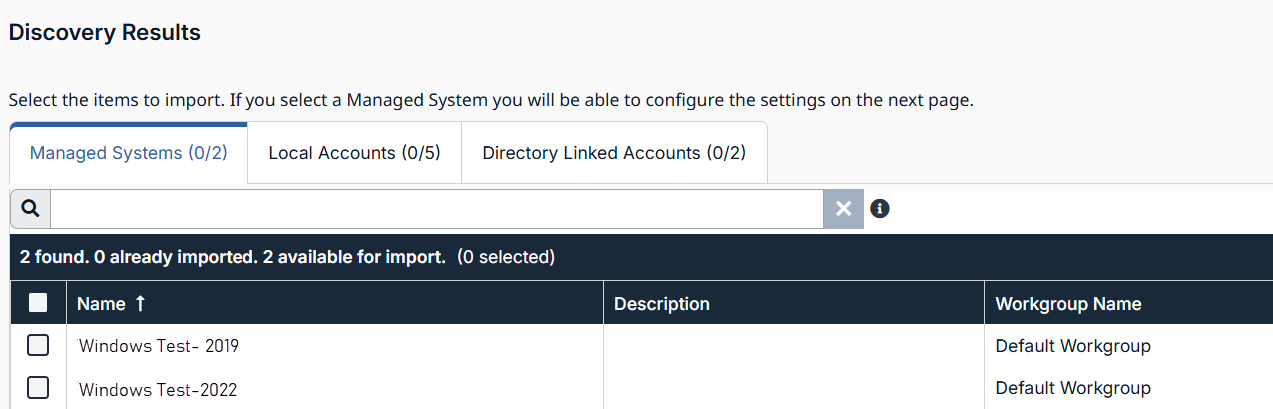
The Workgroup Name field is new.
-
Click Import Selected.
The Import Discovered Items page displays. -
For Account Group, choose the account group that the selected Managed Accounts is associated with.
-
Create one Asset per Managed System is available when importing Managed Systems and a Gateway is available. Choose a Asset Group and Gateway to associate the created RDP Assets with when importing. If you do not want to immediately create Assets for the imported Managed Systems, select Do not create Asset.
-
Click Start Import.
-
Click Yes in the following dialog box: "This process cannot be stopped after it is started. Do you want to continue?"
-
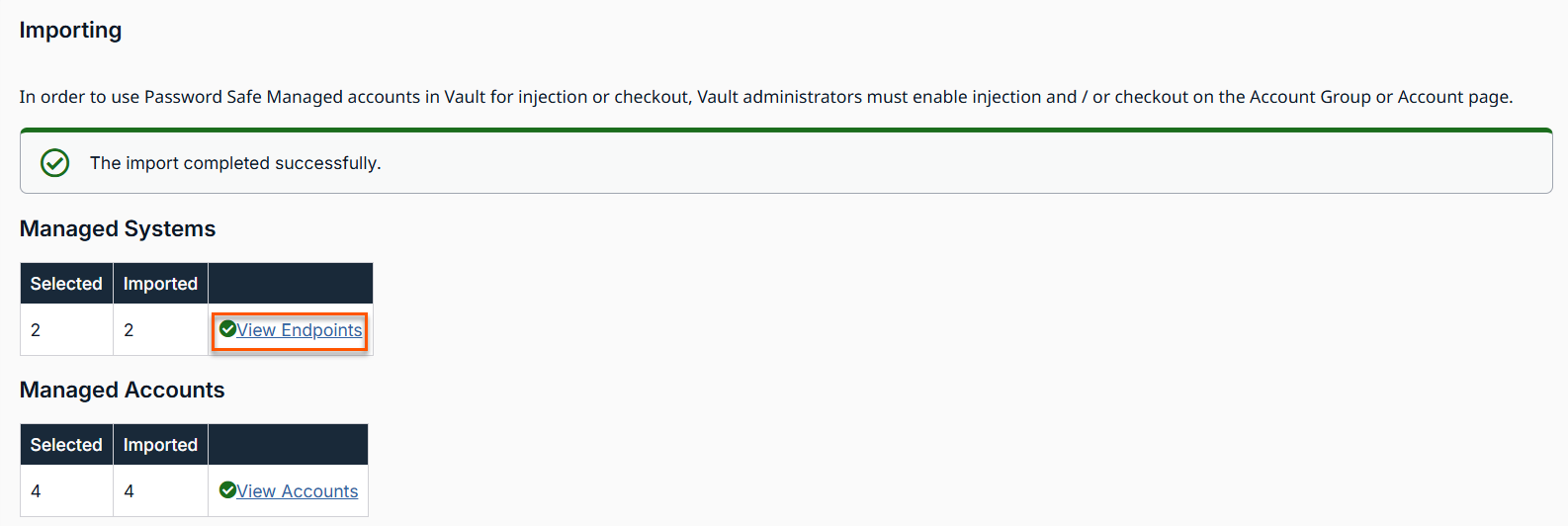
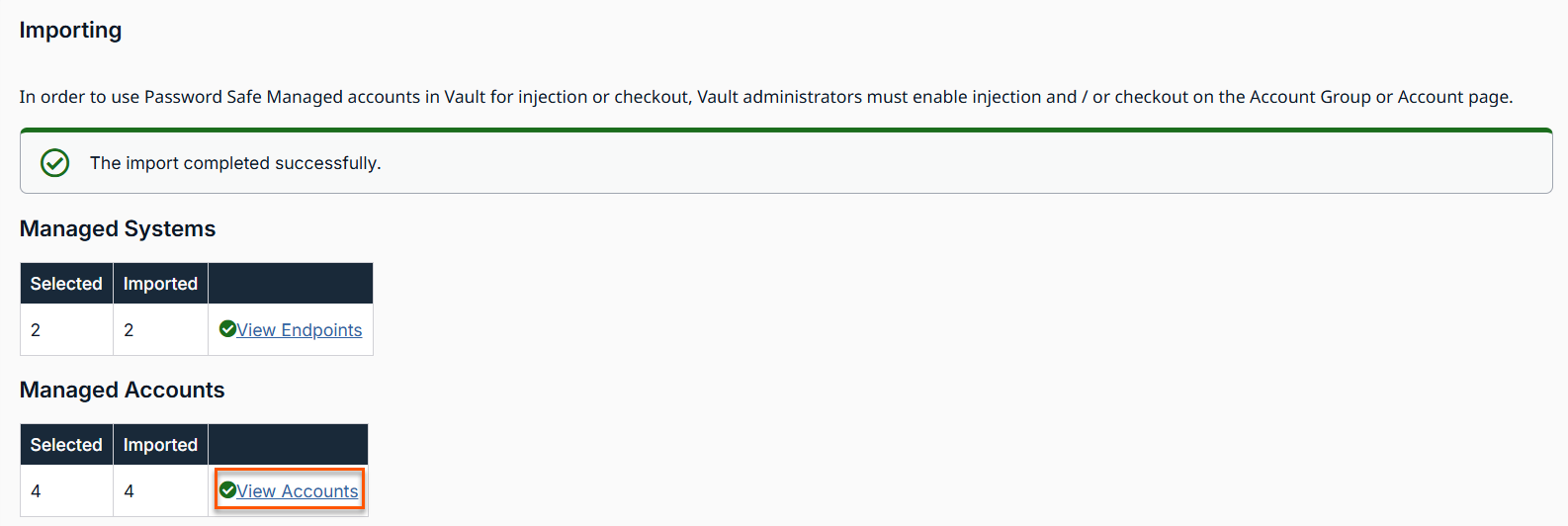
On the Importing page, the results of the Managed Accounts and Managed Systems display.
-
To view Managed Systems, click the View Endpoints link. This takes you to the Vault > Endpoints page.
-
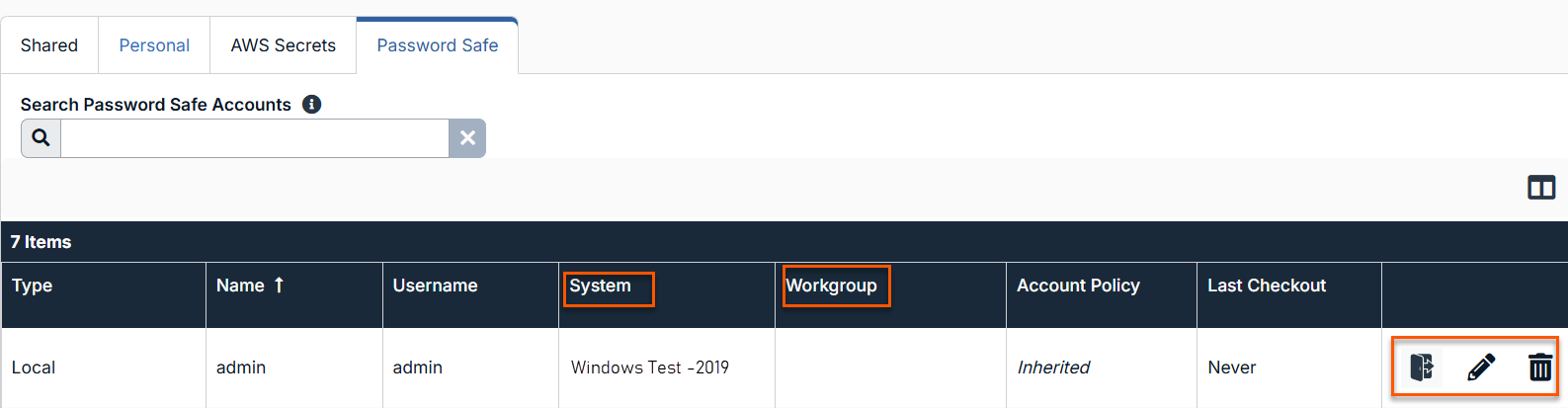
To view Managed Accounts, click the View Accounts link. This takes you to the Vault > Accounts page. The Password Safe table with Managed Accounts and Managed Systems displays.
-
From the Accounts page, you can check out a Password Safe account
 , edit a Password Safe account
  , or delete a Password Safe account
  from the Password Safe table.
- The option to rotate credentials does not exist in discovery of a Password Safe account.
- There are two new fields: System and Workgroup.
Check out a Password Safe account
-
From the main menu, click Remote Support > Vault.
The Vault page opens and the Accounts tab displays by default. -
Click the Password Safe tab.
-
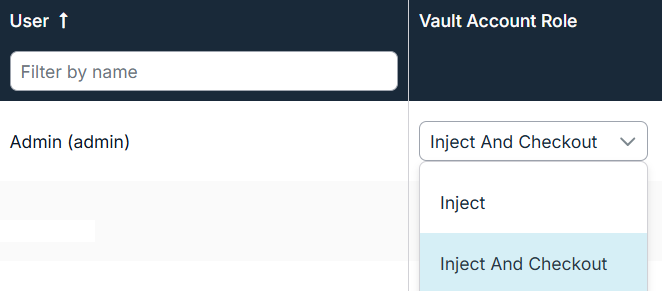
From the Password Safe table, locate the account you want to check out. The user must have Inject And Checkout Vault role, otherwise the Checkout button in step 4 does not display.
-
Click Check Out
 .
.
The Account Password dialog box displays. The password displays in plain text for one minute when you click Reveal.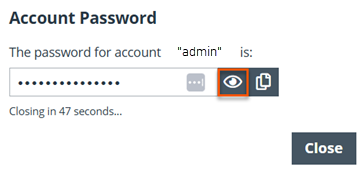
-
To copy the displayed password, click Copy
 .
.
Important infoCredentials are sourced from Password Safe at time of Check Out and Check In. No passwords are ever stored in the SRA Vault for Password Safe Accounts.
Check out a Directory Linked account
-
From the main menu, click Remote Support > Vault.
The Vault page opens and the Accounts tab displays by default. -
Click the Password Safe tab.
-
From the Password Safe table, locate the account you want to check out .
-
For the Target Endpoint for Directory Linked Account Checkout, ensure a valid endpoint exists in Password Safe.
Important infoDirectory Linked accounts must be checked out against a Managed System. If the Target Endpoint for Directory Linked Account Checkout field is left blank in the Connections tab, the following error occurs on checkout:
System name is not configured for directory linked account checkout.
If the supplied endpoint name does not match a Managed System in Password Safe, or the account has not been linked to the Managed System in Password Safe, checkout fails with an error.
This configuration is not necessary for Credential Injection.
-
Click Check Out
.
The Status column should display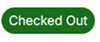 .
. -
To check in the account, click Check In
 .
.
Edit a Password Safe account
- From the main menu, click Remote Support > Vault.
The Vault page opens and the Accounts tab displays by default. - Click the Password Safe tab.
- From the Password Safe table, locate the account you want to edit.
- Click the pencil
 to edit.
 - Make the necessary changes and click Save.
Delete a Password Safe account
- From the main menu, click Remote Support > Vault.
The Vault page opens and the Accounts tab displays by default. - Click the Password Safe tab.
- From the Password Safe table, locate the account you want to delete.
- Click the trash can
 to delete.
 - A confirmation dialog box displays. Click Yes.
Credential injection of a Password Safe account
Password Safe accounts are available for injection into matching RDP Assets or Jump Clients. At the time of injection, the Credential Store dialog box displays.
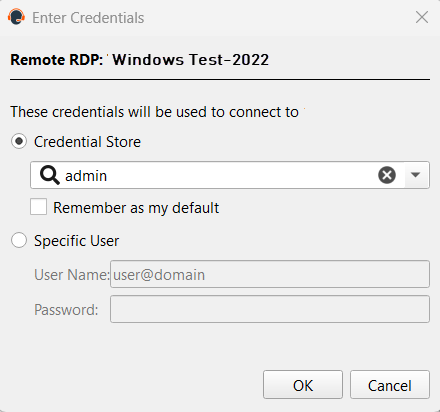
- For the Credential Store option, click the dropdown and select the appropriate Password Safe account.
- Click OK.
- To view all the Password Safe Vault accounts available for credential injection, click the Vault tab at the top of the screen.
- In the Search bar, enter password safe.
A list of only Password Safe account displays. - Users with the Inject and Checkout role can also select a Password Safe account from the list and choose the appropriate option of Check In or Check Out.
Automatic import of accounts and endpoints
Vault administrators can automatically import selected domain accounts, endpoints, and local accounts using import rules after scheduled discovery runs using predefined filters. This reduces time and effort required for manual imports.
Automatic import jobs run in three phases:
- Matching phase
- Removal phase
- Import phase
If any rule in the batch fails during the matching or removal phases, all of the rules in that batch fail. However, if any rule fails during the import phase, this does not prevent other rules in the connection from running and completing their imports.
Prerequisites
- Vault administrator privileges
Create a Password Safe connection
Start by creating a connection between the SRA site and Password Safe. Most of the information entered in this step comes from Password Safe; ensure you have that information on hand. To create the connection:
- From the main menu, click Remote Support > Vault.
The Vault page opens and the Accounts tab displays by default. - Click the Connections tab.
The Password Safe Connections page displays. - Click Add.
- For Name, type a unique name to help identify this role. This is a required field.
- For Password Safe Host, type the name of the Password Safe Host. This is a required field.
- For API Key, copy the information from the Key field in Password Safe for the API registration you created and paste it into the API Key field in PRA. This is a required field.
- For Impersonating Username, select a valid username from one of the following groups: Password Safe's Administrators, Global Approvers, or Secure Remote Access Requestors. This is a required field.
- Impersonating Username Password is determined by the User required password checkbox on the API registration from Password Safe. If the checkbox is not selected, then no password is required for this field in PRA. If the checkbox is selected, then use the password associated with the username on the Password Safe API registration and enter it in this field in PRA.
Create the Discovery Schedule
After the Password Safe connection is created, complete the Scheduled Discovery section to automatically import managed credentials and endpoints from Password Safe.
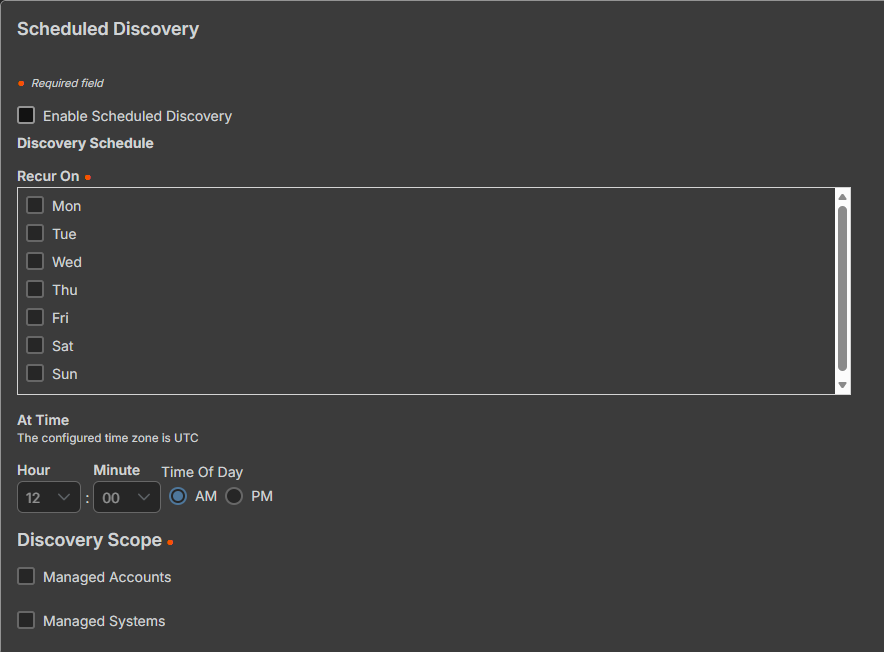
- In the Scheduled Discovery section, check the Enable Scheduled Discovery box.
- Set the Discovery Schedule:
- Set the day(s) discovery recurs on
- Set the time the discovery recurs on
- Select the Discovery Scope:
- Managed Accounts
- Managed Systems
Create Password Safe import rules
Password Safe import rules determine how accounts and assets are imported after scheduled discoveries. Once import rules are created, they're owned and run by the system user in an automatic fashion. Imported Vault accounts, Vault endpoints, and any associated Assets associated with those endpoints are owned by that rule.
- Import rules are only executed automatically following a scheduled discovery. They do not run without one.
- Up to 50 rules can be created per connection, with priority determining which rule applies if an account matches multiple criteria.
Once the connection and discovery schedule are created, create one or more import rules:
-
In the Password Safe Import Rules section, click +Add Import Rule.

-
Under Create Password Safe Rule, add a Rule Name.
-
Set filters to define criteria for the import rule.
- At least one filter is required per rule. Accounts and endpoints can both have up to 10 filters.
- Multiple filters use And logic, meaning the rule uses the first filter and any subsequent filters.
-
Check Accounts to add account filters to the rule.
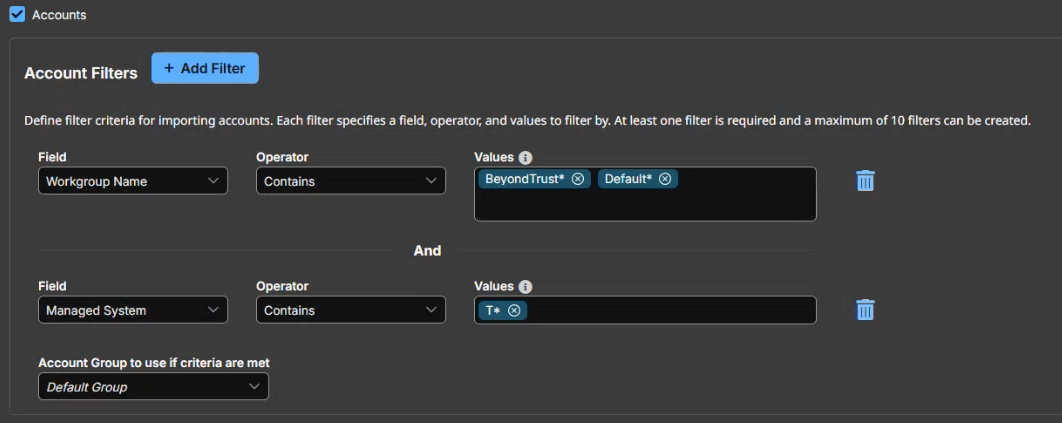
- Select a Field to filter by from the dropdown list.
- Select an Operator. Options include Contains and Does not contain.
- Enter a value to filter by in the Value field. Add multiple values by typing and pressing Enter after each value.
Multiple values use Or logic, meaning the filter looks for the selected field, operator, and value one or value 2, etc.
- Select an option from the Account Group to use if criteria are met dropdown list. This defines the group that accounts matching filter criteria are imported into.
- Once an account is imported, it cannot move between Account Groups unless an administrator moves it, or the account is removed and reimported. See the Important note below for more information.
- If there are overlapping rules (rules are matched on multiple rules), the account is only imported once, and assigned to the Account Group from the filter with the higher precedence at the time of import.
- Click +Add Filter to add a new account filter.
- Click
 to delete an account filter.
- If a manually imported account is matched on an import rule, the import rule takes ownership of that account, and the account is now considered an automatically imported account.
- Accounts imported via an import rule are automatically removed if, after a scheduled discovery, they no longer match any previously matched rules. The are also removed if the associated import rules are deleted. For example, if a previously imported account is deleted in Password Safe, it is not found in the next scheduled discovery, and when failed to match against an import rule, is removed from the system.
-
Check System (Assets) to add system filters to the rule.
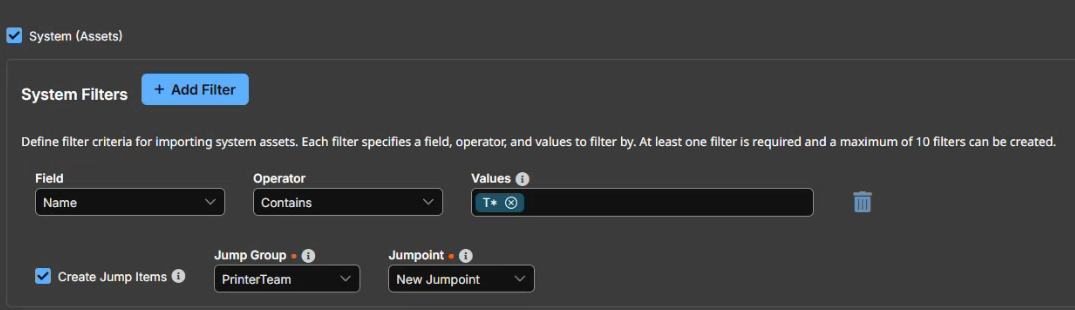
- Select a Field to filter by from the dropdown list.
- Select an Operator. Options include Contains and Does not contain.
- Enter a value to filter by in the Value field. Add multiple values by typing and pressing Enter after each value.
- Check the Create Asset box to create one remote RDP Asset per each of the imported systems. Select the Asset Group and Gateway to assign the Asset to.
Asset Groups and Gateways listed in the dropdowns are limited to those that the Vault administrator has access to. This only applies on rule set up. Once the rule is created, the rule is owned by the system and there is no permission check. The only exception occurs when a user clicks Process Using Rules manually. When a user clicks that button, they're running the job with the user's permissions. If the user doesn't have sufficient permissions to to modify Assets associated with that rule, the job will fail.
- Click +Add Filter to add a new system filter.
- Click to delete an account filter.
-
Click Save at the top of the page.
Once import rules are created, the next time a scheduled discovery runs, those rules run on that discovery, find all filter matches, and automatically import those matches.
Accounts, endpoints, and related Assets that no longer match a rule are automatically removed. This also applies when an administrator deletes a rule or connection, which grants the system permission to clean up items tied to those rules.
View and Edit Password Safe import rules
To view or edit import rules associated with a connection:
- From the main menu, click Remote Support > Vault.
The Vault page opens and the Accounts tab displays by default. - Click the Connections tab.
The Password Safe Connections page displays. - Locate a connection in the list.
- Click
 to the right of the connection to view connection information.
 - Locate the import rules in the Password Safe Import Rules section at the bottom of the page.
- Click to the right of the rule to view and edit information.
- After changes are made, click Save at the top of the screen.
Change order of import rules
Each rule in the list takes precedence over the rules below it. To change the order of import rules:
- Click the Change Order button.
- Drag and drop rules in the order you wish to see them, or enter the order number in the field.
- Click Save Order once updated.
Process Using Rules outside of scheduled discovery
If you don't want to wait until the next scheduled discovery to automatically import matches, you can run those import rules by clicking the Process Using Rules button, located on the Discovery Results page. Process Using Rules always processes against the entire discovery, and not just against items that haven't been imported.
- From the main menu, click Remote Support > Vault.
The Vault page opens and the Accounts tab displays by default. - Click the Discovery tab.
The Discovery Jobs page displays. - Locate a manual discovery in the list.
- Click View Results to the right of the discovery.
The Discovery Results page displays. - Click Process Using Rules at the top of the page.
- A confirmation dialog box displays. Click Yes.
The Discovery Jobs page displays. - Locate the discovery job in the list.
- Click View Results to the right of the discovery.
The Discovery Results page displays. - Click the Automatic Import Jobs tab to view jobs run against that discovery. Each import rule has a corresponding job in the results list and includes information associated with that job.
The Status column lists the status of the job, including Pending and Complete statuses. If a status of Error displays, hover over the status to view the reason for the error.
When a rule fails or aborts, no action is taken on existing accounts or endpoints at the point of failure. If the error occurs during matching and removal, they are not removed or imported. If the error occurs during import, they are not imported.
Track Import Rule type
You can track whether the account is manually imported or automatically imported.
To view account import type, select the Vault > Accounts tab to see the Import Type column. Click the Automatic Import link to view which rules the import matched on.
To view endpoint import type, select the Vault > Endpoints tab to see the Import Type column. Click the Automatic Import link to view which rules the import matched on.
To view import rules in Vault or Asset reports:
- From the left menu, click Remote Support > Reports.
The Reports page opens and the Support tab displays by default. - At the top of the page, click the Vault or Asset tab.
- Click Show Report.
- The Data column displays if Vault accounts were created or deleted using an import rule.
Delete an import rule
- From the main menu, click Remote Support > Vault.
The Vault page opens and the Accounts tab displays by default. - Click the Connections tab.
The Password Safe Connections page displays. - Locate the import rule in the Password Safe Import Rules list.
- Click
 to the right of the import rule.
 - A confirmation dialog box displays. Click Yes.
Deleting an import rule also deletes any accounts and Assets associated with it that do not match any other import rules.
Updated about 1 month ago
