
Asset Roles | RS Cloud
What are Asset Roles?
Asset Roles are a collection of permissions created for different roles in your organization which allow you to grant specific permissions for a user to access an Asset group. It allows you to grant specific permissions for a user to access an Asset Group. Asset Roles are applied to users from the Asset Management > Asset Roles page or from the Users & Security > Group Policies page.
How are Asset Roles useful to my organization?
Asset Roles help administrators manage access control and ensure users can only perform the necessary tasks for their role, enhancing security and efficiency during remote access sessions.
How do I access the Asset Roles page?
- Use a Chromium-based browser to sign in to your Remote Support Cloud URL.
This URL is provided in the BeyondTrust welcome email and includes your site URL followed by /login. - From the left menu, click Asset Management.
The Jump Clients page opens and displays by default. - At the top of the page, click Asset Roles.
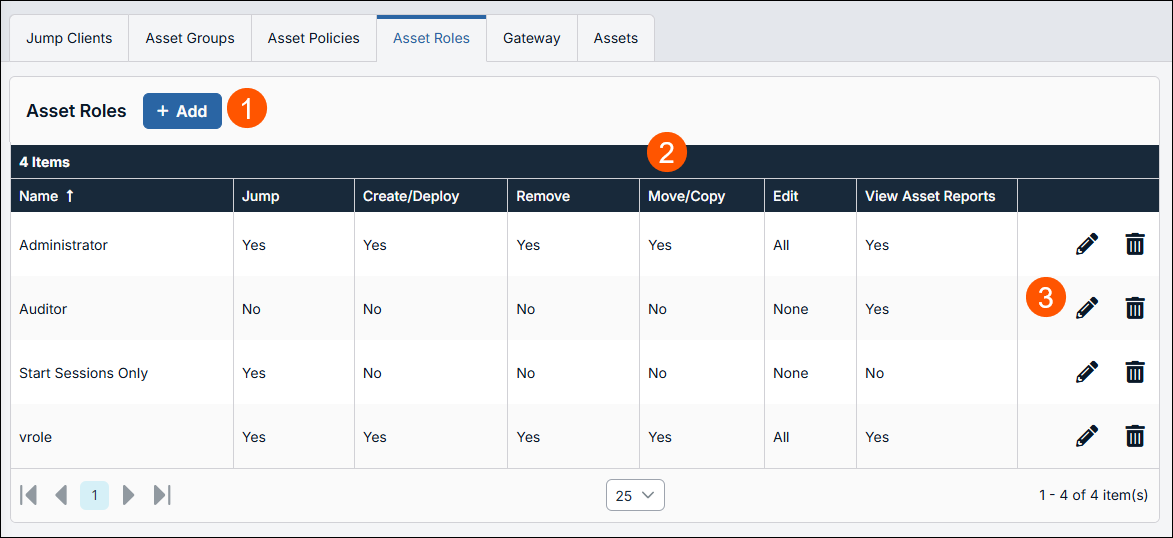
The Asset Roles page displays.
-
Add: Adds an Asset Role.
-
Asset Roles columns: List Asset Roles columns.
Asset Roles columns
- Name: Unique name of the Asset Role.
- Jump: Defines if the Start Sessions permission is enabled. The values are Yes or No.
- Create/Deploy: Defines if the Create and deploy new Assets or upgrade Jump Clients permission is enabled.
- Remove: Defines if the Remove existing Assets permission is enabled.
- Move/Copy: Defines if the Move and Copy Assets permission is enabled. These permissions must be set on the Asset's origin and destination.
- Edit: Defines if the following permissions are enabled:
- Edit Asset Policy:
- Edit Behavior and Experience
- Edit Tag
- Edit Session Policy
- Edit Comments
- Edit Connectivity and Authentication
If one of the policies is enabled, then value of Some displays. If all six permissions are enabled, the value of All displays.
- View Asset Reports: Defines if the View Reports permission is enabled.
How to configure Asset Roles
If more than one role is assigned to a user, then the most specific role for a user is always used. The order of specificity for Asset Roles, from most specific to least specific, is:
- The role assigned to the relationship between a user and an Asset Group on the Asset Management > Asset Roles page.
- The role assigned to the relationship between a user and an Asset Group on the Users & Security > Group Policies page.
- The Asset Roles configured for a user on the Users & Security > Users page or the Users & Security > Group Policies page.
Starting in 25.2.1, new site installations automatically include a Asset Role called Auditor.
- On existing sites upgraded to 25.2+, this role is not created automatically. Admins may create it manually if needed.
- The Auditor role has a single permission, View Reports, allowing admins to grant a user access to run Asset reports without any additional permissions.
Add an Asset Role
- From the Asset Roles page, click Add.
The Add an Asset Role page displays. - In the Name field, type a unique name to help identify this role. This name helps when linking an Asset Role with a user or group of users in an Asset Group.
- In the Description field, type a description to summarize the purpose of this role.
- In the Permissions section, on the Asset Group or Personal Assets setting, you can set the following options:
| Field name | Description |
|---|---|
| Create new Assets or upgrade Jump Clients | With this setting selected, you can create Assets and install them on a remote system. This permission is required to upgrade Jump Clients through the Representative Console and Web Rep Console. It is also required for access to the Assets Mass Import Wizard. When you create an Asset Role and have this permission selected, all the Edit permissions in the Assets section are automatically selected and the following message displays: ℹ️The user must be a member of a Gateway to deploy. |
| Move and Copy Assets | With this setting selected, you can move or copy Assets from one Asset Group into another. ℹ️ This permission must be set on the Asset Roles used in both the Asset's origin and destination. |
| Remove existing Assets | With this setting selected, you can delete Assets. |
| View Session and Asset Reports | With this setting selected, you can view reports. This applies to the Asset Group to which the user is added with this role. |
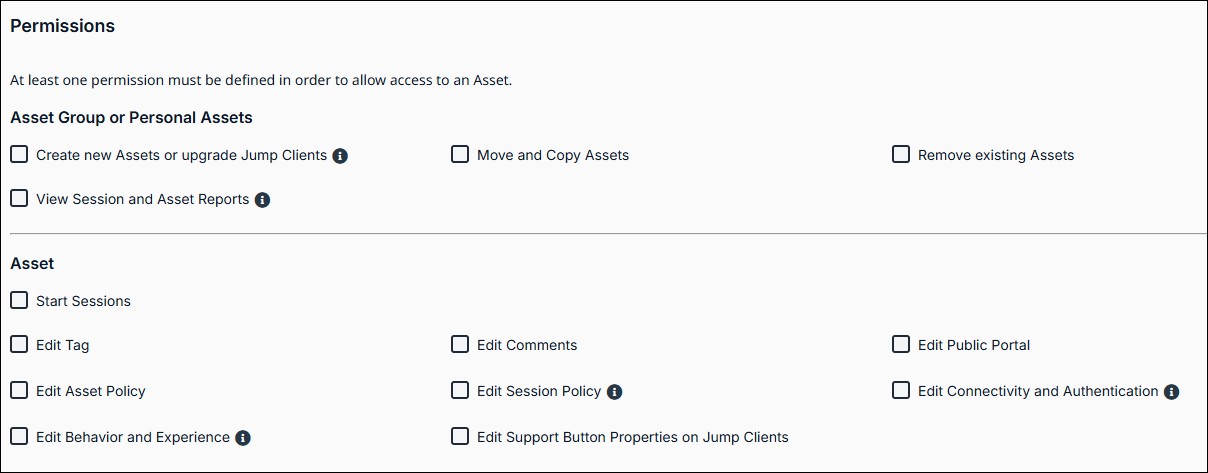
- In the Asset section, you can set the following options:
| Field name | Description |
|---|---|
| Start Sessions | You can connect to a remote system. |
| Edit Tag | You are able to edit an Asset's tag field. |
| Edit Comments | You are able to edit an Asset's comments field. |
| Edit Public Portal | You can edit the public portal that is selected for an Asset. |
| Edit Asset Policy | You can set any Asset Policy that is applied to an Asset |
| Edit Session Policy | You set which session policy an Asset should use. Changing the session policy may affect the permissions allowed in the session. Applies to all Asset types. |
| Edit Connectivity and Authentication | You can modify an Asset's connection and authentication information. This includes such fields as hostname, Gateway, port, and username, among others. |
| Edit Behavior and Experience | You are able to modify the behavior of Assets. This includes the following field types:
|
| Edit Support Button Properties on Jump Clients | You can modify the Support Button Profile that is applied to a Jump Client. |
Edit an Asset Role
- From the table of Asset Roles, find the one you would like to edit.
- Click the pencil
 .
.
The Edit Asset Role page displays. - Make your changes, and then click Save.
Delete an Asset Role
- From the table of Asset Roles, find the one you would like to delete.
- Click the trash can
 .
. - Click Yes in the confirmation dialog.
Updated 3 months ago
