
Management | RS Pathfinder
What is the Management page?
The Management page is where administrators can view and manage installed software, including updates and configurations for their BeyondTrust deployment. This page provides options for checking for software updates and ensuring the system runs the latest, most secure version.
How is the Management page useful?
The Management page allows administrators to maintain the software environment by providing the tools needed to update and monitor the health of their deployment, ensuring that all components are up to date and functioning properly.
How do I access the Management page?
- Sign into app.beyondtrust.io.
The BeyondTrust Home page displays. - From the left menu, click Remote Support > Management.
The Management page opens and the Software tab displays by default.
The Management page
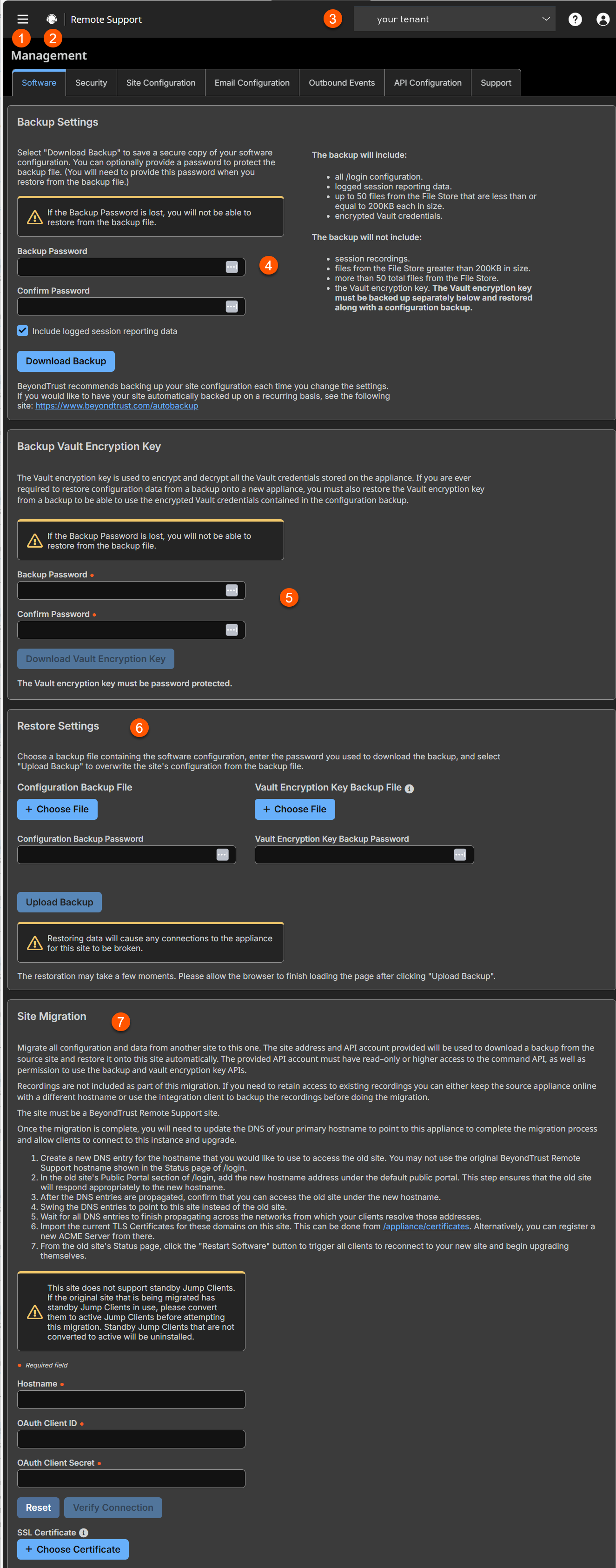
- Left menu: Easy access to all pages in Remote Support, including Status, Consoles & Downloads, My Account, Configuration, Asset Management, Vault, Console Settings, Users & Security, Reports, Public Portals, Dashboards, Management, and Appliance pages.
- Status: Opens the Status page.
- Header: Change your tenant site, manage your profile, and access documentation.
- Backup settings: Create passwords to backup your software configuration.
- Backup Vault Encryption Keys: Creates a backup of the vault keys.
- Restore settings: Restores the backup settings.
- Site Migration: Allows you to migrate configuration settings and data from another BeyondTrust Remote Support site.
Backup settings
It is an important disaster recovery best practice to save a backup copy of your software settings regularly. BeyondTrust recommends backing up your B Series Appliance configuration each time you change its settings. In the event of a hardware failure, a backup file speeds time-to-recovery and, if necessary, allow BeyondTrust to provide you access to temporary hosted services while retaining the settings from your most recent backup.
Backup password
To password protect your software backup file, create a password. If you do choose to set a password, you are unable to revert to the backup without providing the password.
Include logged session reporting data
If this option is checked, your backup file includes session logs. If unchecked, session reporting data is excluded from the backup.
Download backup
Save a secure copy of your software configuration. Save this file in a secure location.
Backup Vault encryption key
The Vault encryption key is used to encrypt and decrypt all Vault credentials stored on your BeyondTrust Appliance B Series. If you ever need to restore configuration data from a backup onto a new B Series Appliance, you must also restore the Vault encryption key from a backup to be able to use the encrypted Vault credentials contained in the configuration backup.
Backup password
To password protect your software backup file, create a password. If you do choose to set a password, you will be unable to revert to the backup without providing the password.
Download Vault encryption key
Click the Download Vault Encryption Key button to download the Vault encryption key for you to use later.
The Vault encryption key must be password protected.
Restore settings
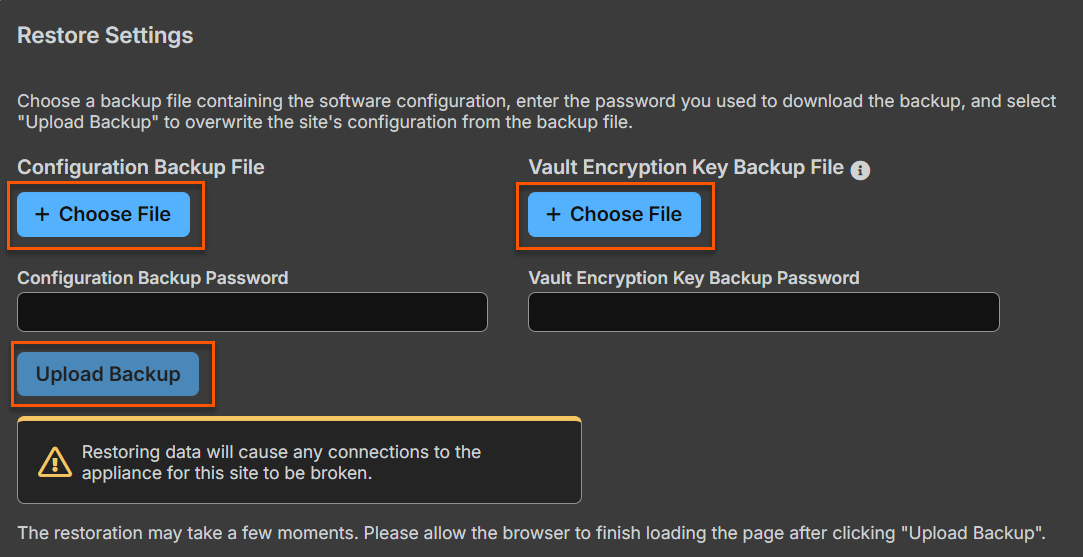
Configuration backup file
Should you need to revert to a backup, browse to the latest backup file that you saved.
Configuration backup password
If you created a password for your backup file, enter it here.
Vault encryption key backup file
To provide the Vault encryption key corresponding to the configuration backup, choose the Vault encryption key backup file.
Vault encryption key backup password
Enter the password you used to download the BeyondTrust Vault encryption key.
Upload backup
Upload the backup file to your B Series Appliance and restore your site's settings to those saved on the backup.
Restoring the site backup does not revert the help icon to the image present at time of backup, nor does it remove any files added since backup. Not all files are backed up, only the first 50 files under 200KB in size.
For more information, see Back up procedures.
Upload update
Click Choose File to manually upload new software packages from BeyondTrust. Confirm that you wish to upload the software package. The Uploaded Update section displays additional information to verify your uploaded package. Click Install if you wish to complete the installation process, or Delete Update if you wish to clear the update staging area. If your update package only contains additional licenses, you can install the update without restarting the B Series Appliance. After confirmation that you wish to install, the page displays a progress bar to notify you of the overall installation progress. Updates made here automatically update all sites and licenses on your BeyondTrust Appliance B Series.
Your B Series Appliance administrative can also use the Check for Updates feature of the B Series Appliance interface to automatically search for and install new software packages.
Updated 3 months ago
