
VNC | RS for Desktop
VNC to a remote system
Use BeyondTrust to start a VNC session with a remote system. Because VNC sessions are converted to BeyondTrust sessions, users can share or transfer sessions, and sessions can be automatically audited and recorded as defined by your administrator for your site.
To use Local VNC through BeyondTrust, you must be on the same network segment as the target system and must have the user account permission Allowed Connection Types: Local VNC.
To use Remote VNC through BeyondTrust, you must have access to a Gateway and must have the user account permission Allowed Connection Types: Remote VNC.
To start a VNC session, open the VNC dialog from:
- The Support menu of the representative console
- The VNC button at the top of the representative console
- Or Create a Remote VNC Jump in the web rep console
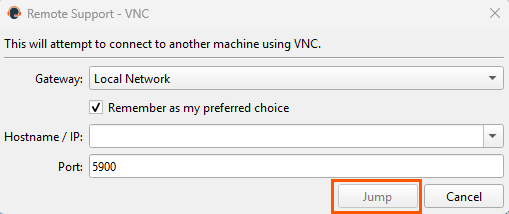
From the Gateway dropdown, select the network that hosts the computer you wish to access. If you generally access the same Gateway, check Remember as my preferred choice. Enter the Hostname / IP of the system you wish to access.
By default, the VNC server listens on port 5900, which is, therefore, the default port BeyondTrust attempts. If the remote VNC server is configured to use a different port, enter it in the Port field.
To begin the VNC session, click Jump.
VNC shortcuts
Use BeyondTrust to start a VNC session with a remote system. Because VNC sessions are converted to BeyondTrust sessions, users can share or transfer sessions, and sessions can be automatically audited and recorded as defined by your administrator for your site.
To use Local VNC through BeyondTrust, you must be on the same network segment as the target system and must have the user account permission Allowed Connection Types: Local VNC.
To use Remote VNC through BeyondTrust, you must have access to a Gateway and must have the user account permission Allowed Connection Types: Remote VNC.
Use BeyondTrust to start a VNC session with a remote system. Because VNC sessions are converted to BeyondTrust sessions, users can share or transfer sessions, and sessions can be automatically audited and recorded as defined by your administrator for your site.
To use Local VNC through BeyondTrust, you must be on the same network segment as the target system and must have the user account permission Allowed Connection Types: Local VNC.
To use Remote VNC through BeyondTrust, you must have access to a Gateway and have the user account permission Allowed Connection Types: Remote VNC.
Create a Local VNC shortcut
To create a Local VNC shortcut, click the Create button in the Asset Management Interface. From the dropdown, select Local VNC. VNC shortcuts appear in the Asset Management Interface along with Jump Clients and other types of Asset shortcuts.
Organize and manage existing Assets by selecting one or more Assets and clicking Properties.
To view the properties of multiple Assets, the items selected must be the same type (e.g., all Jump Clients, all Remote Jumps, etc.).
Enter a Name for the Asset. This name identifies the item in the session tabs. This string has a maximum of 128 characters.
Enter the Hostname / IP of the system you wish to access.
By default, the VNC server listens on port 5900, which is, therefore, the default port BeyondTrust attempts. If the remote VNC server is configured to use a different port, enter it in the Port field.
Move Assets from one Asset Group to another using the Asset Group dropdown. The ability to move Assets to or from different Asset Groups depends upon your account permissions.
Further organize Assets by entering the name of a new or existing Tag. Even though the selected Assets are grouped together under the tag, they are still listed under the Asset Group in which each is pinned. To move an Asset back into its top-level Asset Group, leave this field blank.
Select the Public Portal through which this Asset should connect. If a session policy is assigned to this public portal, that policy may affect the permissions allowed in sessions started through this Asset. The ability to set the public portal depends on your account permissions.
Assets include a Comments field for a name or description, which makes sorting, searching, and identifying Assets faster and easier.
To set when users are allowed to access this Asset, choose a Asset Policy. These policies are configured by your administrator in the /login interface.
Choose a Session Policy to assign to this Asset. The session policy assigned to this Asset has the highest priority when setting session permissions. The ability to set a session policy depends on your account permissions.
Create a Remote VNC shortcut
To create a Remote VNC shortcut, click the Create button in the Asset Management Interface. From the dropdown, select Remote VNC. VNC shortcuts appear in the Asset Management Interface along with Jump Clients and other types of Asset shortcuts.
Organize and manage existing Assets by selecting one or more Assets and clicking Properties.
To view the properties of multiple Assets, the items selected must be the same type (e.g., all Jump Clients, all Remote Jumps, etc.).
Enter a Name for the Asset. This name identifies the item in the session tabs. This string has a maximum of 128 characters.
From the Gateway dropdown, select the network that hosts the computer you wish to access. The representative console remembers your Gateway choice the next time you create this type of Asset. Enter the Hostname / IP of system you wish to access.
By default, the VNC server listens on port 5900, which is, therefore, the default port BeyondTrust attempts. If the remote VNC server is configured to use a different port, enter it in the Port field.
Move Assets from one Asset Group to another using the Asset Group dropdown. The ability to move Assets to or from different Asset Groups depends upon your account permissions.
Further organize Assets by entering the name of a new or existing Tag. Even though the selected Assets are grouped together under the tag, they are still listed under the Asset Group in which each is pinned. To move an Asset back into its top-level Asset Group, leave this field blank.
Select the Public Portal through which this Asset should connect. If a session policy is assigned to this public portal, that policy may affect the permissions allowed in sessions started through this Asset. The ability to set the public portal depends on your account permissions.
Assets include a Comments field for a name or description, which makes sorting, searching, and identifying Assets faster and easier.
To set when users are allowed to access this Asset, choose a Asset Policy. These policies are configured by your administrator in the /login interface.
Choose a Session Policy to assign to this Asset. The session policy assigned to this Asset has the highest priority when setting session permissions. The ability to set a session policy depends on your account permissions.
Use a VNC shortcut
To use an Asset to start a session, select the shortcut from the Asset Management Interface and click the Jump button.
When establishing the connection to the VNC server, the system prompts you to enter the user name and password.
Your VNC session now begins. Begin screen sharing to view the remote desktop. You can send the Ctrl-Alt-Del command, capture a screenshot of the remote desktop, and share clipboard text contents. You also can share, transfer, or record the VNC session, following the normal rules of your user account settings.
Assets can be set to allow multiple users to simultaneously access the same Asset. If set to Join Existing Session, other users are able to join a session already underway. The original owner of the session receives a note indicating another user has joined the session, but is not allowed to deny them access.
For more information on simultanous connections, see Simultaneous connections on the Assets page and the Asset Policies page.
Updated 2 months ago
