
Customize access settings on resources and roles in Entitle | Entitle Cloud
Entitle organizes every connected application into three levels: integration, resource, and role.
- An integration is the connected application or system itself, such as Okta, AWS, or GitHub.
- A resource is something within that integration that users request access to, such as a specific app, group, or database.
- A role is the specific permission level a user gets on that resource, such as Admin or Viewer.
Each level sits inside the one above it: an integration contains resources, and each resource contains roles. This structure lets you apply broad settings at the integration level and override them with more specific settings at the resource or role level.
For example, you can make an entire integration requestable, then turn off requestability for one sensitive resource within it.
The table below shows some settings you can apply at each level.
| Level | What you can configure |
|---|---|
| Integration | Owner, read-only mode, whether Entitle can change or create accounts, whether users can edit their own accounts, requestable status, requestable-by-default status, auto-assigned resource owners/maintainers, notifications for external permission changes, custom allowed durations, approval workflow, maintainers, prerequisite permissions |
| Resource | Owner, name, description, tags, requestable status, multirole support, custom allowed durations, approval workflow, maintainers, prerequisite permissions |
| Role | Requestable status, custom allowed durations, approval workflow, prerequisite permissions |
Prerequisites
- Admin access to Entitle.
- An integration. See Connect your applications and services to Entitle with integrations.
Customize access settings on resources
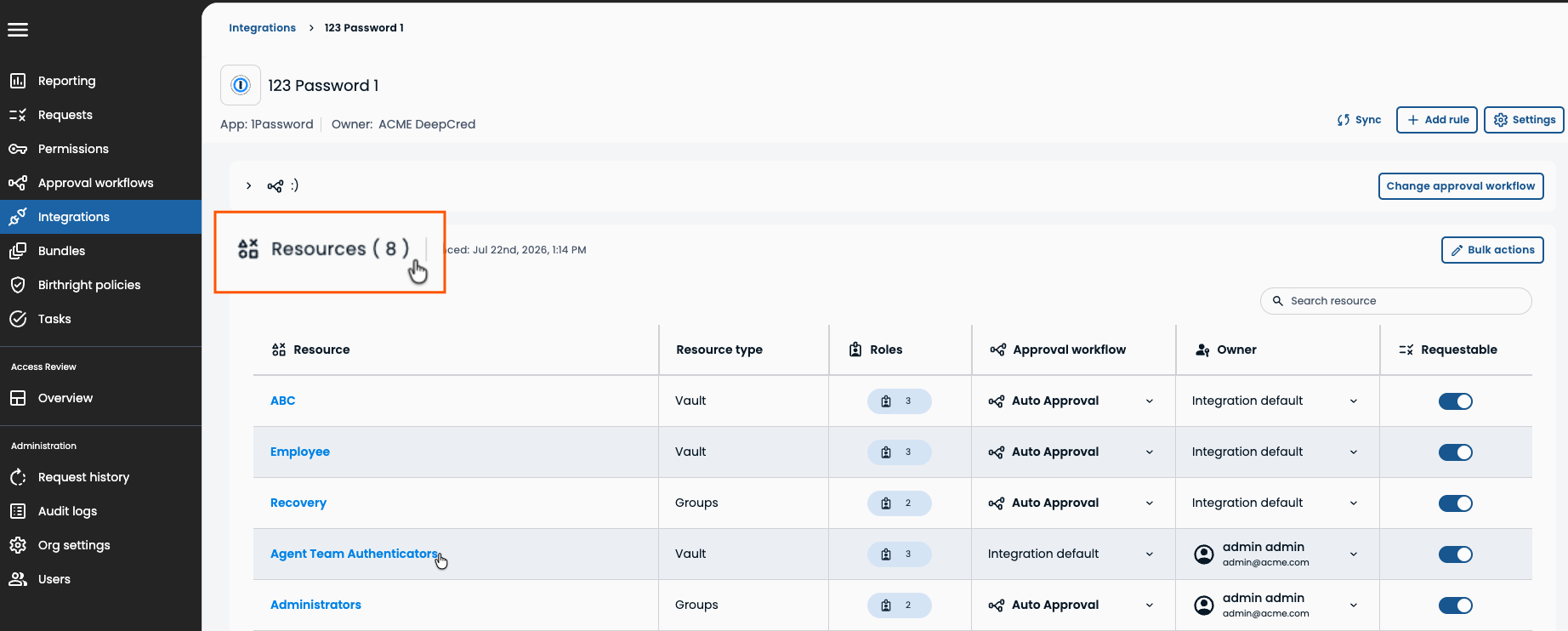
- In Entitle, go to Integrations.
- Click the integration that contains the resource you want to configure.
- Expand the Resources section to view the integration's resources.
- Click the resource you want to manage.
Customize access settings on roles
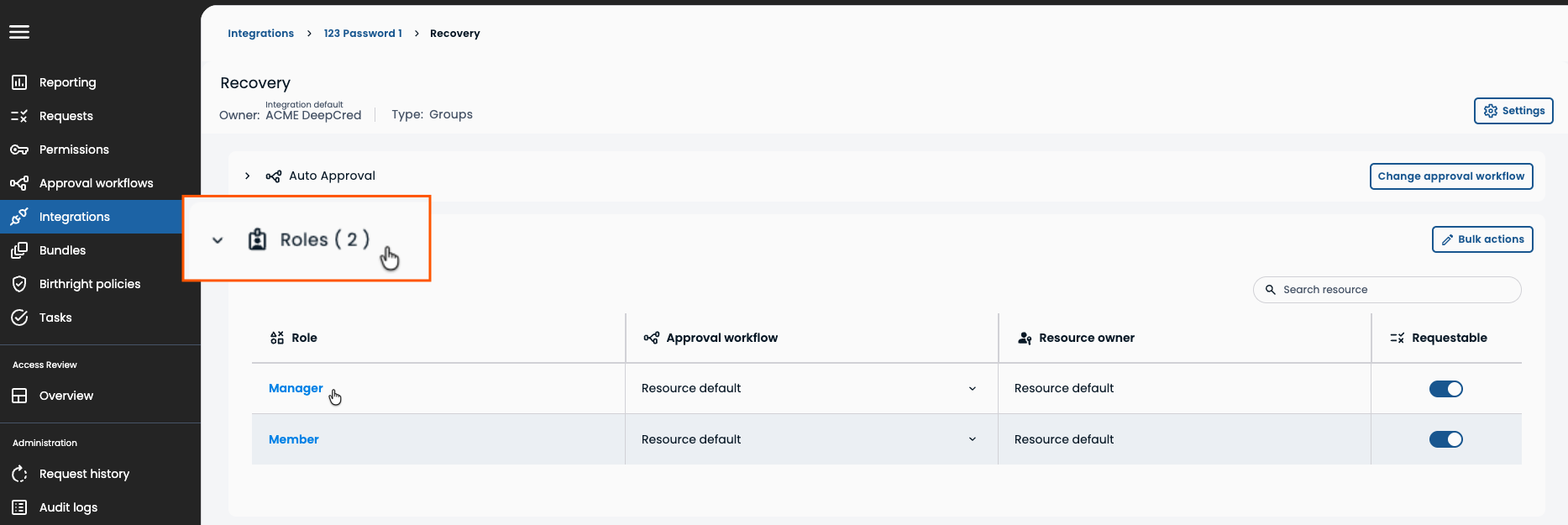
- In Entitle, go to Integrations.
- Click the integration that contains the role you want to configure.
- Expand the Resources section and select the resource that contains the role.
- Expand the Roles section to view the resource's roles.
- Click the role you want to manage.
Updated 18 days ago
Did this page help you?
