
ServiceNow: On-Call Scheduling | Entitle
Sync your ServiceNow On-Call Scheduling rotas with Entitle so on-call status can drive access decisions. Once connected, Entitle knows who's currently on-call for each of your ServiceNow schedules, and you can use that as a condition in approval workflows and policies — for example, granting access to a resource only to users who are currently on-call.
This integration is read-only.
Prerequisites
- An Entitle admin user account
- ServiceNow administrator access
Configure ServiceNow for the integration
Create a user
-
In ServiceNow, go to All > Users and Groups > Users, then click New.
-
Enter the following details:
Field Value User ID entitle.on.call(recommended)First name / Last name Enter a preferred value. This appears in the ServiceNow user list and audit logs. Identity type Machine Active Selected Internal integration user Selected -
Click Submit.
Assign roles
Option A — Full permissions: add the admin role to the user.
Option B — Least privilege: add these built-in roles to the user:
snc_platform_rest_api_accessitil- (optional)
snc_read_only— keeps the account strictly read-only
itil is required because Entitle calls ServiceNow's On-Call Rotation API (whoisoncall), which is gated by ServiceNow's OnCallSecurityNG script rather than a table ACL. itil also grants read access to cmn_rota and sys_user, which the integration uses to read your rotas and resolve who's currently on-call — it doesn't write anything back to ServiceNow.
Set up authentication
This integration uses OAuth client credentials.
-
In ServiceNow, search for
sys_properties.doand create a new system property:Field Value Name glide.oauth.inbound.client.credential.grant_type.enabledType true|false Value trueIgnore cache Selected -
Click Submit.
-
Go to Inbound Integrations > New Integration > OAuth – Client Credentials Grant.
-
Enter the following details:
Field Value Name entitle-on-callOAuth application user entitle.on.callAuth scope useraccount -
Copy the Client ID and Client Secret, then click Save. You'll need both in the next step.
Configure the integration in Entitle
-
In Entitle, go to Org settings > Integrations. Click Add, then select ServiceNow under On call.
-
Enter the following details, then click Integrate:
Field Value Instance URL https://<instance>.service-now.comClient ID The Client ID you copied in ServiceNow Client Secret The Client Secret you copied in ServiceNow
The integration is live when it appears in Org settings > Integrations under On call.
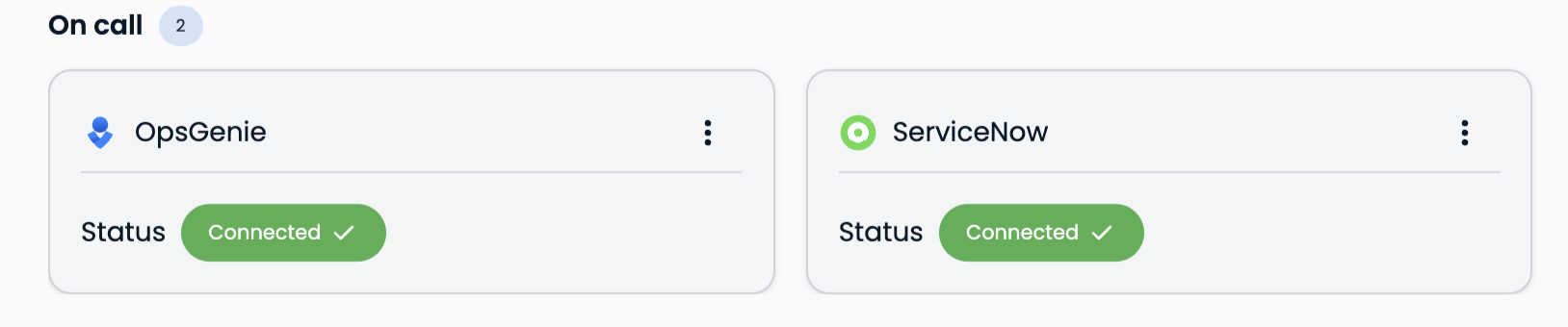
The connection can take up to a few minutes. A browser refresh may be required to see the changes. On-call integrations sync automatically at HH:05 and HH:35 each hour.
Updated 3 months ago
