
Google Kubernetes Engine (GKE) | Entitle
Overview
GKE is a Google-managed implementation of the Kubernetes open-source container orchestration platform. It provides the operational power of Kubernetes while managing many of the underlying components, such as the control plane and nodes, for you.
Entitle can manage Clusters and Namespaces in GKE.
This page will provide you with instructions on how to integrate Entitle and GKE.
General guidelines
To integrate your Google Kubernetes Engine in Entitle, you will need to run the entitle_google_integrator setup you downloaded and unzipped on the Google Integrations page and configure a Domain-Wide Delegation.
Set up GKE to work with Entitle
Stage 1: Running the setup script
The setup will consist of the following actions:
- Create an Entitle service account in the chosen project
- Create an organization-level role with the required permissions or add permissions to it if it already exists
- Bind the role to the service account at the chosen project
- Enable the required API service for the integration:
- Generate a key for the service account and download it to your local machine
- Go to your GCP web console.
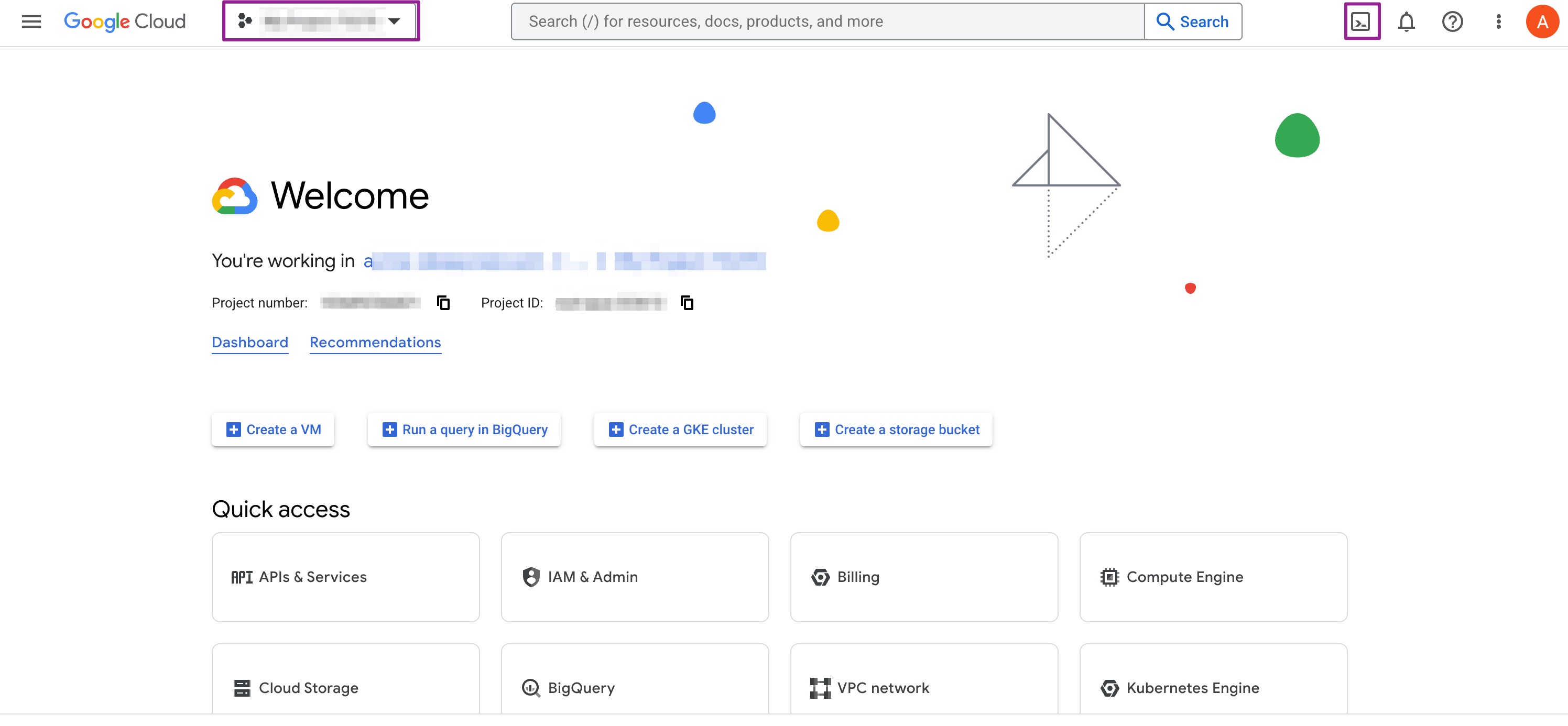
- Choose the project which you chose to create Entitle's service account at the top left corner.
- Click on the shell icon at the top right corner.
- Navigate to the path of the unzipped folder
entitle_google_integrator, and run the following commands:
# For a basic configuration, create a service account in the current project and assign the role to it at the project-level
bash run.sh -i gke -k

# You may also assign the role in the parent folder or organization-level
bash run.sh -i gke -b folder -k
bash run.sh -i gke -b organization -k

# For more options use the -h flag
bash run.sh -h- Download the created JSON file on setup completion. You will use it later in this guide.

Stage 2: Configure domain-wide delegation
Your service account needs to have domain-wide delegation on a certain scope.
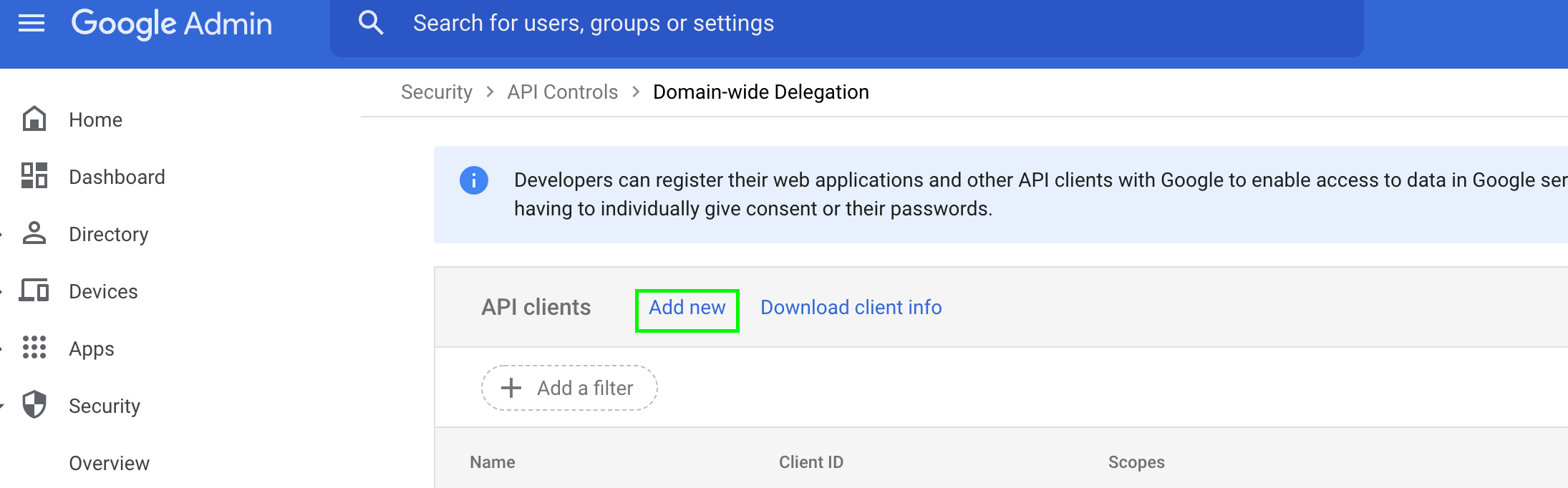
- Go to the Manage Domain-Wide Delegation page.
- Click Add new:
- In the Client ID field, enter the 21-digit number obtained from the key JSON file under the
client_idfield. - In the OAuth scopes field, enter the following scopes:
https://www.googleapis.com/auth/admin.directory.user.readonly,
https://www.googleapis.com/auth/admin.directory.group.readonly- Click Authorize.
Creating the integration in Entitle
-
Log in to Entitle and go to the Integrations page.
-
After clicking the Add Integration button, type Google Kubernetes Engine in the Application field.
-
Don't forget to set Save on correctly on your agent or Entitle's cloud.

-
Under the
"service_account_key"field, paste the downloaded key JSON of your service account. -
Under
"credential_subject", enter an email of an admin in your organization who has permission to view all users in your organization. -
Optionally, to limit which organizations, folders, or projects Entitle syncs, add one or more of the following lists to an
"options": {}object beneath"credential_subject": "":Option What it limits Value organization_ids_constraintsOrganizations Numeric organization IDs, for example "123456789012"or"organizations/123456789012"folder_ids_constraintsFolders Numeric folder IDs, for example "222"or"folders/222"project_ids_constraintsProjects Project IDs, for example "my-project-id-1"This is useful when the service account is bound at the folder or organization level, but you only want to expose clusters and namespaces from part of your hierarchy in Entitle. If an option is omitted or empty, it does not filter anything.
project_ids_constraintsfilters projects only. To limit discovery by organization or folder, useorganization_ids_constraintsandfolder_ids_constraints.organization_ids_constraintsandfolder_ids_constraintsrequire Entitle agent version 2.30.0 or later. Older agents ignore these options without an error, so discovery is not scoped. Confirm your agent version before you rely on them.For details on how these options work together, see How scope constraints work.
Example configuration JSON{ "service_account_key": { // A dictionary from the downloaded JSON file }, "credential_subject": "an email of an admin in your organization which has permission to view all users", "options": { "organization_ids_constraints": ["123456789012"], "folder_ids_constraints": ["folders/222"], "project_ids_constraints": ["my-project-id-1", "my-project-id-2"] } } -
Click Save.
How scope constraints work
Use organization_ids_constraints, folder_ids_constraints, and project_ids_constraints to control which parts of your GCP resource hierarchy Entitle scans. GKE clusters exist only in projects, so the GKE integration never syncs folder or organization resources. Instead, the constraints decide which projects Entitle scans for clusters and namespaces.
Rules
- An empty option means no filter. If an option is not set or is an empty list, it does not filter anything. If none of the three options are set, Entitle scans every project the service account can see.
project_ids_constraintsfilters projects only. If it is the only option set, discovery works the same as in earlier agent versions. The hierarchy check runs only whenorganization_ids_constraintsorfolder_ids_constraintsis set.- Options combine with AND. A resource must pass every option that is set. If a project's organization or folder is not allowed, Entitle drops the project, and its clusters and namespaces, even when the project is listed in
project_ids_constraints. - A listed folder includes its whole subtree. Entitle scans projects in the listed folder and in all its subfolders. You don't need to list parent folders. If you also set
organization_ids_constraints, a listed folder under an organization that isn't listed is excluded. - Projects outside any folder pass a folder-only constraint. Projects directly under the organization, and projects with no organization, are still scanned when only
folder_ids_constraintsis set. If those projects have clusters you don't want, also setproject_ids_constraints.
Filter order
Entitle applies the constraints from the top of the hierarchy down:
- Organizations: If
organization_ids_constraintsis set, Entitle keeps only the listed organizations. - Folders: If
folder_ids_constraintsis set, Entitle keeps only the listed folders and their subfolders. - Projects: If
project_ids_constraintsis set, Entitle keeps only the listed projects.
Scope constraints example
The following example uses this hierarchy:
Organization (organizations/1000)
├── Folder A (folders/111)
│   ├── Folder B (folders/222)
│   │   ├── Folder C (folders/333)
│   │   │   └── project-c
│   │   └── project-b
│   └── project-a
├── Folder X (folders/444)
│   └── project-x
└── project-org-level            <- directly under the organization, in no folder
With "folder_ids_constraints": ["222"], Entitle scans the following projects for clusters:
| Project | Scanned | Reason |
|---|---|---|
| project-c | Yes | In Folder C, which is under Folder B. |
| project-b | Yes | In Folder B. |
| project-a | No | In Folder A, but not under Folder B. |
| project-x | No | In Folder X, not under Folder B. |
| project-org-level | Yes | Directly under the organization, in no folder. To exclude it, also set project_ids_constraints. |
Invalid values
Entitle validates
organization_ids_constraintsandfolder_ids_constraints. If any value is not a valid numeric ID, the integration reports a configuration error, and every operation on the integration fails until you fix the value. This includes sync, access grants, and access revokes.
The following values are rejected:
- Display names, such as
"Folder B" - The wrong prefix, such as
"folders/1000"for an organization or"organizations/222"for a folder - Project values, such as
"projects/my-project" - Full paths, such as
"organizations/1000/folders/222" - Trailing slashes
Surrounding whitespace is ignored.
project_ids_constraintsis not validated. A wrong value matches nothing. Use the project ID string, such as"my-project-id-1", not the project number or"projects/my-project-id-1".
Permissions
The organization and folder constraints rely on the service account being able to see the folders. GCP folder search returns only folders on which the caller has resourcemanager.folders.get. If the service account can't see a project's folder path:
- With
organization_ids_constraintsset: Entitle excludes the project, because it can't confirm the project's organization. - With only
folder_ids_constraintsset: Entitle keeps the project if the listed folder is on the visible part of its path, including its first hidden parent.
Frequently asked questions
What ID format do organization_ids_constraints and folder_ids_constraints use?
Use the numeric ID, either on its own ("222") or with its prefix ("folders/222"). Display names are not accepted.
To find the IDs, use the Google Cloud console resource picker, or run the following commands:
gcloud organizations list
gcloud resource-manager folders list --organization=<ORG_ID>
gcloud resource-manager folders list --folder=<FOLDER_ID>    # subfolders
My hierarchy is Organization > Folder A > Folder B. Should I list both A and B, or only B?
List only B. A listed folder includes its entire subtree.
folder_ids_constraints | Projects scanned for clusters |
|---|---|
["222"] (Folder B) | project-b, project-c |
["111"] (Folder A) | project-a, project-b, project-c |
["111", "222"] | Same as ["111"]. Listing Folder B as well is redundant but harmless. |
In each case, projects directly under the organization are also scanned. See Scope constraints example.
Does the GKE integration sync Folder A or the organization?
No. GKE clusters exist only in projects, so the GKE integration never syncs folder or organization resources. The organization and folder constraints only decide which projects Entitle scans for clusters.
Does adding an organization or folder constraint change an existing project-only setup?
Yes. Once you set organization_ids_constraints or folder_ids_constraints, the AND rule applies. Entitle drops any project in project_ids_constraints that sits outside the allowed organizations or folders, along with its clusters and namespaces.
Do I need a specific Helm chart version?
No. Agent version 2.30.0 or later is enough. The options are integration settings, and the agent applies them. The Helm chart only determines which agent image runs:
- If you pin
agent_version(for example,"2.29.0") or setagent.image.tag, change it to 2.30.0 or later. - If
agent_versionis"default"or"auto-update", confirm which version your agent pods are running.
Should you need to allowlist this integration, these are the IP addresses from which Entitle's service reaches the integration:
- Entitle EU (Cloud deployment)
- 34.243.199.171
- 54.216.133.226
- Entitle US (Pathfinder deployment)
- 52.45.229.219
- 54.88.235.213
- 3.224.15.134
- Entitle CA (Pathfinder deployment)
- 35.182.218.208
- 15.156.179.153
What's next?Make sure your setup is complete by testing your integration.
Updated 7 days ago
