
Simplify access requests with Bundles | Entitle Cloud
Bundles let you package multiple entitlements into a single requestable unit, so users request and get approved for a full set of access in one action. For example, a bundle for a new R&D hire could include access to several cloud resources, databases, and applications at once. The user requests the bundle, not each piece individually.
Users request a bundle the same way they'd request access to any other resource in Entitle. This article covers creating and managing bundles as an admin.
Prerequisites
- An Entitle admin user.
- At least one integration connected.
- Build a workflow for the bundle.
Create a bundle
-
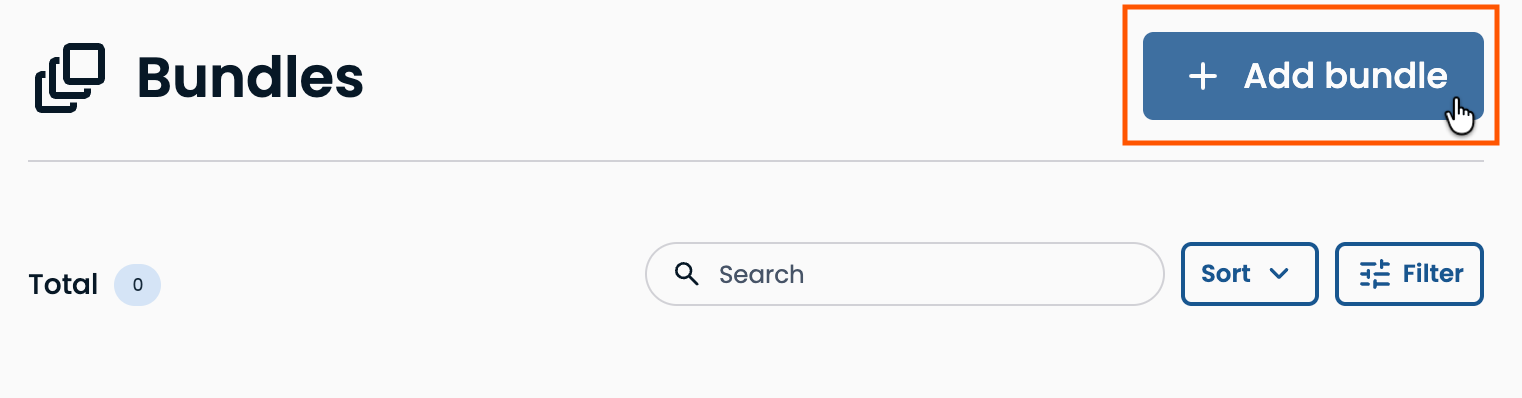
In Entitle, go to Bundles, then click Add bundle.
-
Enter the bundle details:
Enter a Name — this is what users see when requesting access — and a Description with any context they'll need, such as "Permissions bundle for junior accountants."
Add Bundle tags if you want the bundle to be searchable by metadata, such as a department or location.
-
Choose a workflow for the bundle:
Select an Approval workflow to apply when a user requests this bundle.
The workflow selected will override the workflows assigned directly to roles included in this bundle.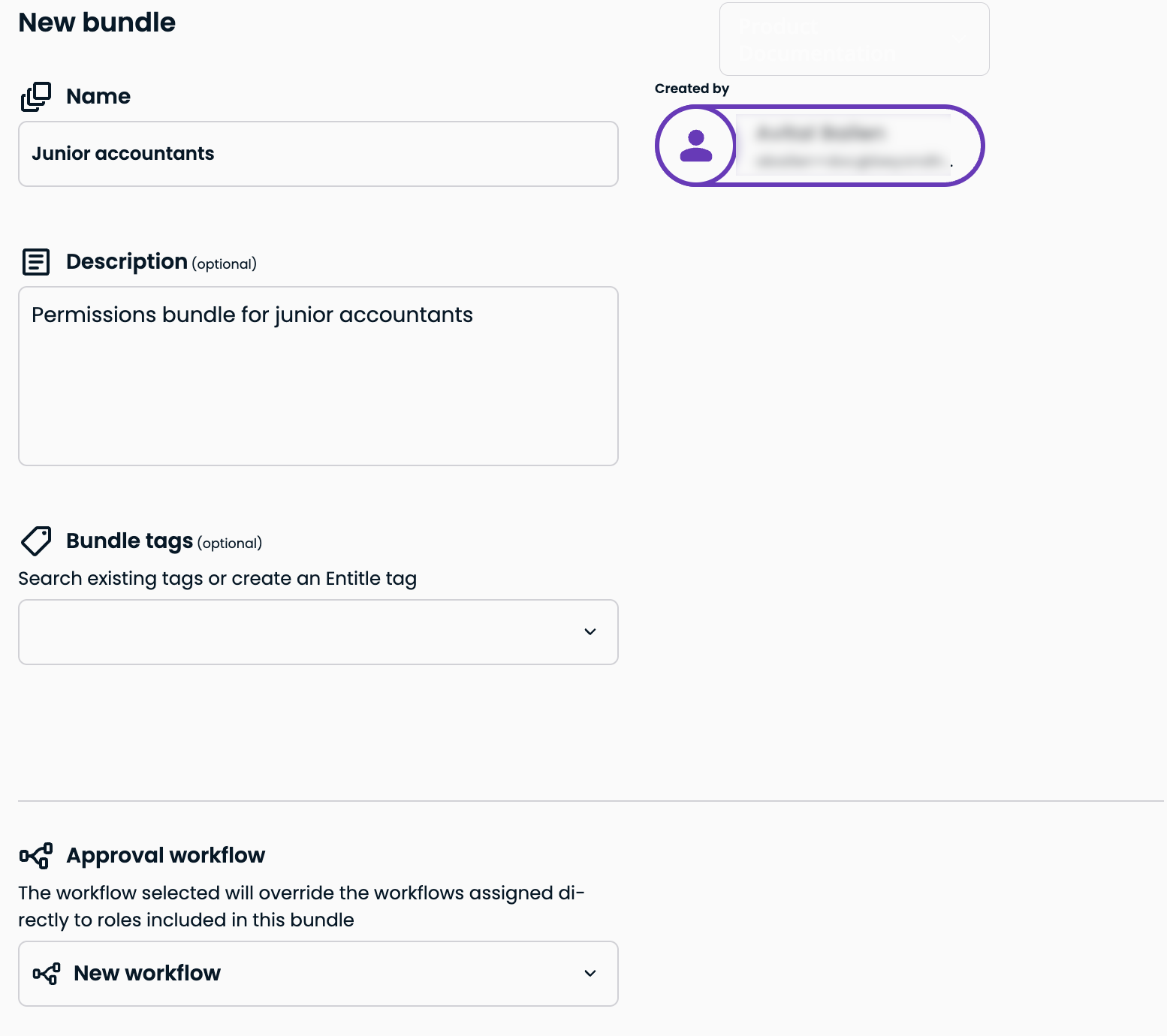
-
Choose the roles that are included in the bundle:
Under Roles in bundle, click Manage roles, then select an integration, resource, and role to add as an entitlement. Repeat for as many roles as the bundle needs. You can select roles from multiple integrations without losing your earlier selections.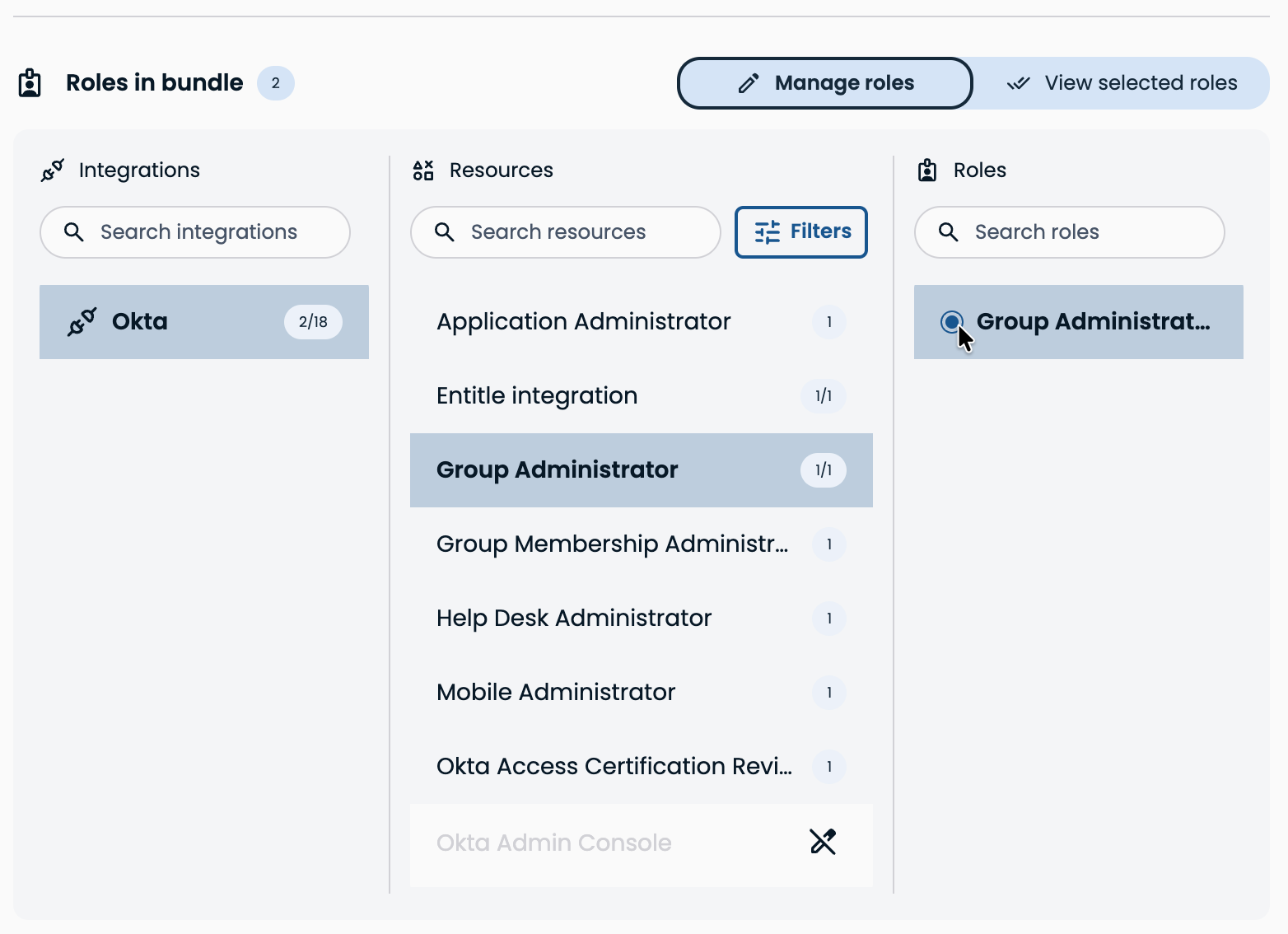
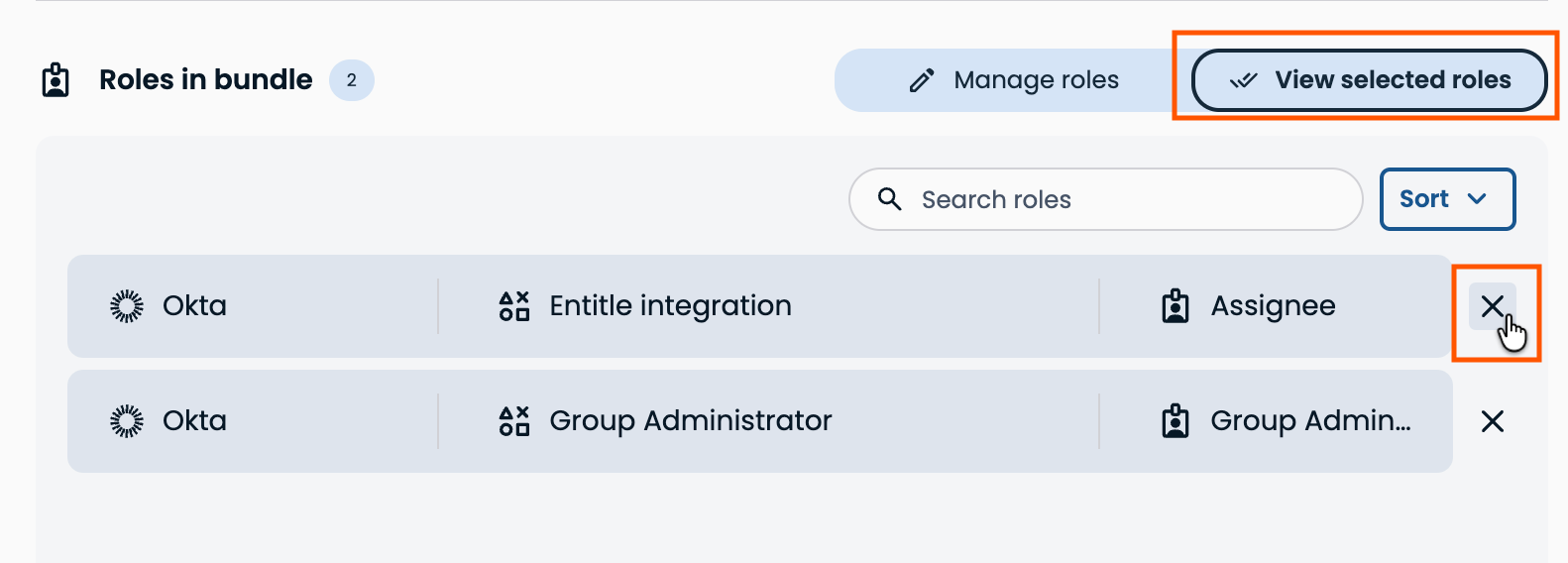
Review your selections under View selected roles, and click the X next to any role to remove it.
-
Assign the access durations users can request:
Entitle displays the durations available according to the approval workflow you've selected. Adjust the workflow to update these options.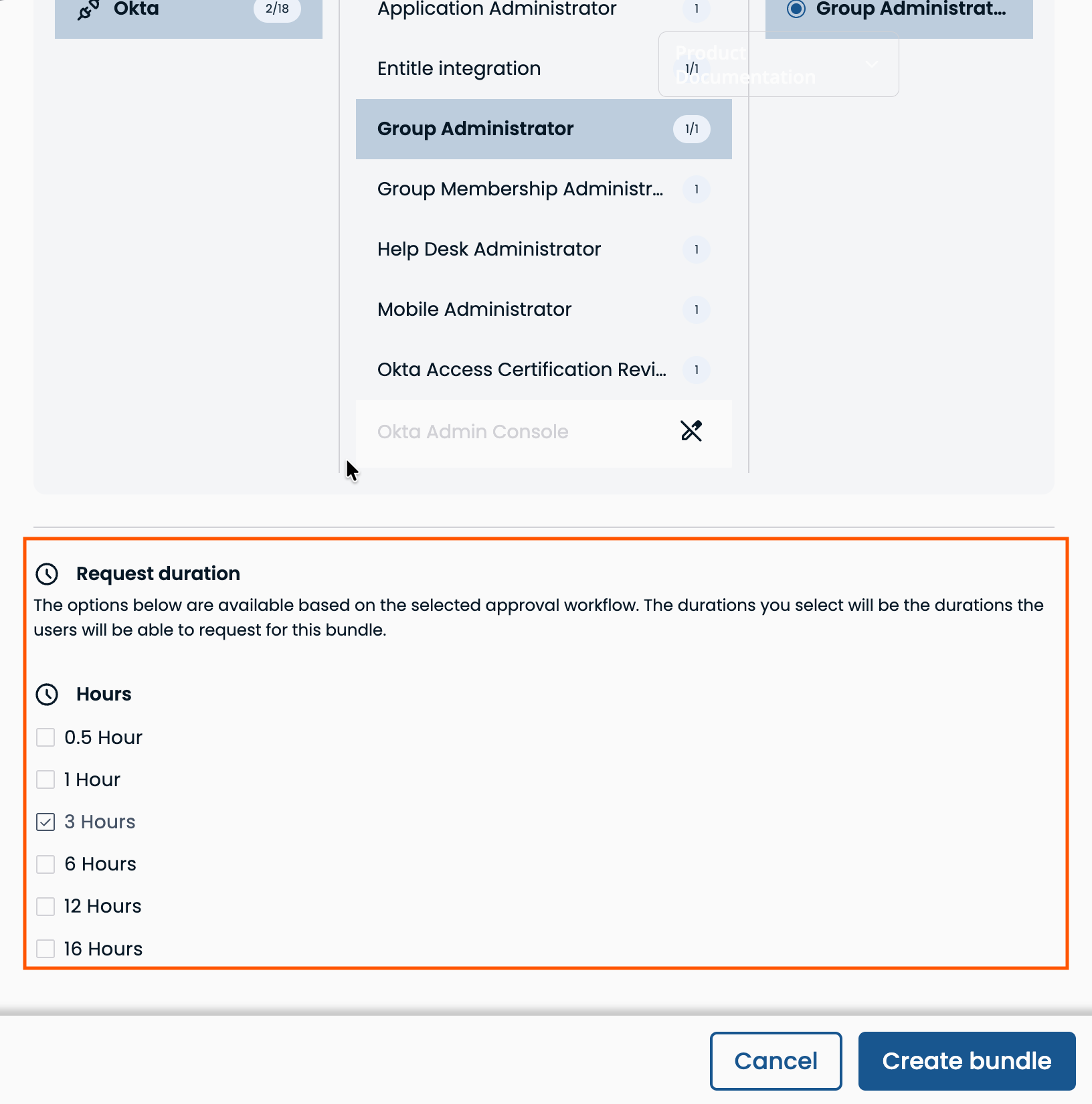
-
Click Create bundle.
Edit and delete an access bundle
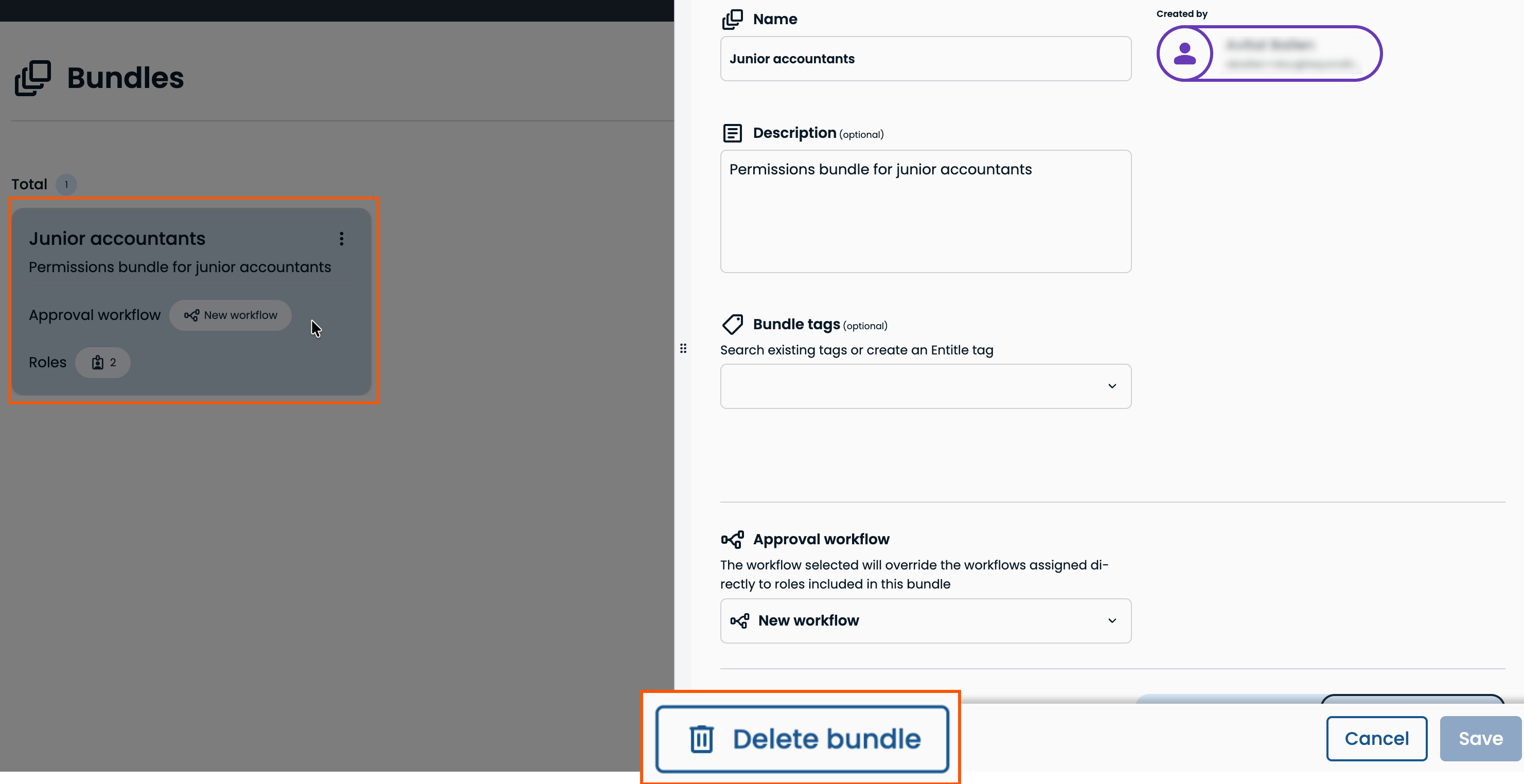
In Entitle, go to Bundles. Click on a bundle to edit or delete it.
Updated about 1 month ago
