
Google Workspace | Entitle
Overview
Google Workspace is a collection of cloud computing, productivity, and collaboration tools, software, and products developed by Google. It consists of Gmail, Contacts, Calendar, Meet, and Chat for communication; Currents for employee engagement; Drive for storage; and the Google Docs Editors suite for content creation.
Entitle can manage groups and admin roles in Google Workspace.
This page will provide you with instructions on how to integrate Entitle and Google Workspace.
General guidelines
In case you have already integrated the Google Workspace as a Directory with Entitle using this guide, the steps on this page are identical to it.**
To integrate your Google Workspace in Entitle, you will need to run the entitle_google_integrator setup that you have downloaded and unzipped on the Google Integrations page, and configure a Domain-Wide Delegation.
Set up Google Workspace to work with Entitle
Stage 1: Run the setup script
The setup will consist of the following actions:
- Create an Entitle service account in the chosen project
- Enable the required API service for the integration:
- Generate a key for the service account and download it to your local machine
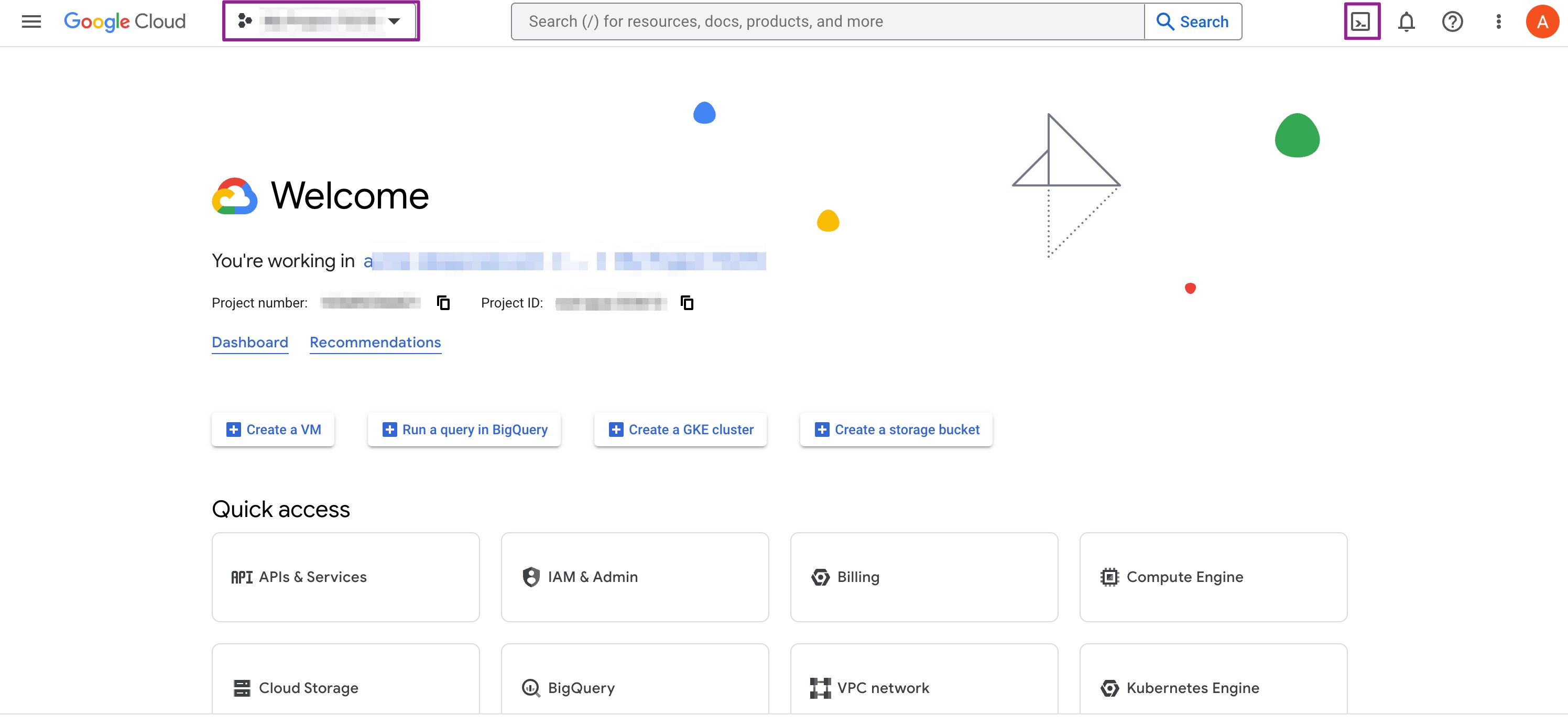
- Go to your GCP web console.
- Choose the project that you chose to create Entitle's service account at the top left corner.
- Click on the shell icon at the top right corner.
- Navigate to the path of the unzipped folder
entitle_google_integrator, and run the following commands:
# For a basic configuration, create a service account in the current project and assign the role to it at the project-level
bash run.sh -i workspace -k

# For more options use the -h flag
bash run.sh -h- Download the created JSON file on setup completion. you will use it later in this guide.

Stage 2: Configure domain-wide delegation
Your service account needs to have domain-wide delegation on a certain scope.
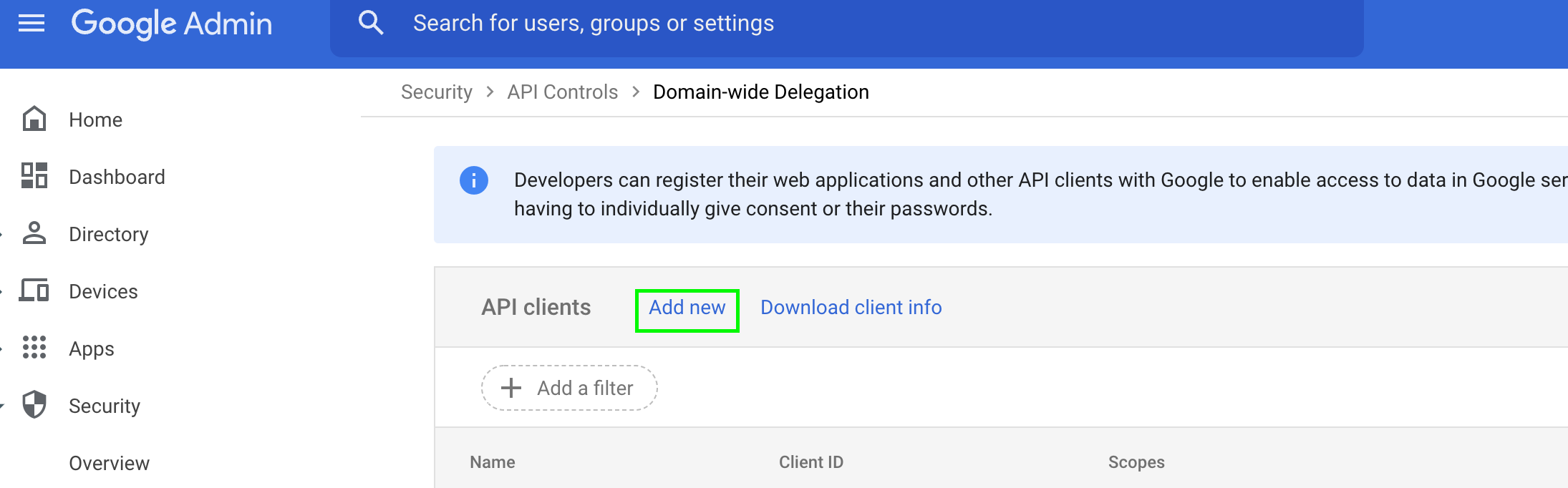
- Go to the Manage Domain-Wide Delegation page
- Click Add new.
-
In the Client ID field, enter the 21-digit number obtained from the key JSON file under the
client_idfield. -
In the OAuth scopes field, enter the following scopes.
https://www.googleapis.com/auth/admin.directory.group,
https://www.googleapis.com/auth/admin.directory.group.readonly,
https://www.googleapis.com/auth/admin.directory.user,
https://www.googleapis.com/auth/admin.directory.user.readonly,

// This scope is required to allow Entitle to get webhooks on changes in your Workspace
https://www.googleapis.com/auth/admin.reports.audit.readonly

// These scopes are optional and used for managing admin roles:
https://www.googleapis.com/auth/admin.directory.rolemanagement,
https://www.googleapis.com/auth/admin.directory.rolemanagement.readonly
-
Click Authorize.
Creating the integration in Entitle
- Log in to Entitle and go to the Integrations page.
- After clicking the Add Integration button, type Google Workspace in the Application field.
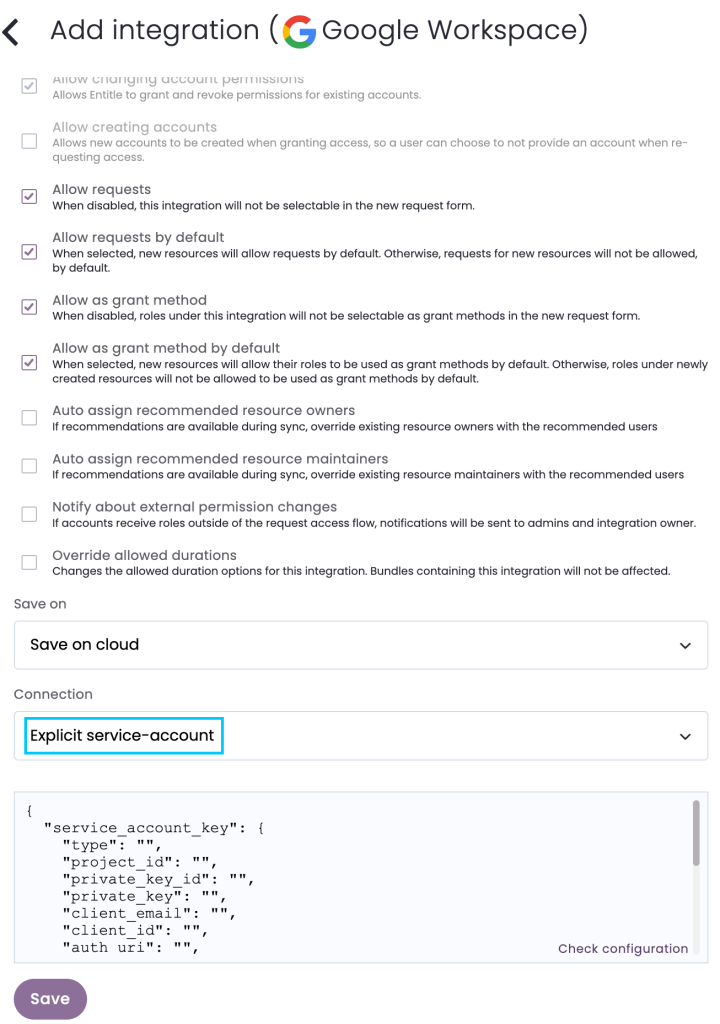
- In the Connection drop-down, choose Explicit Service Account.
- Don’t forget to set Save on correctly on your agent or Entitle’s cloud.
-
Under the
service_account_keyfield, paste the downloaded key JSON of your service account. -
Under
credential_subjectenter an email of an admin in your organization which has permission to view all users and groups in your organization.
Admin roles are detected automatically based on the granted domain-wide delegation scopes.
Example connection JSON{ "service_account_key": {}, // Full service account key JSON from the integration setup "credential_subject": "" // Admin email with permission to view all users and groups }
- Click Save.
Should you need to allowlist this integration, these are the IP addresses from which Entitle's service reaches the integration:
- Entitle EU (Cloud deployment)
- 34.243.199.171
- 54.216.133.226
- Entitle US (Pathfinder deployment)
- 52.45.229.219
- 54.88.235.213
- 3.224.15.134
- Entitle CA (Pathfinder deployment)
- 35.182.218.208
- 15.156.179.153
What's next?Make sure your setup is complete by testing your integration.
Updated 5 months ago
