
ServiceNow | Entitle
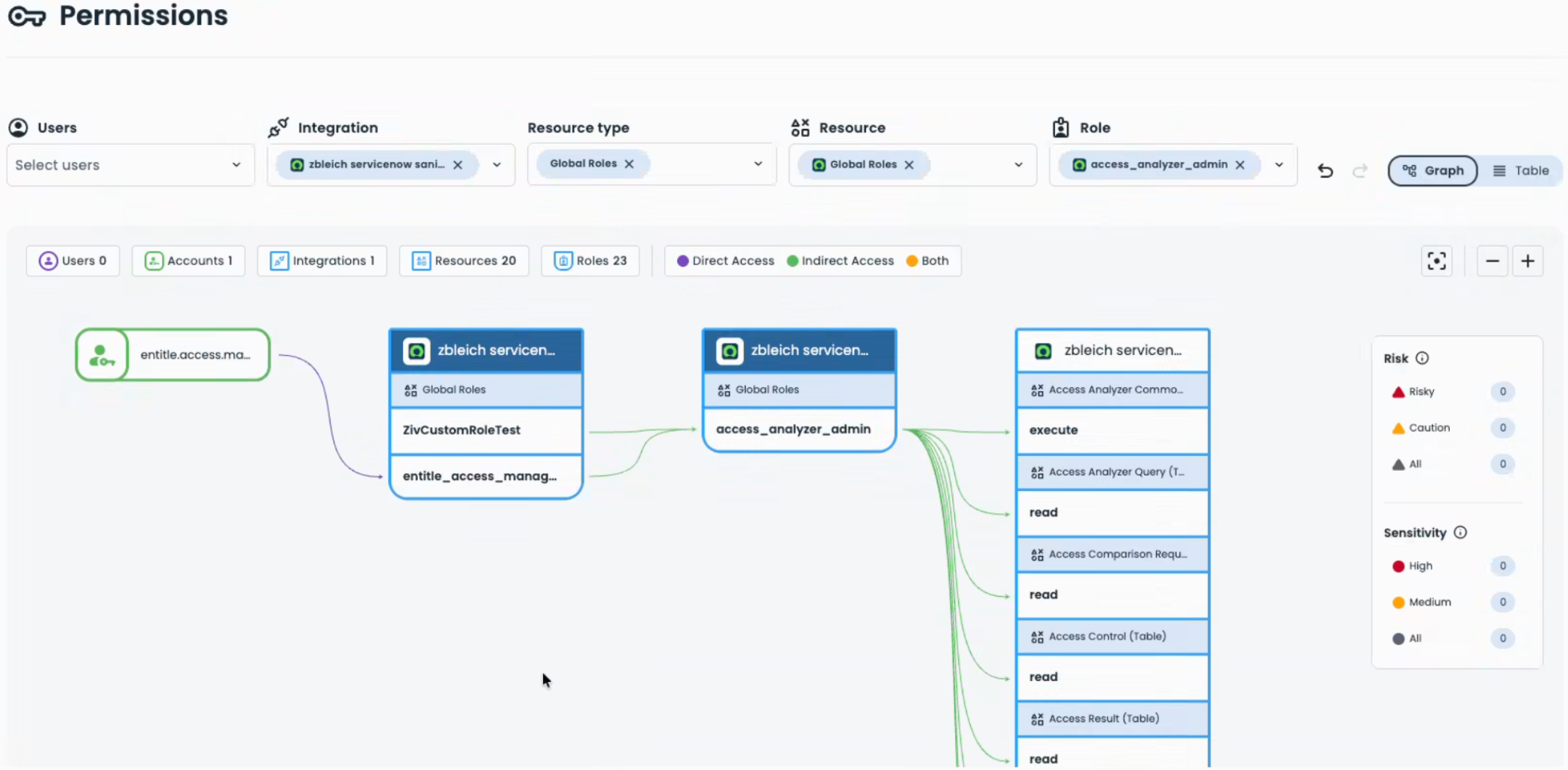
Automate access to your organization's ServiceNow instance with Entitle. With this integration, you can manage ServiceNow groups, roles (specific and global application), and access controlled resources (tables, views, scripts, processors, UI page, UX data broker, GraphQL).
Prerequisites
- ServiceNow administrator access
- Entitle administrator access
Configuration in ServiceNow
Create a user in ServiceNow
- In ServiceNow, go to All > Users and Groups > Users.
- Click New.
- Enter the following details:
| Field | Value |
|---|---|
| User ID | entitle.access.management (recommended) |
| First name | Enter a preferred value. This appears in the ServiceNow user list and audit logs. |
| Last name | Enter a preferred value. This appears in the ServiceNow user list and audit logs. |
| Identity type | Machine |
| Active | Selected |
| Internal integration user | Selected |
- Click Submit.
Assign roles to the user
- Search for the user you created and select it.
- Under Roles, click Edit.
- Add the admin role, then click Save.
(Optional) If you prefer not to grant admin access, you can create a custom role instead. Choosing not to grant the admin role means:
- You will need to create roles in ServiceNow for any of the access controlled resources, instead of Entitle doing this automatically.
- Entitle can not display the access controlled resources in the Permissions page.
- You will not be able to grant or manage admin roles in Entitle.
Process:
- Download the entitle_access_management.xml.
- Open a new tab and go to All > Retrieved Update Sets.
- Select Import Update Set from XML, upload the Entitle-supplied XML file, then click Save.
- Select the file you just uploaded called entitle_access_management, then click Preview Update Set, then Commit Update Set.
- Click Update.
- Go to Roles and confirm the file is committed.
- Select the role, then click Contains Roles > Edit. Add
snc_platform_rest_api_access, then click Update. - Return to the previous tab with the user you created and select it.
- Under Roles, click Edit.
- Choose
entitle_access_management, then click Update.
Add support for access controlled resources
Follow these steps to enable Entitle to display and manages access controlled resources. This step requires granting the admin role. If you prefer not to configure this step, you can still provide access to access controlled resources by creating and managing relevant roles in ServiceNow, rather than Entitle doing so for you.
- Download the entitle_acl_access_management.xml. This XML creates a staging table for the access changes and a business tool for applying them.
- Open a new tab and go to All > Retrieved Update Sets.
- Select Import Update Set from XML, upload the XML file, then click Save.
- Select the file you just uploaded called entitle_acl_access_management, then click Preview Update Set, then Commit Update Set.
- Click Update.
Set authentication for the Entitle user
Choose one of the following authentication methods:
Option A – Password (basic)
- On the user record, click Set Password > Generate.
- Save the password.
Option B – OAuth client credentials (recommended)
- Type
sys_properties.doin the search bar. - Create a new system property record and enter the following details:
| Field | Value |
|---|---|
| Name | glide.oauth.inbound.client.credential.grant_type.enabled |
| Type | true|false |
| Value | true |
| Ignore cache | Selected |
- Click Submit.
- Go to Inbound Integrations > New Integration > OAuth – Client Credentials Grant.
- Enter the following details:
| Field | Value |
|---|---|
| Name | entitle-access-management |
| OAuth application user | entitle.access.management |
| Auth scope | useraccount |
- Copy the Client ID and Client Secret.
- Click Save.
Configure the integration in Entitle
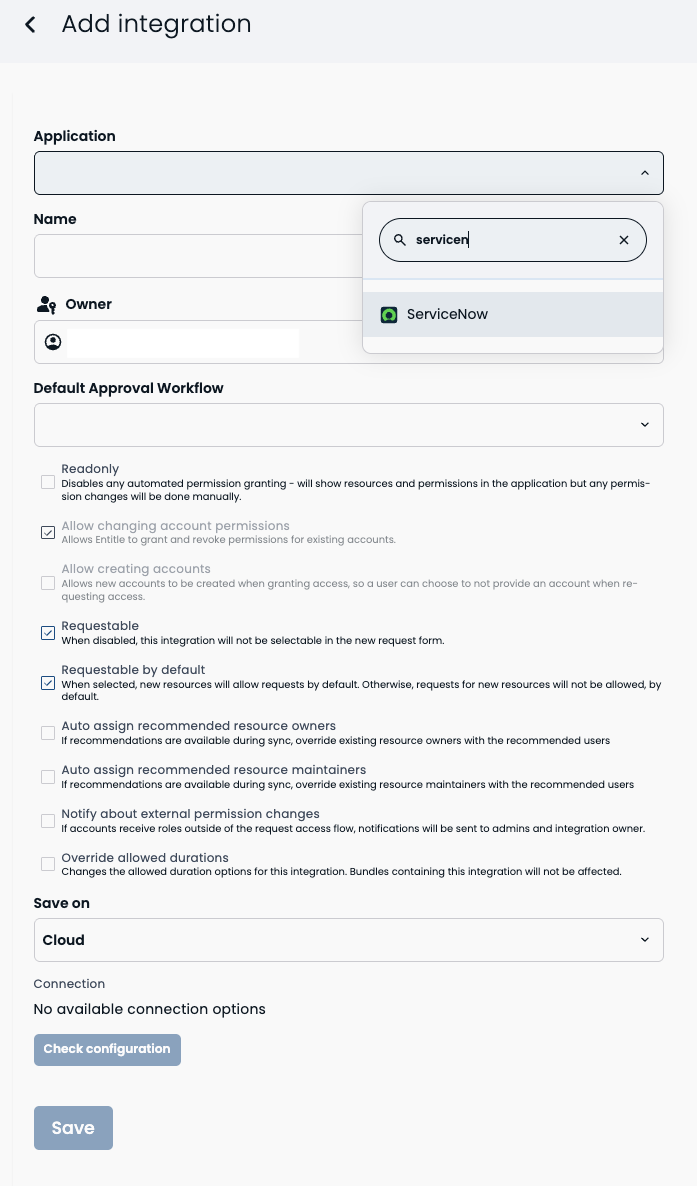
See Connect your applications and services to Entitle with Integrations.
Choose ServiceNow under Application.
Example JSON{ "instance_url": "https://url.service-now.com/", "client_id": "client_id", "client_secret": "client_secret" }
Updated 23 days ago
