
Birthright policies | Entitle Pathfinder
Overview
Entitle birthright policies are sets of rules that automatically manage employees’ birthright permissions, allowing a group of employees to be entitled to a set of birthright permissions.
When an employee joins the group, e.g., upon joining the organization, they will be automatically granted the permissions defined for the group, and upon being removed from the group, e.g., leaving the organization, the permissions will also be automatically removed.
This page will provide you with step-by-step instructions on how to use Policies in Entitle.
View and manage Policies
- Sign in to app.beyondtrust.io with your credentials. The BeyondTrust Pathfinder Home displays.
- At the top right of the page, select your site from the drop-down.
- Select the Entitle tile from your list of available applications.
- From the top left menu, select Birthright policies.
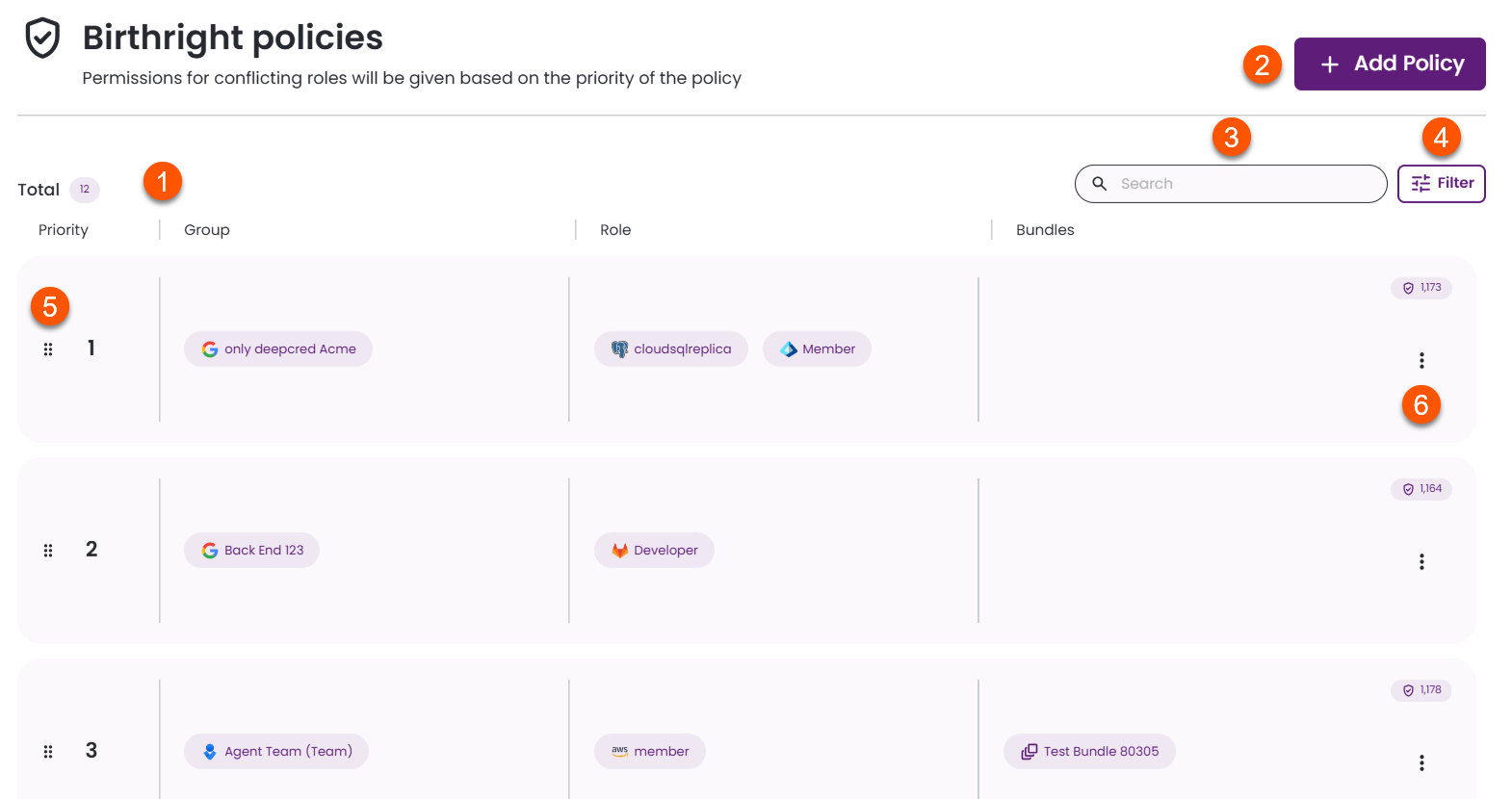
- Birthright policies table: This table presents all existing birthright policies within the tenant. The columns from left to right are:
- Group: Displays the groups to which the policies grant access.
- Role: Displays the roles to which the policies grant access.
- Bundle: Displays the bundles to which the policies grant access.
- Add policy: Create a new policy.
- Search: Find policies based on:
- Group
- Integration
- Resource
- Role
- Bundle
- Filter by any available options.
- Prioritize policies: Permissions for conflicting roles are given based on the priority of the policy. To modify the priority, drag the chosen policy using the grip icon. The higher the policy, the higher the priority.
- Edit/Delete policies: Click the vertical ellipses at the right to access the Edit and Delete options.
- Edit: Click the pencil icon. Make your changes, and when you are done, click Save.
- Delete: Click the trash icon, and in the pop-up screen click Delete policy. This action will remove the permissions that the specific users within the selected groups had through this policy.
It is recommended that when deleting a policy, remove the roles/bundles from the policy first, and then proceed to delete it.
Hovering over the different components within the policies table will provide you with further information on the groups, bundles, and roles.
Set up birthright policies
-
Go to the Birthright policies screen and click the Add Policy button in the top-right corner.
-
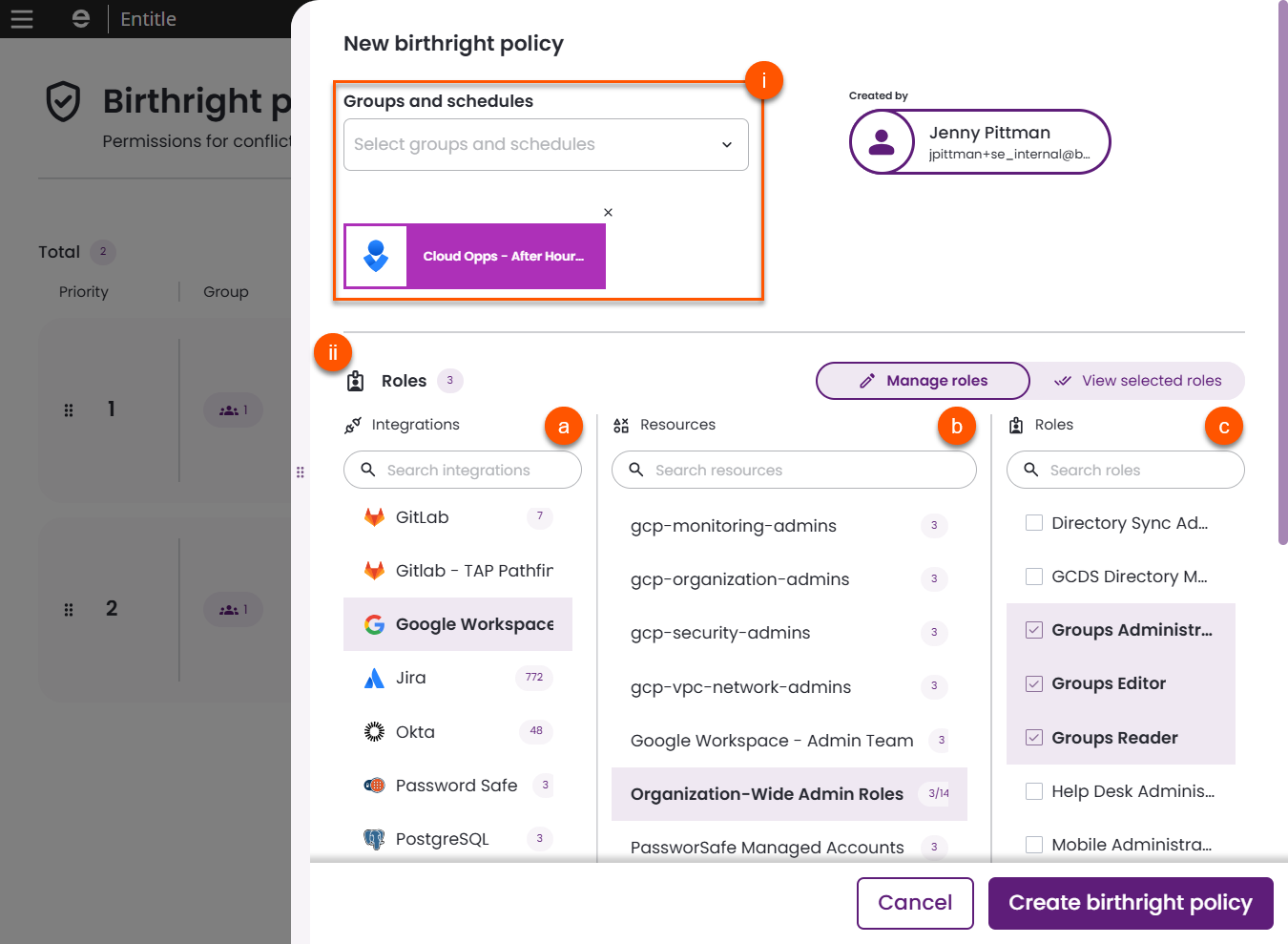
From the fly-out panel, choose details for your new policy.
-
Groups and schedules: Select the groups and/or schedules that trigger the policy. You can choose multiple entries.
Available groups include identity provider groups and on-call groups configured in the Integrations tab of the Org settings page.
-
Roles: Select the roles to assign when the policy conditions are met.
-
Manage roles tab:
- First, select an integration.
- Then, select a resource.
- Finally, select one or more roles.
The selected roles define the access that is automatically granted to users who match the policy.
-
View selected roles tab:
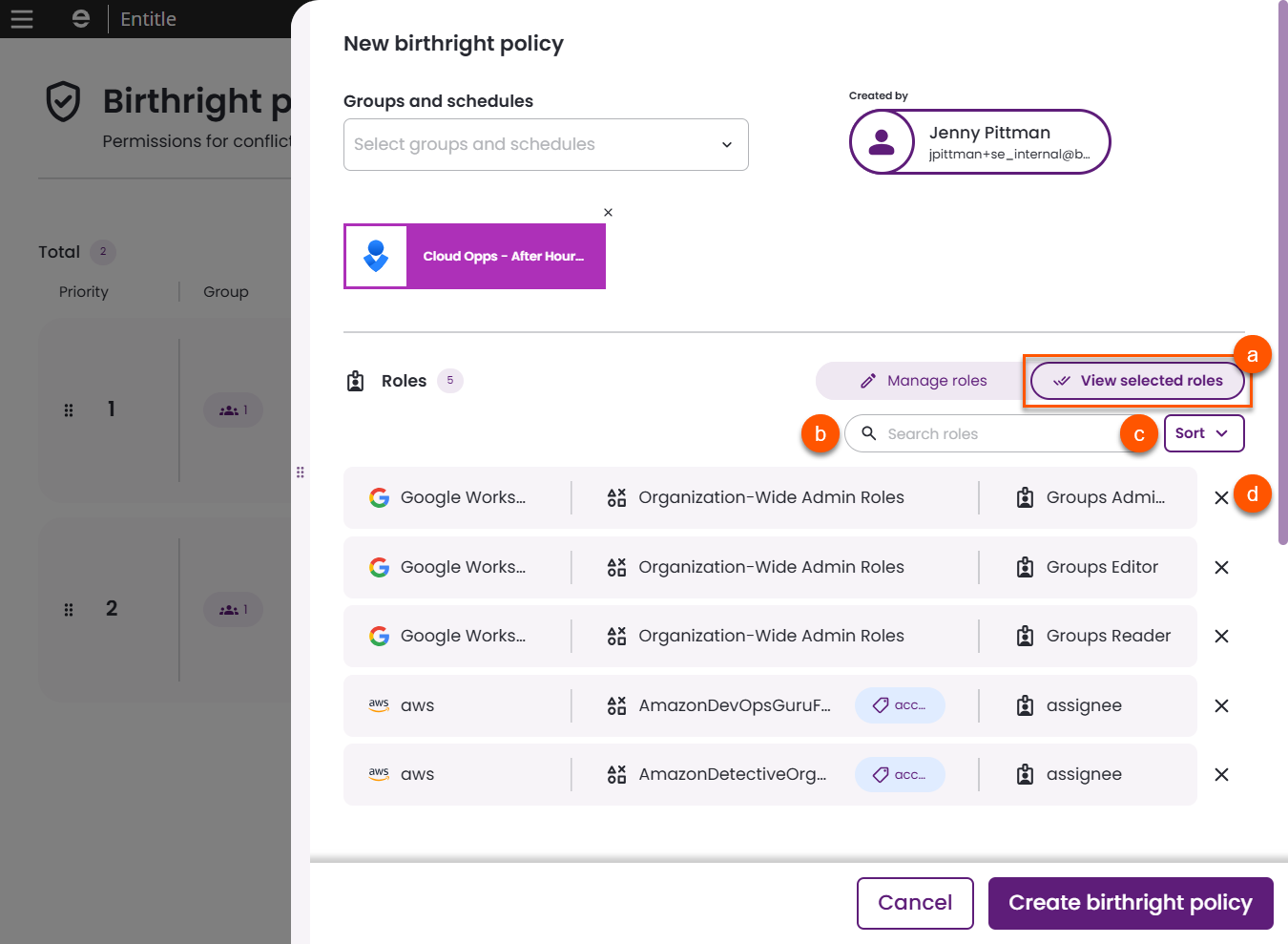
- Click View selected roles to review all selected roles in a consolidated list.
In this view, each selected role is displayed with its associated integration and resource, allowing you to verify the full access path before creating the policy. - Search for roles based on role name.
- Sort roles by:
- Integration
- Resources
- Role
- To remove a role, click the X next to the role in the selected roles list.
If no roles are available, verify the integration and role configuration.
Roles may not appear if:
- The integration has been removed
- The role is part of a virtual application that cannot assign permissions due to its configuration
For example, roles will not be available if:
can_update_permissionsis set tofalsecan_create_actorsis set totrue
In these cases, the roles cannot be requested or assigned through a policy and are therefore not displayed.
- Click View selected roles to review all selected roles in a consolidated list.
-
-
Bundles: Optionally, add bundles to grant grouped access. Bundles allow you to assign a predefined set of roles and may include approval workflows.
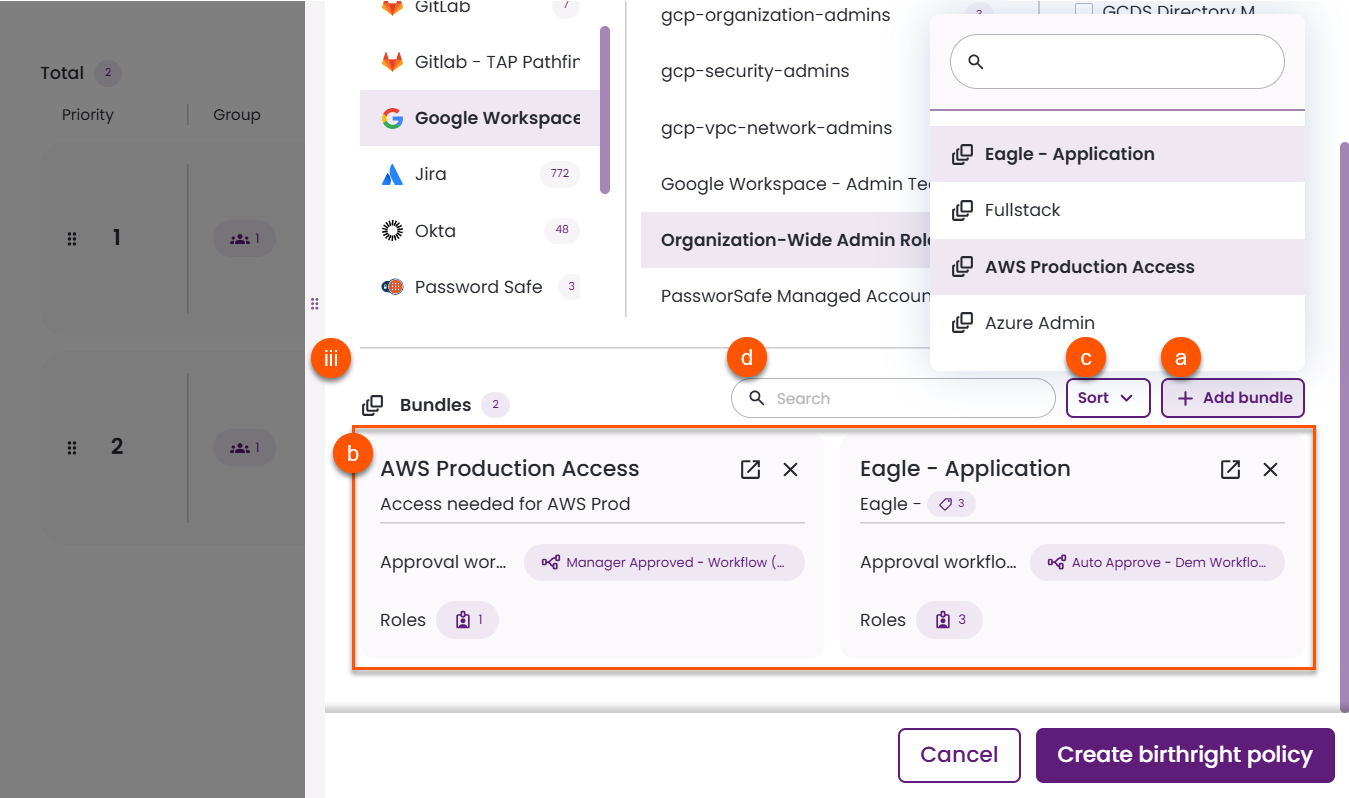
- Click Add bundle, then search for and select a bundle from the list.
- Each selected bundle displays its associated approval workflow and the number of roles it contains.
- Sort selected bundles by:
- Name
- Description
- Number of roles
- Approval workflow
- Creation
- Search selected bundles based on:
- Name
- Description
- Approval workflow
- Resource name
- Role
- To go to the bundle in a new tab, click the Open in new tab icon. To remove a bundle, click the X next to the bundle.
-
-
Click Create birthright policy. The new policy appears in the table.
Changes in Policies
Any change made in the system is documented in the Audit logs screen, including changes in policies; e.g., changes in the policy’s content through creating, editing, or deleting policies, as well as changes in the policy’s permissions.
Triggers for Policies
The policies are applied once a day; however, any of the following changes will be applied immediately: creating, editing, or deleting policies, reordering the policies, changes in the on-call groups, and changes in the IdP groups.
Troubleshooting
Birthright policy sync issue
A birthright policy automatically assigns roles to users who belong to a specified group. In some cases, a user is in the correct group but does not get the specified role. To resolve this issue, follow the steps below:
Identify the issue
-
Navigate to the Audit logs screen in Entitle.
-
Download the logs as a CSV file.
-
Search for the user’s ID, which is available on the user’s profile page. For example:

-
Look for the following action in the CSV file:
OrganizationPolicyPermissionsUpdatesMissingAccounts.
Add the user’s integration account
-
Navigate to the user’s page in Entitle.
-
Select Add integration.
-
Choose the integration used in the Birthright policy.
-
Select the user’s account.

If the user's associated account is not listed, it may not have synced to Entitle yet:
- Confirm the user has an account in the integration application.
- In Entitle, open the integration and select Sync. After 10 minutes, recheck the user's page to confirm the account has been added.
Resync the birthright policy
If the user still does not receive the role, proceed with one of two options:
- Recreate the birthright policy.
- Re-order the birthright policies by dragging them in the Birthright policies
screen and changing their hierarchy.
Updated 5 months ago
