
Twingate | Entitle
What is Twingate?
Twingate is a new security platform that rethinks security and access controls from the ground up, bringing together network access, authentication, and device controls into a single, easy-to-use solution. Twingate makes it easy to securely access networks, technical infrastructure, and SaaS apps for companies of all sizes.
How is this integration useful?
The integration enables organizations to securely manage network, infrastructure, and SaaS app access by integrating Twingate’s robust security controls with Entitle’s group management features.
This page will provide you with instructions on how to integrate Entitle and Twingate.
General guidelines
To integrate your Twingate in Entitle, you will need to extract two things:
- Twingate tenant’s URL -
https://<YOUR_COMPANY>.twingate.com. - API Token (which will be explained in the next part of the guide).
Should you need to allowlist this integration, these are the IP addresses from which Entitle's service reaches the integration:
- Entitle EU (Cloud deployment)
- 34.243.199.171
- 54.216.133.226
- Entitle US (Pathfinder deployment)
- 52.45.229.219
- 54.88.235.213
- 3.224.15.134
- Entitle CA (Pathfinder deployment)
- 35.182.218.208
- 15.156.179.153
Set up Twingate to work with Entitle
Creating an API token
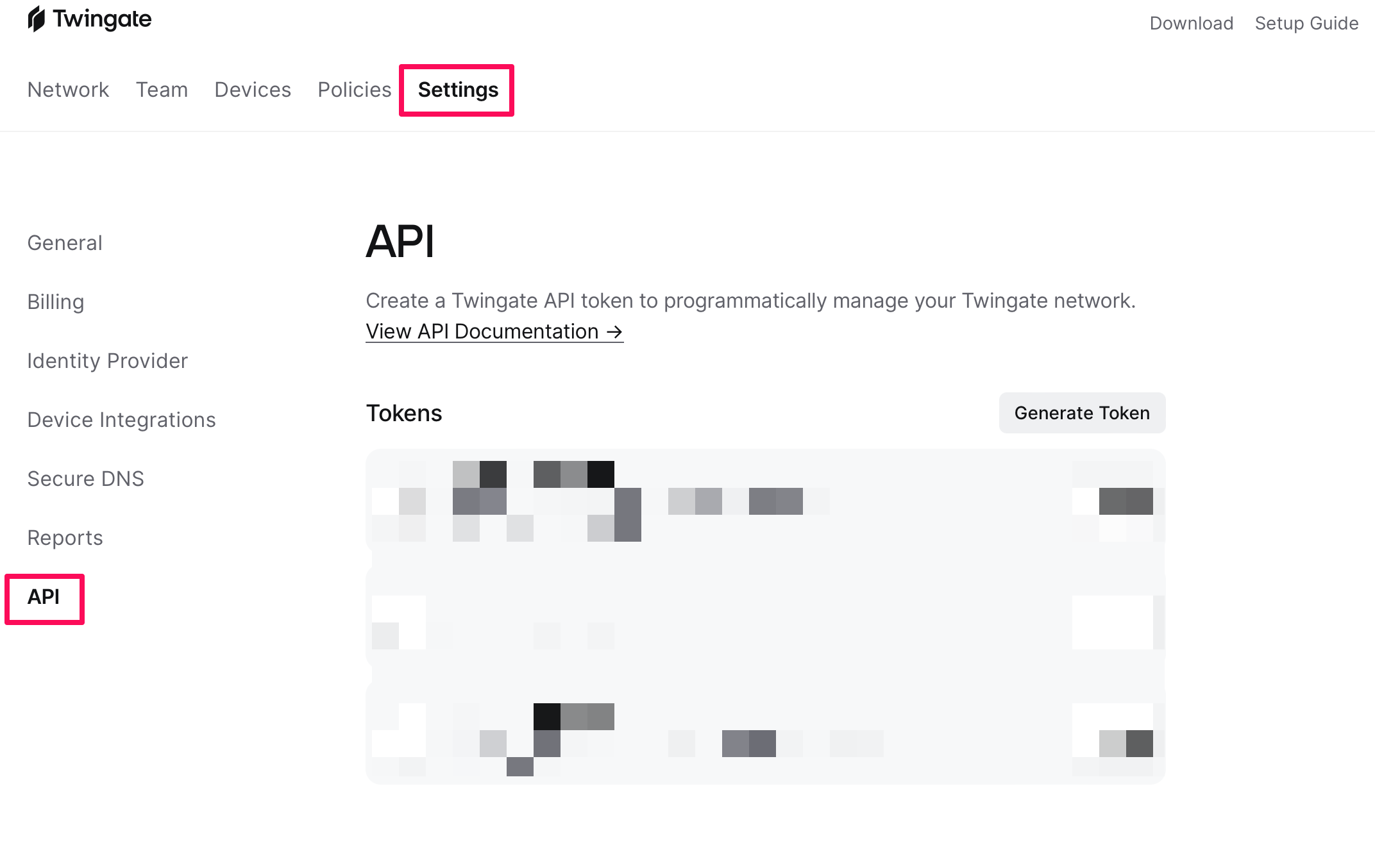
- In Twingate’s Admin portal, under the Settings tab, in the left-side menu, click API.
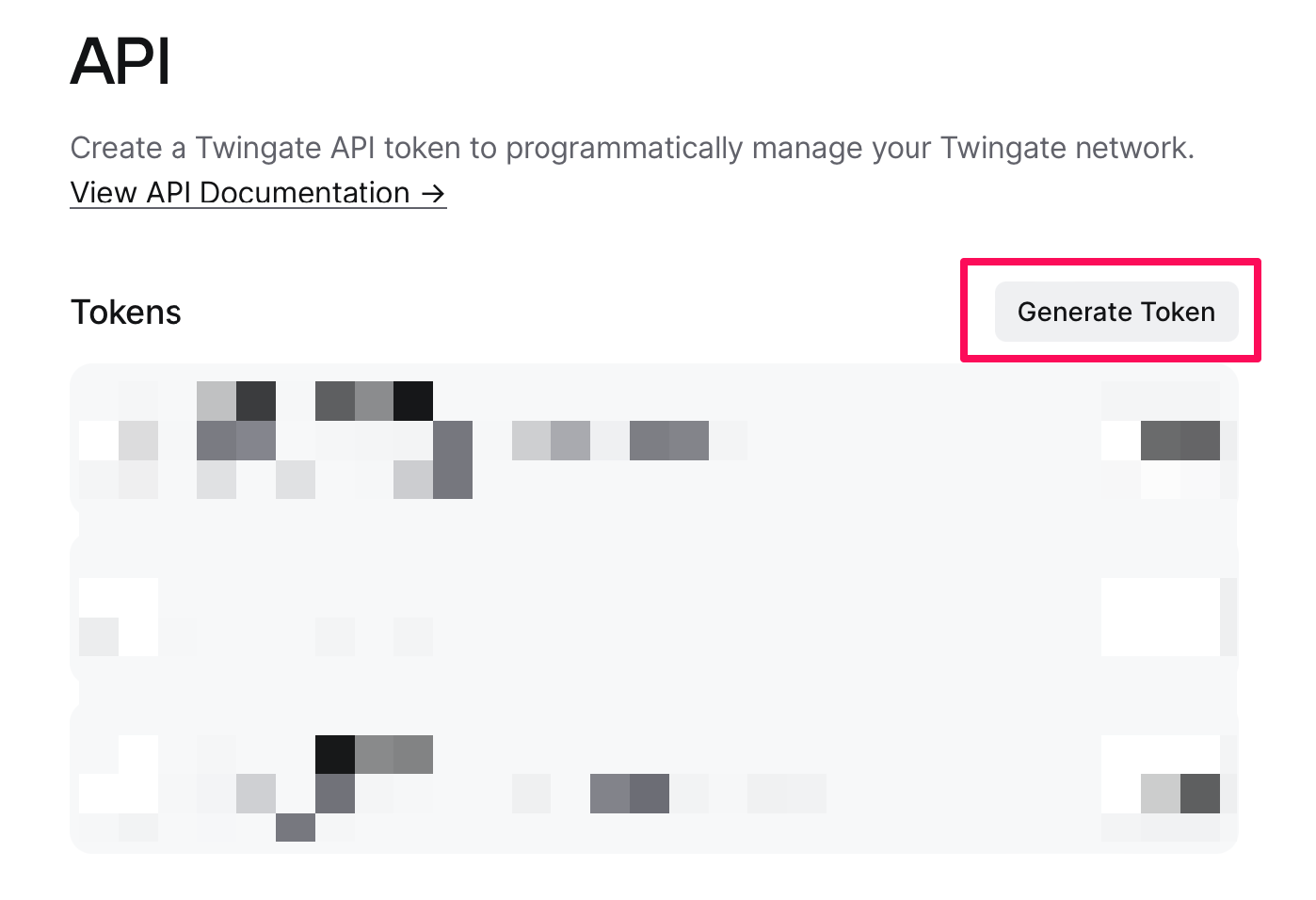
- Next, click on the Generate Token button.
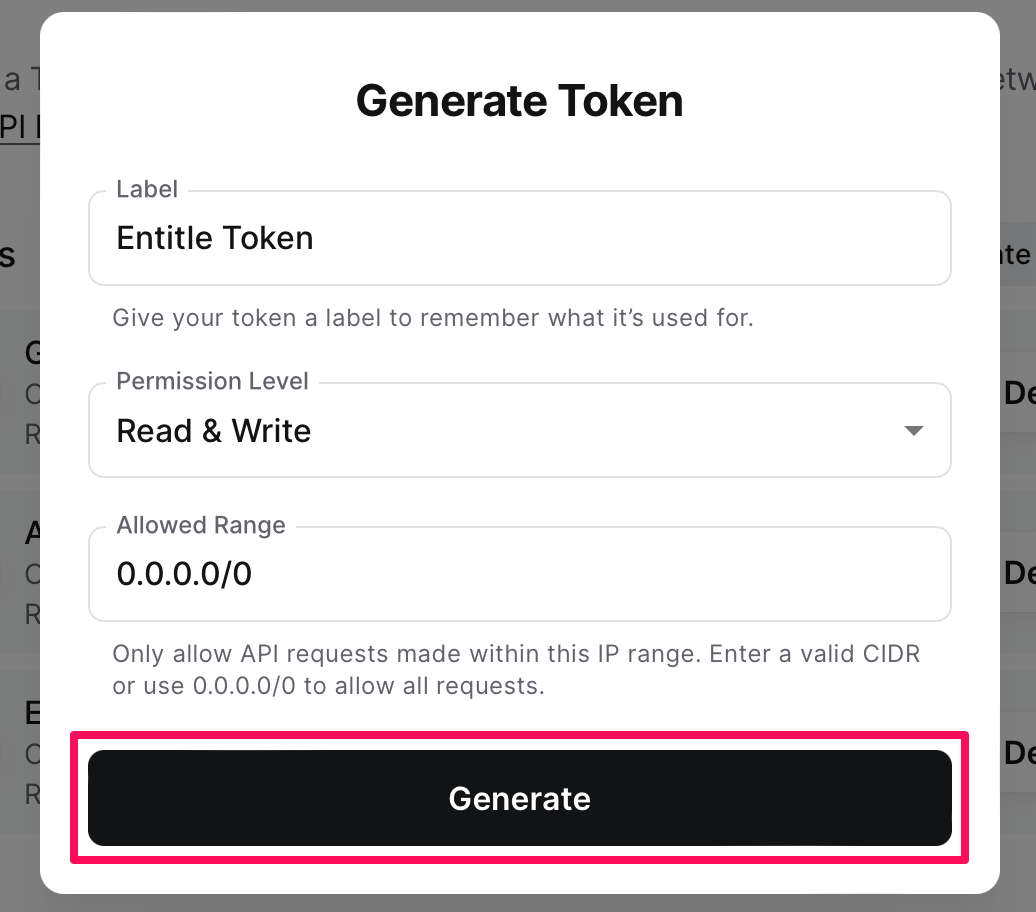
- You will now need to insert the following details. Once you’re done, click the Generate button.
- Label: Choose a name for your token.
- Permission Level: choose Read & Write (The second option in the drop-down menu).
- (Optional) Allowed Range: The IP address(es) will be determined based on the deployment type of Entitle in your organization:
- Self-Hosted solution: Get the external IP address of the cluster (Entitle’s requests will be sent from these IP addresses).
- Fully-Cloud solution: These are the IP address ranges from which Entitle's service reaches the Twingate service:
- Entitle EU (Cloud deployment)
- 34.243.199.171
- 54.216.133.226
- Entitle US (Pathfinder deployment)
- 52.45.229.219
- 54.88.235.213
- 3.224.15.134
- Entitle EU (Cloud deployment)
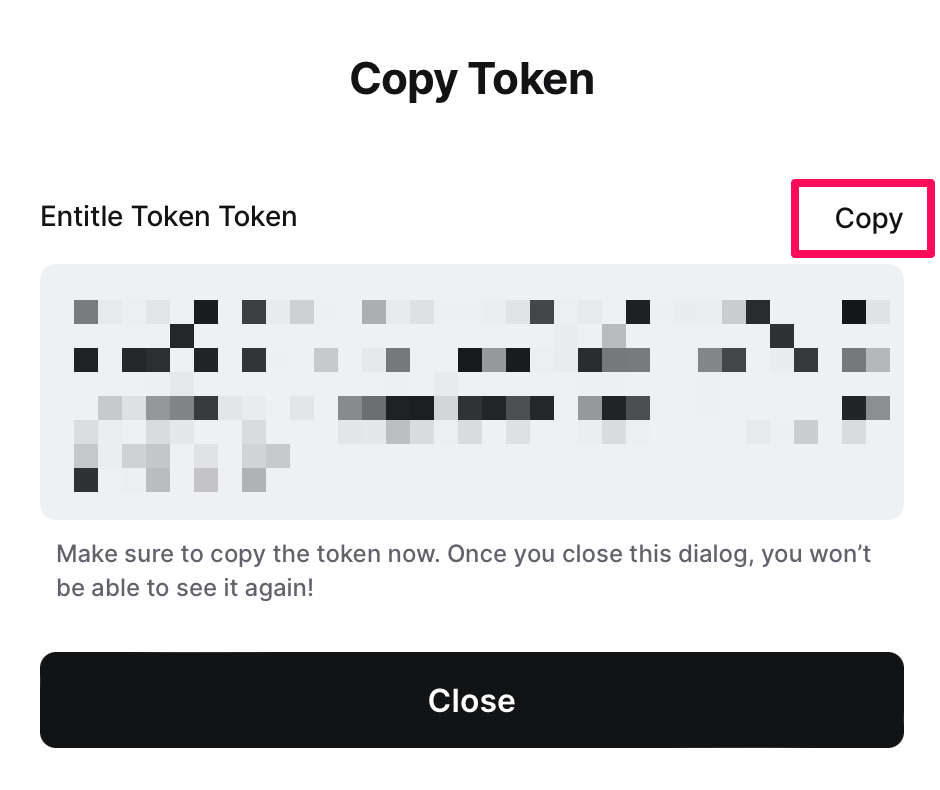
- After generating the token, a pop-up window called Copy Token opens. Click Copy and then close the window.
Creating the integration in Entitle
- Log in to Entitle and go to the Integrations page.
- After clicking the Add Integration button, type Twingate in the Application field.
- Don’t forget to set Save on correctly on your agent or Entitle’s cloud.
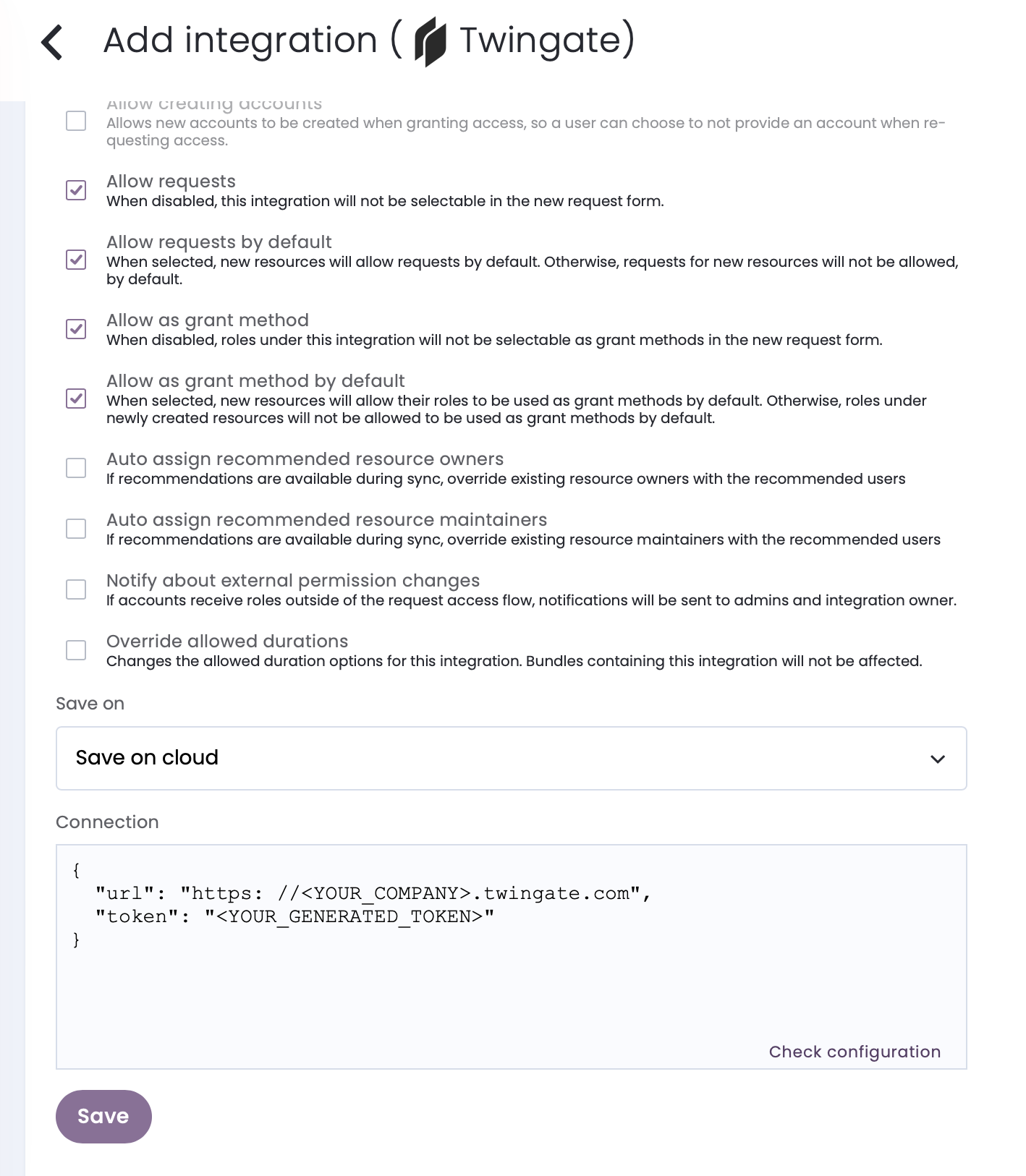
- In the
urlfield, fill in your Twingate tenant’s URL. - In the
tokenfield, paste the API token you copied earlier.
{
	"url": "https://<YOUR_COMPANY>.twingate.com",
  "token": "<YOUR_GENERATED_TOKEN>"
}- Click Save.
What's next?Make sure your setup is complete by testing your integration.
Updated 5 months ago
