
Install Entitle agent with HashiCorp Vault on GCP GKE | Entitle
This guide installs the Entitle agent on a Google Kubernetes Engine (GKE) cluster using HashiCorp Vault as the secret store (kmsType="hashicorp_vault").
By the end of this installation, you have a working Entitle agent on your GKE cluster that stores all its integration secrets in your HashiCorp Vault (Community, Enterprise, or HCP). No GCP Secret Manager access, no Google service account roles, and no extra IAM bindings are required.
The agent supports two Vault authentication modes:
- Vault JWT (workload identity) — recommended, and the main path in this guide. The agent logs in to Vault with its Kubernetes service account token, so no long-lived Vault token is stored anywhere.
- Static Vault token — a pre-provisioned Vault token embedded in the connection string. See Alternative: static Vault token.
Vault JWT authentication on GKE is supported by all agent versions released since May 2026.
Prerequisites
- Outbound connections permitted per the Entitle agent network access requirements.
- Helm v3, kubectl, and the gcloud CLI with the
gke-gcloud-auth-plugincomponent. - A GKE cluster you have admin access to.
- A HashiCorp Vault instance reachable from the cluster, and admin access to it (the
vaultCLI withVAULT_ADDRandVAULT_TOKENset). On Vault Enterprise or HCP, also exportVAULT_NAMESPACE=<your namespace>, for exampleadmin. - For JWT mode, Vault must be able to reach the cluster's OIDC issuer URL (
https://container.googleapis.com/v1/projects/<project>/locations/<location>/clusters/<cluster>) to fetch its discovery document and signing keys. This is a public Google endpoint, so outbound HTTPS from Vault tocontainer.googleapis.comis all that's needed.
Process
Generate an agent token
In Entitle, navigate to Org settings > Tokens. Click Add under Agent tokens . Reveal and copy the token for later use.
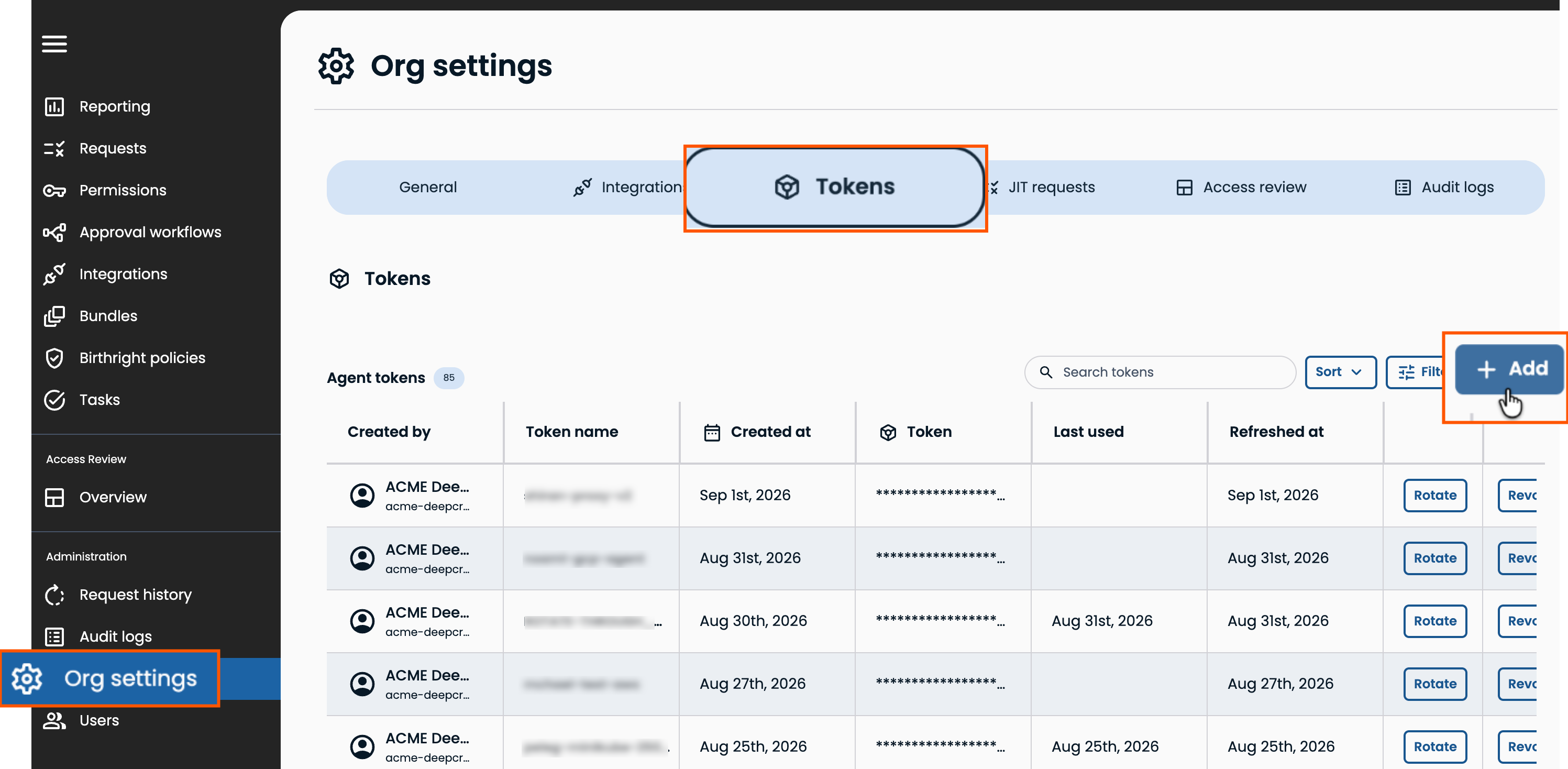
Each token is tied to a single agent, unless the agents are fully redundant. For redundancy architecture guidance, contact BeyondTrust.
Add the Helm repositories
Add the Datadog and Entitle Helm repositories to your cluster.
helm repo add datadog https://helm.datadoghq.com
helm repo add entitle https://anycred.github.io/entitle-charts/
Set variables
export CLUSTER_NAME=<YOUR_CLUSTER_NAME>
export LOCATION=<YOUR_CLUSTER_LOCATION>
export PROJECT_ID=<YOUR_GCP_PROJECT_ID>
export ENTITLE_AGENT_GKE_SERVICE_ACCOUNT_NAME=<YOUR_GKE_SERVICE_ACCOUNT_NAME>
export AUTOPILOT=false             # true on GKE Autopilot clusters
export TOKEN=<TOKEN_FROM_ENTITLE_ORG_SETTINGS>
export ORG_NAME=<YOUR_ORGANIZATION_NAME>
export NAMESPACE=entitle
export VAULT_HOST=<YOUR_VAULT_HOST>
export VAULT_PORT=8200
export HASHICORP_NAMESPACE=admin   # Vault Enterprise/HCP only — ignore for Vault Community
export HASHICORP_KV_MOUNT=Entitle| Variable | Value |
|---|---|
CLUSTER_NAME | Your GKE cluster name. |
LOCATION | The cluster's location: a zone such as us-central1-a for zonal clusters, or a region such as us-central1 for regional and Autopilot clusters. |
PROJECT_ID | The GCP project the cluster lives in. |
ENTITLE_AGENT_GKE_SERVICE_ACCOUNT_NAME | The Google service account name from your Entitle GCP agent installation, name only, without @<project>.iam.gserviceaccount.com. It is used only to annotate the agent's Kubernetes service account for Workload Identity. The Vault flow grants it no roles and never uses its credentials. |
AUTOPILOT | true if the cluster is GKE Autopilot, otherwise false. |
TOKEN | The Entitle agent token from Step 1. |
ORG_NAME | Your organization's name. |
NAMESPACE | The agent's namespace. Changing this from entitle is strongly discouraged. |
VAULT_HOST / VAULT_PORT | Your Vault's address as reachable from inside the cluster. |
HASHICORP_NAMESPACE | Vault Enterprise or HCP namespace, commonly admin. Not used on Vault Community. |
HASHICORP_KV_MOUNT | The Vault mount path where the KV engine is created and secrets are stored. |
Update kubeconfig
gcloud container clusters get-credentials "${CLUSTER_NAME}" --location="${LOCATION}" --project="${PROJECT_ID}"Optional: private control plane through an IAP tunnel
If your cluster's control plane is private and you reach it through a bastion host, open an IAP tunnel first and fetch credentials with --internal-ip. See the GCP installation section of the agent docs for the full bastion flow.
gcloud beta compute ssh "<BASTION_HOSTNAME>" --tunnel-through-iap --project "${PROJECT_ID}" --zone "<BASTION_ZONE>" -- -4 -N -L 8888:127.0.0.1:8888 -o "ExitOnForwardFailure yes" -o "ServerAliveInterval 10" &
gcloud container clusters get-credentials "${CLUSTER_NAME}" --location="${LOCATION}" --project="${PROJECT_ID}" --internal-ip
Enable Workload Identity on the cluster
Enabling the workload pool is what makes GKE publish the cluster's OIDC discovery document publicly and issue service account tokens that Vault can validate.
gcloud container clusters update "${CLUSTER_NAME}" \
    --location="${LOCATION}" \
--workload-pool="${PROJECT_ID}.svc.id.goog"This is the only GCP-side setup the Vault flow needs from the standard GCP installation. Do not create a Google service account, grant Secret Manager or other IAM roles, or add Workload Identity IAM bindings for this guide.
If Workload Identity is already enabled on the cluster, skip the update. Either way, verify:
gcloud container clusters describe "${CLUSTER_NAME}" --location="${LOCATION}" \
    --format="value(workloadIdentityConfig.workloadPool)"
# Expected: <PROJECT_ID>.svc.id.goog
Vault uses the cluster's issuer URL as its OIDC discovery URL when it validates the agent's service account JWT:
export ISSUER_URL="https://container.googleapis.com/v1/projects/${PROJECT_ID}/locations/${LOCATION}/clusters/${CLUSTER_NAME}"

# Confirm the issuer's OIDC metadata is publicly reachable. Vault must be able to reach it too,
# so run this from a host on the same network as Vault where possible.
curl -fsS "${ISSUER_URL}/.well-known/openid-configuration" >/dev/null && echo "issuer reachable"
Configure Vault for JWT auth
Run the following with the vault CLI pointed at your Vault, adjusting ttl and max_ttl as needed.
# 1. Mount JWT auth at a dedicated path
vault auth enable -path=jwt-entitle jwt

# 2. Configure it with this cluster's OIDC issuer URL (from Step 5)
vault write auth/jwt-entitle/config \
    oidc_discovery_url="${ISSUER_URL}" \
    default_role="entitle-agent"

# 3. Confirm the config is updated
vault read auth/jwt-entitle/config

# 4. Create the ACL policy
vault policy write entitle-agent - <<'EOF'
path "sys/mounts"         { capabilities = ["read"] }
path "sys/mounts/Entitle" { capabilities = ["create", "update"] }
path "Entitle/*"          { capabilities = ["create", "read", "update", "delete", "list"] }
EOF

# 5. Create the role
vault write auth/jwt-entitle/role/entitle-agent - <<EOF
{
  "role_type": "jwt",
  "user_claim": "sub",
  "bound_subject": "system:serviceaccount:${NAMESPACE}:entitle-agent-sa",
  "bound_audiences": "${ISSUER_URL}",
  "bound_claims": {"/kubernetes.io/namespace": "${NAMESPACE}"},
  "policies": "entitle-agent",
  "ttl": "1h",
  "max_ttl": "1h"
}
EOFThe
sys/mountsread capability in command 4 lets agent versions 26.08 and later auto-detect your KV engine version. Older agents work without it.
If you set
HASHICORP_KV_MOUNTto something other thanEntitle, update the policy paths to match your custom mount path instead ofsys/mounts/EntitleandEntitle/*.
On GKE, the service account token audience is the cluster's OIDC issuer URL, unlike EKS, where it is
https://kubernetes.default.svc. Do not bind to the Workload Identity pool (PROJECT_ID.svc.id.goog) — that fails withaudience claim does not match. Vault 1.17 and later requirebound_audienceswhenever the JWT carries anaudclaim.
The agent creates or reuses a KV v2 secrets engine mounted at Entitle/ and keeps all its secrets under it.
Install the Helm chart
helm repo update entitle && \
helm upgrade --install entitle-agent entitle/entitle-agent \
    --set platform.mode="gcp" \
    --set kmsType="hashicorp_vault" \
    --set datadog.providers.gke.autopilot="${AUTOPILOT}" \
    --set platform.gcp.serviceAccount="${ENTITLE_AGENT_GKE_SERVICE_ACCOUNT_NAME}" \
    --set platform.gcp.projectId="${PROJECT_ID}" \
    --set datadog.datadog.tags={company:${ORG_NAME}} \
    --set agent.token="${TOKEN}" \
    --set-string externalKmsParams.hashicorp.connectionString="https://${VAULT_HOST}:${VAULT_PORT}?role=entitle-agent&auth_mount=jwt-entitle&namespace=${HASHICORP_NAMESPACE}&kv_mount=${HASHICORP_KV_MOUNT}" \
-n ${NAMESPACE} --create-namespaceIf you run Vault Community, remove
&namespace=${HASHICORP_NAMESPACE}from the connection string.
Connection string query parameters:
| Parameter | Default | Notes |
|---|---|---|
role | — | Required for JWT mode. The Vault role created in Step 6. |
auth_mount | jwt | The JWT auth mount path, jwt-entitle in this guide. |
namespace | none | Vault Enterprise and HCP only, for example &namespace=admin. Omit for Vault Community. |
kv_mount | Entitle | Custom KV mount path, agent 26.08 and later. The agent creates single-segment names if they don't exist. Nested paths such as team/entitle/kms assume a pre-created, customer-owned engine. |
jwt_path | in-pod service account token | Leave unset. The default in-pod service account token is correct on GKE. |
If your Vault uses a certificate from a private CA, provide the CA bundle through the chart's
customCavalues so the agent trusts it.
Verify the installation
On startup, the agent's healthcheck init container performs a full secret write, read, and delete cycle against Vault, plus Kafka and S3 network checks, before the agent starts.
kubectl -n ${NAMESPACE} get pods           # agent pod reaches Running 2/2
kubectl -n ${NAMESPACE} logs -l app.kubernetes.io/name=entitle-agent -c entitle-agent-healthcheck --tail=50
# Look for "HashicorpVaultValidator ran successfully"
On the Vault side:
vault secrets list | grep Entitle
# The "Entitle/" engine is described as "Secret engine created and used by Entitle"
Troubleshoot an invalid audience error
If the agent fails to log in to Vault with invalid audience, confirm the cluster's actual token audience and re-run command 5 from Step 6 with that value in bound_audiences.
kubectl -n ${NAMESPACE} create token entitle-agent-sa | cut -f2 -d. | base64 -d 2>/dev/null | jq .aud
# Typical GKE output:
# ["https://container.googleapis.com/v1/projects/<project>/locations/<location>/clusters/<cluster>"]
Alternative: static Vault token
If you prefer not to configure JWT auth, you can pass the agent a pre-provisioned Vault token directly in the connection string. Create the token with the same entitle-agent ACL policy from Step 6 — only command 4 is needed — then install with:
helm repo update entitle && \
helm upgrade --install entitle-agent entitle/entitle-agent \
    --set platform.mode="gcp" \
    --set kmsType="hashicorp_vault" \
    --set datadog.providers.gke.autopilot="${AUTOPILOT}" \
    --set platform.gcp.serviceAccount="${ENTITLE_AGENT_GKE_SERVICE_ACCOUNT_NAME}" \
    --set platform.gcp.projectId="${PROJECT_ID}" \
    --set datadog.datadog.tags={company:${ORG_NAME}} \
    --set agent.token="${TOKEN}" \
    --set-string externalKmsParams.hashicorp.connectionString="https://<VAULT_TOKEN>@${VAULT_HOST}:${VAULT_PORT}" \
    -n ${NAMESPACE} --create-namespace
Skip Step 5, since Workload Identity is not needed for this mode, and skip Step 6 except policy command 4. Verify as described in Step 8.
The static token is stored in a Kubernetes secret in the agent's namespace. Use JWT mode where possible.
Updated 16 days ago
