
Scale and future-proof access policies with integration rules | Entitle Cloud
Add rules to apply a policy across many resources or roles at once, and keep new resources and roles governed automatically as they appear — so a single definition stays in effect as your environment grows.
Add rules to an integration to:
- Apply an approval workflow to resources or roles automatically
- Set an owner or maintainer for resources
- Make resources or roles requestable
You can target existing resources and roles, only new ones going forward, or both.
For example, a rule can ensure that any role with "admin" in its name always requires security team approval, including roles that don't exist yet.
Prerequisites
- An Entitle admin user.
- At least one integration connected.
Add an integration rule
A rule you create overrides any owners and maintainers that a resource or role inherited from the integration.
-
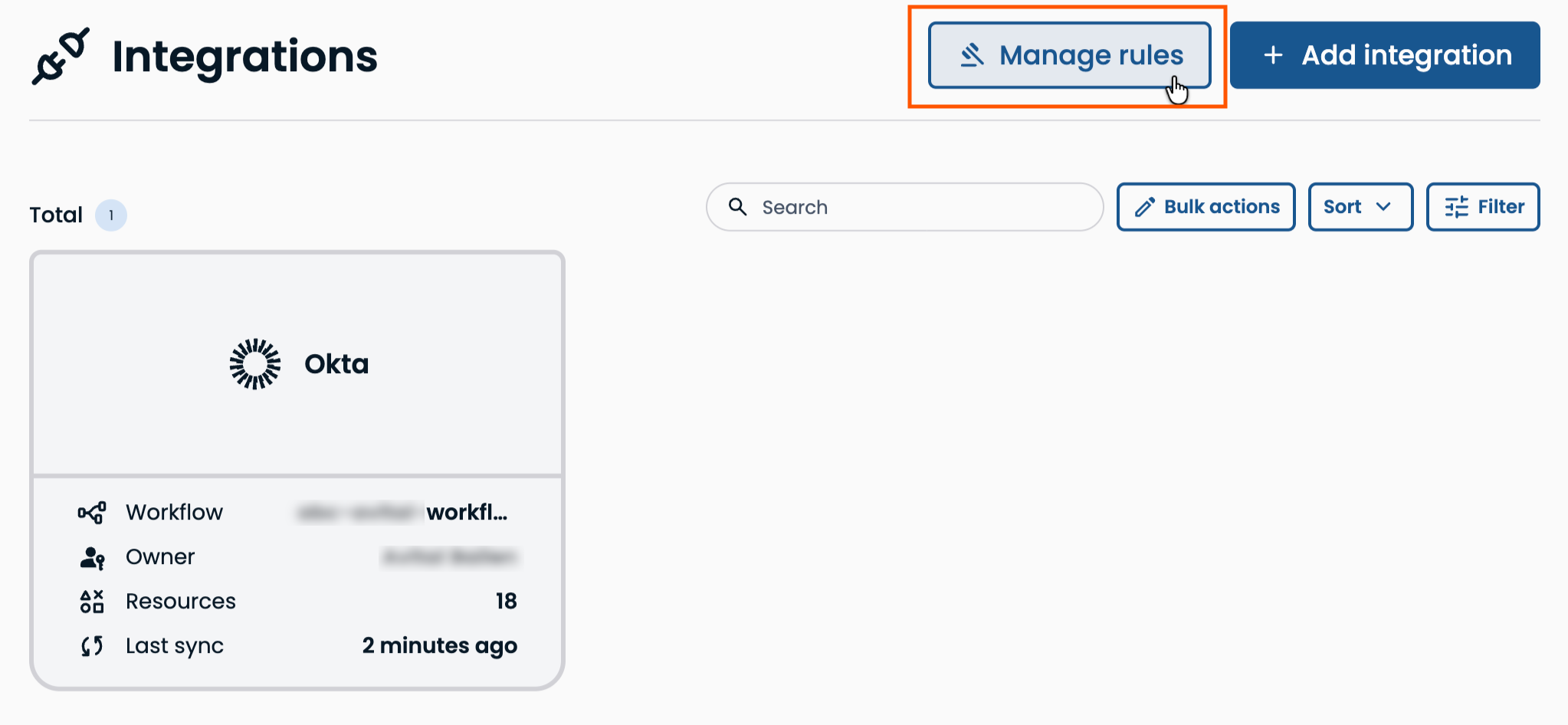
In Entitle, go to Integrations, then click Manage Rules.
Alternatively, open a specific integration and click Add rule to start from that integration.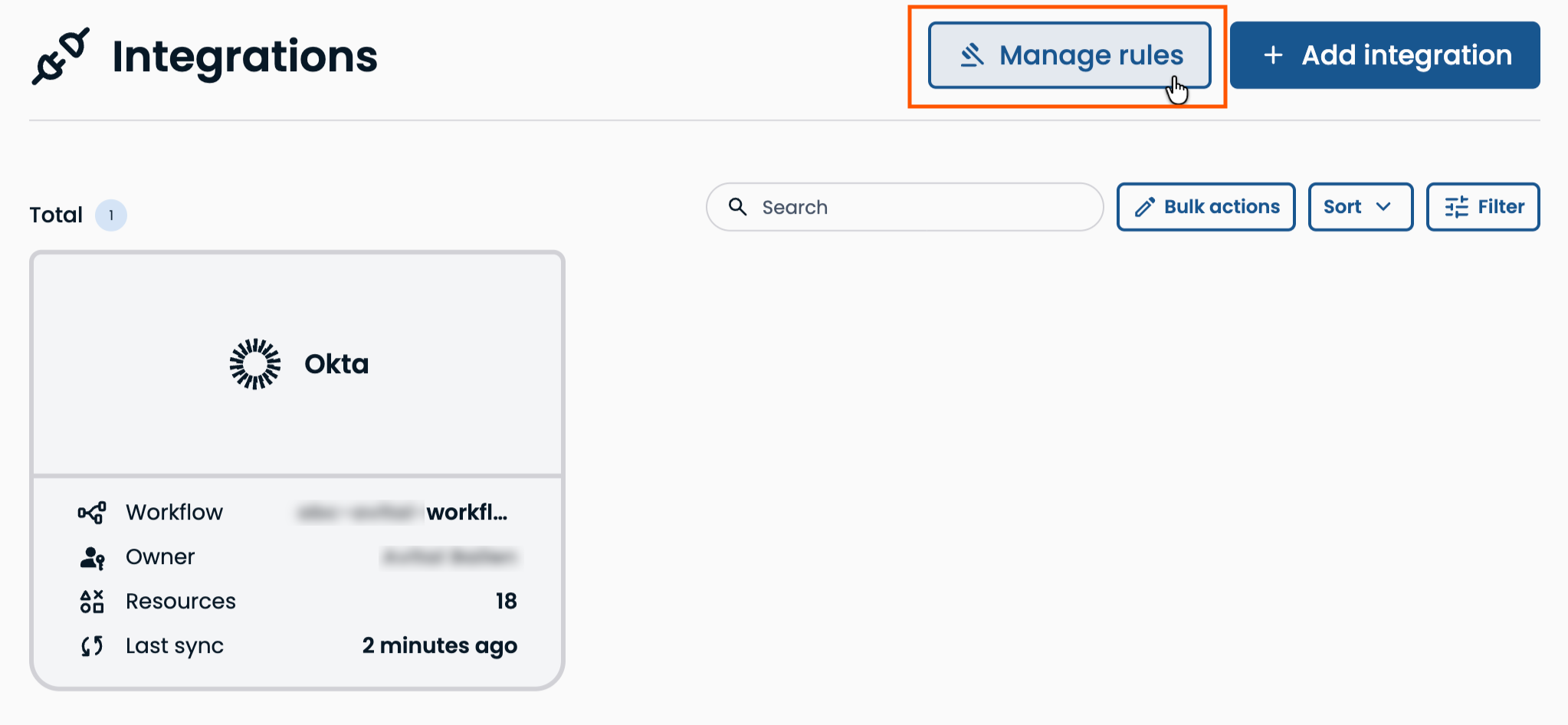
-
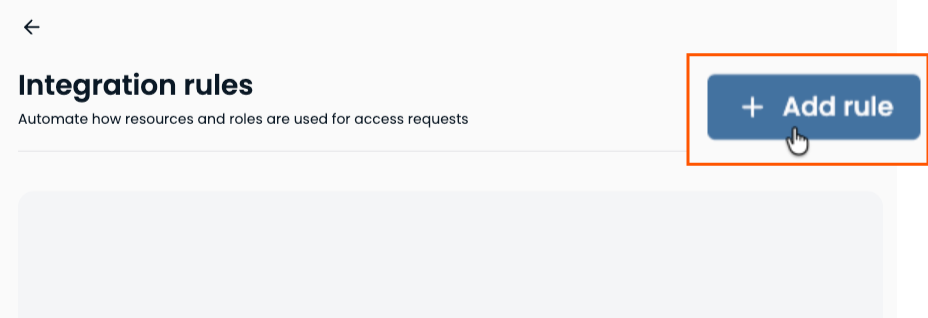
Click Add Rule.
-
Under Apply to integrations, select the integration or integrations the rule applies to with the is / is not function. Leave blank to apply the rule to all integrations.
Under With these conditions, select one or more conditions to define which assets the rule targets: Resource type, Resource name, Resource tag, or Role name. Leaving a condition blank applies the rule to all resources or roles in the integration.
Selecting Role name limits the attributes available in the next step to role-related attributes only. A single rule can target either resources or roles, not both — to change attributes on both, create two rules.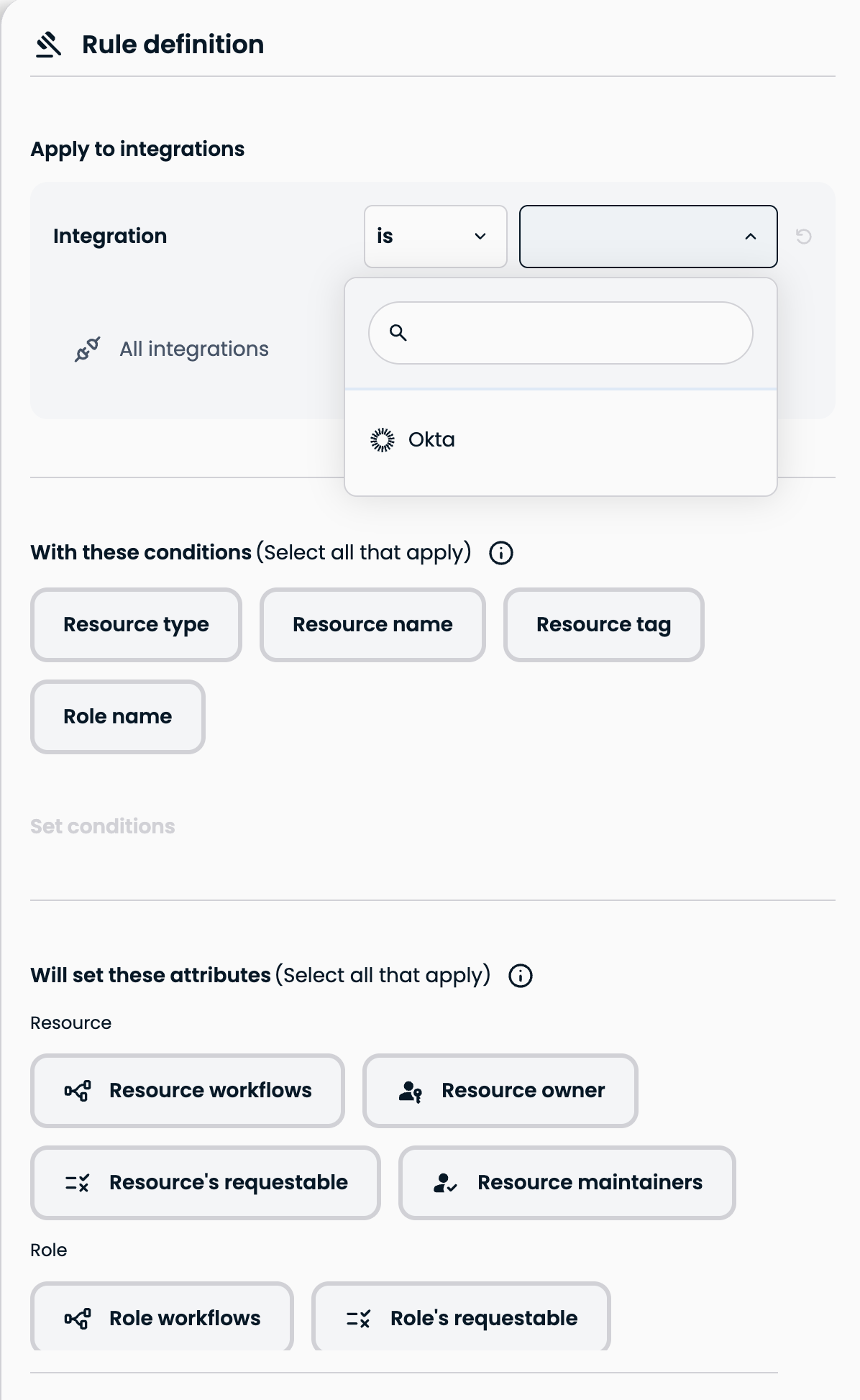
Under Will set these attributes, select the setting to change:
To... Do this... Apply an approval workflow to the resources Select Resource workflow, then choose the workflow to apply. Apply an approval workflow to roles Select Role workflow, then choose the workflow to apply. Set an owner for resources Select Resource owner, then choose the owner to assign. Set a maintainer for resources Select Resource maintainers, then choose one or more maintainers to assign. Make resources requestable or unrequestable Select Resource's requestable, then choose Yes / No. Make roles requestable or unrequestable Select Role's requestable, then choose Yes / No. -
Click Next, then choose how the rule applies:
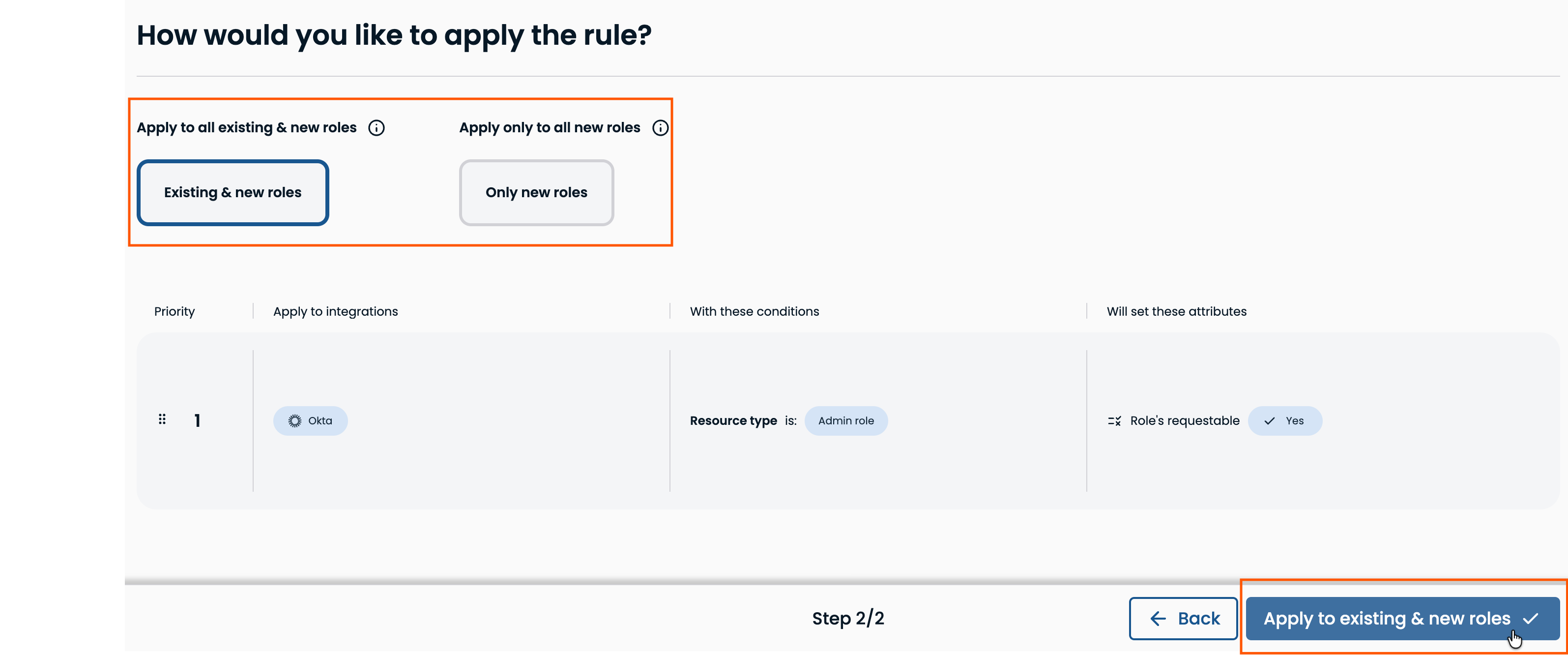
Option What it does Existing & new resources Changes every resource or role that currently matches the rule's criteria right away, and applies the same changes to any new ones added later. Only new resources Leaves existing resources and roles untouched. Only resources or roles created after the rule is set are affected Click Apply to.... The rule takes effect within a few minutes. If you don't see the change right away, refresh your browser.
-
Prioritize, edit, and delete integration rules
-
In Entitle, go to Integrations, then click Manage Rules.
-
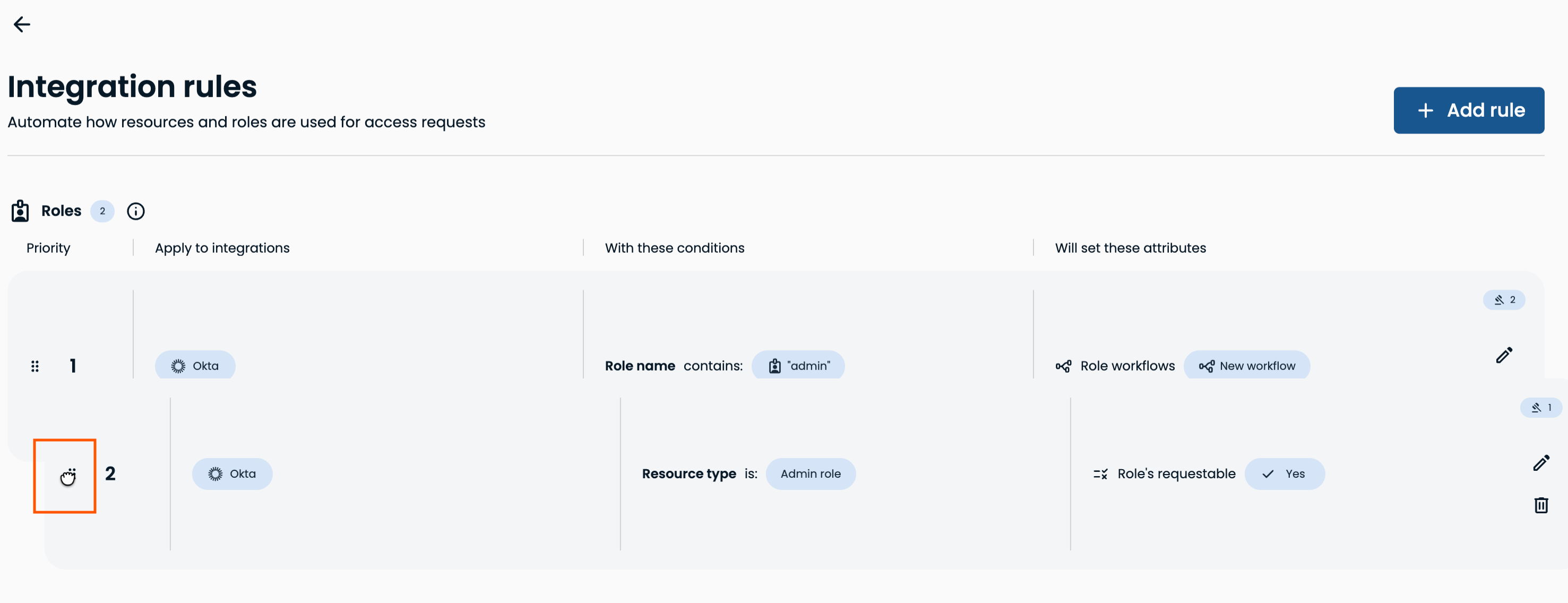
To reorder rules, drag a rule by the dots icon on the left of its row. Rules are evaluated by priority, so higher rows take precedence over lower ones when more than one rule could apply.
-
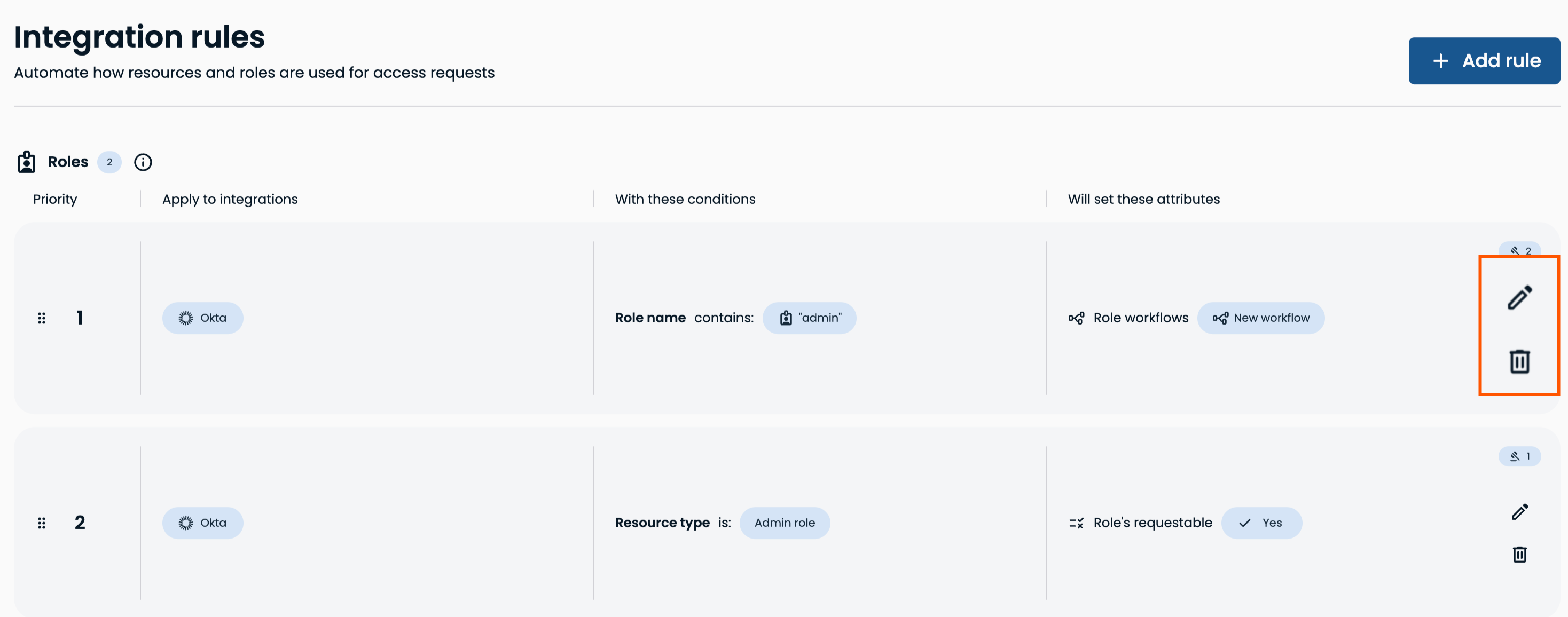
To edit a rule, click the edit (pencil) icon at the right of its row, make your changes, and save.
-
To delete a rule, click the delete (trash) icon at the right of its row, then confirm.
Updated about 1 month ago
