
PingOne | Entitle
PingOne is Ping Identity's cloud identity platform. With the PingOne integration, Entitle manages membership in your PingOne groups and, optionally, assignment of PingOne administrator roles. Users can request this access in Entitle, and Entitle grants it after approval for a limited time and revokes it when the time ends.
Overview
Entitle can manage access to the following:
- PingOne groups: Every group in the environment becomes a resource with the Member role. Dynamic groups, whose membership comes from a user filter, are read-only. Entitle shows their members but cannot grant or revoke membership.
- Administrator roles: Optional. Entitle groups the administrator roles that apply to the environment into two resources. Built-in roles holds PingOne's own roles, such as Identity Data Read Only and Environment Admin. Custom roles holds the roles your administrators defined. Each PingOne role becomes a role of its resource, and granting it assigns the role to the user for that environment.
PingOne grants access to applications through groups. To manage who can use a PingOne application, manage membership of the groups assigned to that application.
Prerequisites
PingOne is a cloud service, so you do not need to install an Entitle agent. Before you begin, gather the following:
- The Environment ID of the environment whose groups and roles you want Entitle to manage
- The region of your PingOne console
- The Client ID and Client Secret of a worker application with the Identity Data Admin role in that environment
- Optional: The built-in administrator roles you want Entitle to grant, held by the same worker application
If you already connected PingOne as an identity provider (IdP), you can reuse its worker application only if it holds the Identity Data Admin role. The Identity Data Read Only role does not let Entitle grant access.
Set up PingOne to work with Entitle
Stage 1: Find your Environment ID and region
-
Sign in to the PingOne admin console, and then open the environment whose groups you want Entitle to manage.
-
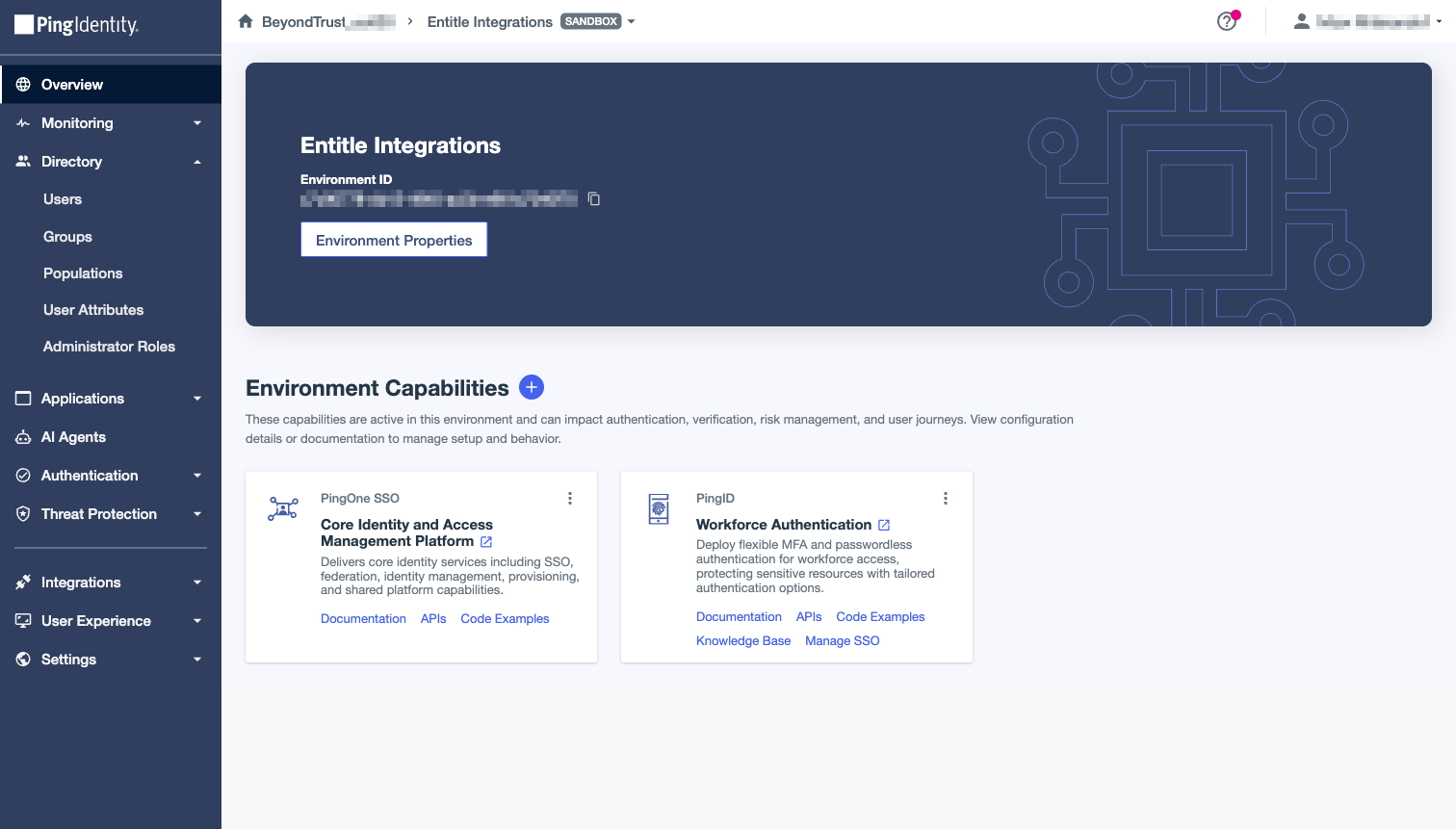
Go to the environment's Overview page, and then copy the Environment ID. You can also find it at Settings > Environment Properties.
-
Note your console address. Use the following table to find the region value you enter in Entitle.
PingOne console regions
| Console address | Region value |
|---|---|
| console.pingone.com | north_america |
| console.pingone.eu | europe |
| console.pingone.ca | canada |
| console.pingone.asia | asia_pacific |
| console.pingone.com.au | australia |
| console.pingone.sg | singapore |
Stage 2: Create a worker application
-
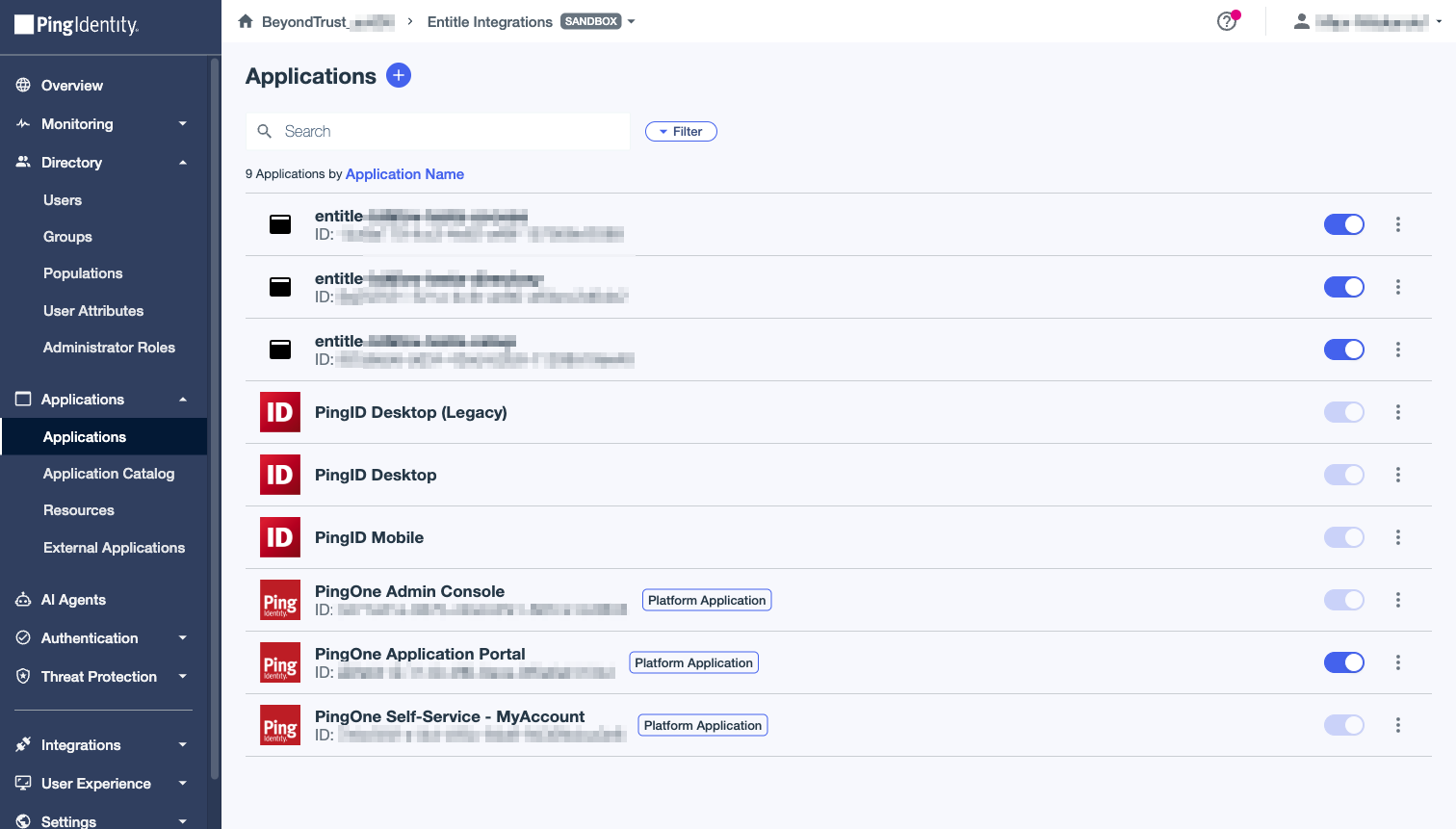
Go to Applications > Applications, and then click + to add an application.
-
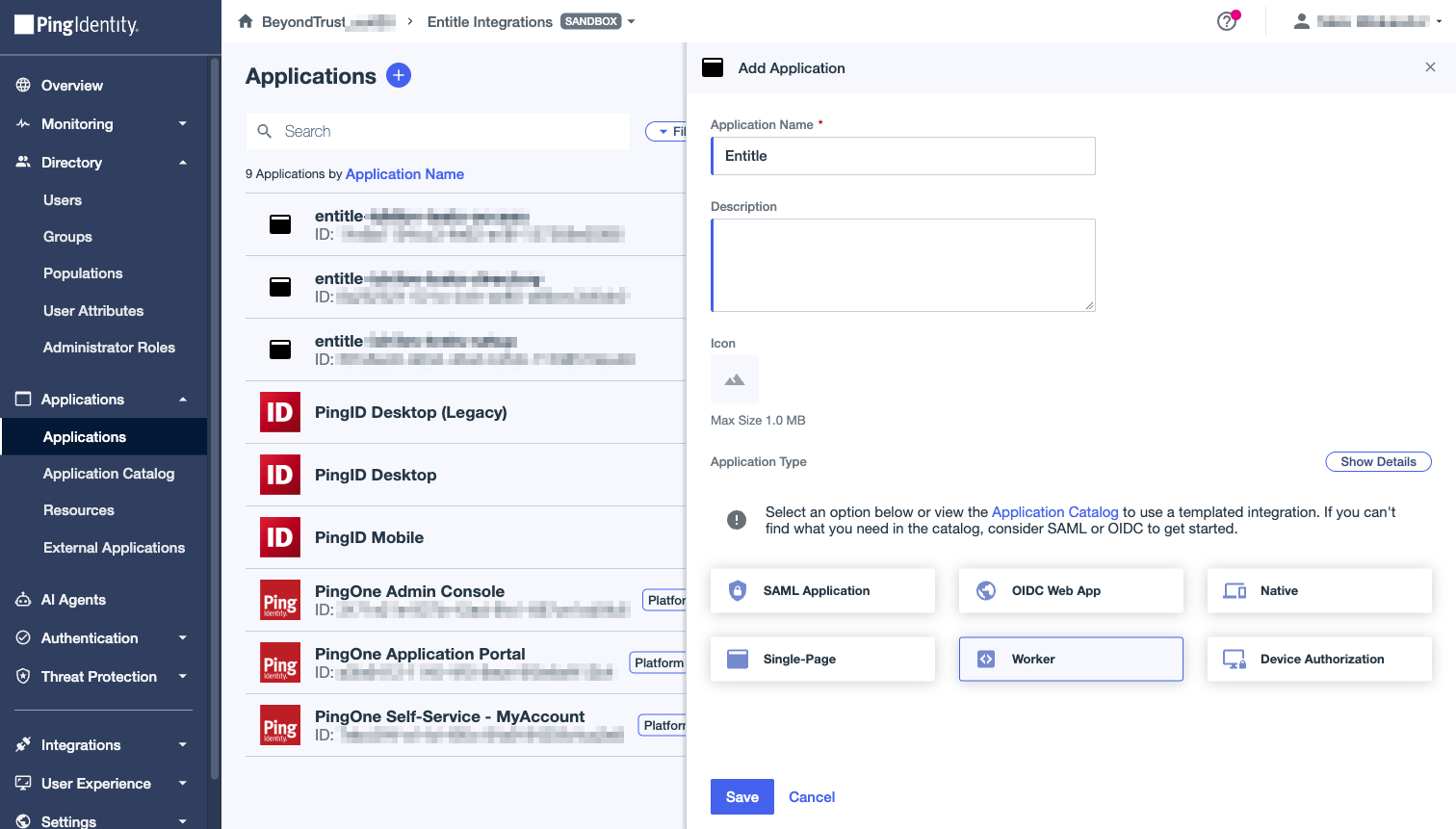
In Application Name, enter a name, such as Entitle.
-
Select the Worker application type, and then click Save.
-
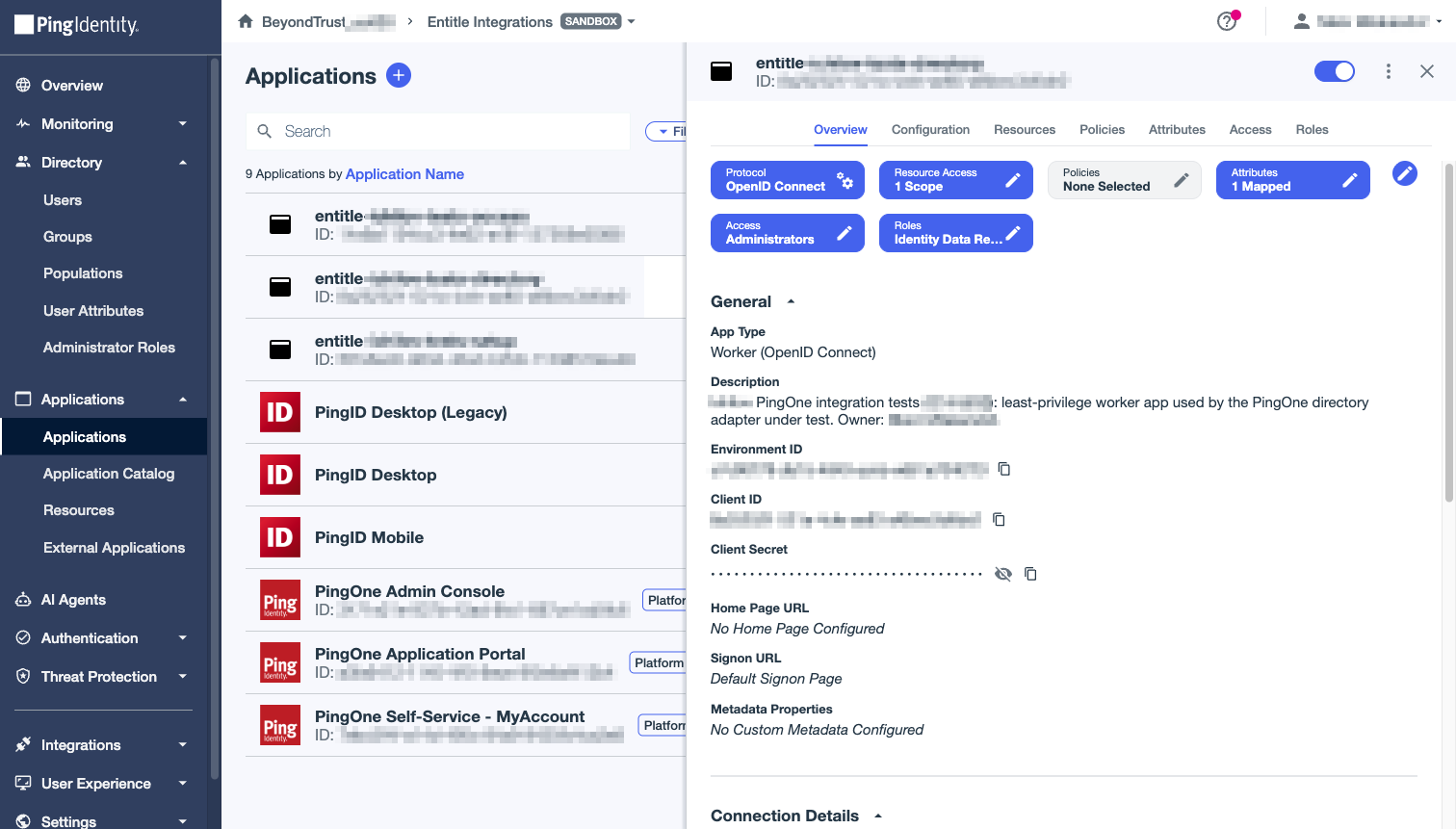
On the application's Overview tab, use the toggle at the top right to turn on the application.
Stage 3: Grant roles to the worker application
- On the application's Roles tab, click Grant Roles.
- Select Identity Data Admin, scope it to the environment whose groups you want Entitle to manage, and then save your changes.
- (Optional) To let Entitle grant PingOne built-in administrator roles, grant the worker application the roles it needs at the same scope. Use the following table to decide which roles to grant.
ImportantThe Grant Roles dialog lists only the roles that your own administrator account can assign.
Roles Entitle can grant
PingOne lets an application assign only a role it holds, or a role that one of its roles is allowed to assign. The following table shows what Entitle can grant, based on the roles the worker application holds.
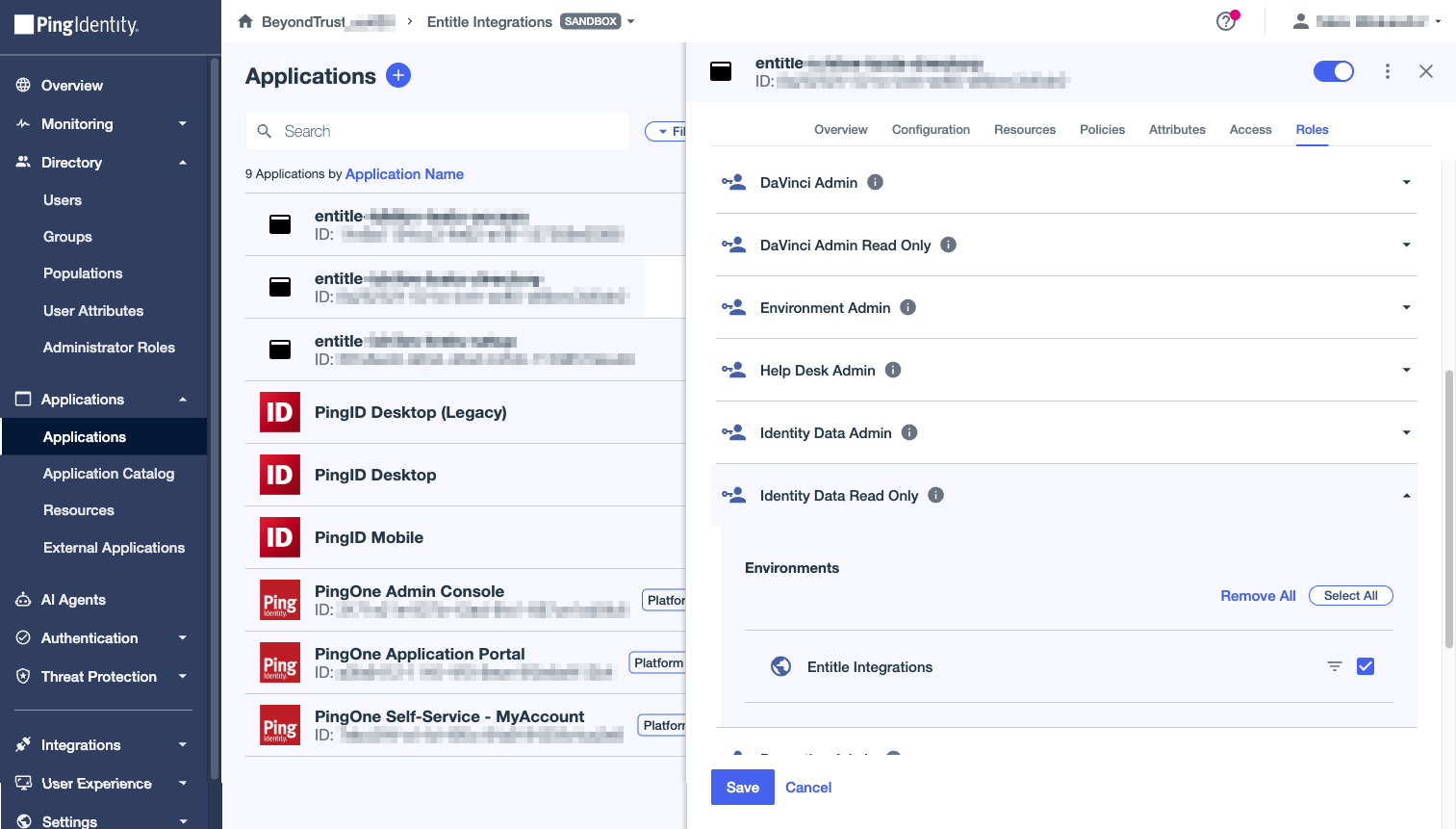
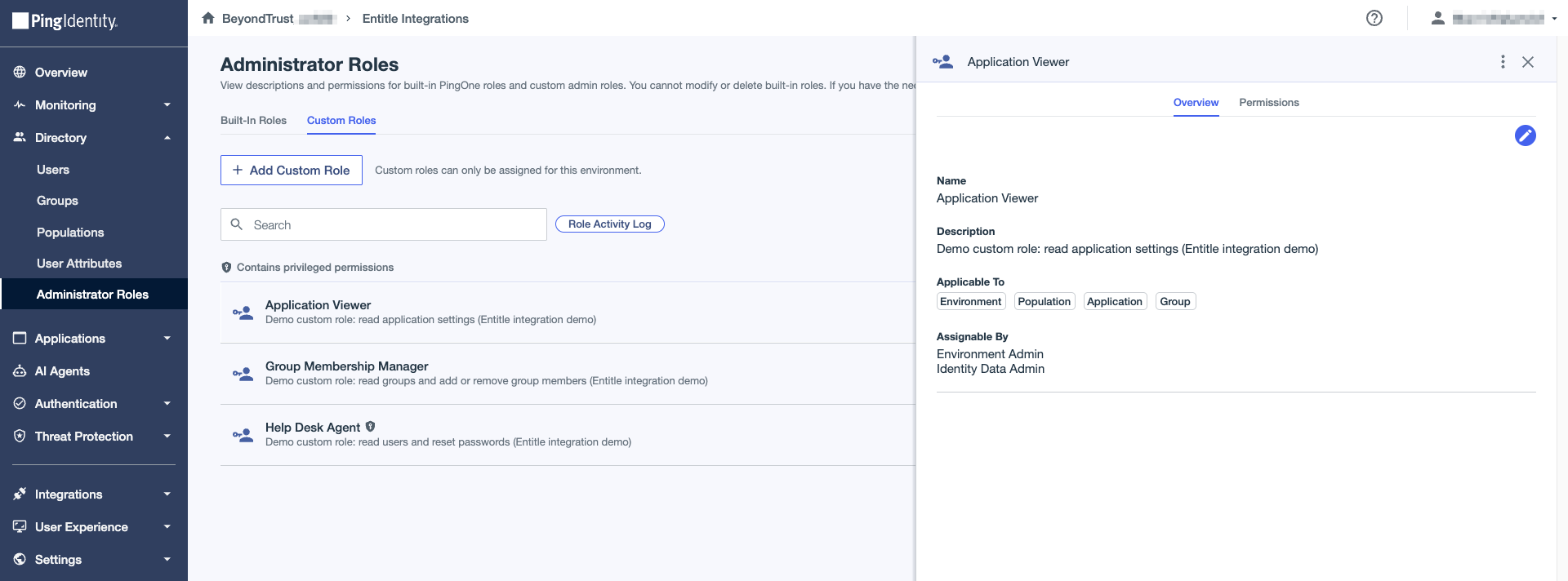
Entitle can grant a custom role only if the role's Assignable by field lists a role the worker application holds, such as Identity Data Admin.
Entitle cannot grant Organization Admin, because the worker application is scoped to an environment.
If the worker application cannot assign a role, PingOne refuses the grant. For more information, see Request access.
Stage 4: Copy the Client ID and Client Secret
-
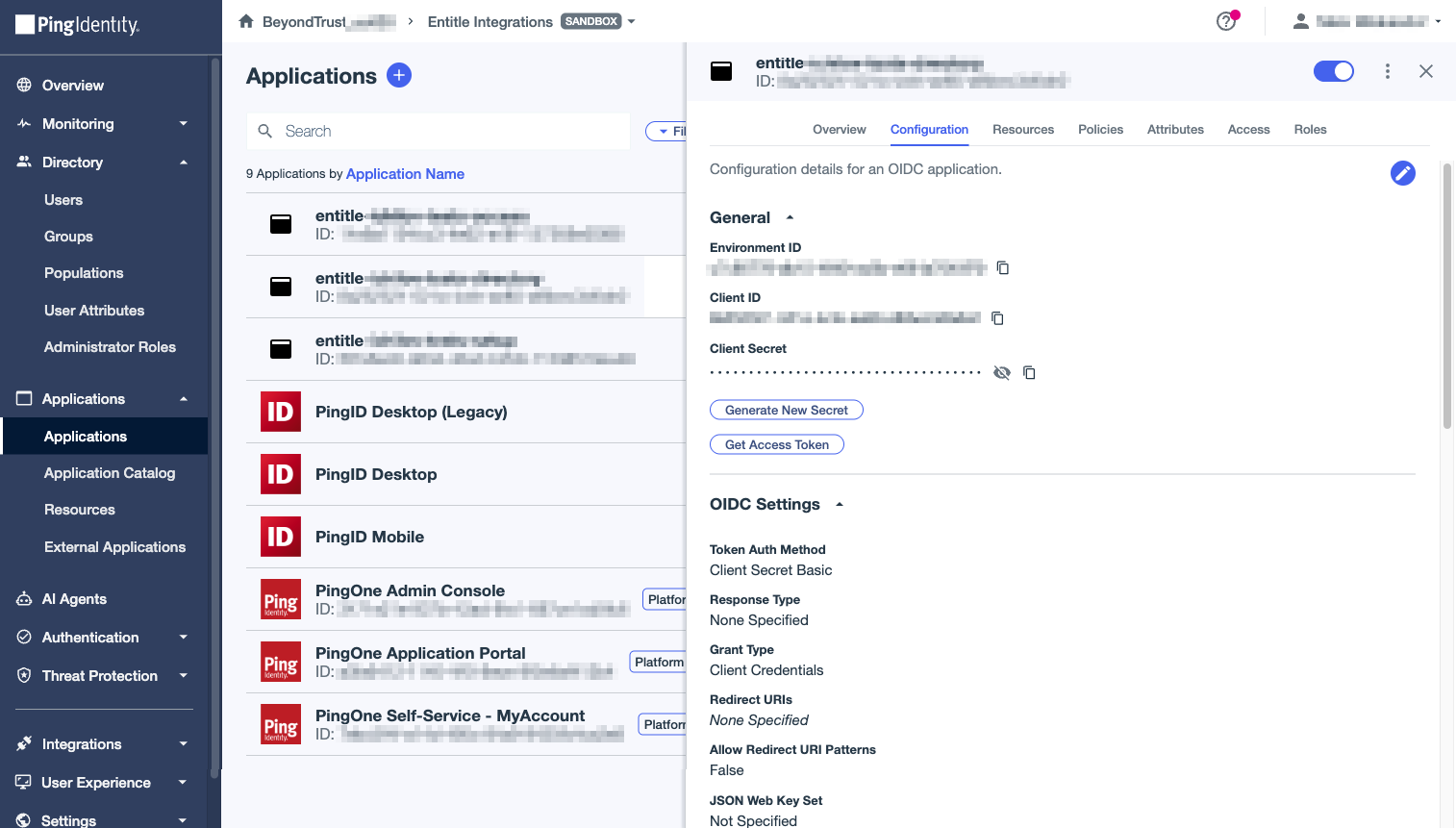
On the application's Configuration tab, under General, copy the Client ID. The Environment ID also appears here.
-
Reveal and copy the Client Secret. You enter it in Entitle only once, so store it as securely as any other secret.
Allowlist Entitle IP addresses
If you allowlist outbound connections to PingOne, add the Entitle IP addresses for your deployment from the following table. Integrations saved on an Entitle agent connect from that agent's network instead.
| Deployment | IP addresses |
|---|---|
| Entitle EU (Cloud deployment) | 34.243.199.171, 54.216.133.226 |
| Entitle US (Pathfinder deployment) | 52.45.229.219, 54.88.235.213, 3.224.15.134 |
| Entitle CA (Pathfinder deployment) | 35.182.218.208, 15.156.179.153 |
Create the integration in Entitle
-
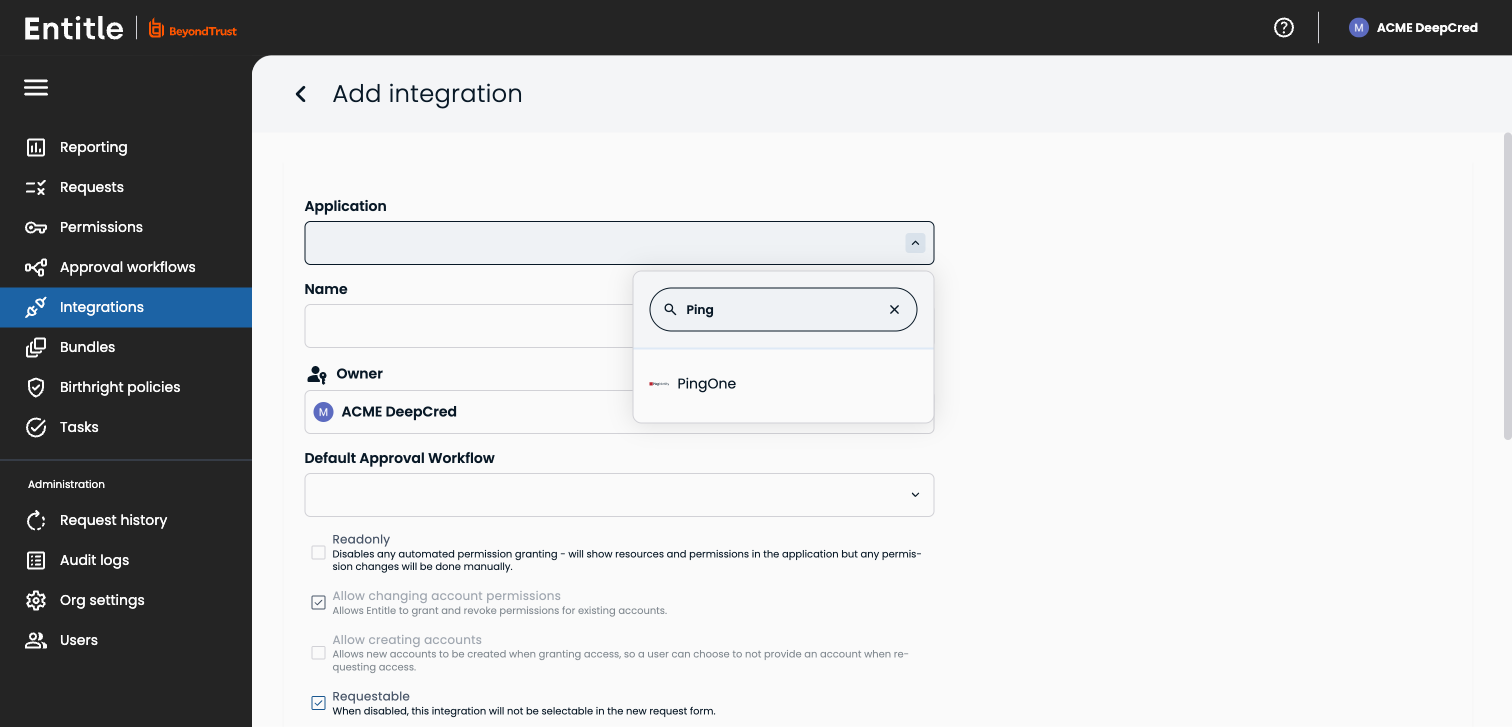
In Entitle, go to Integrations, and then click Add integration.
-
In the Application list, select PingOne.
-
Enter the integration name, owner, default approval workflow, and other settings, as you do for any integration.
-
Keep Readonly turned off so that Entitle can grant and revoke access.
-
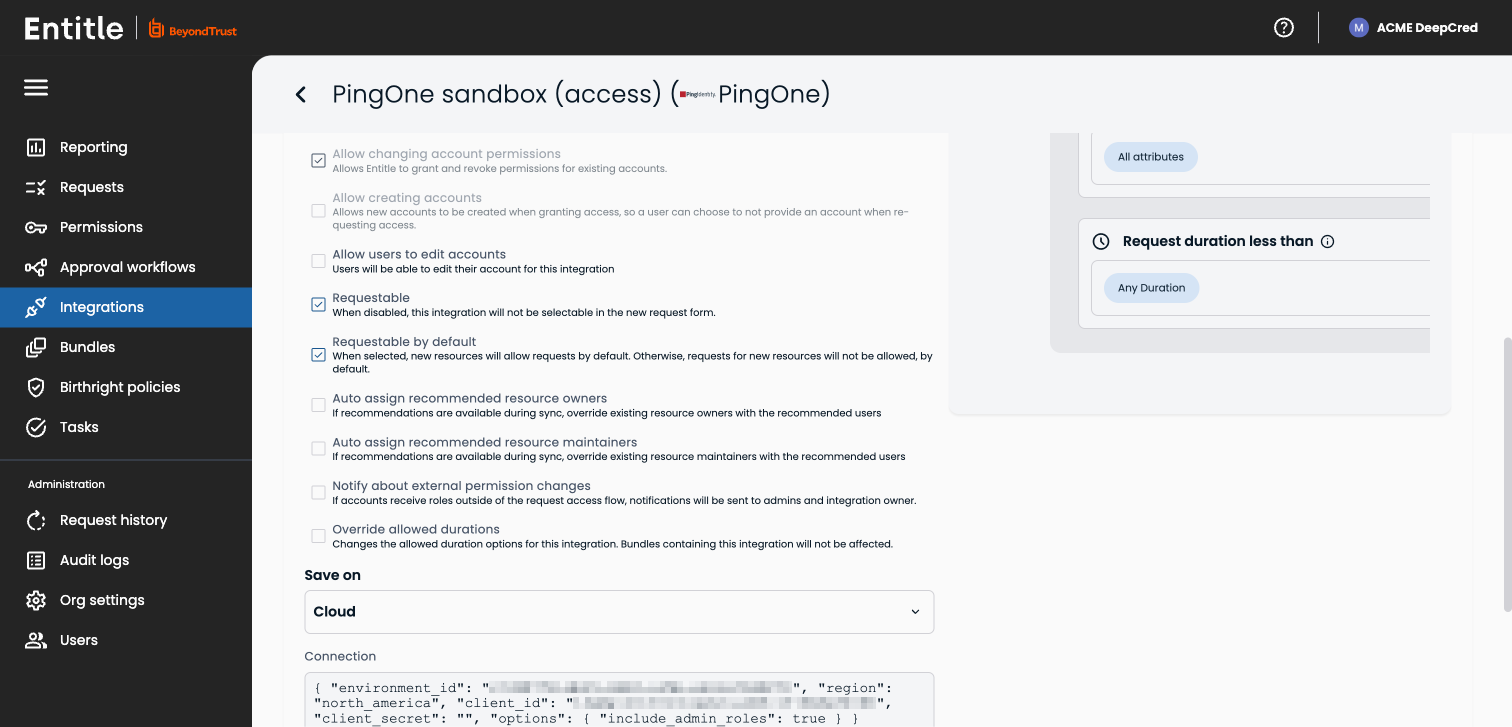
In the Connection field, replace the values in the JSON template with your own:
environment_id: The Environment ID from Stage 1region: The region value from Stage 1client_idandclient_secret: The credentials from Stage 4options.include_admin_roles: Optional. Set totrueto also manage administrator roles through the Built-in roles and Custom roles resources. The default isfalse.
To manage groups only, use the following format:
{
  "environment_id": "<your environment id>",
  "region": "north_america",
  "client_id": "<worker application client id>",
  "client_secret": "<worker application client secret>"
}
To manage groups and administrator roles, use the following format:
{
  "environment_id": "<your environment id>",
  "region": "europe",
  "client_id": "<worker application client id>",
  "client_secret": "<worker application client secret>",
  "options": { "include_admin_roles": true }
}
-
Click Check configuration. Entitle verifies that it can read users, groups, group members, and the user schema. If you turned on administrator roles, Entitle also verifies that it can read the roles and their assignments. If the check fails, the message names the cause, such as:
- Failed to obtain a PingOne access token … check environment_id, region, client_id and client_secret
- The PingOne worker application lacks a role required for …
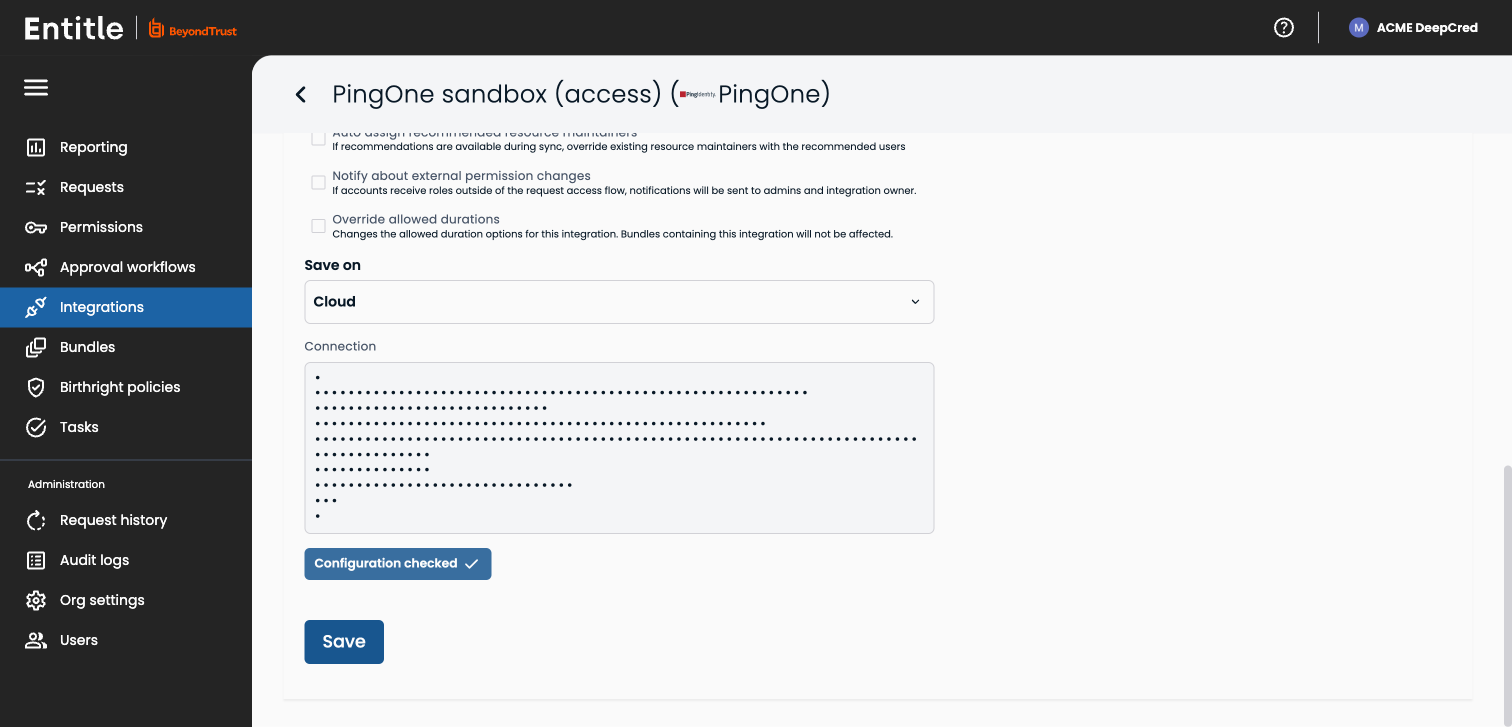
-
Click Save. Entitle creates the integration and starts the first sync.
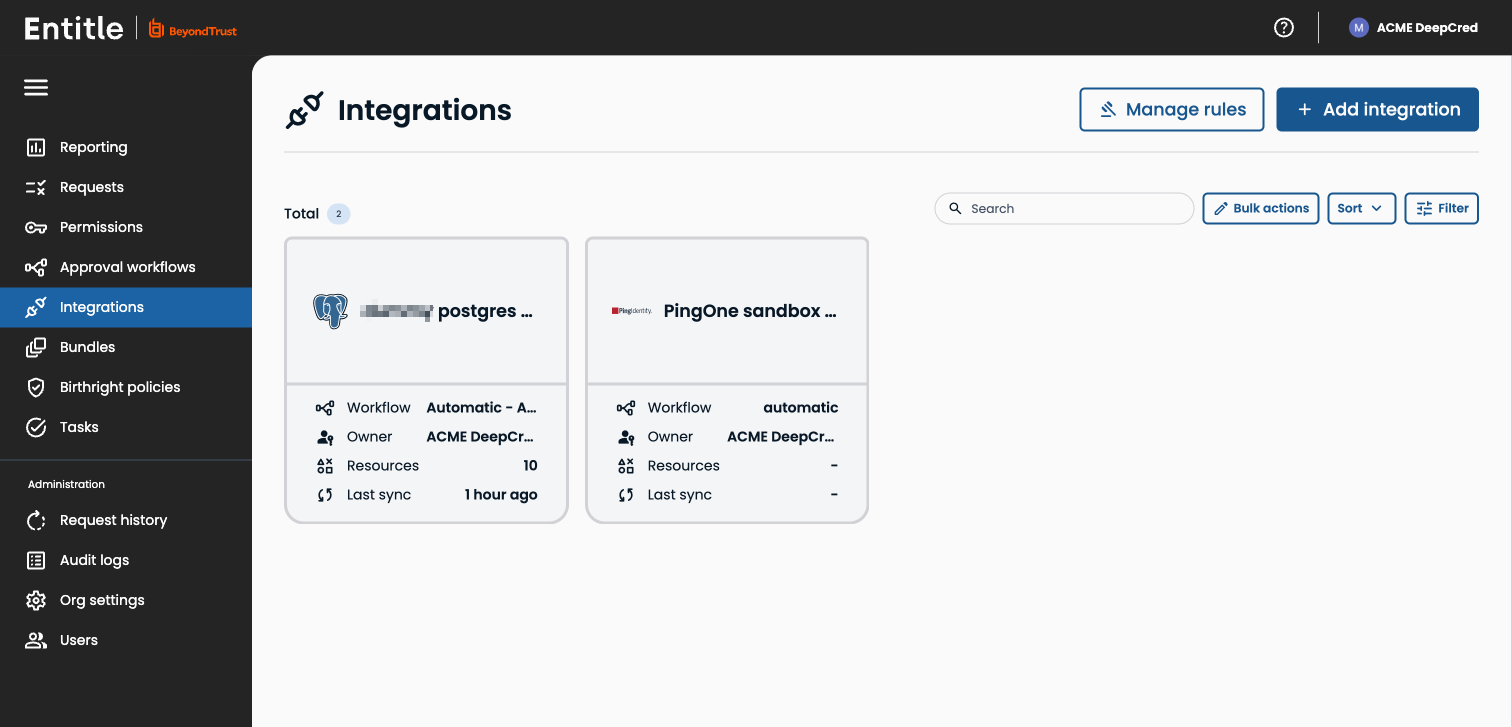
What Entitle syncs
The following table shows how Entitle represents PingOne objects. The administrator role rows apply only when include_admin_roles is true.
| PingOne | Entitle resource | Role | Requestable |
|---|---|---|---|
| Group | A Group resource with the group's name | Member | Yes |
| Dynamic group | A Group resource | Member | No. The resource is read-only. |
| Nested group | Listed as a member of the parent group's resource | Member | No. Its members appear with indirect access to the parent group. |
| Built-in administrator roles that apply to the environment | The Built-in roles resource, of type Admin role | One role for each PingOne role, such as Identity Data Read Only | Yes, for roles the worker application can assign |
| Custom administrator roles that can be assigned at the environment level | The Custom roles resource, of type Custom admin role. It appears only if your environment defines custom roles. | One role for each custom role | Yes, if the role's Assignable by field lists a role the worker application holds |
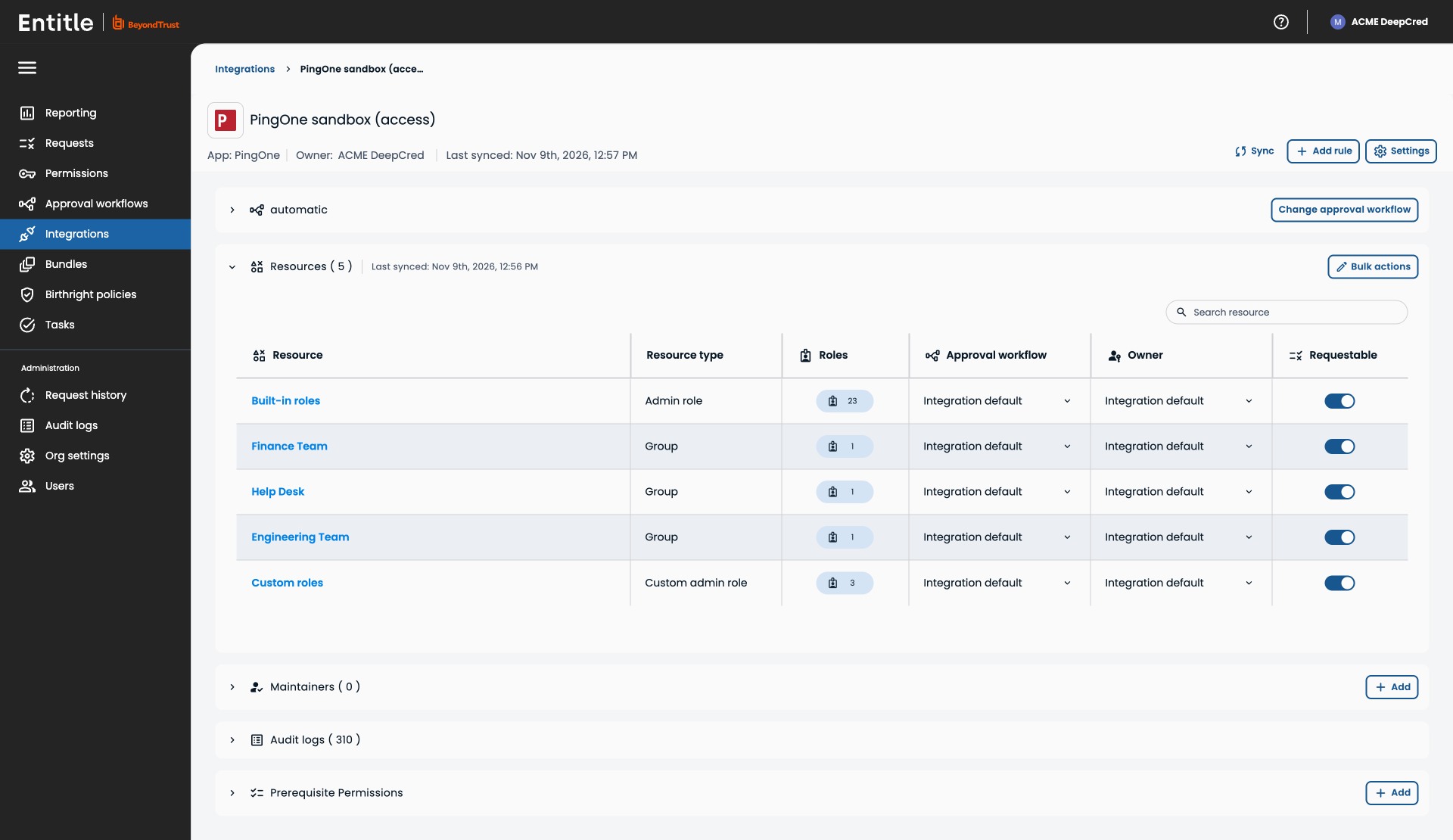
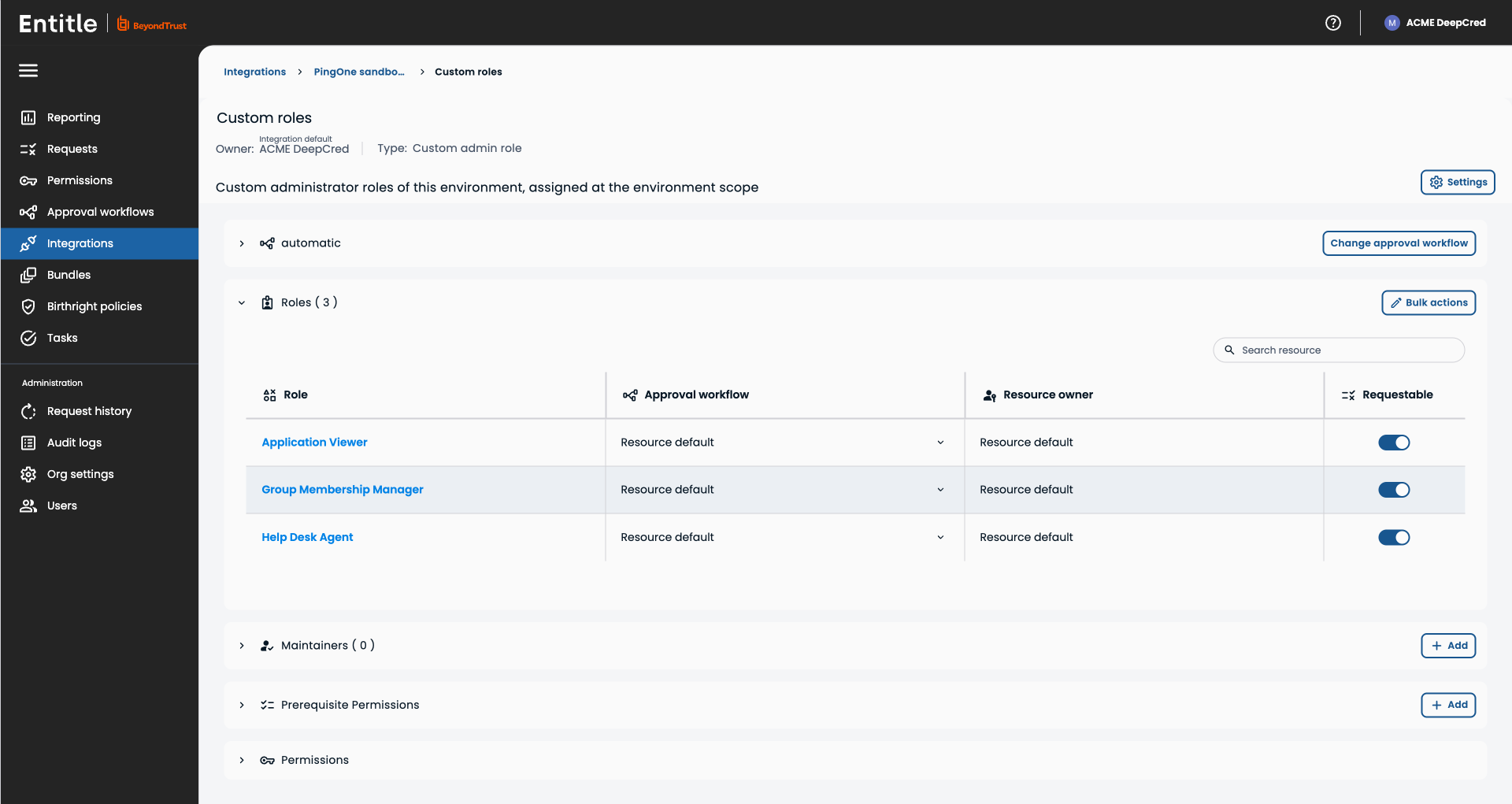
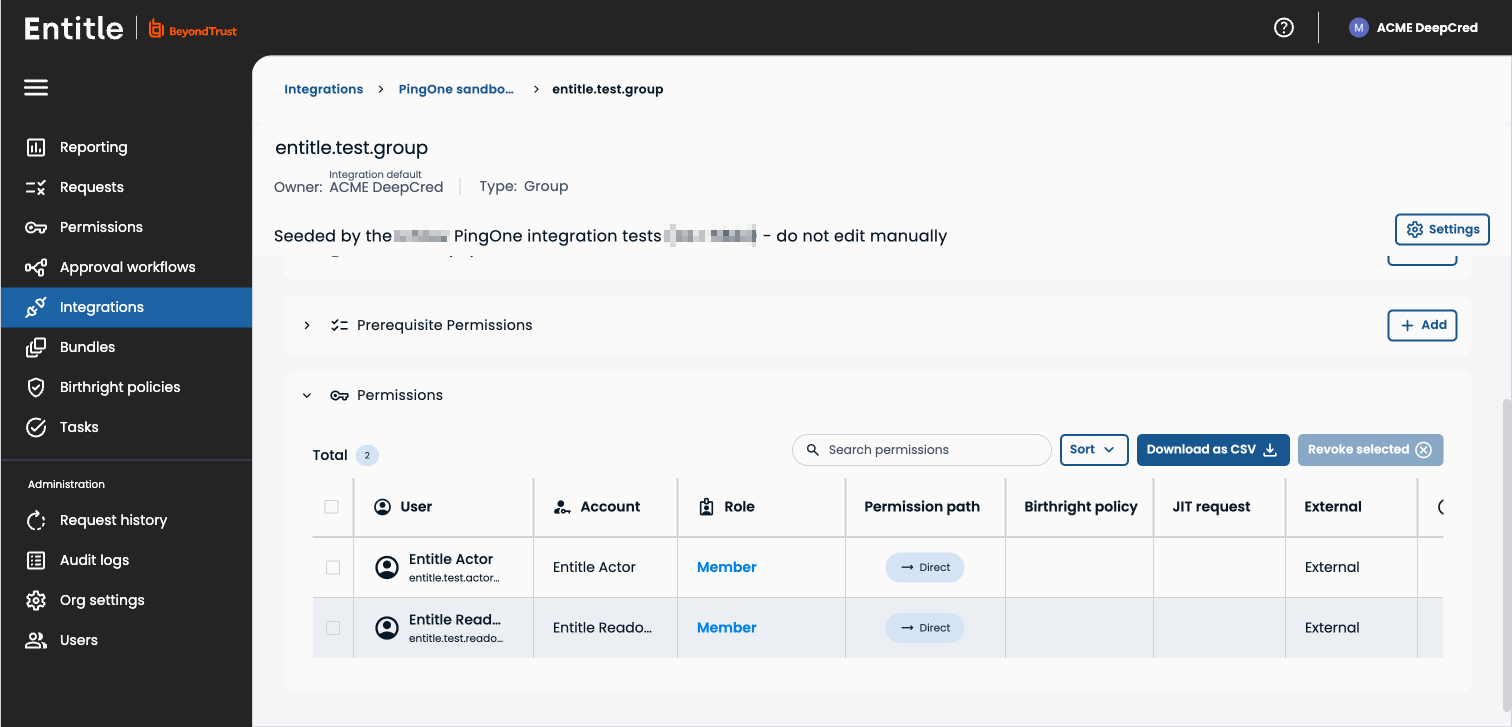
Entitle matches PingOne users to Entitle users by email address. Entitle also imports existing group memberships and role assignments as permissions, so you can see who already has access. This includes access that comes through a group, such as members of a nested group or members of a group that holds an administrator role. These users appear on the Permissions page with indirect access, and the Permission path shows which group grants it.
Request access
After the sync, users request a PingOne group or administrator role the same way as any other resource. In New request, they select the PingOne integration, the resource, the role, the duration, and a reason. The resource is a group, Built-in roles, or Custom roles.
After approval, Entitle adds the user to the group or assigns the role. When the request expires, or when someone revokes it on the Permissions page, Entitle removes the access.
ImportantIf the worker application cannot assign a requested role, the request fails with the PingOne message Must have role at the same or broader scope. Entitle then opens a task for the resource owner to grant the role manually. While that task is open, any new request for the same role fails immediately.
To fix this, complete the following steps before the user requests the role again:
- Grant the role to the worker application, as described in Stage 3.
- Complete or remove the open task.
Next steps
Set resource owners and approval workflows for your PingOne groups, add the groups to bundles, or create birthright policies that grant group membership automatically.
Updated 33 minutes ago
