
Install Entitle agent with GCP Secret Manager for clusters running on GKE | Entitle
This guide covers agent installation using GCP Secret Manager for workload-based identity, for clusters running on Google Kubernetes Engine (GKE). Before beginning, learn more about the agent in Entitle agent installation.
Prerequisites
- Outbound connections permitted per Entitle agent network access requirements.
- Helm v3
- kubectl
- GKE cluster
- gcloud CLI
Process
Generate an agent token
In Entitle, navigate to Org settings > Tokens. Click Add under Agent tokens . Reveal and copy the token for later use.
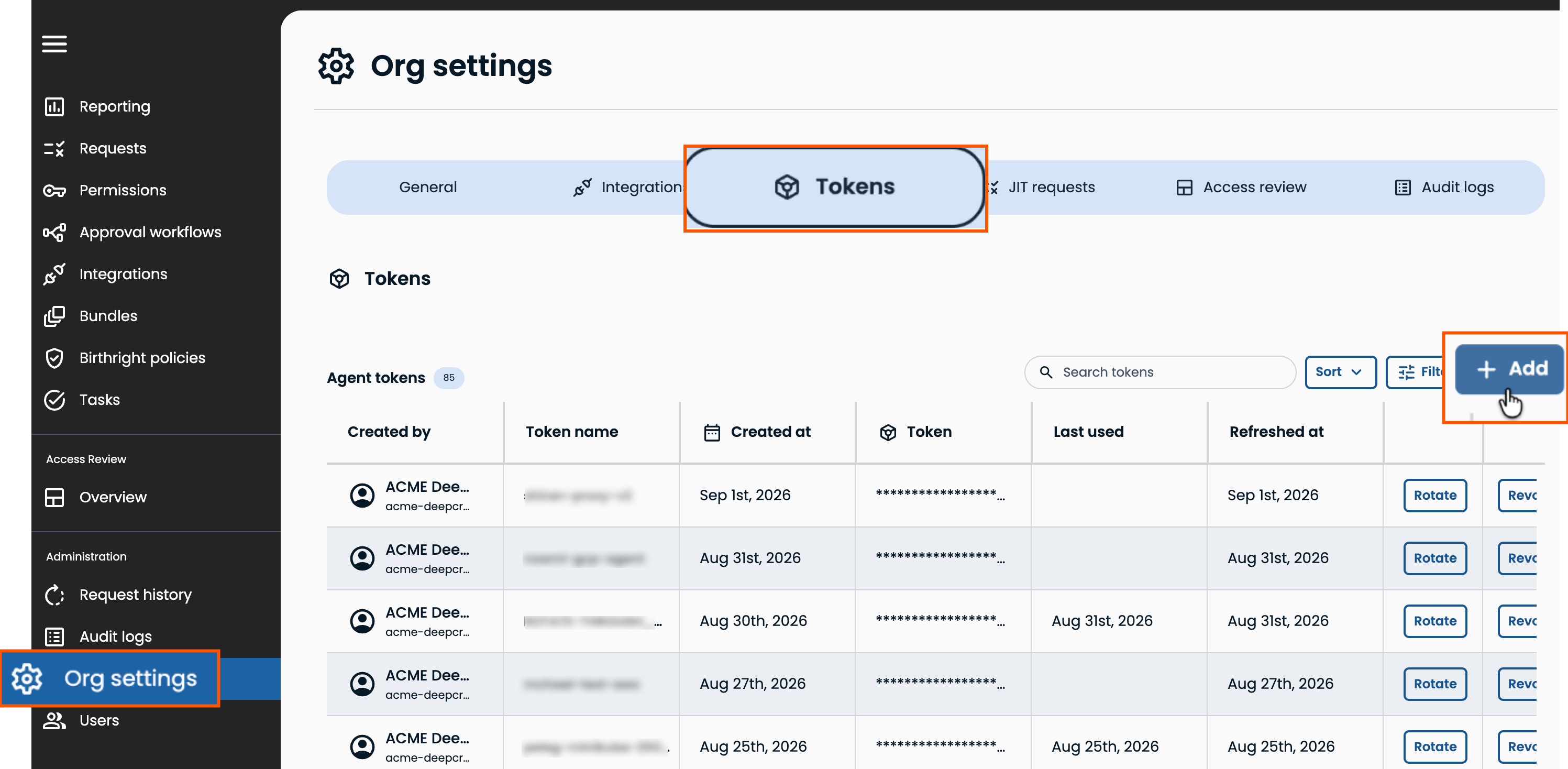
Each token is tied to a single agent, unless the agents are fully redundant. For redundancy architecture guidance, contact BeyondTrust.
Configure Workload Identity (recommended)
- This is necessary if you want to set up any Entitle Google integration using workload identity (“pod-based” identity) or manage your secrets using Google Secrets (If you’re planning on storing your secrets in Kubernetes Secret Manager, you can set it up in the future)
- Configure Workload Identity to a GKE cluster
Install the Helm chart
-
Set the following variables:
Variable Description NAMESPACE="entitle"The Kubernetes namespace for the Entitle agent. KMS_TYPE="kubernetes_secret_manager"Where the agent stores secrets. Storing secrets in Kubernetes is the recommended method. You can also set "gcp_secret_manager", which requires Workload Identity.CLUSTER_NAME=The name of your GKE cluster. LOCATION=The location of your cluster, for example us-central1.AUTOPILOT=Set to truefor GKE Autopilot clusters. Otherwise, set tofalse.PROJECT_ID=Your GCP project ID. TOKEN=The Entitle agent token you generated earlier. ORGANIZATION_NAME=Your organization's name. ENTITLE_IAM_SA_NAME=Your GCP IAM service account name, if you set one. For example, for the service account email [email protected], usestandard-cluster-entitle-sa. -
If your cluster is not yet configured in kubeconfig, run:
gcloud container clusters get-credentials ${CLUSTER_NAME} --location ${LOCATION}- Add the Datadog and Entitle Helm repositories to your cluster:
   helm repo add datadog https://helm.datadoghq.com
helm repo add entitle https://anycred.github.io/entitle-charts/- Install the chart:
   helm repo update entitle && \
   helm upgrade --install entitle-agent entitle/entitle-agent \
     --set platform.mode="gcp" \
     --set kmsType=${KMS_TYPE} \
     --set datadog.providers.gke.autopilot="${AUTOPILOT}" \
     --set platform.gke.serviceAccount="${ENTITLE_IAM_SA_NAME}" \
     --set platform.gke.projectId="${PROJECT_ID}" \
     --set agent.token="${TOKEN}" \
     --set datadog.datadog.tags={company:${ORGANIZATION_NAME}} \
-n "${NAMESPACE}" --create-namespaceIf you have not set up Workload Identity, delete the
--set platform.gke.serviceAccountline before you run the command.
Updated 24 days ago
Did this page help you?
