
Datadog | Entitle
Set up audit logs webhooks
The following steps are required to connect your Datadog tools to Entitle.
Stage 1: Create a Datadog API key
- Log into Datadog with an Admin account.
- Go to the Organization Settings page.
- Click the New Key button at the top-right corner of the page.

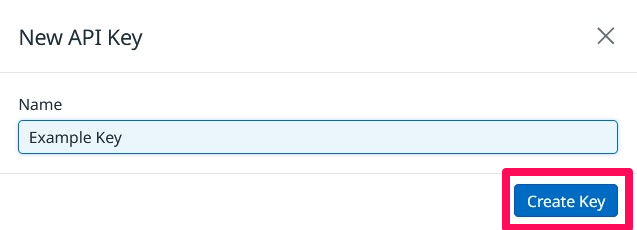
- Enter a name for your API Key, and click the Create Key button.
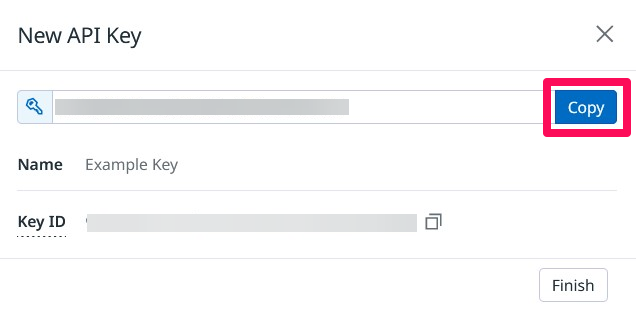
- Click the Copy button, and save it securely, then click the Finish button. You will need this API key later.
Stage 2: Create audit log webhook in Entitle
- Log in to Entitle and go to Org Settings.
- Select the the Audit logs tab. To add an Audit Log Webhook, click the Add button in the top-right corner.
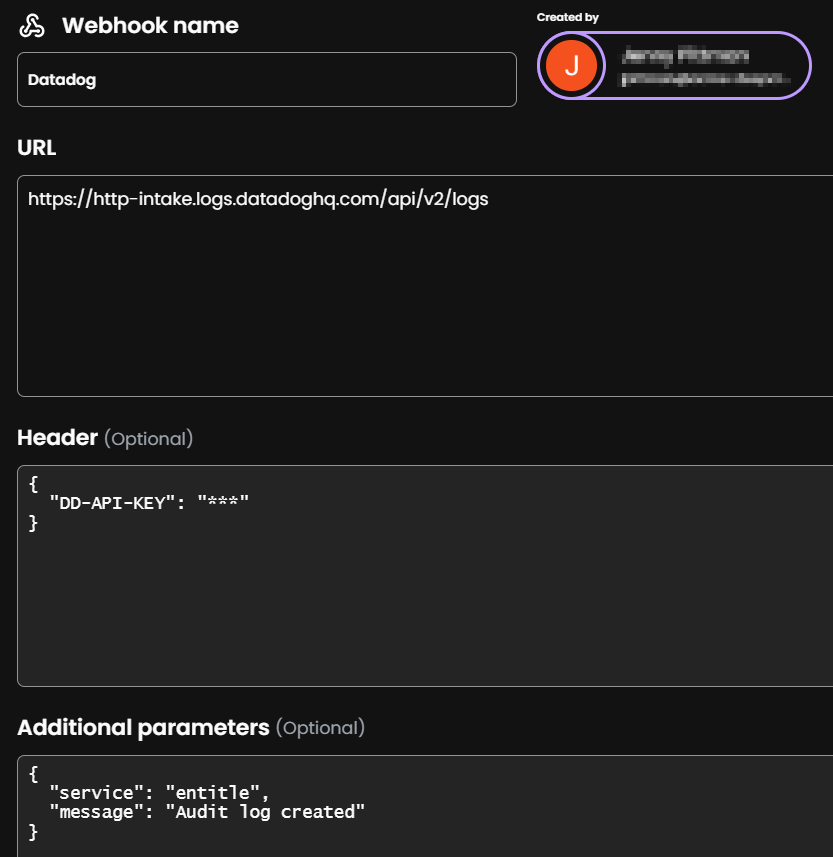
- In the flyout pane, fill in the following details:
- Webhook name: Enter a name to identify your webhook.
- URL: Copy and paste the following URL into this field: https://http-intake.logs.datadoghq.com/api/v2/logs
- Header: Copy and paste the following JSON text into the Headers field, making sure to replace
[YOUR_API_KEY]the key you created earlier.{ "DD-API-KEY": "[YOUR_API_KEY]" } - Additional Parameters: This can make it easier to find logs in Datadog.
Copy and paste the following JSON text into the field.{ "service": "entitle", "message": "Audit log created" }
- Once all the fields are filled in, click the Add webhook button.
This should be the final result (except the API key should be the one you created):
- Click Add webhook.
View audit logs in Datadog
This is a slight delay until audit logs are visible in Datadog. Entitle takes a few moments to gather the audit logs, and Datadog takes some time to index the logs.
Following these next steps, you will be able to view the audit logs you have created:
-
Go to the Logs section in Datadog.
-
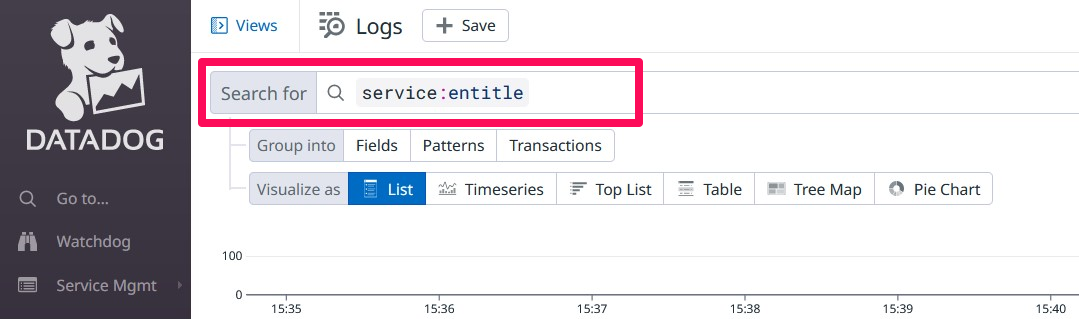
Copy and paste the following query text into the Search for field.
service:entitle
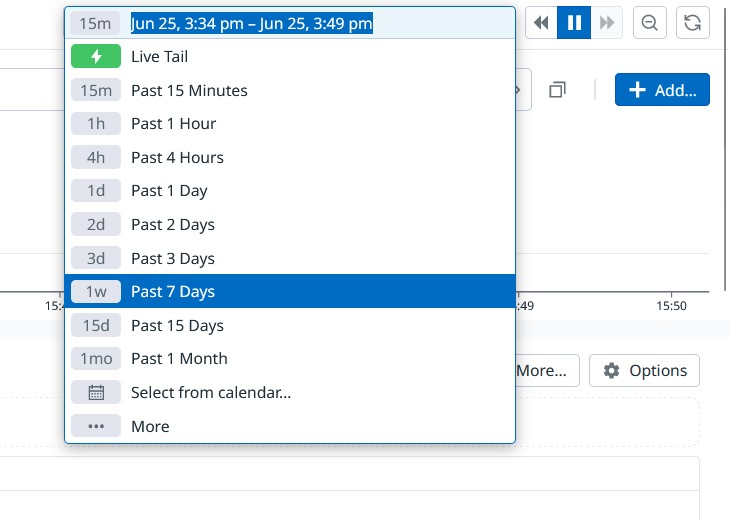
- Adjust the time range to include the time during which your audit logs were created.
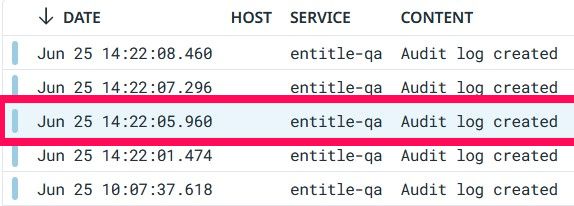
- Click on a result to view the details.
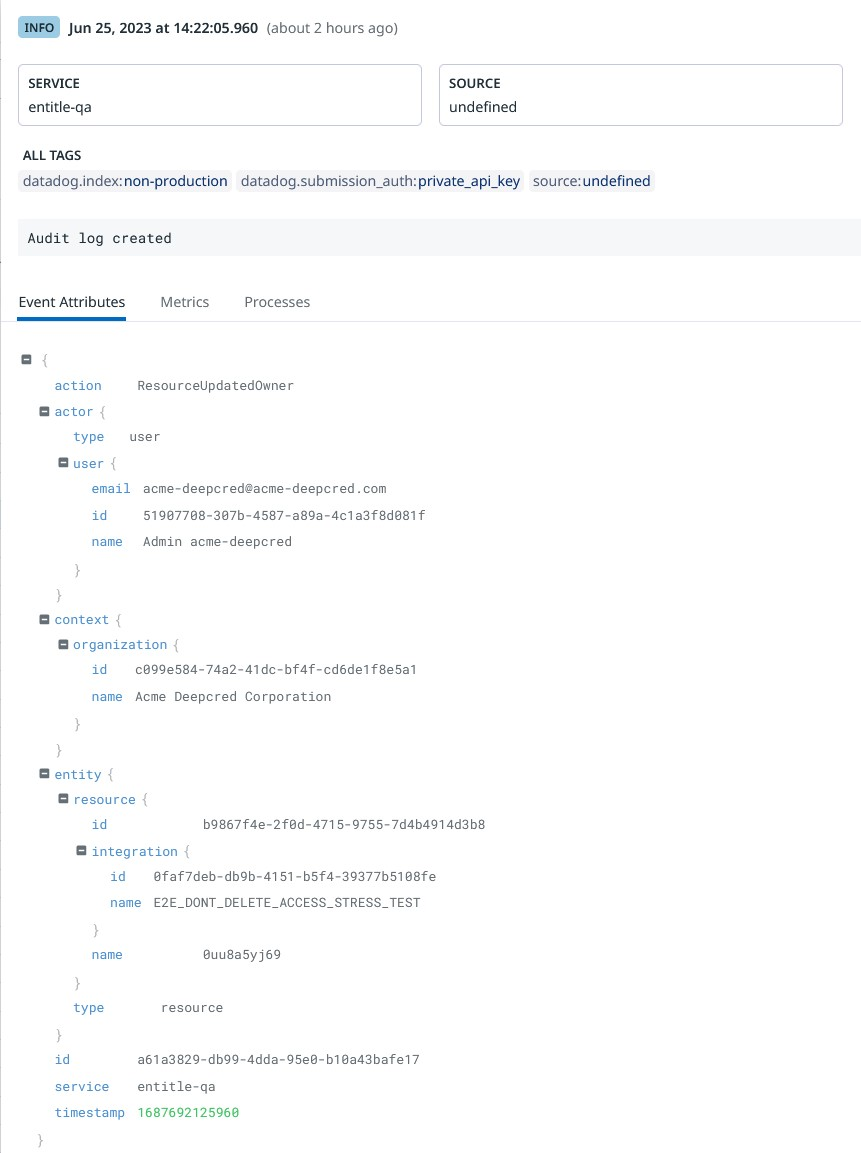
- A sidebar will open to the right with the details of the audit log.
Updated 3 months ago
Did this page help you?
