
Sumo Logic | Entitle Pathfinder
Set up audit logs webhooks
The following steps are required to connect your Sumo Logic tools to Entitle.
Stage 1: Configure the Sumo Logic connector
-
Log in to Sumo Logic with an Admin account.
-
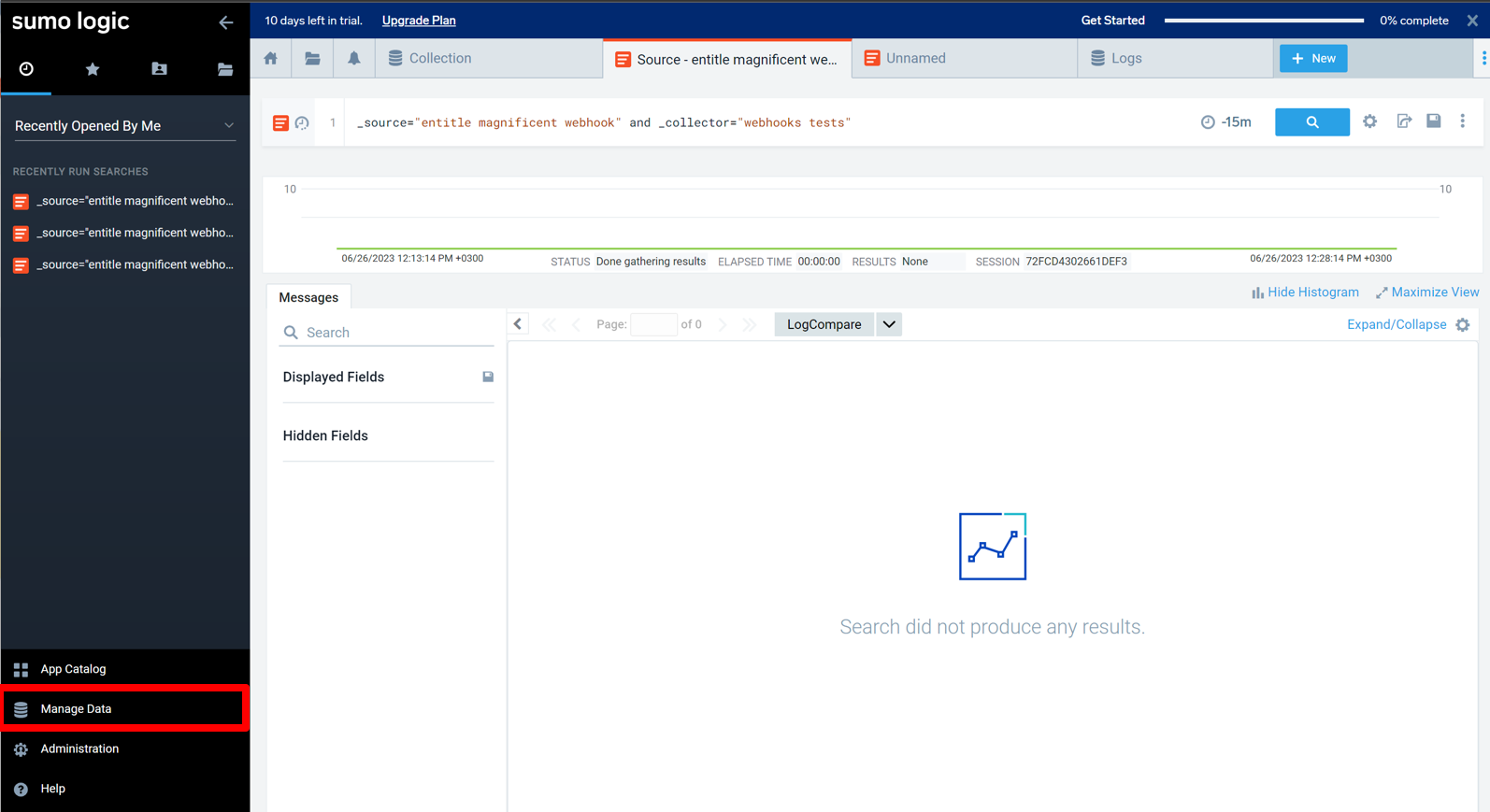
Click on Manage Data in the bottom-left corner, and then Collection (a sub-tab under the previous tab) to open the Collector configuration panel.
-
Select the Collector you want the webhook to send the data to and click Add Source.
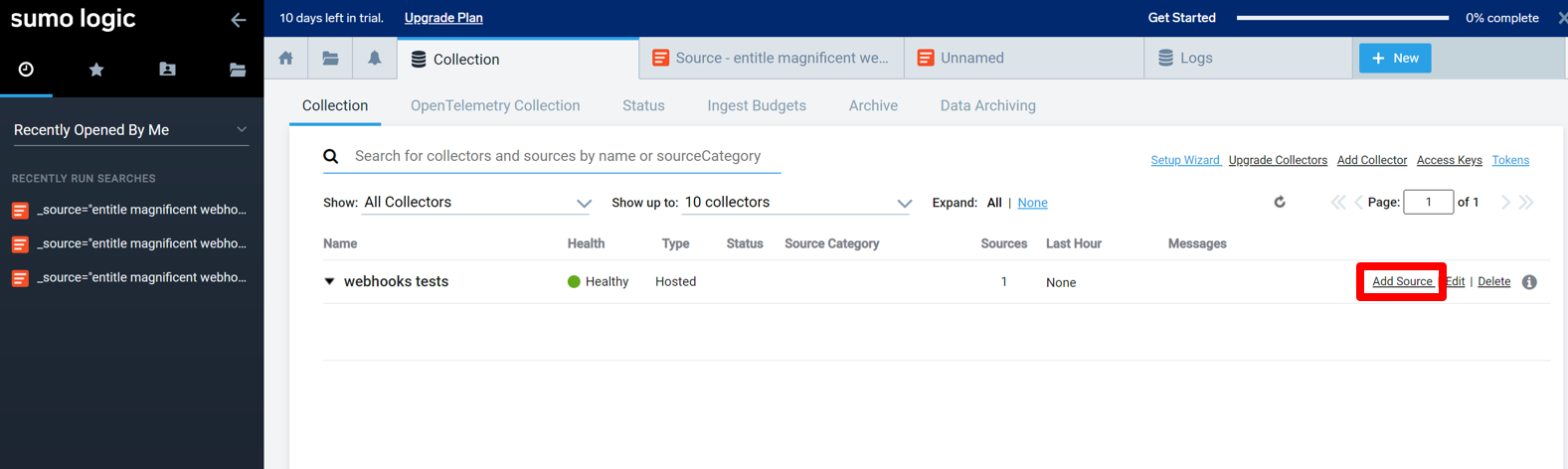
If you want to create a new Collector, follow these steps before clicking on Add Source:
-
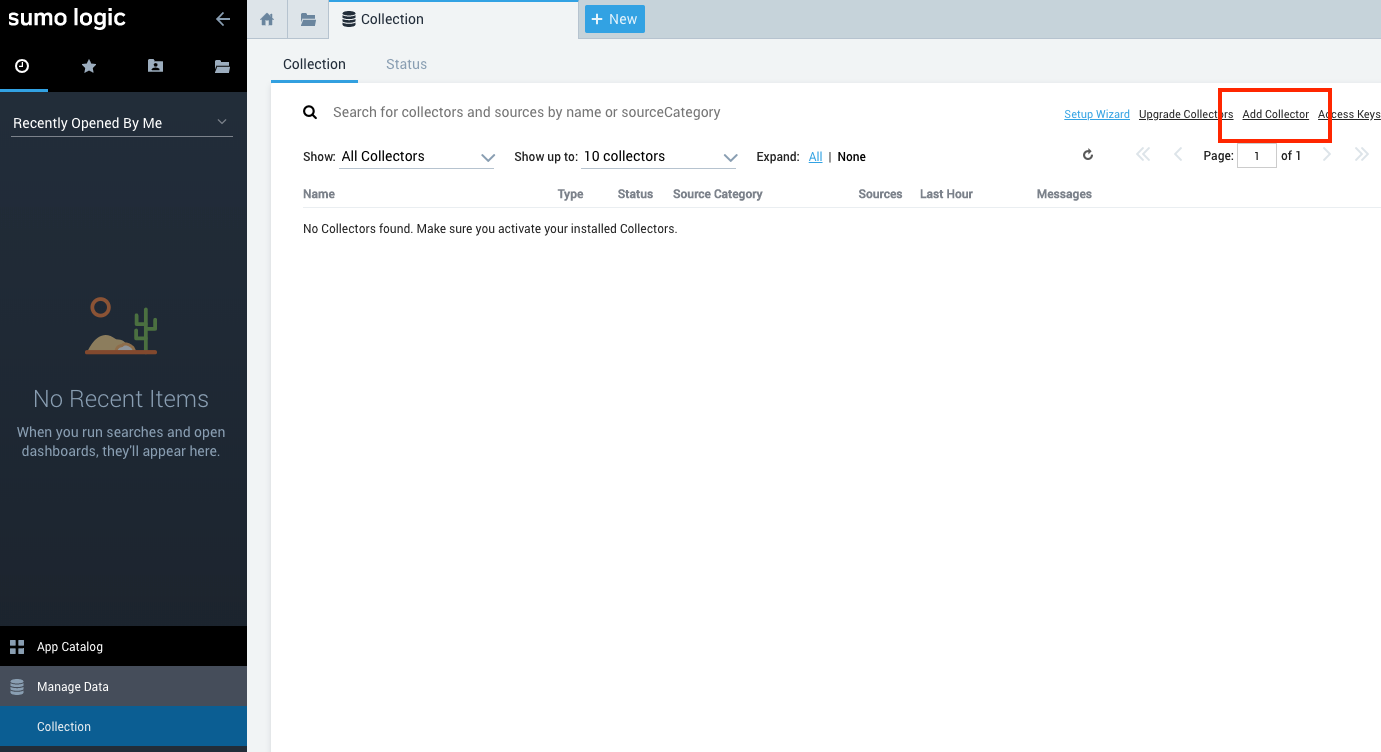
Click the Add Collector link.
-
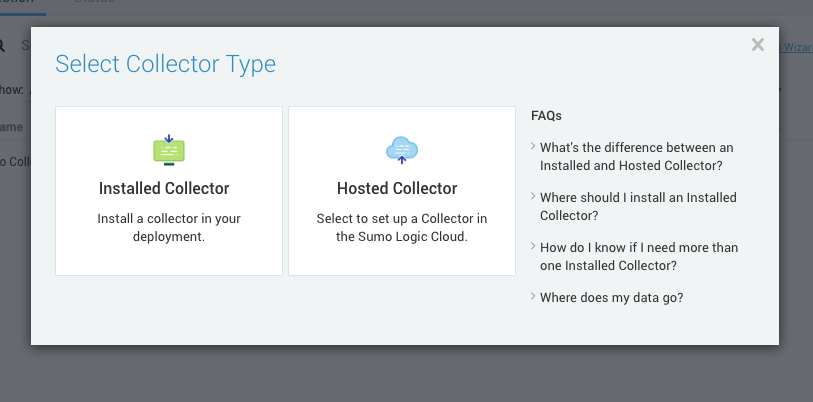
In the Select Collector Type pop-up, choose Hosted Collector.
-
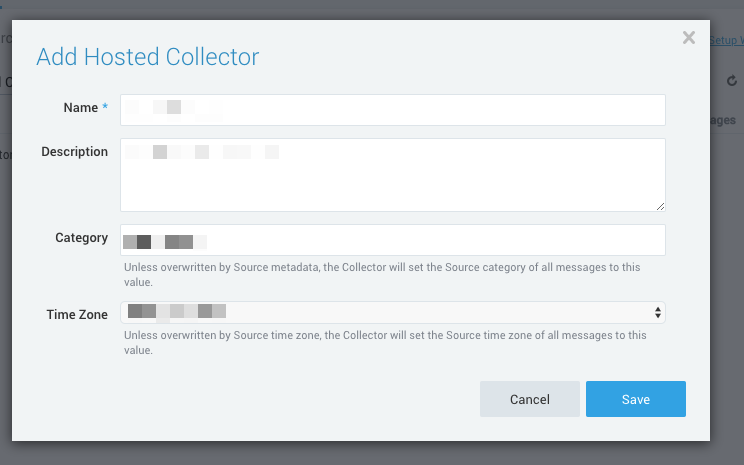
In the Add Hosted Collector pop-up, enter the following settings:
-
Name: the name you wish to give your new Collector.
-
Description: (optional) to identify the data logs coming in.
-
Category: a string to tag the logs collected from this Collector. This will help you to define the scope of your searches, index and partition your data, and control who sees what data through RBAC (Role-Based Access Control).
-
-
Click Save and then click OK to confirm the addition of the new Collector.
-
-
In Cloud APIs, select HTTP Logs and Metrics to start the configuration of the data source.
-
Enter a descriptive Name (the rest is optional), and select Save.
-
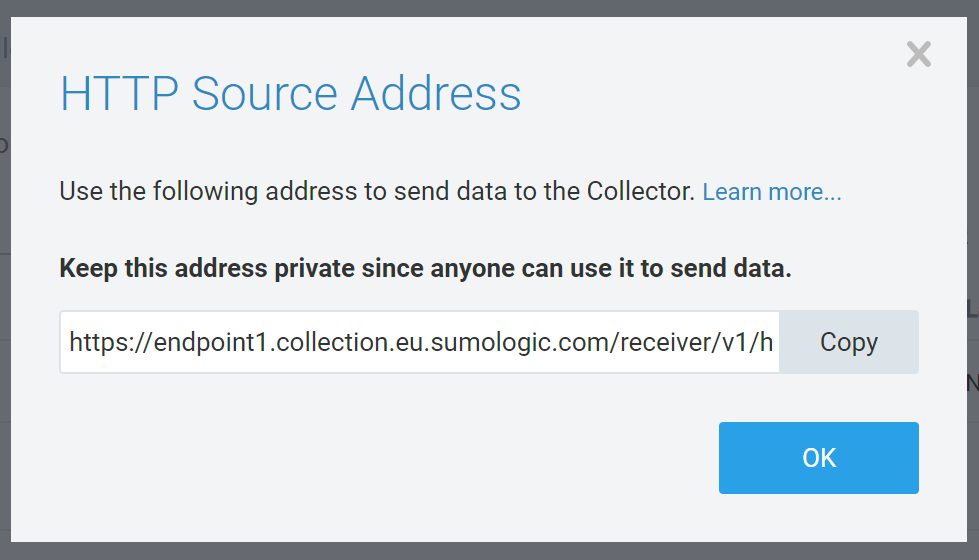
The system presents you with a dialog box with the HTTP endpoint. Click Copy, as this will be required to configure the Audit Logs later.
Stage 2: Create Audit Log webhook in Entitle
- Log in to Entitle and go to Org Settings.
- Select the the Audit logs tab. To add an Audit Log Webhook, click the Add button in the top-right corner.
- In the flyout pane, fill in the following details:
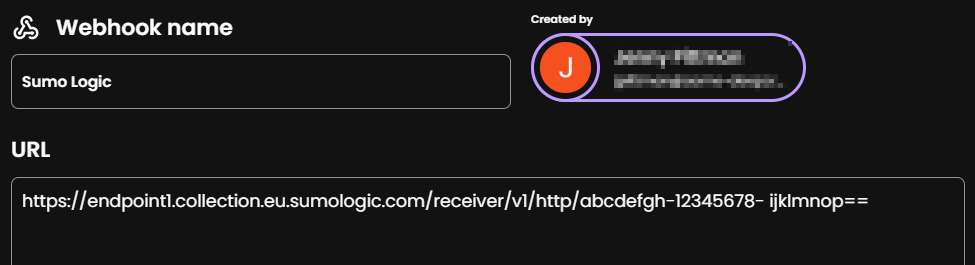
- Webhook name: Enter a name to identify your webhook.
- URL: Paste the URL you just copied from Sumo Logic into this field:
This should be the final result (except the URL should be yours):
- Click Add webhook.
View Entitle audit logs in Sumo Logic
- It takes a few moments for the audit logs configuration to fully propagate through the infrastructure and for the audit logs to appear in Sumo Logic.
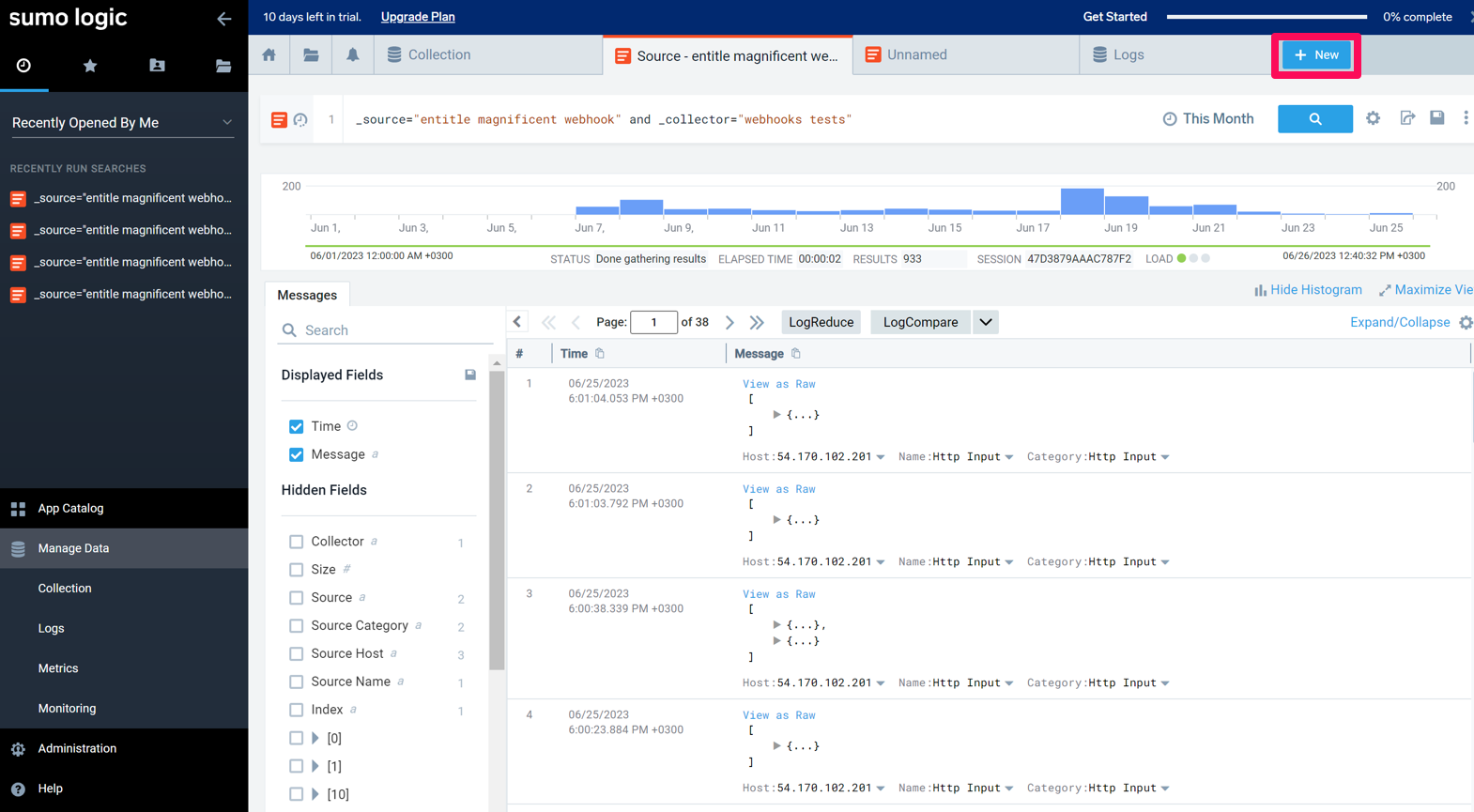
- To view logs, hover your mouse over the chosen Collector and select Open in Log Search.
- Once logs start to flow, select New and then Log search to search for events in a specific search criteria (for example,
_collector="Webhooks tests")
Updated 3 months ago
