
Entitle for Slack | Entitle
Overview
Slack is a messaging and collaboration platform designed for teams and workplaces. It allows users to communicate, share files, and collaborate in real-time through channels, direct messages, and integrations with various other tools and services.
Entitle can be added as an app on Slack. This will require your Admin to configure the integration between Entitle and Slack through the Entitle admin console. Following the integration, the Entitle app is added to the list of available apps in your organization, but you will still need to add it to your Apps list. The interaction in the Entitle App is through "/" (slash) commands, as described below.
Important informationSlack requires a one-to-one authorization between the Entitle email address of a user and their Slack instance. Otherwise, the integration will not be able to authorize correctly when a user tries to use the Entitle app in Slack.
Integrate Slack with Entitle
Only Entitle admins can configure the integration with Slack.
-
Log in to Entitle and navigate to the Org settings page.
-
Locate the Slack app and click Connect.
-
Grant your consent in the Slack portal.
The Slack app is now integrated with Entitle.
Adding Entitle to your Apps list
In some cases, the Entitle app will be automatically added to your Apps list. Otherwise, follow the instructions below.
-
On the left-side navigation menu, click More > Apps.
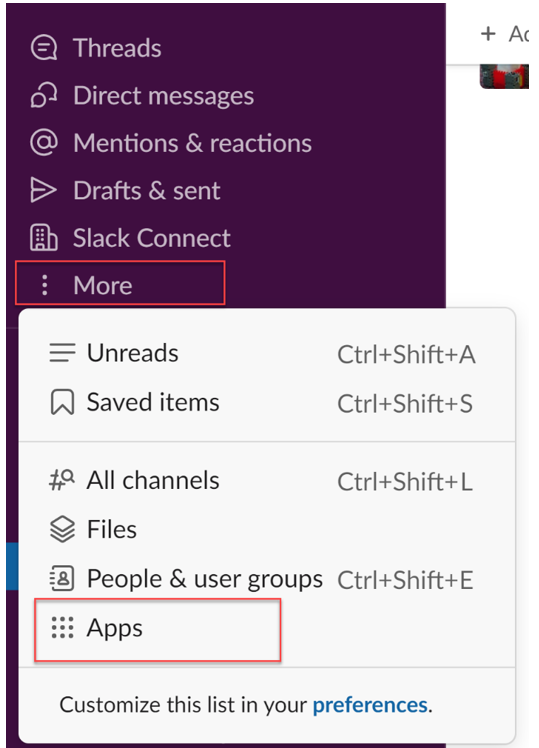
The Apps directory screen is displayed.
-
Click the Entitle app to add it to your Apps list.
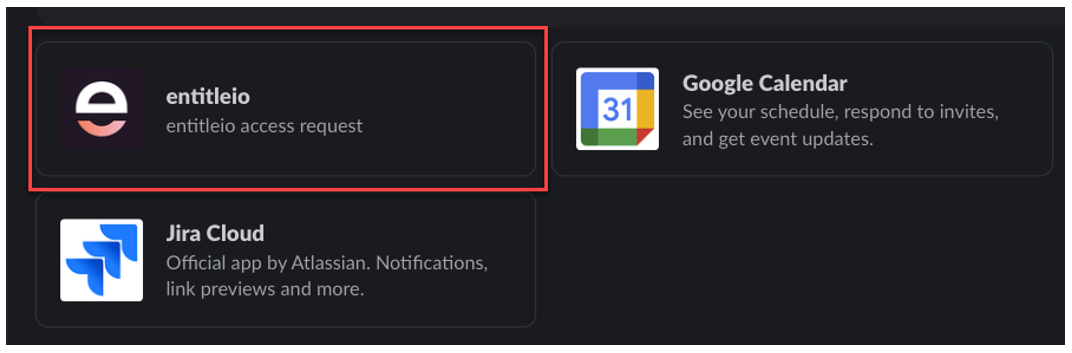
Identity verification
To strengthen identity verification within the Entitle and Slack integration, new users must authenticate with Entitle one time from within Slack before making access requests through the /entitle command.
This enables Entitle to verify a Slack user's identity, mitigating a vulnerability that could occur if unverified email addresses were configured in Slack workspaces. For security reasons, this prompt cannot be disabled.
Connect a Slack channel to Entitle
For Entitle to send approval requests and notifications to a Slack channel, the Entitle bot must be a member of that channel. To add the bot to a channel:
-
Open the Slack channel (public or private) where approval requests should appear.
-
In the message field, enter:
/invite @Entitle -
Press Enter.
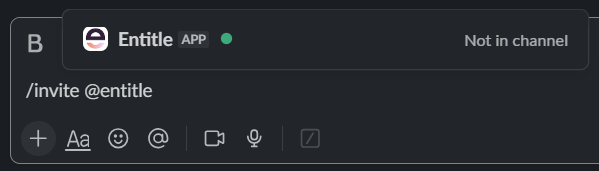
Once invited, the Entitle bot can post approval requests and notifications in the channel.
You can also add the Entitle bot using Slack’s channel member management controls.
Slack channel approvals and notifications
Entitle supports routing access approval requests to Slack channels. When a request is sent to a channel, any channel member can approve or decline the request directly from Slack. Channel-based approvals enable teams to collaborate on approval decisions without assigning a specific individual approver.
When an approval workflow is configured to send notifications to a Slack channel, access requests generate notification messages directly in that channel.
Important informationTo use Slack channel approvals and notifications, existing Slack integrations must refresh permissions.
Go to Org settings > Integrations. On the existing Slack tile, click the vertical ellipses and select Add connection.
Configure the new Slack connection, selecting the same Slack workspace that you used before. This process updates the Entitle app permissions in Slack.
Do not uninstall the Entitle app from your Slack workspace. Uninstalling the app removes the Entitle bot from all Slack channels. If the app is uninstalled and then reinstalled, the bot must be manually re-invited to each channel where approvals should appear.
View request behavior for channel-based approvals
When approval requests are routed to a Slack channel, the behavior of the View request option depends on the user's status in Entitle.
-
Authorized Entitle user: The user exists in Entitle and has permission to view the request. Selecting View request opens the request details in the Entitle web app.
-
Known user without request access: The user exists in Entitle and can approve or decline the request from Slack, but is not explicitly authorized to view the request in Entitle. In this case, selecting View request is blocked for security reasons.
-
Unknown (unregistered) user: The user is a member of the Slack channel but does not exist in Entitle. Selecting View request returns an unauthorized error.
This behavior affects only the View request option. The Approve and Decline actions are still available. If a user is not logged in or registered, they are prompted to authenticate before their action can be applied.
Permission request flow in Slack
For instructions on how to create a new permission request on Slack, see the Entitle for Slack end-user guide.
-
Once an access request is submitted, the approver will receive a message via Slack regarding the summary of the request, including the duration, justification, and linked ticket, if available.
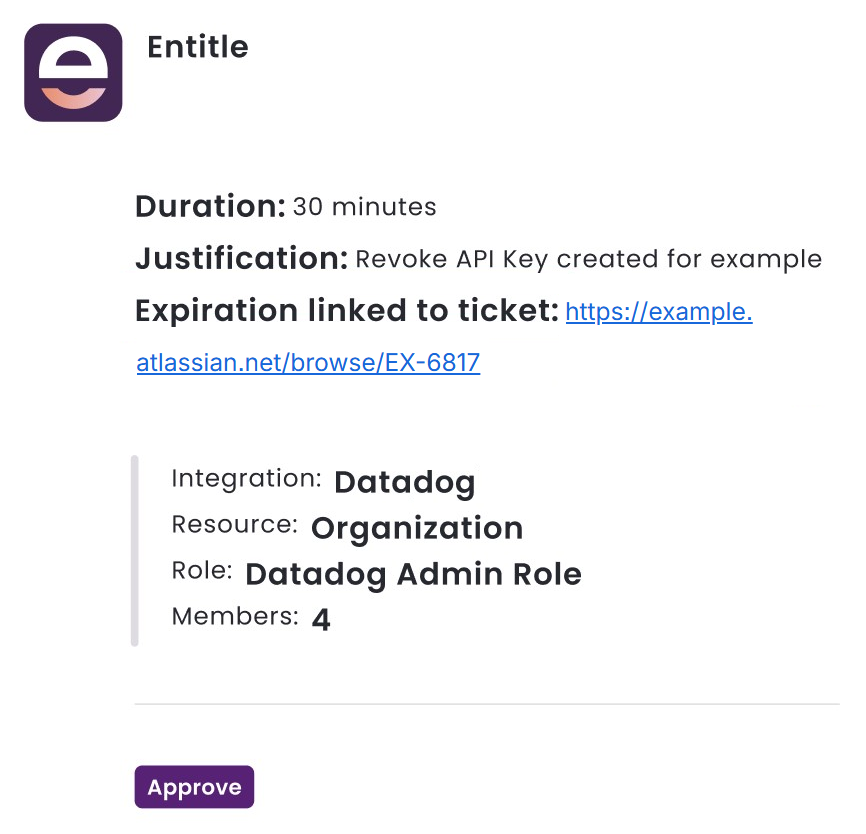
-
Once the permission is approved, another message is displayed to the end-user, indicating that the request has been approved.

End-user log in using ephemeral credentials
- Some services, such as MongoDB, do not support SSO or may be not configured to work with the organization IdP. In such cases, the end-user is required to log in directly to the service using ephemeral credentials received through Slack.
- For details, see the Entitle for Slack end-user guide.
Add a new comment on Slack
You can add comments to the request as well as receive notifications on comments that were added by others.
Comments are not available for approval requests sent to Slack channels. This restriction helps prevent sensitive request details from being exposed in shared channels.
-
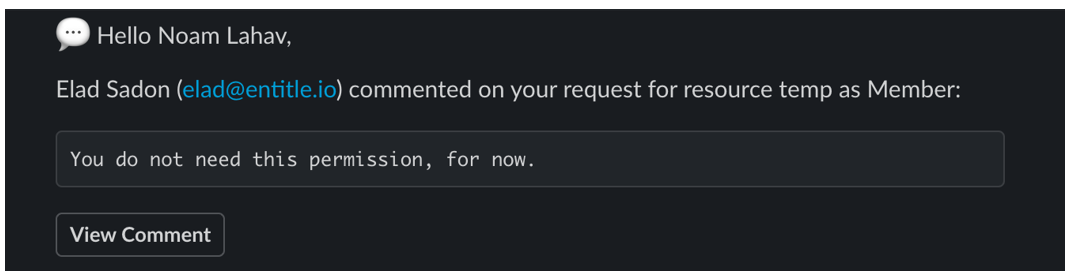
When a comment is added to the request, the following notification displays on Slack:
-
Click View comment to see the comment in the context of the request itself.
-
The comment will be visible in the request details screen of the specific request in the Entitle web app. Through there, you will be able to reply to any existing comments or add new ones.
Updated 5 months ago
