

Identity providers | Pathfinder
BeyondTrust Pathfinder supports connecting to your third-party single sign-on applications. Configuring an identity provider allows members of your organization secure and authorized access to BeyondTrust applications, allowing you to centrally manage accounts, passwords, and identity verification in a manner familiar to both your users and security team.
You can use any IdP that supports SAML and single sign-on. We have provided documentation as examples to use as guidance when configuring your IdP.
You must:
- be a Pathfinder administrator to access identity provider features, and
- have Pathfinder and your identity provider dashboard open to complete setup.
Authentication methods
There are only two authentication methods available for SAML (Does not apply to local users)
Method #1: Create a user locally
Users created locally in Pathfinder (Invited) before Single Sign-On (SSO) via SAML is configured; authentication through the Pathfinder URL is immediately available upon SAML setup.
The admin can set user permissions at time of invite.
Method #2: Authentication through SSO provider
Users not pre-provisioned in Pathfinder, initial authentication must be performed through their SSO provider using (IdP Initiated Auth). This process triggers account provisioning in Pathfinder. After the account is created, subsequent logins can be completed directly via the Pathfinder URL, which will forward to their IdP.
For example, for Entra/Azure users, they should navigate to My Apps and open the SAML app for Pathfinder that they've configured to complete the IdP initiated authentication. After this, they should be able to login directly to Pathfinder since the account will have then been created/provisioned.
The second method is particularly suited for large-scale deployments or user onboarding, wherein administrators pre-create all accounts in their IdP. In this scenario, each user will authenticate through the IdP first to provision their account in Pathfinder before logging in through the Pathfinder URL for future access.
If the admin configures default access rules that will reduce admin involvement with SAML user auth.
How SAML authentication works in Pathfinder
When a SAML IdP is configured in Pathfinder, it is associated with a specific domain.
- If a user attempts to log in using an email address that matches this domain, Pathfinder automatically initiates SAML authentication in the background.
- If the domain does not match any configured SAML IdP, Pathfinder defaults to local authentication—provided the user account exists in the system.
Default access rules
Use default access rules to define baseline product or application access for end users upon their initial login via SAML Single Sign-On (SSO). These rules are applied universally across all IdPs configured in your organization and are triggered only during a user's first SAML-based login.
Users can initiate this login either through the Pathfinder login URL or directly from their IdP application portal. In both cases, the default access rules are enforced only during the initial SAML authentication.
To configure default access rules:
- Sign into login.beyondtrust.io.
The BeyondTrust Home page displays. - At the top right of the page, click your site name to display a drop-down menu.
- Select Administration.
The BeyondTrust Pathfinder Administration page opens and displays each available site as a tile. - Go to Administration > Identity & Authentication Providers.
- Expand the default access rules.
- Select a role from list: Standard User or Administrator. Standard users cannot access administration features.
- Select one or more sites and the applications in a site your users must access.
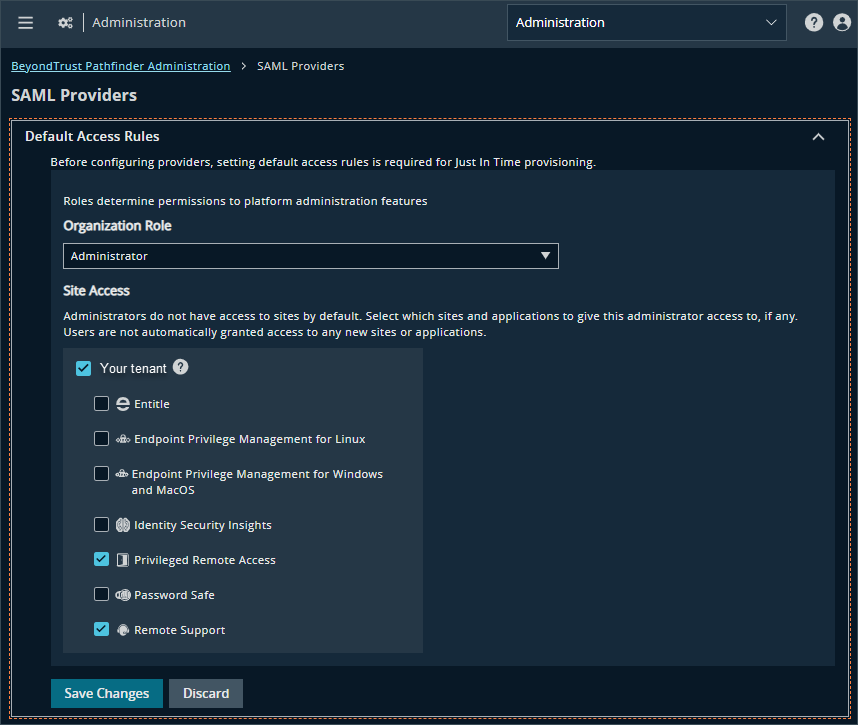
- Click Save Changes.
Configure group claims to use with Pathfinder applications
If your organization is configured to authenticate with a SAML Identity Provider, user groups can be passed. Pathfinder applications can retrieve user groups information from the Identity Provider to use in the applications.
For information on setting up the identity provider, see their respective documentation:
- Microsoft: Add group claims to tokens for SAML applications using SSO configuration
- Okta: Define group attribute statements
How to configure
The identity provider must be configured to provide a SAML assertion called Groups.
The examples below use the group name pws_sso and we are sending that in the claim/assertion so the Pathfinder applications can retrieve user groups information from the Identity Provider.
How to allow multiple groups through a SAML claim
AD groups synced to Azure AD (option #1)
In your identity provider:
To pass all your groups through the claim, in the Group Claims section:
- Select Security groups as the group type to include in the claim.
- Select sAMAccountName from the Source attribute list. If sAMAccountName doesn't work try using Cloud-only group display names.
- Select the Customize the name of the group claim check box and enter groups as the name.
AD groups synced to Azure AD (option #2)
If you use option #2, ensure your groups are added to the SAML application under the Users and groups section in the Azure SAML application.
In your identity provider:
To pass all your groups through the claim, in the Group Claims section:
- Select Groups assigned to the application as the group type to include in the claim.
- Select sAMAccountName from the Source attribute list. If sAMAccountName doesn't work try using Cloud-only group display names.
- Select the Customize the name of the group claim check box and enter groups as the name.
Cloud only groups
Ensure your groups are added to the SAML application under the Users and groups section in the Azure SAML application.
In your identity provider:
To pass all your groups through the claim, in the Group Claims section:
- Select Groups assigned to the application as the group type to include in the claim.
- Select Cloud-only group display names from the Source attribute list.
- Select the Customize the name of the group claim check box and enter groups as the name.
Edit an Identity Provider
To edit an Identity Provider:
- Sign into login.beyondtrust.io.
The BeyondTrust Home page displays. - At the top right of the page, click your site name to display a drop-down menu.
- Select Administration.
The BeyondTrust Platform Administration page displays. - From the top left of the page, click
 > Administration > Identity & Authentication Providers.
The SAML Providers page displays. - For the Identity Provider you want to edit, click
 > Edit Provider.
 - Make your changes, and then click Save Changes.
Delete an Identity Provider
-
Sign into login.beyondtrust.io.
The BeyondTrust Home page displays. -
At the top right of the page, click your site name to display a drop-down menu.
-
Select Administration.
The BeyondTrust Platform Administration page displays. -
From the top left of the page, click
> Administration > Identity & Authentication Providers.
The SAML Providers page displays. -
For the Identity Provider you want to remove, click
> Delete Provider. -
The following confirmation dialog displays:
![A confirmation box reads, "Confirm Provider Deletion. Are you sure you want to delete [server name]? This action cannot be undone." A text box has the word "delete" typed in. Two buttons are available: Delete and Discard.](https://files.readme.io/d755d4278a11f4ac4d21786374283b1e5bd1bf3bc5f43188d39b0113127cc523-ConfirmationDelete_ServiceProvider.png)
- In the textbox, type "delete".
- Click Delete.
