
Teams | Entitle

Overview

Microsoft Teams is a proprietary business communication platform developed by Microsoft, as part of the Microsoft 365 family of products. Teams offers workspace chat and videoconferencing, file storage, and application integration.

Entitle can manage both private and shared channels and teams in Microsoft Teams.

The following table shows which roles employees can request access to:

TeamsPrivate ChannelShared Channel
Guest❌ Cannot request access❌ Cannot request access✅ Can request access
Member✅ Can request access⚠️ Need to first be in the corresponding team of the private channel to request access to it✅ Can request access
Owner✅ Can request access⚠️ Need to first be in the corresponding team of the private channel to request access to it✅ Can request access

This page will provide you with instructions on how to integrate Entitle and Microsoft Teams.

General guidelines

  • Entitle requires an Entra ID connection to integrate with Microsoft Teams.

To integrate your Azure AD with Entitle, you will need to:

  • Create an application on Entra ID, and extract Client and tenant IDs.
  • Create a secret, and extract its value.
  • Provide Entitle with adequate permissions for the application.

Prerequisites

  • The integration creator needs to have an Administrator account in Azure AD.

Set up Microsoft Teams to work with Entitle

Stage 1: Create an application

  1. Go to the Microsoft Azure portal.

  2. Click on Microsoft Entra ID.

  3. Click on the App registrations tab in the left-side menu.

  4. Then, click on New registration.

  5. Give your app a Name and leave the rest as is. Then, click on Register.

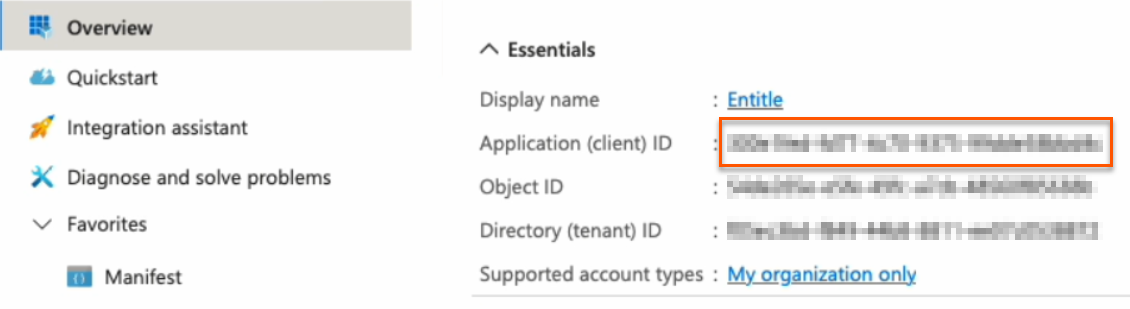
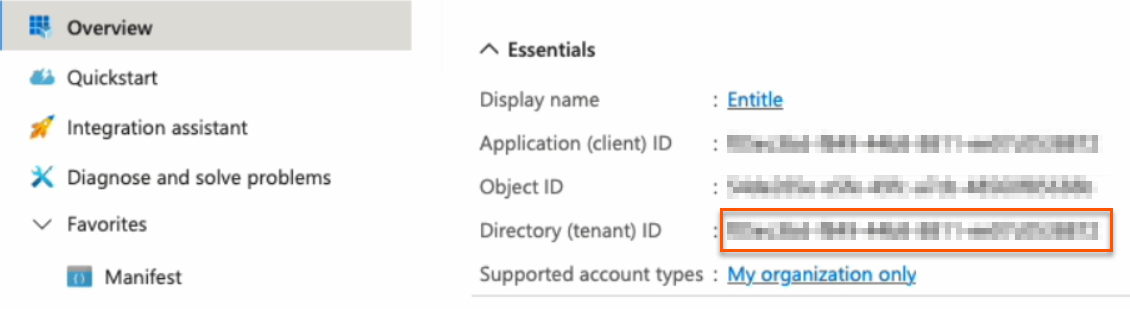
  1. Keep your Application (client) ID and Directory (tenant) ID for later. Then, click on Add a certificate or secret on the right side.

Choose your authentication method

You should now choose whether to create a client secret or federated credentials.

  • Client secret: The simplest option. Create a secret through the Azure portal user interface. This method works for most cases and takes only a few minutes to set up.
  • Federated credentials: A more advanced option that uses Azure identity federation to avoid long-lived secrets and strengthen your security posture.
    • Support OIDC-based federation for Azure applications.
    • Work alongside existing client-secret methods without affecting current setups.
    • Enable access to common Azure resources through role assignments.
    • Prevent cross-tenant access by isolating each customer's service principal.
    • Automatically remove temporary onboarding credentials after setup.

Federated credentials are supported only for integrations saved on Entitle's Cloud or on an on-premises agent hosted in Amazon Elastic Kubernetes Service (EKS).

Create a client secret
  1. Click on New client secret.
  1. In the pop-up window, choose a Description that you will remember and an expiration time and click Add.

  2. Click on the Copy icon to copy your new Client Secret Value and keep it for later.

Create federated credentials for an ephemeral account
  1. Click on the Federated credentials tab, then click Add credential.
  1. In the Federated credential scenario dropdown, select Kubernetes accessing Azure resources.
  1. On the Add a credential page, fill out the fields as needed.

    • Cluster issuer URL:
      • If you're using Entitle Europe:
        https://oidc.eks.eu-west-1.amazonaws.com/id/7104B0E9ED58DCD19AE0DC0EC7D46D5D
      • If you're using Entitle USA:
        https://oidc.eks.us-east-1.amazonaws.com/id/E1F031C91539B03EE726ED530E719F4C
      • If you're using an EKS hosted agent on your AWS account, run this command on your cluster and use its output:
        aws eks describe-cluster --name <CUSTOMER-CLUSTER-NAME> --query "cluster.identity.oidc.issuer" --output text --region <CUSTOMER-CLUSTER-REGION>
    • Namespace: Enter entitle.
    • Service account name:
      • When using a Cloud agent, enter ichilov.
      • When using an EKS hosted agent on your AWS account, use entitle-agent-sa.
    • Subject identifier: This is automatically generated and should not be edited.
    • Name: Enter a name to help identify this credential.
    • Description: You may enter a description to help identify the purpose of this credential.
    • Audience: Click the Edit link, then enter sts.amazonaws.com.
  2. Click Add. Your federated credential now appears on the Certificates & secrets page.

You must now create a temporary secret for onboarding. This secret is short-lived and will be removed automatically after setup.

You can create it either through the Azure portal (easier, but with a minimum lifetime of one day) or using PowerShell commands (slightly more complex, but more secure with a lifetime of two hours or less).

PowerShell method (recommended)
🚧

Important information

Using this method deletes all previously issued client secrets for this app registration. Any other integrations or scripts that rely on those secrets will stop working.

This is an intentional security measure. If an unauthorized user were to learn your app ID and tenant ID, they could attempt to create their own integration and misuse your Azure resources.

Entitle uses your new secret only during the first authentication with your Azure tenant and does not store it in the rest of your configuration. The secret is automatically deleted after your setup is complete.

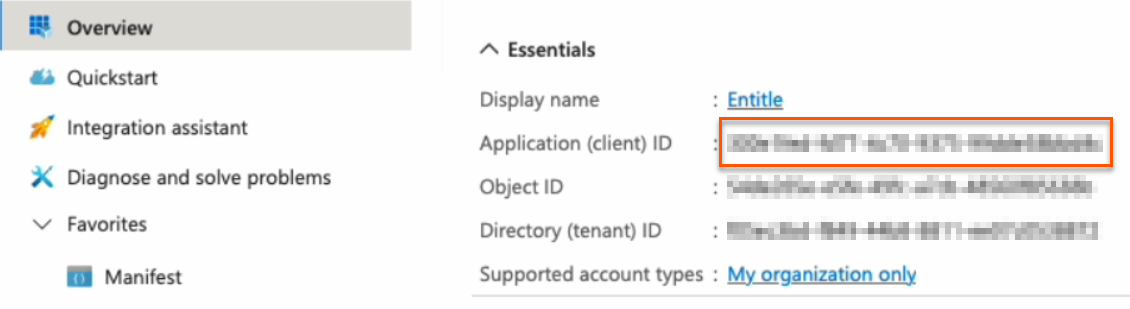
  1. Go to the Overview page from the left navigation.
  2. Under Essentials, copy the Application (client) ID to your clipboard.
  1. Go to Certificates & secrets from the left navigation.
  2. Click the Cloud Shell icon in the top right bar.
  1. Run this command, first replacing <APP-ID> with the Application (client) ID you just copied.
$appId="<APP-ID>"
$end_date="$(date -u -d '120 minutes' +"%Y-%m-%dT%H:%M:%SZ")"
az ad app credential reset `
--id $appId `
--display-name "Entitle Nonce (expiry: $end_date)" `
--end-date "$end_date"
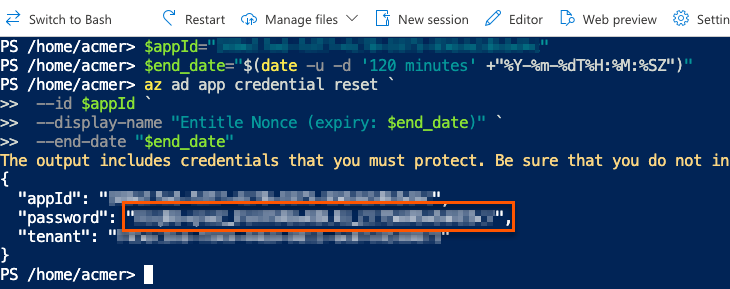
  1. The output gives you the app ID, password, and tenant. The password is your new nonce value. Safely store it for later use.

Azure portal method
  1. Click on New client secret.
  1. In the pop-up window, choose a Description that you will remember and an Expires duration and click Add. The duration should be as short as possible.
  1. Click on the Copy icon to copy your new Client Secret Value and keep it for later.

Stage 2: Assign permissions to Graph API

  1. Go to API permissions.
  1. Remove the existing default permission by clicking on the ellipses on the right, then click Remove permission > Yes, remove.
  1. Now, click Add a Permission.
  1. From the Request API permissions pane, click Microsoft Graph.
  1. Select Application permissions.
  1. Using the search bar that appears, find the following permissions and select them:
team.readbasic.all
teammember.readwrite.all
channel.readbasic.all
channelmember.readwrite.all
user.read.all

Example

  1. When you are done selecting the permissions, click Add permissions at the bottom of the screen.
  2. You will now see the added permissions in the table under Configured permissions.
  3. Click Grant admin consent for Default Directory > Yes.
  4. If you are using a client secret, you can continue with Create the integration in Entitle. If you are using federated credentials with the Application.ReadWrite.OwnedBy permission, continue below.
For federated credentials

The optional steps below are for additional security. When the integration setup is complete, Entitle immediately deletes the one-time secret created for the initial authentication to your Azure tenant.

If you choose not to run this command, the one-time secret remains active until it expires.

  1. Click the Cloud Shell icon in the top right bar.
  1. Run this command, first replacing <APP-ID> with your Application (client) ID.
$appId=<APP-ID>
$appServicePrincipalId=$(az ad sp list --filter "appId eq '$appId'" --query "[0].id" -o tsv)
az ad app owner add --id $appId --owner-object-id $appServicePrincipalId

Create the integration in Entitle

  1. Log in to Entitle and go to the Integrations page.
  2. Click the Add Integration button, then type Microsoft Teams in the Application field.

Follow the steps for your chosen authentication method: client secret or federated credentials.

Client secret
  1. Start the integration setup following the instructions in Set up a new integration.

  2. From the Connection dropdown, select Client secret.

  3. In the JSON, paste the values of the information generated earlier.
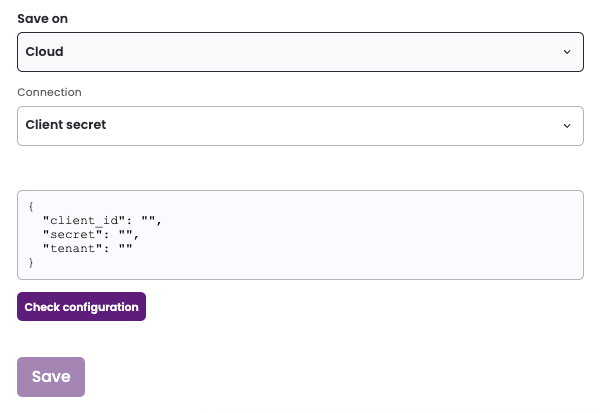
    • client_id: Your Application (client) ID, found on the Overview page.
    • secret: Your Client secret, found on the Certificates & secrets page.

    • tenant: Your Directory (tenant) ID, found on the Overview page.
Example connection JSON

{
  "client_id": "a47b3f9c-8e1d-42b6-bc3f-9d204c1e8f27",  
  "secret": "e2b0c714-28f4-4fa6-84b1-5de8f32c91ad",  
  "tenant": "fb6d0243-9e81-47a2-a05b-63d40b9f8c92"
}
  1. Click Save.
Federated credentials
  1. Start the integration setup following the instructions in Set up a new integration.

  2. Save on: Choose whether you would like this integration to be saved on your own hosted agent or in Entitle’s cloud.

    🚧

    Important information

    Federated credentials work only for integrations that are saved on Entitle's Cloud or on an on-premises agent that is hosted in Amazon Elastic Kubernetes Service (EKS).
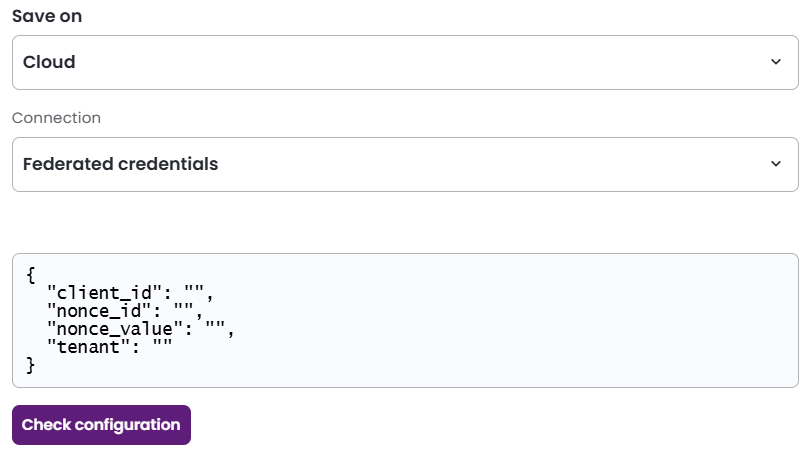
  3. From the Connection dropdown, select Federated credentials.

  4. In the JSON, paste the values of the information generated earlier.

    • client_id: Your Application (client) ID, found on the Overview page.
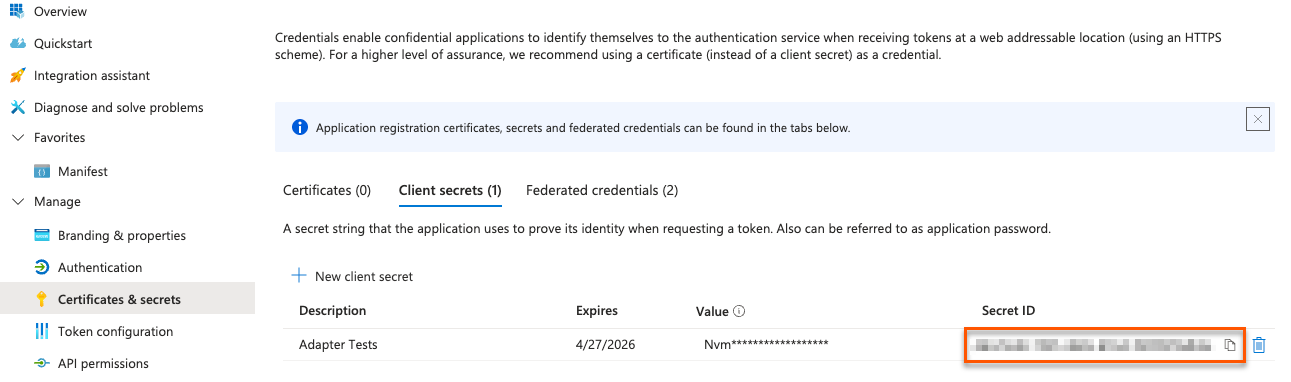
    • nonce_id: Your Secret ID, found on the Certificates & Secrets page. Refresh your browser to see the secret ID.
    • nonce_value: Your Nonce value, found in your Cloud Shell instance.
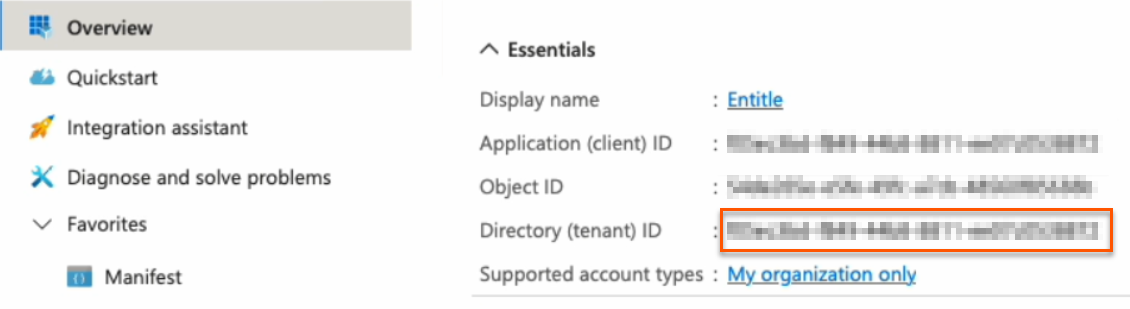
    • tenant: Your Directory (tenant) ID, found on the Overview page.
    Example connection JSON

    {
      "client_id": "a47b3f9c-8e1d-42b6-bc3f-9d204c1e8f27",
      "nonce_id": "3d92a6ef-4b8c-4d12-80a9-cc57e2e3b8a1",
      "nonce_value": "9c1f8e0a-35d2-4f13-9d4e-f91b2aa84e77",
      "tenant": "fb6d0243-9e81-47a2-a05b-63d40b9f8c92"
    }
  5. Click Save.

What's next?

Make sure your setup is complete by testing your integration.


©2003-2026 BeyondTrust Corporation. All Rights Reserved. Other trademarks identified on this page are owned by their respective owners. BeyondTrust is not a chartered bank or trust company, or depository institution. It is not authorized to accept deposits or trust accounts and is not licensed or regulated by any state or federal banking authority.
