
Updates | PRA Pathfinder
What is the Updates page?
The Updates page in the /appliance web interface is where you manage software updates for the B Series Appliance, ensuring it operates with the latest features, performance improvements, and security patches.
How is it useful to my organization?
Keeping the appliance updated minimizes vulnerabilities, maintains compatibility with BeyondTrust services, and supports optimal performance, enhancing overall reliability and security.
How do I access the Updates page?
- Use a Chromium-based browser to sign in to your B Series Appliance. The URL is provided in the BeyondTrust welcome email and includes your site URL followed by /appliance.
- From the top menu, click Updates.
The Updates page opens and displays by default.
The Updates page
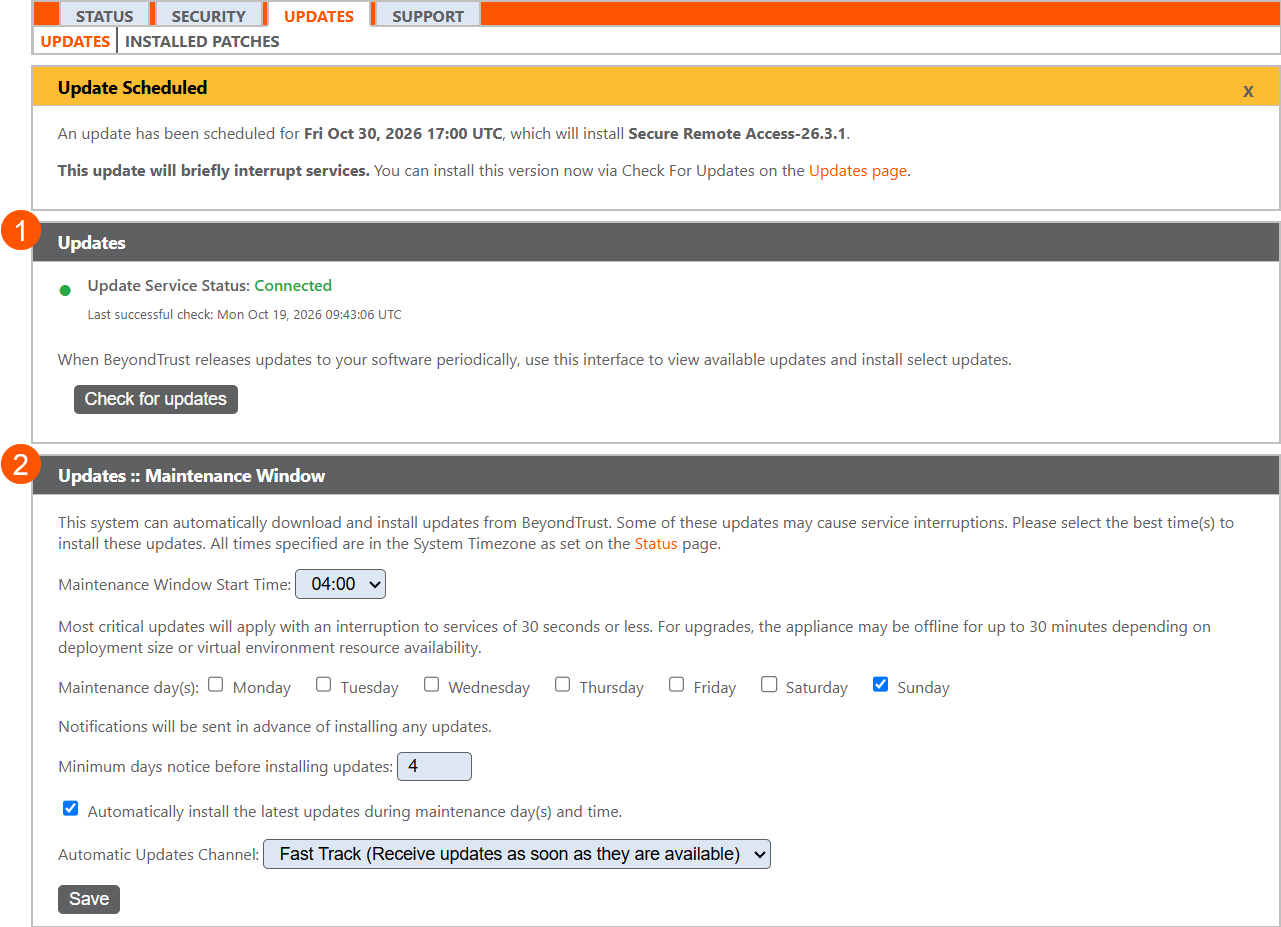
- Check for updates: Shows the Update Service status and allows you to check if new updates are available.
- Maintenance Window: Allows the administrator to schedule a time for updates. BeyondTrust installs critical updates automatically.
Check for and install updates
If Automatically install the latest updates during maintenance day(s) and time is checked, updates install automatically during the maintenance window. Use Check for updates to see available updates or to install one before the maintenance window.
-
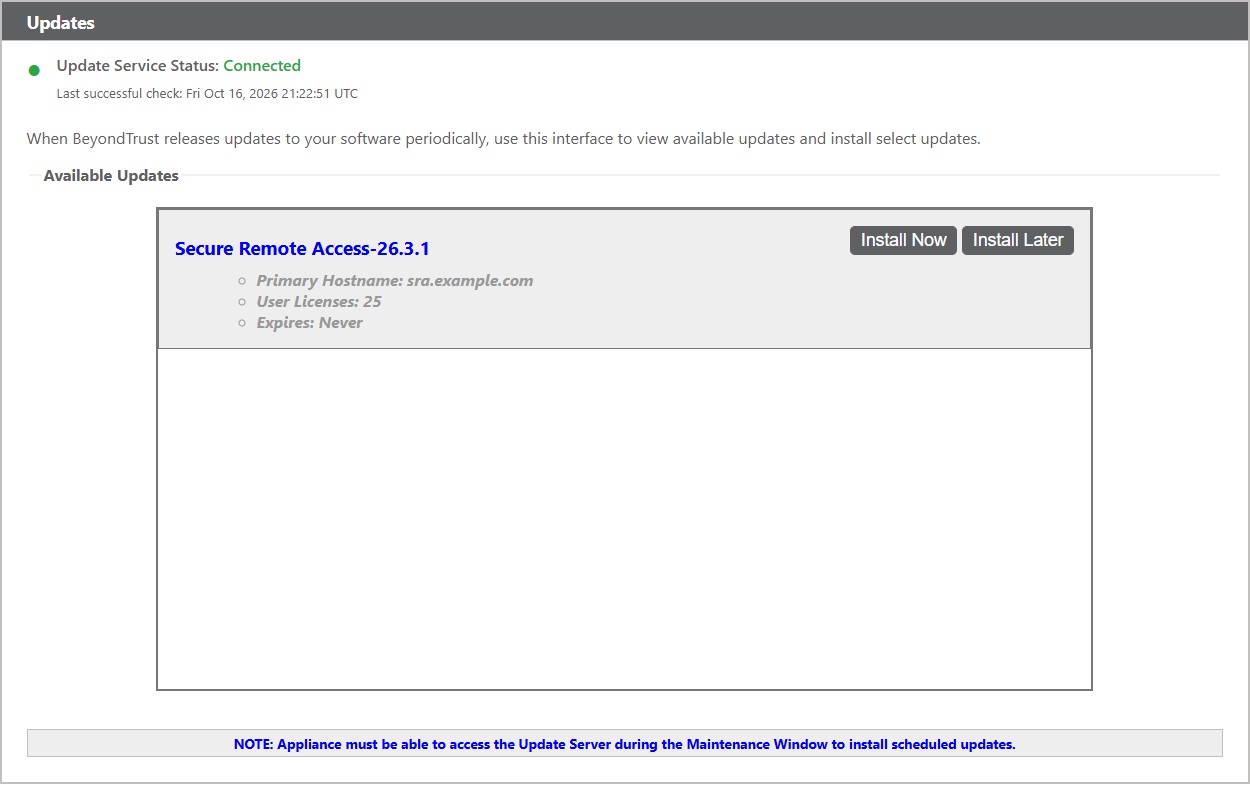
Click Check for updates. Any updates that are available for your appliance appear under Available Updates.
-
For the update you want, do one of the following:
- To install the update immediately, click Install Now.
- To install the update during the next maintenance window, click Install Later, and then confirm. Any prerequisite updates are scheduled at the same time.
ImportantScheduling an update with Install Later cancels any automatic updates that are already scheduled.
Update service connectivity status
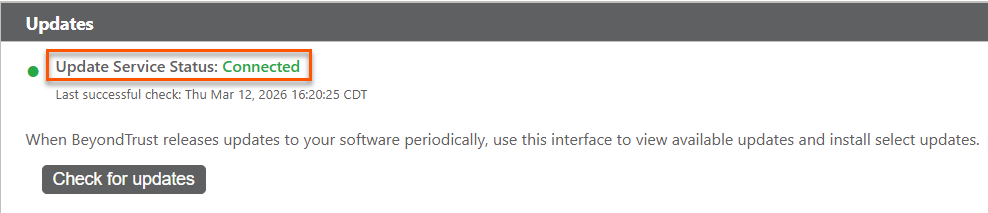
The Updates page displays the system’s current connectivity status and timestamp of the last successful update check to the BeyondTrust update service.
A status indicator at the top of the page shows one of three states:
- Connected (green dot): Update service reachable. See the timestamp of the last successful check for updates.
- Connectivity issue (red dot): Update service not reachable. See troubleshooting hints (firewall, DNS, proxy), a link to Network Diagnostics, and the timestamp of the last successful check for updates (or "Never")
- Unknown (blue dot): Connectivity not yet verified. Prompts the admin to check for updates
This information helps administrators identify if the system can reach the update service. If automatic updates are turned on but the system cannot connect, the Updates page clearly indicates that update checks may fail. This visibility allows administrators to diagnose connectivity issues before they affect update delivery.
Update Scheduled banner
When automatic updates schedule an update, the Update Scheduled banner appears at the top of the page. It shows when the update installs, which update it is, and whether it interrupts services. To install the update before the scheduled time, click Check for updates, and then click Install Now.
During installation
During the installation process, the Updates page displays a progress bar to notify you of the overall update progress. Updates made here will automatically update all sites and licenses on your B Series Appliance.
If you are installing a software update, logged-in users temporarily lose connections to any sessions and the console; therefore, schedule software updates for non-peak hours. However, if your update package contains only additional licenses, you can install the update without interrupting user connections.
If no update packages or patches are available for your appliance, a message stating No updates available is displayed. If an update is available but an error occurred when distributing the update to your appliance, an additional message is displayed, such as An error occurred building your update. Please visit BeyondTrust support for more information.
Maintenance window
Use the Maintenance Window section to set when updates install.
-
Maintenance Window Start Time: The time updates begin installing, in the system time zone set on the Status page.
-
Maintenance day(s): The days updates can install.
-
Minimum days notice before installing updates: How many days in advance you are notified before an update installs.
-
Automatically install the latest updates during maintenance day(s) and time: Installs updates during the maintenance window.
-
Automatic Updates Channel: How quickly you receive new releases.
- Fast Track: Receive updates as soon as they are available for the latest major release and new maintenance releases (such as 26.3 or 26.3.2).
- Standard Track: Receive updates on a regular cadence for the latest major release (such as 26.3).
- Enterprise Track: Receive updates less frequently. This track operates at n‑2, meaning it is two versions behind the current release.
By default, automatic updates are turned off. BeyondTrust installs critical updates automatically.
Updated 14 days ago
