
Security | PRA Pathfinder
What is the Security tab?
Manage your One Time Password authentication (OTP) and view active sessions on the Security tab.
How is the Security tab useful to my organization?
The Security tab enhances account security by enabling users to implement 2FA and monitor active sessions, supporting organizational efforts to safeguard sensitive information.
How do I access the Security tab?
- Sign into app.beyondtrust.io.
The BeyondTrust Home page displays. - Click the Privileged Remote Access tile, or, from the main menu, click Privileged Remote Access > My Account.
- Privileged Remote Access opens, and the My Account page displays with the Profile tab open by default.
- Click Security.
The Security tab displays.
The Security page
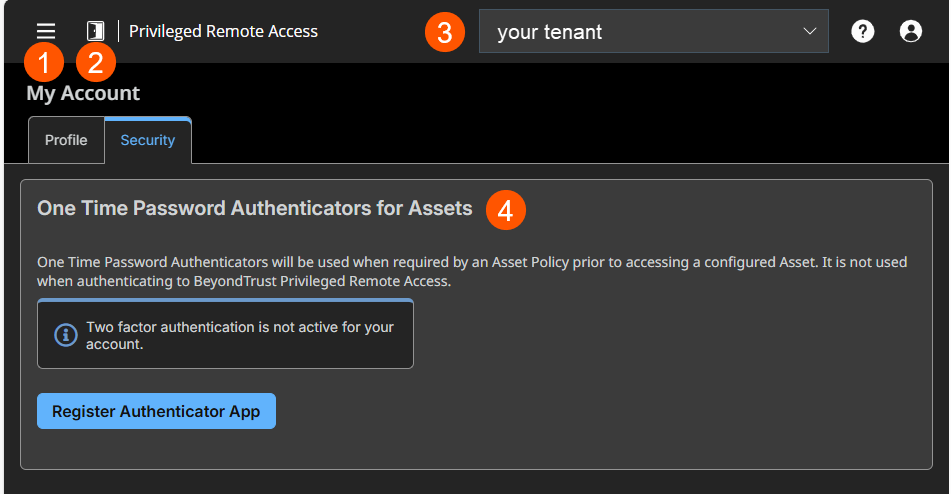
- Left menu: Easy access to all pages in Privilege Remote Access, including Status, Consoles & Downloads, My Account, Configuration, Asset Management, Vault, Console Settings, Users & Security, Reports, Management, and Appliance pages.
- Status: Opens the Status page.
- Header: Change your tenant site, manage your profile, and access documentation.
- One Time Password Authentication for Assets: Register your One Time Password Authenticator app.
What is One Time Password authentication?
One Time Password authentication (OTP) is a security method that requires you to provide two different forms of identification to verify your identity. This process adds an extra layer of security to protect accounts and systems by combining two factors from:
- Something you know (such as passwords, PINs, or security questions),
- Something you have (such as a one-time passcode, a hardware security key, or a smart card), and/or
- Something you are (a biometric identifier such as fingerprints, facial recognition, or retina scans).
Enable one time password authentication
One time password authentication is used when required by an Asset Policy prior to accessing a configured Asset. It is not used when it authenticates to BeyondTrust Privileged Remote Access.
To enable one time password authentication, do the following steps:
-
Click the Register Authenticator App button.

-
Follow the steps to register an authenticator app.
-
On the Code on the App field, enter the number generated by your authenticator app.
-
Click Activate.
Updated 3 months ago
