
Connections | PRA On-prem
What are connections in Vault?
Connections in Vault enable direct integration with Password Safe through SRA’s Vault import mechanisms.
How are connections useful in Vault?
Connections in Vault define how SRA integrates with one or more Password Safe instances. They are required for both discovery and runtime credential use.
How do I access the Connections page?
- Use a Chromium-based browser to sign in to your Privileged Remote Access URL.
This URL is provided in the BeyondTrust welcome email and includes your site URL followed by /login. - From the left menu, click Vault.
The Accounts page opens and displays by default. - Click the Connections tab.
The Password Safe Connections page displays.
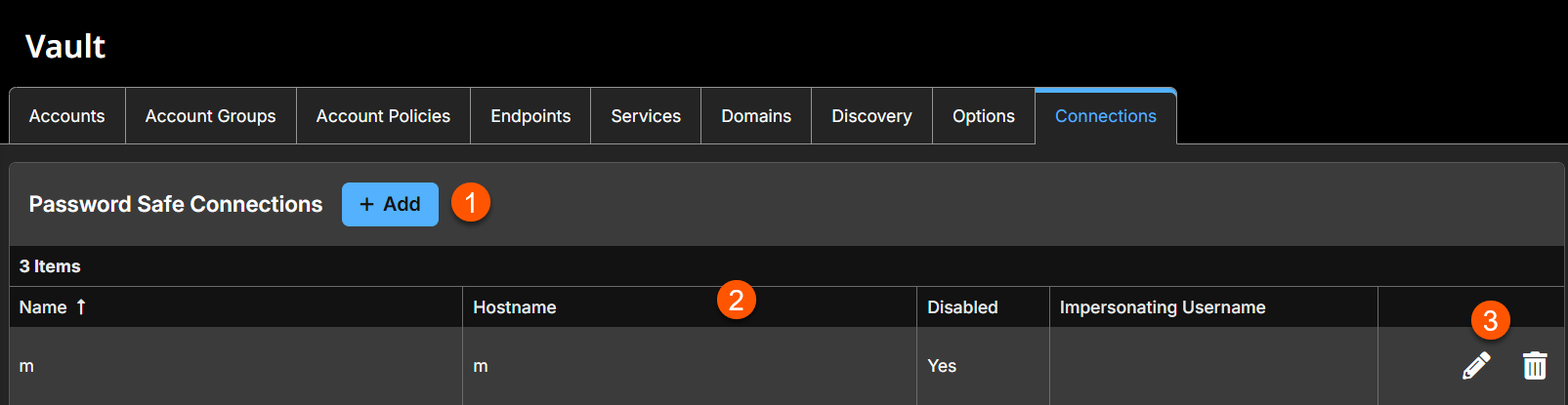
-
Add: Adds a new connection.
-
Password Safe Connections columns: A list of Password Safe Connections columns.
Password Safe Connections columns
- Name: The unique name to help identify this connection.
- Hostname: The name of the Password Safe Host.
- Disabled: Displays if the connection is enabled or disabled.
- Impersonating Username: A valid username from one of the following groups: Password Safe's Administrators, Global Approvers, or Secure Remote Access Requestors.
-
Connections options: Allows you to edit or delete an existing connection.
Create connection
Start by creating a connection between the SRA site and Password Safe. Most of the information entered in this step comes from Password Safe; ensure you have that information on hand. To do this, follow these steps:
- From the main menu, click Privileged Remote Access > Vault.
The Vault page opens and the Accounts tab displays by default. - Click the Connections tab.
The Password Safe Connections page displays. - Click Add.
- For Name, type a unique name to help identify this role. This is a required field.
- For Password Safe Host, type the name of the Password Safe Host. This is a required field.
- For API Key, copy the information from the Key field in Password Safe for the API registration you created and paste it into the API Key field in PRA. This is a required field.
- For Impersonating Username, select a valid username from one of the following groups: Password Safe's Administrators, Global Approvers, or Secure Remote Access Requestors. This is a required field.
- Impersonating Username Password is determined by the User required password checkbox on the API registration from Password Safe. If the checkbox is not selected, then no password is required for this field in PRA. If the checkbox is selected, then use the password associated with the username on the Password Safe API registration and enter it in this field in PRA.
Edit a Password Safe connection
- From the main menu, click Privileged Remote Access > Vault.
The Vault page opens and the Accounts tab displays by default. - Click the Connection tab.
- From the Password Safe Connections table, locate the connection you want to edit.
- Click the pencil
 to edit.
 - Make the necessary changes and click Save.
Delete a Password Safe connection
- From the main menu, click Privileged Remote Access > Vault.
The Vault page opens and the Accounts tab displays by default. - Click the Connections tab.
- From the Password Safe Connections table, locate the connection you want to delete.
- Click the trash can
 to delete.
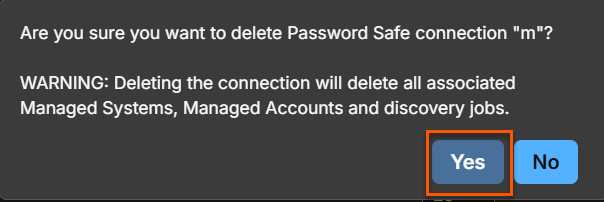
 - A warning dialog box displays. Click Yes.
Updated 3 months ago
