
Asset reports | PRA Pathfinder
What is Asset reporting?
Asset reporting logs all Asset events and provides detailed records, including access history, user activity, and associated session details. Reports can be customized using filters to meet specific needs.
How is Asset reporting useful?
Asset reporting helps administrators monitor and audit access to remote systems, ensuring accountability, enhancing security, and meeting compliance requirements.
How do I access the Asset Report page?
- Sign into app.beyondtrust.io.
The BeyondTrust Home page displays. - From the main menu, click Privileged Remote Access > Reports.
The Reports page opens and the Access tab displays by default. - Click the Asset tab.
The Asset Report page displays.
The Asset Report page
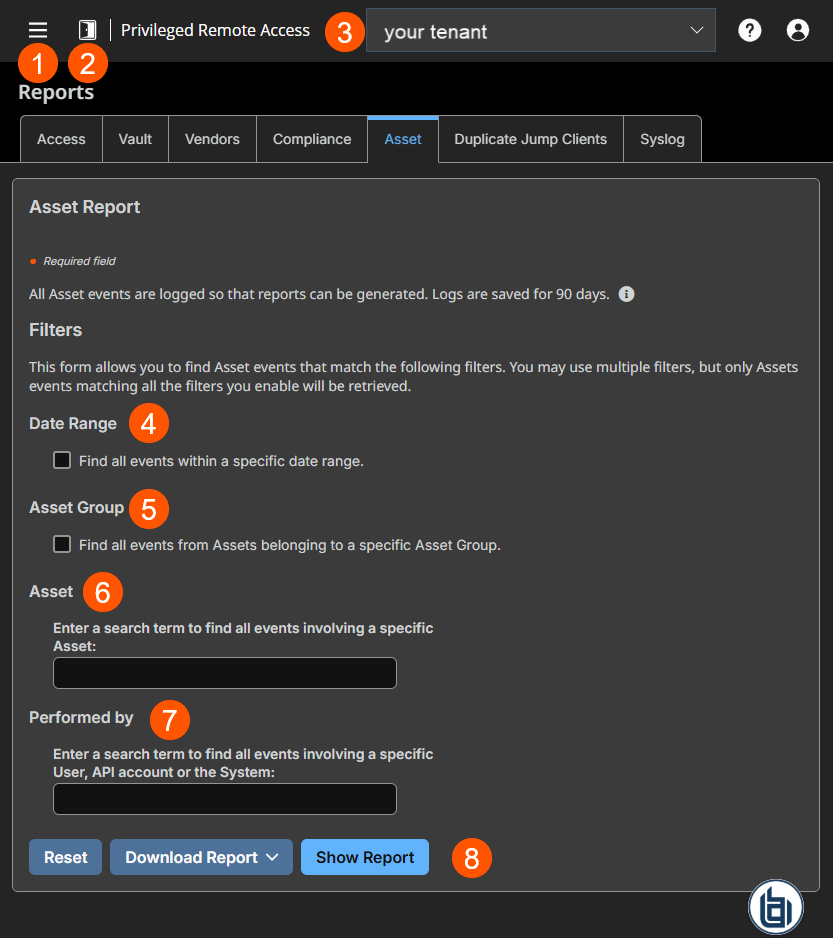
- Left menu: Easy access to all pages in Privilege Remote Access, including Status, Consoles & Downloads, My Account, Configuration, Asset Management, Vault, Console Settings, Users & Security, Reports, Management, and Appliance pages.
- Status: Opens the Status page.
- Header: Change your tenant site, manage your profile, and access documentation.
-
Date Range: Specify a date range to find events.
-
Asset Group: Filter sessions that belong to certain Asset Groups.
-
Asset: Filter sessions that belong to certain Assets.
-
Performed by: Filter for specific user account(s).
-
Download/Show Report: Option to download or show report results.
Filters
You can find Asset events that match the following filters. You may use multiple filters but only Asset events matching all the filters you enable are retrieved.
Date Range
Select a start date and end date for which to pull reporting data.
Asset Group
Filter sessions by Assets belonging to a certain Asset Group. When you select the Find all events from Assets belonging to a specific Asset Group checkbox, the following options are available:
- Find all sessions started from Assets belonging to a specific Asset Group.
- Find all sessions started from personal Assets for a specific user.
- Find all sessions in your personal Asset Group.
Asset
In the Enter a search term to find all events involving a specific Asset textbox, enter search terms to find all events involving a specific Asset.
Performed by
In the Enter a search term to find all events involving a specific User, API account or the System textbox, enter search terms to find all events involving a specific user, API account, or the system.
Download/Show Report
Once your filter criteria are selected, you can either download the report in a Microsoft Excel spreadsheet or show the report in a HTML browser.
To download the report, click Download Report and select the format you want, either Microsoft Excel or a comma separated value (CSV).
To show the report in a HTML browser, click Show Report.
Users can view the following events related to Assets on Asset Groups (Personal or Shared):
- Asset Created
- Asset Deleted
- Asset Copied From
- Asset Copied To
- Asset Moved From
- Asset Moved To
- Asset Session Started
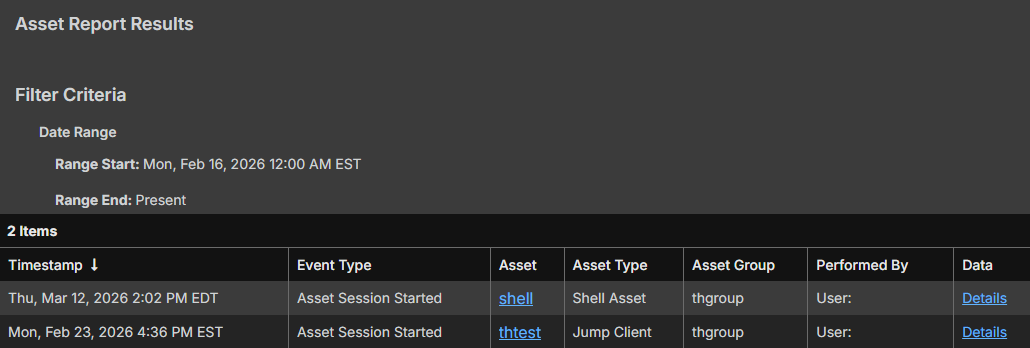
The following information is included as part of the event:
- The time at which the event occurred.
- If the event was initiated by a user, the user's identifying information is associated to that event. This could be a user, API account, or system information. The data in this column is shown as a hyperlink for User and API Account generated events. When clicked, it links to that User or API Account edit page, assuming that the user or API account has appropriate permission to view the report.
- The event type.
- Asset Type, which is one of the supported Asset types, for example, Jump Client, Remote Jump, Remote RDP, etc.
- Name of the Asset. The data in this column is shown as a hyperlink. When clicked, the reporting view changes to show the events belonging to only that specific Asset. The title of the page also changes to All Asset Events for: .
- Name of the Asset Group. This is the source Asset Group for Asset Copied From and Asset Moved From events, and destination Asset Group for Asset Copied To andAsset Moved To events.
- Any additional data that is specific to the logged event. This field can be used to store the destination Asset Group for the events related to Assets Copy and Move.
- Make sure the View Reports permission is enabled in Asset Management > Asset Roles > Permissions. This option is enabled by default for all built-in administrators (the first admin account created on new site installs).
- A new Asset Role called Auditor is automatically created on new site installations. On existing installations, it has to be created. This role only has a single View Reports permission enabled, giving admins the option to grant a user just the permission to run Asset reports, without the need to grant any other permission.
- Reporting data is included in backups.
Updated 3 months ago
