
Licensing reports | PRA On-prem
What is Licensing reporting?
Licensing Reporting gives administrators direct visibility into how licensed capacity is being used across their environment. With the Licensing report, you can view concurrent license usage in real time, track time-based trends, and identify peak utilization periods. Reports can be viewed directly in PRA or downloaded.
How is Licensing reporting useful?
Licensing Reporting gives you a clear picture of your actual license consumption versus what you're entitled to. It also helps you stay ahead of potential issues. Seeing trends over time means you can catch when usage is creeping toward your limit, before it becomes a problem, or spot when capacity is going unused and find ways to put it to work.
How do I access the Licensing page?
- Use a Chromium-based browser to sign in to your Privileged Remote Access URL.
This URL is provided in the BeyondTrust welcome email and includes your site URL followed by /login. - From the left menu, click Reports.
The Access page opens and displays by default. - At the top of the page, click Licensing.
The Licensing page displays.
The Licensing page
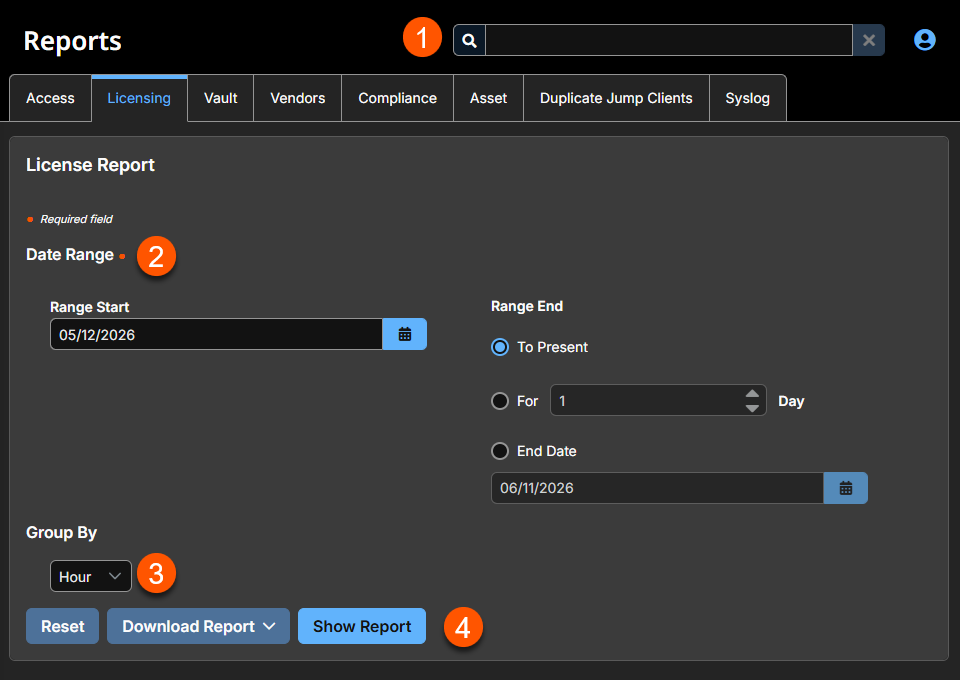
- Search: Enter keywords to search for areas of the product.
- Date Range:
- Specify a start date to base the report on.
- Specify an end date or range to base the report on. You can choose to:
- Run the report from start date to present day
- Run the report from start date for a defined number of days
- Run the report from start date to a specified end date
- Group By: Group license usage by hour, day, or month.
- Download/Show Report: Option to download or show report results.
How to generate a Licensing report
Allowed to View License Usage Reports option
To access the License Usage report, you must have the appropriate permissions. Without them, the Licensing tab does not appear in the interface. To set this option:
- Go to Users & Security.
The Users tab displays. - Navigate to the user, and then click
 to edit.
 - Expand the General Permissions section.
- Under Reporting, check the Allowed to View License Usage Reports box.
- Click Save.
You can also set this option under Group Policies:
- Go to Users & Security.
The Users tab displays. - Click the Group Policies tab.
- Navigate to the group policy, and then click to edit.
- Expand the General Permissions section.
- Under Reporting, check the License Usage Report Access box.
- Click Save.
Date range
Select a start date for which to pull reporting data. For Range End, you can select either the present day option, the number of days for which to pull your report, or an end date.
Group by
Choose how to break down license usage data across your selected date range: by hour, day, or month. Grouping by hour gives you a granular view of usage spikes, while day or month provides a higher-level picture of trends over time.
Download/Show Report
Once your filter criteria are selected, you can either download the report or display the results.
To download the report, click Download Report and select the format you want to save it as.
To display the results, click Show Report.
Updated 3 months ago
