
Require user justification
Access Justification
Asset Policies might require users to enter a written justification before connecting to an Asset. When this option is enabled, a text dialog appears at session start. The session cannot proceed until a valid justification is submitted. Justifications are recorded in session logs and visible in Access Reports.
This feature is available in both the Access Console and the Web Console.
What users see
When a user or representative starts a session on an Asset linked to a policy with the justification requirement enabled, a dialog appears before the connection is established. The user must enter a reason for access. The following rules apply:
- The justification must be at least 1 character and no more than 256 characters.
- The Connect (or OK) button is disabled until a valid entry is provided.
- Clicking Cancel or closing the dialog cancels the session start. The session does not proceed.
- The justification is recorded exactly as entered and cannot be edited after the session begins.
If a second representative joins an active session, the same prompt appears for them. Each representative's justification is logged separately.
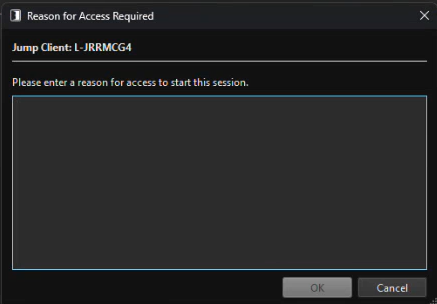
Justification dialog
Create an Asset Policy requiring user justification
The justification option is part of the Context Requirement setting on an Asset Policy.
To create an Asset Policy with the justification option enabled:
- From your BeyondTrust /login administrative interface, go to Asset Management > Asset Policies.
- In the Asset Policies section, click the Add button.
An Asset Policy does not take effect until you have applied it to at least one Jump Client item.
- Enter a Display Name, Code Name, and Description in the corresponding locations to enable you to effectively apply this Asset Policy appropriate to your purposes after its creation.
- Optionally, complete the configuration for Schedule and Notification if appropriate for the access control desired on this Asset Policy.
- In the Context Requirement section, check Require user justification before a session starts. To disable this option, select the No Context Required option.
- Optionally, complete any additional approval configuration you wish this Asset Policy to enforce.
- Click Save.
View justifications in reports
Justifications are available in Session Reports and Access Reports.
- Session Reports: Session details view:
- The justification appears as a property row in the session detail record.
- The justification appears as an event type under Events
- Access Reports: Session results list: A Justification column is displayed in the session results table. Long entries are truncated with an ellipsis; full text appears on hover.
Updated 3 months ago
