
Asset Groups | PRA On-prem
What are Asset Groups?
Asset Groups are organizational tools that allow administrators to manage and group Assets, granting members varying levels of access to those items.
How are Asset Groups useful to my organization?
Asset Groups enhance security and efficiency by organizing Assets and controlling access to them. Administrators can assign specific permissions to team members, ensuring appropriate access to remote systems while maintaining compliance and safeguarding sensitive data.
How do I access the Asset Groups page?
- Use a Chromium-based browser to sign in to your Privileged Remote Access URL.
This URL is provided in the BeyondTrust welcome email and includes your site URL followed by /login. - From the left menu, click Asset Management.
The Jump Clients page opens and displays by default. - At the top of the page, click Asset Groups.
The Asset Groups page displays.
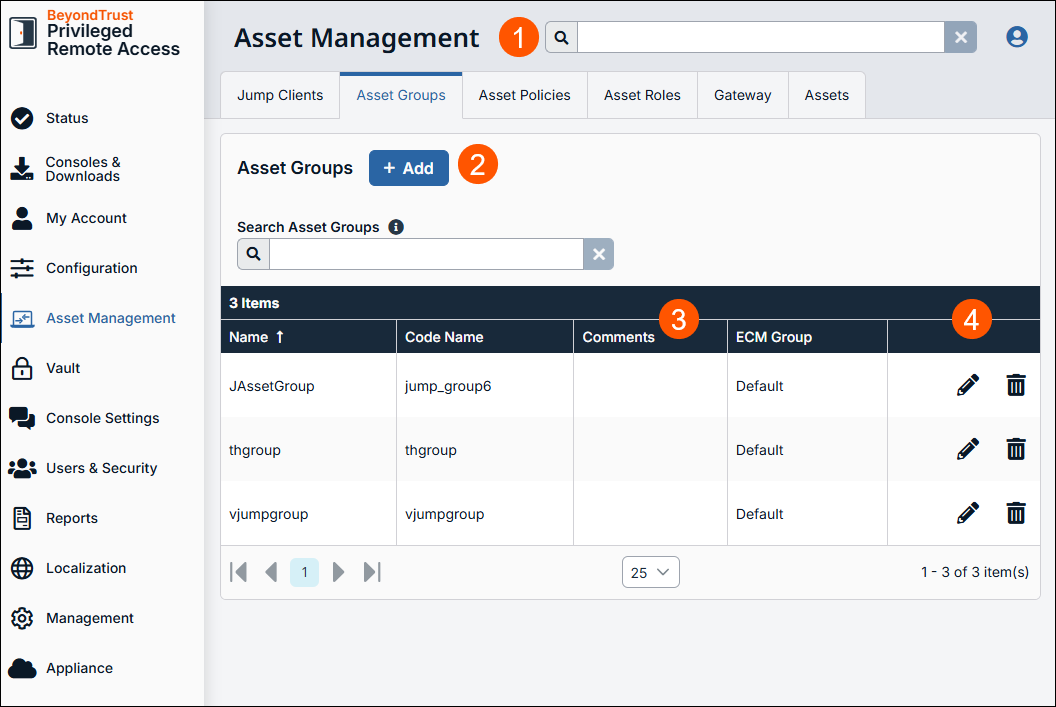
The Asset Groups page
-
Search: Enter keywords to search for areas of the product.
-
Add: Adds a new Asset Group.
-
Asset Group columns: The list of Asset Groups.
Asset Group columns
- Name: The identifier for the Jump Client.
- Code Name: Set a code name for integration purposes. If you do not set a code name, one is created automatically.
- Comments: A brief description of the Asset Group.
- ECM Group: Endpoint Credential Manager group.
How to set up Asset Groups
An Asset Group is a way to organize Assets, granting members varying levels of access to those items. Users are assigned to Asset Groups from this page or from the Users & Security > Group Policies page.
Add new Asset Group, edit, delete
Create a new group, modify an existing group, or remove an existing group.
Search Asset Groups
To quickly find an existing group in the list of Asset Groups, enter the name, part of the name, or a term from the comments. The list filters all groups with a name or comment containing the entered search term. The list remains filtered until the search term is removed, even if the user goes to other pages or logs out. To remove the search term, click the X to the right of the search box.
Add an Asset Group
- At the top of the page, click + Add.
The Add Group page displays.
Create a unique name to help identify this group. This name helps when adding Assets to a group as well as when determining which users, and group policies are members of an Asset Group.
-
Enter a Code name for integration purposes. If you do not set a code name, one is created automatically.
-
Enter Comments to summarize the purpose of this Asset Group.
-
Under Group policies click the link to view a list of the group policies that assign users to this Asset Group.
Add a brief description to summarize the purpose of this Asset Group.
- To add a user, search in New Member Name for users to add to this Asset Group. Select the user's role in the New Member Role dropdown to set their permissions specific to Assets in this Asset Group. You can select User's default to use the default Asset Roles set on the Users & Security > Group Policies page or the Users & Security > Users page. An Asset Role is a predefined set of permissions regarding Asset management and usage.
This displays a listing of the group policies which assign users to this Asset Group.
Allowed users
Search for users to add to this Asset Group. You can set each user's New Member Role to set their permissions specific to Assets in this Asset Group, or you can use the user's default Asset Roles as set on the Users & Security > Group Policies page or the Users & Security > Users page. An Asset Role is a predefined set of permissions regarding Asset management and usage.
Existing Asset Group users are shown in a table, along with their assigned role and how the role was granted. You can filter the view by entering a string in the Filter by name text box. You can also edit a user's settings or delete a user from the Asset Group.
To add groups of users to an Asset Group, go to Users & Security > Group Policies and assign that group to one or more Asset Groups.
Edit and delete functionality may be disabled for some users. This occurs either when a user is added via group policy or when a user's system Asset Role is set to anything other than No Access.
You can click the group policy link to modify the policy as a whole. Any changes made to the group policy apply to all members of that group policy.
You can click the user link to modify the user's system Asset role. Any changes to the user's system Asset role apply to all other Asset Groups in which the user is an unassigned member.
You also can add the individual to the group, overriding their settings as defined elsewhere.
Edit an Asset Group
- From the table, locate the Asset Group you want to edit.
- Click the pencil
 .
.
The Edit Group page displays. - Edit the necessary fields.
- Click Save.
Delete an Asset Group
- From the table, locate the Asset Group you want to delete.
- Click the trash can.

- Click Yes on the confirmation dialog.
The Asset Group is successfully deleted.
Maintenance of duplicate Jump Clients
Create a duplicate Jump Client
- From the Desktop Access Console, find the Jump Client you want to create a duplicate of.
- Either select Copy on the toolbar above, or right-click on the Jump Client and select Copy.
- Select an Asset Group. It must be the same Asset Group as the original.
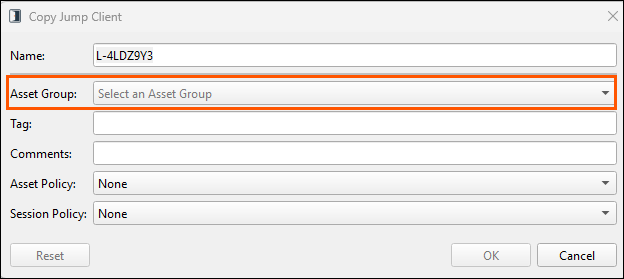
- Click OK.
- The following dialog box displays:
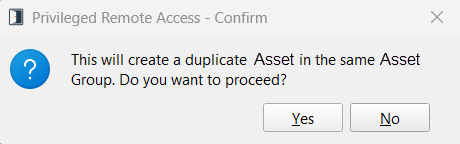
- Click Yes to create the duplicate Asset.
Updated 3 months ago
