
Asset Policies | PRA Pathfinder
Formerly known as Jump Policies
What are Asset Policies?
Asset Policies define the rules that govern how and when users can access assets. On the Asset Policies tab, you can create policies that require approval before a session starts, send email notifications when access is requested or granted, restrict access to specific time windows using a schedule, or require a valid ticket ID from your external ticketing system.
How are Asset Policies useful to my organization?
Asset Policies allow administrators to manage when certain Assets are available, ensuring that access aligns with organizational needs, security requirements, or specific time frames. This helps maintain control and compliance over remote access activities.
How do I access the Asset Policies page?
- Sign into app.beyondtrust.io.
The BeyondTrust Home page displays. - From the main menu, click Privileged Remote Access > Asset Management.
The Asset Management page opens and the Jump Clients tab displays by default. - Click the Asset Policies tab.
The Asset Policies tab displays.
The Asset Policies page
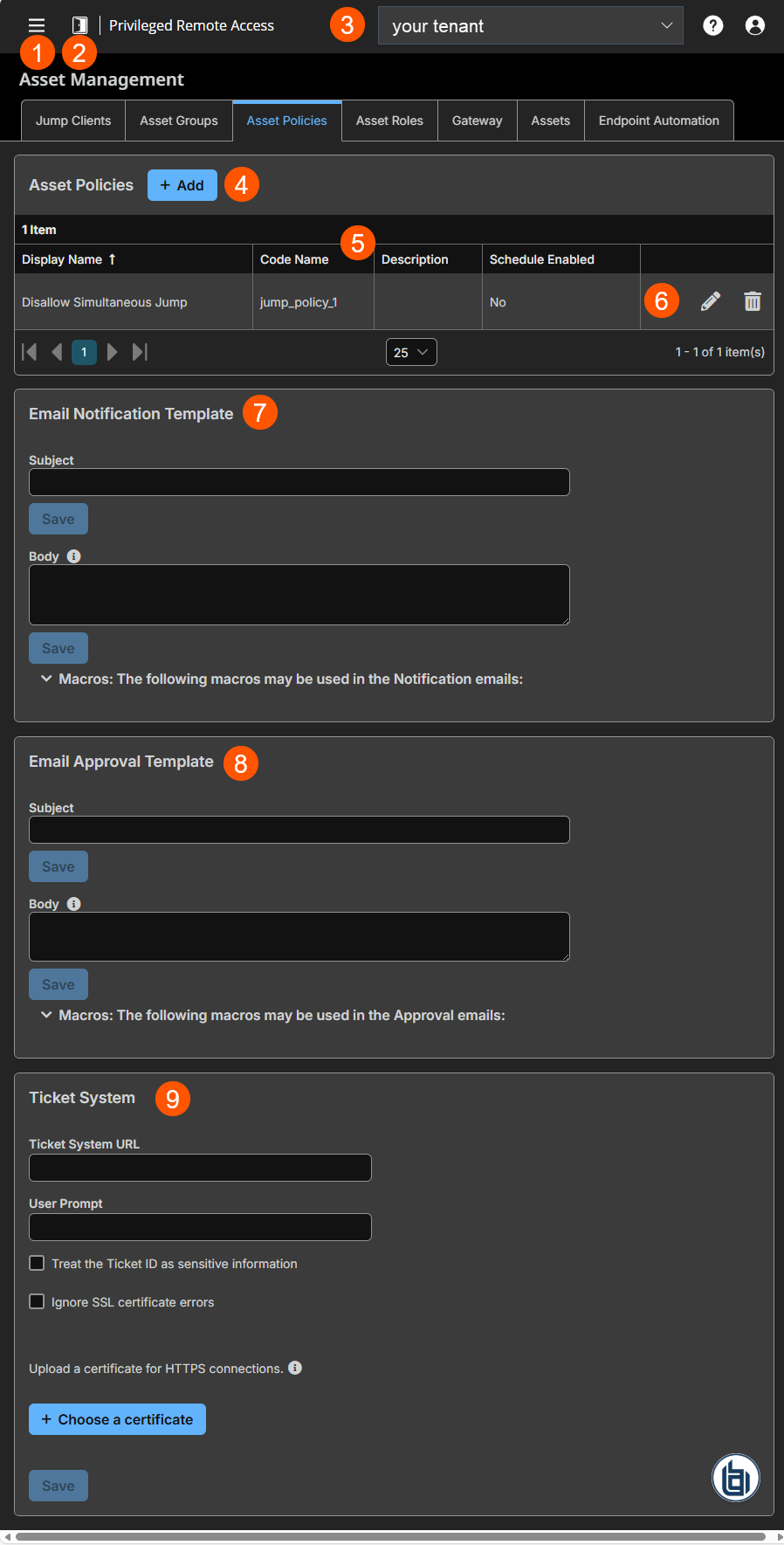
- Left menu: Easy access to all pages in Privilege Remote Access, including Status, Consoles & Downloads, My Account, Configuration, Asset Management, Vault, Console Settings, Users & Security, Reports, Management, and Appliance pages.
- Status: Opens the Status page.
- Header: Change your tenant site, manage your profile, and access documentation.
-
Add: Adds a new Asset Policy.
-
Asset Policies columns: The list of Asset Policies.
Asset Policies columns
- Display Name: Unique name of the policy.
- Code Name: Set a code name for integration purposes. If you do not set a code name, one is created automatically.
- Description: A brief description of the Asset Policy.
- Schedule Enabled: Defines if a schedule is enabled.
-
Account Group options: You can edit or delete an Asset Policy.
-
Email Notification template: Settings for email notification template.
-
Email Approval template: Settings for email approval template.
-
Ticket System Settings for requests that use a ticket system.
Add a policy
To add a policy, perform the following steps:
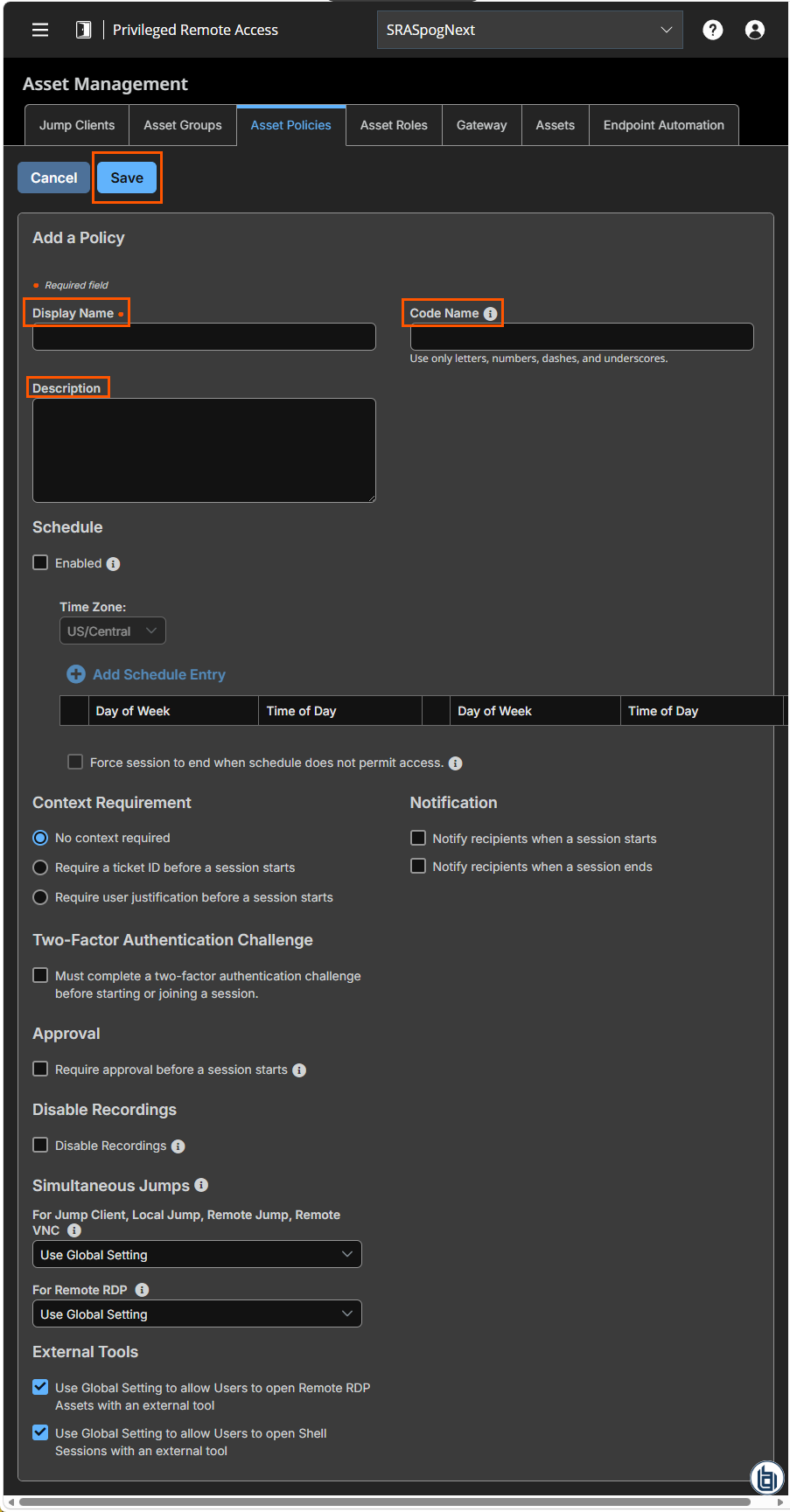
- From the Asset Policies page, click Add.
The Add a Policy page is displayed. - In the Display Name field, create a unique name to help identify this policy. This name should help users identify this policy when assigning it to Jump Clients.
- In the Code Name field, type a code name for integration purposes. If you do not create a code name, one is created automatically.
- In the Description field, add a brief description to summarize the purpose of this policy.
Schedule
You can set a schedule by selecting the Enabled checkbox. Once enabled, this checkbox defines when a user is allowed to start a session and when Assets under this policy can be accessed.
To set a schedule, complete the following steps:
- From the Time Zone field on the Asset Policies page, ensure the proper time zone is selected.
- Click Add Schedule Entry.
- Add a start day and time and an end day and time.
- To add additional schedules, repeat steps 4 and 5.
If the time is set to start at 8 PM and end at 5 PM, a user can start a session using this Asset at any time during this window but may continue to work past the set end time. If you attempt to re-access this Asset after 5 PM, it results in a notification that the schedule does not permit a session to start. If necessary, the user may choose to override the schedule restriction and start the session anyway.
- To require stricter access control, enable the Force session to end when schedule does not permit access checkbox.
This forces the session to disconnect at the scheduled end time. In this case, the user receives recurring notifications beginning 15 minutes prior to the session being terminated.
Context Requirement
The Context Requirement setting offers three options:
- No context required: select if no prompt appears at session start (default)
- Require a ticket ID before a session starts: prompts for an external ticket ID
- Require a user justification before a session starts: prompts for a free-text justification
If your service requests used external ITSM or ticket ID system, you can use a ticket system to generate a ticket ID before a session starts. To do so, select the Require a ticket ID before a session starts checkbox.
If a written justification is required before connecting to a Jump Item, select Require a user justification before a session starts. When this option is enabled, a text dialog appears at session start. The session cannot proceed until a valid justification is submitted.
Two factor authentication challenge
For additional security, you can select the Two Factor Authentication Challenge checkbox. When this setting is enabled, the end-user is required to confirm their identity using a multi-factor authentication challenge before starting or elevating a session.
Notification
To notify a user that a session is either started or ended, select the appropriate Notify recipients when a session starts or Notify recipients when a session ends checkbox.
Asset approval
If the Require approval before a session starts option is checked, the following happens:
- When a user attempts to start a session with an Asset that uses this policy, a dialog box prompts the user to enter a request reason, time, and duration for the request.
- An approval message is sent to the designated recipients via email and to the access console if the recipients are logged in.
This option cannot be used if a Schedule is enabled.
Disable Recordings
If checked, sessions started with this Asset Policy are not recorded even if recordings are enabled on the Configurations > Options page. This affects Screen Sharing, User Recordings for Database Connection, and Command Shell recordings.
Simultaneous connections
Simultaneous connections provide a way for multiple users to gain access to the same Asset without having to be invited to join an active support session by another user.
By using the For Jump Client, Local Jump, Remote Jump, Remote VNC field, you can create new sessions. The options you can choose are the following:
| Value Name | Description |
|---|---|
| Join Existing Session | Provides a way for multiple users to gain access to the same Asset without an invitation to join an active session by another user. The first user to access the Asset maintains ownership of the session. Users in a shared session see each other and can chat. Users can join a session that was started from another copy of a Jump Client in a different Asset Group. Session permissions are based on the original Jump Client that started the session. Once the first user is in a session, subsequent users are able to enter the session. The first user receives a notification that another user has joined the session, but the first user does not have an opportunity to deny access before other user joins. |
| Disable | Ensures only one user can connect to an Asset at a time. Only an invitation by the user who originated the session can allow for a second user to access the session. |
| Use Global Setting | If this setting is selected, it uses the values that are configured on the Asset Management > Assets > Asset Settings page. |
From the For Remote RDP field, you can create new sessions which connect to a specific RDP Asset. The options you can choose are the following:
| Value Name | Description |
|---|---|
| Start a New Session | Provides a way for multiple users to gain access to the same Asset without an invitation to join an active session by another user. For RDP, a new independent session starts for each user who jumps to a specific RDP Asset, and the RDP configuration on the endpoint controls any further behavior regarding simultaneous RDP connections. |
| Disable | Ensures only one user at a time can connect to an Asset. Only an invitation by the user who originated the session can allow for a second user to access the session. |
| Use Global Setting | If this setting is selected, it uses the values that are configured on the Asset Management > Assets > Asset Settings page. |
External Tools
Select to allow users to:
- Open Remote RDP Assets with an external tool
- Open Shell Sessions with an external tool
Edit a policy
- From the list of policies, click
 to edit.
Delete a policy
- From the list of policies, click
 next to the one you want to delete.
Email notification template
You can use this section to create a template for email notification by following these steps:
- In the Subject field, type the intent of the notification.
- Click Save.
- In the Body field, type the details of the notification.
- Click Save.
Emails are sent using a mailto: URL which has different length limitations on different platforms. Exceeding this limit may cause generated emails to appear truncated or a failure to launch the email software. Consider this limitation when using Macros, which count towards this limit when expanded.
Macros for email notification template
| Macro | Purpose |
|---|---|
| %CONTENT% | The main content for the request notification. For example, "A session has started." |
| %EVENT.NAME% | A string representing the name of the event. For example:
|
| %EVENT.TIME% | The time the event occurred according to the Secure Remote Access Appliance. |
User Properties
| Macro | Purpose |
|---|---|
| %USER.DISPLAY_NAME% | The display name of the user that started the session. |
Asset Properties
| Macro | Purpose |
|---|---|
| %JUMP_ITEM.NAME% | The name of the Asset. |
| %JUMP_ITEM.COMMENTS% | The comments of the Asset. |
| %JUMP_ITEM.COLLECTION.NAME% | The name of the Asset Group the Asset is associated with. |
| %JUMP_ITEM.TAG% | The tag value as configured on the Asset. |
| %JUMP_ITEM.FQDN% | The fully qualified domain name of the Asset. This is supported only for Jump Clients. |
Email approval template
You can use this section to create a template for email approval by following these steps:
- In the Subject field, type the intent of the approval.
- Click Save.
- In the Body field, type the details of the approval.
- Click Save.
Macros for email approval template
| Macro | Purpose |
|---|---|
| %CONTENT% | The main content for the request notification. For example, "A new session authorization request has been created. Click here to respond to the request." |
Authorization Request Properties
| Macro | Purpose |
|---|---|
| %AUTHORIZATION_REQUEST.ID% | The unique ID of the request. |
| %AUTHORIZATION_REQUEST.STATE% | The state of the request. For example:
|
| %AUTHORIZATION_REQUEST.CREATOR.DISPLAY_NAME% | The display name of the user that created the request. |
| %AUTHORIZATION_REQUEST.START_TIME% | The request window start date and time. |
| %AUTHORIZATION_REQUEST.END_TIME% | The request window end date and time. |
| %AUTHORIZATION_REQUEST.DURATION% | The duration of the request window. For example, "2 hours". |
| %AUTHORIZATION_REQUEST.REASON% | The reason for the request provided by the user. |
| %AUTHORIZATION_REQUEST.APPLIES_TO% | This expands to Anyone with Access or the creator's display name depending on the Asset Policy's setting. |
Asset properties
| Macro | Purpose |
|---|---|
| %JUMP_ITEM.NAME% | The name of the Asset. |
| %JUMP_ITEM.COMMENTS% | The comments of the Asset. |
| %JUMP_ITEM.COLLECTION.NAME% | The name of the Asset Group the Asset is associated with. |
| %JUMP_ITEM.TAG% | The tag value as configured on the Asset. |
| %JUMP_ITEM.FQDN% | The fully qualified domain name of the Asset. |
Ticket system
If your service requests use ticket IDs as part of the change management workflow, you can connect your ticket IDs to endpoint access in BeyondTrust by following these steps:
- In the Ticket System section, for the Ticket System URL field, type the URL for your external ticket system. The URL must be formatted for either HTTP or HTTPS. If an HTTPS URL is entered, the site certificate must be verified for a valid connection.
- In the User Prompt field, type the dialog text you want access console users to see when they are requested to enter the ticket ID required for access.
- If your company's security policies consider ticket ID information as sensitive material, check the Treat the Ticket ID as sensitive checkbox.
If this checkbox is checked, the ticket ID is considered sensitive information and asterisks are shown instead of text. You must use an HTTPS Ticket System URL. If an address with HTTP is entered, an error message appears to remind you HTTPS is required.
When this feature is enabled, you cannot bypass issues with SSL certificates by checking the Ignore SSL certificate errors box. This means you must have a valid SSL certificate in place. If you try to check the Ignore SSL certificate errors box, a message appears stating that you cannot ignore SSL certificate errors.
When the Ticket ID is sensitive, the following rules apply:
- Both the desktop and the web access consoles show asterisks instead of text.
- The ticket is not logged anywhere by the access console.
- Click the Ignore SSL certificate errors checkbox if you do not want to include certificate validation information when it contacts your external ticket system.
- Click Choose a certificate to upload the certificate for the HTTPS ticket system connection to your Appliance. If your certificate is uploaded, the Appliance uses it when it contacts the external system. If you do not upload a certificate and the Ignore SSL certificate errors checkbox below this setting is checked, the Appliance optionally falls back to use the built-in certificate store when sending the request.
When the Ignore SSL certificate errors box is checked, the Appliance does not include the certificate validation information when it contacts your external ticket system.
Certificates must be in PEM, DER, or CRT format. If no certificate is uploaded, the appliance's built-in certificate store is used to establish trust.
- Click Save.
Updated about 1 month ago
