
Updates | PRA On-prem
What is the Updates page?
The Updates page in the /appliance web interface is where you manage software updates for the B Series Appliance, ensuring it operates with the latest features, performance improvements, and security patches.
How is it useful to my organization?
Keeping the appliance updated minimizes vulnerabilities, maintains compatibility with BeyondTrust services, and supports optimal performance, enhancing overall reliability and security.
How do I access the Updates page?
- Use a Chromium-based browser to sign in to your B Series Appliance. The URL is provided in the BeyondTrust welcome email and includes your site URL followed by /appliance.
- From the top menu, click Updates.
The Updates page opens and displays by default.
The Updates page
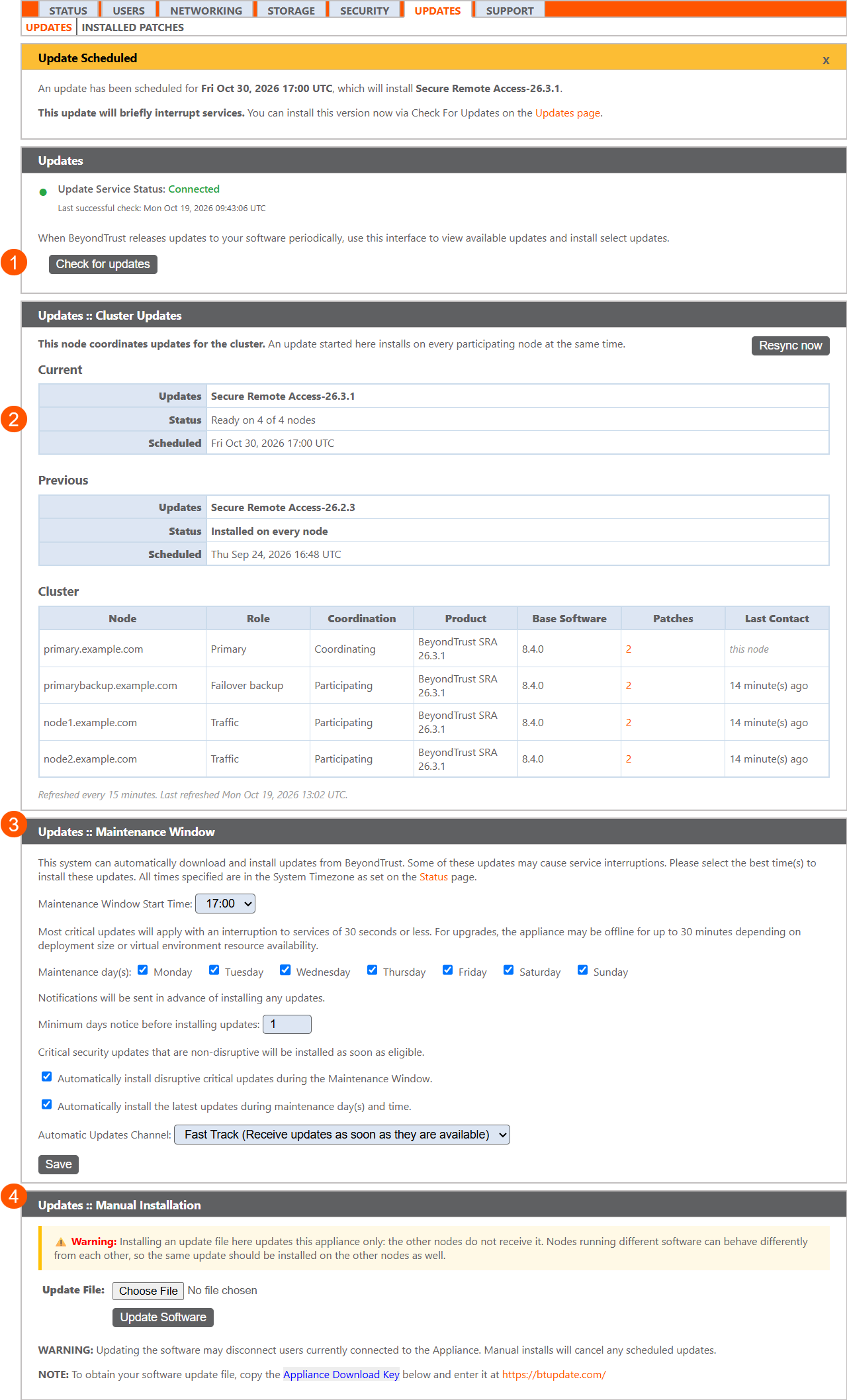
- Check for updates: Shows the Update Service status and allows you to check if new updates are available.
- Cluster Updates: Appears on appliances in an Atlas cluster or failover pair. Shows how updates are coordinated across nodes.
- Maintenance Window: Allows the administrator to schedule a time for updates.
- Manual Installation: Allows the administrator to manually install updates.
Check for and install updates
If Automatically install the latest updates during maintenance day(s) and time is checked, updates install automatically during the maintenance window. Use Check for updates to see available updates or to install one before the maintenance window.
-
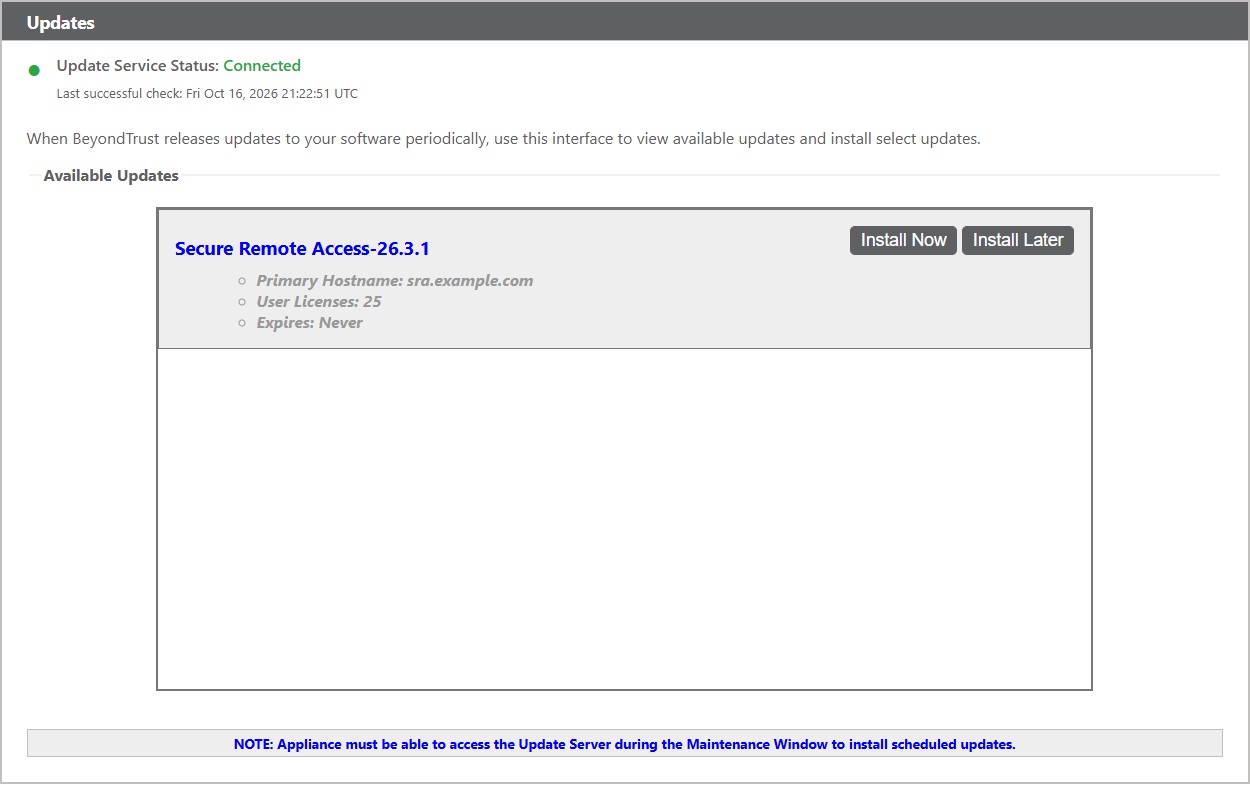
Click Check for updates. Any updates that are available for your appliance appear under Available Updates.
-
For the update you want, do one of the following:
- To install the update immediately, click Install Now.
- To install the update during the next maintenance window, click Install Later, and then confirm. Any prerequisite updates are scheduled at the same time.
ImportantScheduling an update with Install Later cancels any automatic updates that are already scheduled.
On the primary node of an Atlas cluster or failover pair, the update installs on every node that participates in cluster updates.
Update service connectivity status
The Updates page displays the system’s current connectivity status and timestamp of the last successful update check to the BeyondTrust update service.
A status indicator at the top of the page shows one of three states:
- Connected (green dot): Update service reachable. See the timestamp of the last successful check for updates.
- Connectivity issue (red dot): Update service not reachable. See troubleshooting hints (firewall, DNS, proxy), a link to Network Diagnostics, and the timestamp of the last successful check for updates (or "Never")
- Unknown (blue dot): Connectivity not yet verified. Prompts the admin to check for updates
This information helps administrators identify if the system can reach the update service. If automatic updates are turned on but the system cannot connect, the Updates page clearly indicates that update checks may fail. This visibility allows administrators to diagnose connectivity issues before they affect update delivery.
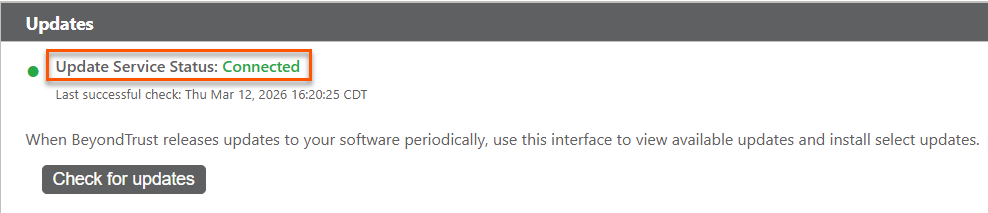
On a node that participates in cluster updates, Check for updates is not available. If the node has not confirmed that it can reach the update service, it shows Test the update service instead.
Update Scheduled banner
When automatic updates schedule an update, the Update Scheduled banner appears at the top of the page. It shows when the update installs, which update it is, and whether it interrupts services. To install the update before the scheduled time, click Check for updates, and then click Install Now.
During installation
During the installation process, the Updates page displays a progress bar to notify you of the overall update progress. Updates made here will automatically update all sites and licenses on your B Series Appliance.
If you are installing a software update, logged-in users temporarily lose connections to any sessions and the console; therefore, schedule software updates for non-peak hours. However, if your update package contains only additional licenses, you can install the update without interrupting user connections.
If no update packages or patches are available for your appliance, a message stating No updates available is displayed. If an update is available but an error occurred when distributing the update to your appliance, an additional message is displayed, such as An error occurred building your update. Please visit BeyondTrust support for more information.
Cluster updates
The Cluster Updates section appears on every appliance in an Atlas cluster or failover pair. On the primary node, it shows the coordinated update and the state of every node. An update you start on the primary node installs on every participating node at the same time.
This section does not appear on standalone appliances.
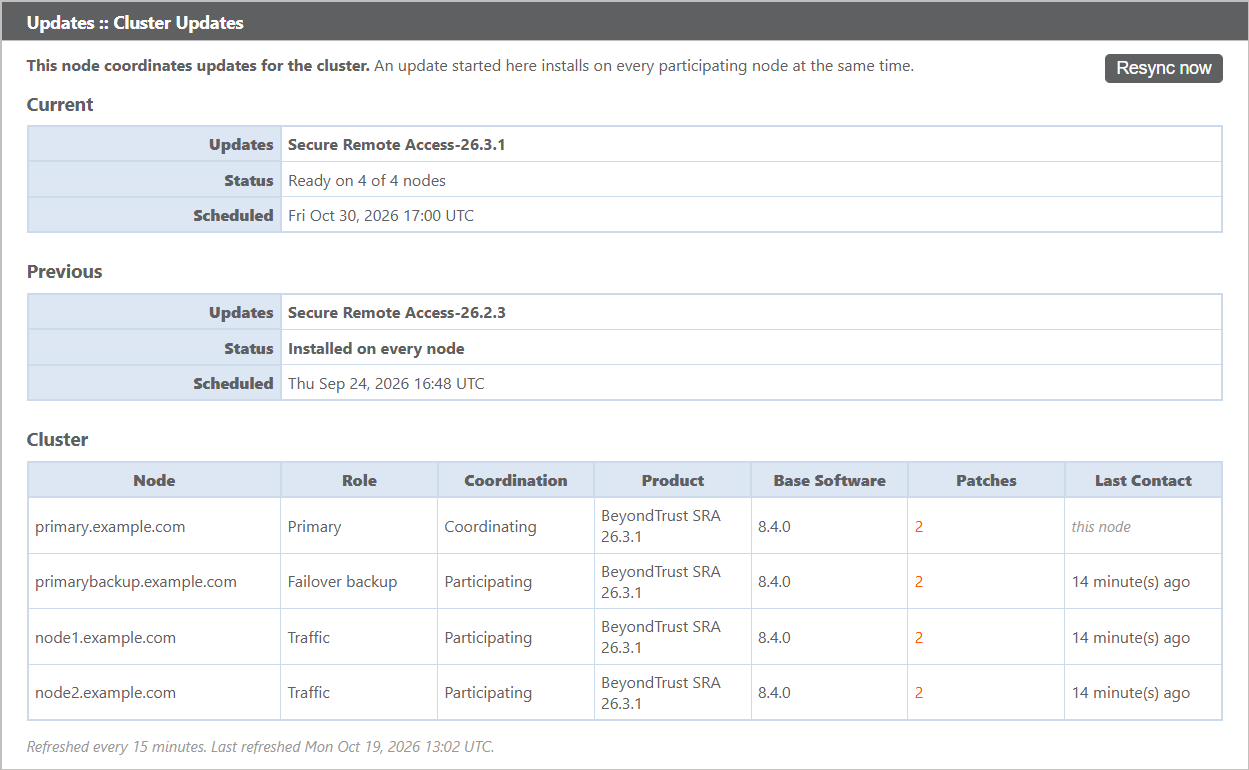
- Resync now: Refreshes the node information immediately instead of waiting for the next 15-minute refresh.
- Current: The update that is in progress or scheduled.
- Updates: The update to install.
- Status: How many participating nodes are ready for the update, such as Ready on 4 of 4 nodes.
- Scheduled: When the update installs.
- Previous: The most recent completed update and its outcome, such as Installed on every node.
- Cluster: Every node in the cluster, with its role, whether it coordinates or participates, and the product, Base Software, and patch versions it runs. Select the number in the Patches column to see that node's installed patches.
For details about each column and status, see Cluster updates reference. To choose whether a node participates, see Cluster updates.
Maintenance window
Use the Maintenance Window section to set when updates install. On a node that participates in cluster updates, this section is not shown. The primary node sets these values.
-
Maintenance Window Start Time: The time updates begin installing, in the system time zone set on the Status page.
-
Maintenance day(s): The days updates can install.
-
Minimum days notice before installing updates: How many days in advance you are notified before an update installs.
-
Automatically install disruptive critical updates during the Maintenance Window: This option lets you schedule disruptive critical updates for your configured Maintenance window start time. Non-disruptive critical updates install as soon as they become available. For all critical updates, Maintenance day(s) are ignored.
-
Automatically install the latest updates during maintenance day(s) and time: Installs all other updates during the maintenance window.
-
Automatic Updates Channel: How quickly you receive new releases.
- Fast Track: Receive updates as soon as they are available for the latest major release and new maintenance releases (such as 26.3 or 26.3.2).
- Standard Track: Receive updates on a regular cadence for the latest major release (such as 26.3).
- Enterprise Track: Receive updates less frequently. This track operates at n‑2, meaning it is two versions behind the current release.
By default, automatic updates are turned off, and automatic critical updates are turned on. On FedRAMP deployments, automatic updates are always turned on and cannot be turned off.
Starting with Base Software 8.4, automatic updates also apply to Atlas clusters and failover pairs, coordinated by the primary node. On a failover pair, automatic product upgrades are held while Enable Automatic Failover is turned on. For more information, see Cluster updates.
If this appliance is already in an Atlas cluster or failover pair, upgrading to Base Software 8.4 turns automatic updates off. For more information, see Upgrade impact.
Warning when you turn off disruptive critical updates
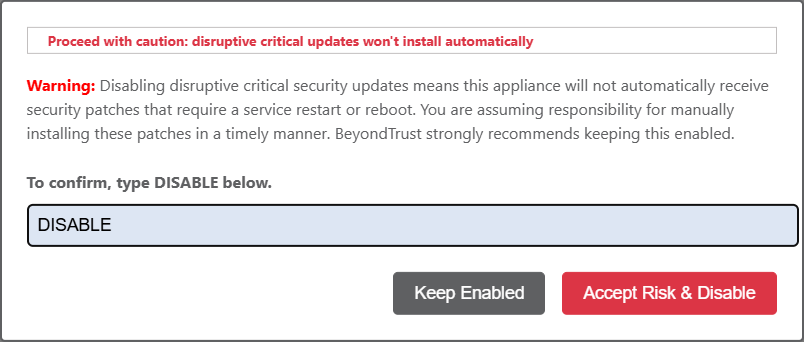
Administrators can configure whether the system automatically installs disruptive critical updates. When an administrator turns off this option, the system provides additional safeguards to prevent accidental configuration changes.
When an administrator clears the Automatically install disruptive critical updates during the Maintenance Window checkbox, the system displays a high-visibility warning. This warning explains the security implications of turning off disruptive critical updates and highlights the importance of maintaining up-to-date system protection.
To complete the change, the administrator must type a confirmation string exactly as shown. The system does not save the configuration until this confirmation string is entered correctly. This requirement helps ensure that administrators intentionally apply the change and understand its impact.
Warning when the update service is not reachable
If automatic critical updates are turned on but the update service is unreachable, a yellow warning banner appears in the Maintenance Window section:
Automatic critical updates are enabled, but the update service is not reachable. This appliance may not receive critical security and stability updates until connectivity is restored.
Manual installation
It is not mandatory to use Check for Updates. If your BeyondTrust Appliance is not internet-facing or if your organization's security policy does not allow for automatic update functionality, you can install updates manually.
ImportantIn an Atlas cluster or failover pair, an update file that you install here updates only this appliance. The other nodes do not receive it. Install the same update on every node so that all nodes run the same software.
A manual installation cancels any scheduled updates.
- Click the Appliance Download Key link to generate a unique appliance key, and then, from a non-restricted system, submit that key to BeyondTrust's update server.
- Download any available updates to a removable storage device and then transfer those updates to a system from which you can manage your BeyondTrust Appliance.
- After downloading a software package, browse to the file from the Manual Installation section, and then click the Update Software button to complete the installation.
Please be prepared to install software updates directly after download. Once an update has been downloaded, it will no longer appear in your list of available updates. Should you need to redownload a software update, contact BeyondTrust Technical Support.
- When the BeyondTrust End User License Agreement (EULA) screen appears, fill out the required contact information and click the Agree-Begin Download button to accept the EULA and continue the installation. If you have multiple BeyondTrust Appliances with the same site configuration (either for failover or for Atlas) you will only need to accept the EULA once.
ImportantIf you decline the EULA, an error message displays and you will not be able to update your BeyondTrust software.
If you have any issues updating after accepting the EULA, please contact BeyondTrust Technical Support.
Updated 28 days ago
