
Discovery of AWS Secrets
Discovery of AWS Secrets
Use discovery to locate AWS Secrets that are in AWS Secrets Manager.
Prerequisites
- You must install a Gateway on an EC2 instance in an AWS environment.
- You must assign an IAM role to the EC2 instance that has the IAMFullAccess and SecretsManagerReadWrite permission.
Initiate an AWS Secrets discovery job
-
Sign into app.beyondtrust.io.
The BeyondTrust Home page displays. -
Click the Discovery tab.
The Discovery tab displays. -
Click New Discovery Job.
The Discovery: New Job page displays.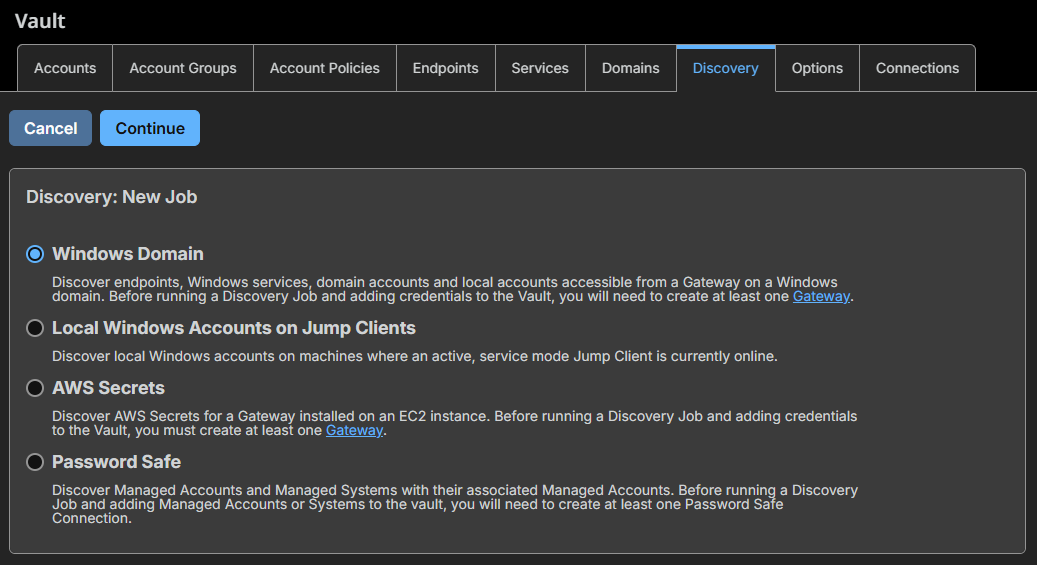
-
You have the following four options to choose:
- Windows Domain
- Local Windows Accounts on Jump Clients
- AWS Secrets
- Password Safe
-
Click AWS Secrets.
-
Click Continue.
-
For Gateway, select the AWS Gateway.
Discovery of clustered Gateways only supports all nodes on EC2 instances in the same organization.
-
Click Start Discovery.
-
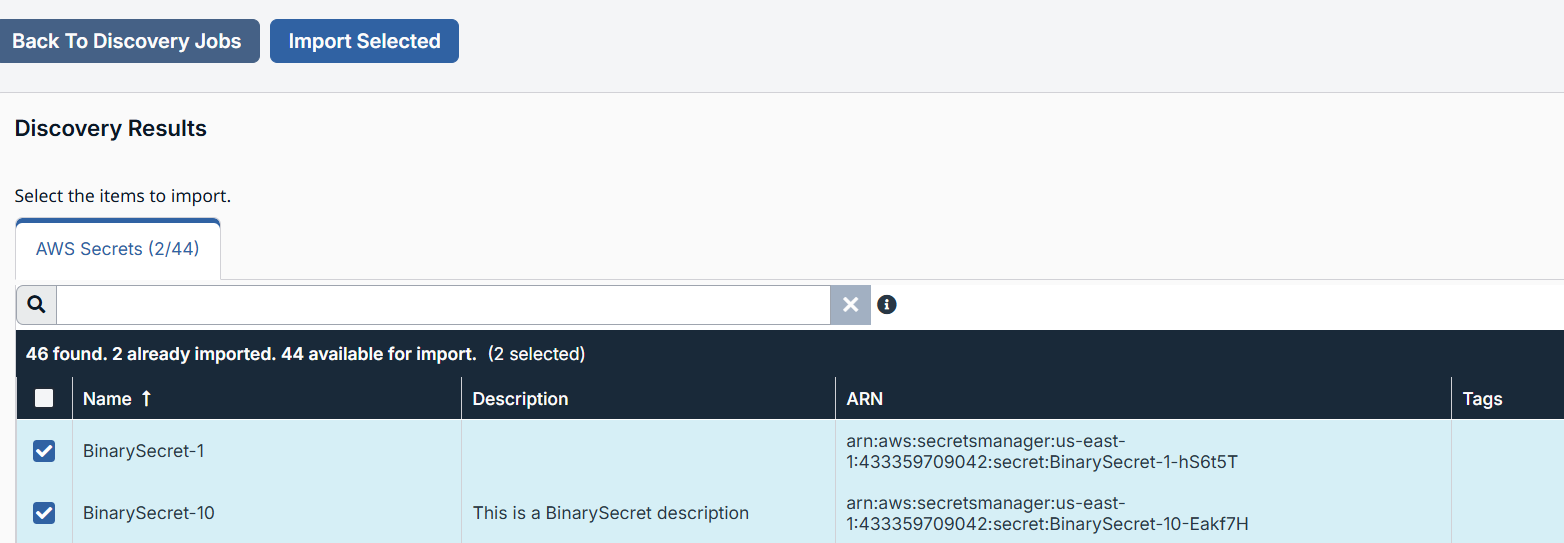
From the Discovery Results table, select the items you want to import.
-
Click Import Selected.
-
For Account Group, you can specific a particular group you want the results to reside, or select the Default Group.
-
Click Start Import.
-
Click Yes if the dialog box says "This process cannot be stopped after it is started. Are you sure you want to continue?"
-
Click Done Importing.
-
From the Vault > Accounts page, click the AWS Secrets tab to display the AWS Secrets table.
Checkout an account
-
From the main menu, click Privileged Remote Access > Vault.
The Vault page opens and the Accounts tab displays by default. -
Click the AWS Secrets tab.
-
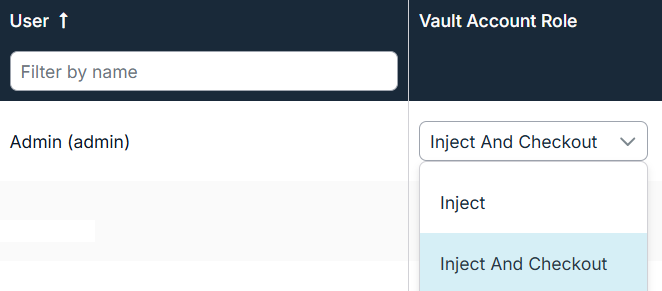
From the AWS Secrets table, select the account you want to checkout. The user must have Inject And Checkout Vault role, otherwise the Checkout button in step 4 does not display.
-
Click Checkout
 .
. -
The AWS Secret dialog box displays.
You can either view the secret , copy the secret
  , or download the secret by clicking the Download Secret button.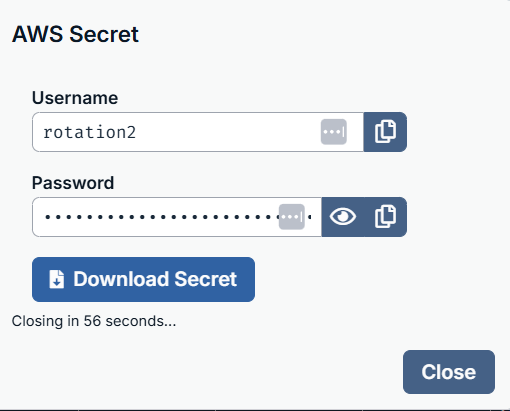
-
After you make your selection, click Close.
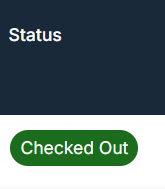
In the Status field of the AWS Secrets table, it displays that item is checked out.
Rotate Secrets
From the main menu, click Privileged Remote Access > Vault.
The Vault page opens and the Accounts tab displays by default.
-
Click the AWS Secrets tab.
-
From the AWS Secrets table, select the account you want to rotate.
-
Click Rotate or select the horizontal ellipsis from the row in the table and select Rotate Secret.
The Rotate Summary displays.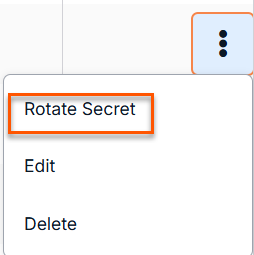
-
Click Start Rotation.
In the Status field of the AWS Secrets table, it displays that the item is in rotation.
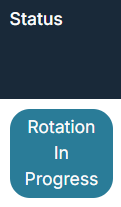
Once rotation is complete, the Password Age information updates with a time stamp of a few seconds.
A Lambda function is needed for rotate secrets to work.
Edit Secrets
- From the main menu, click Privileged Remote Access > Vault.
The Vault page opens and the Accounts tab displays by default. - Click the AWS Secrets tab.
- From the AWS Secrets table, select the account you want to edit.
- Click Edit.
- Make the necessary changes and click Save.
You cannot make changes to the Name field. Changes to imported accounts must be made in the originating system and will be reflected after re-discovery.
Delete Secrets
- From the main menu, click Privileged Remote Access > Vault.
The Vault page opens and the Accounts tab displays by default. - Click the AWS Secrets tab.
- From the AWS Secrets table, select the account you want to delete.
- Click Delete.
- A confirmation dialog box displays, click Yes.
Credential injection of AWS Secrets account
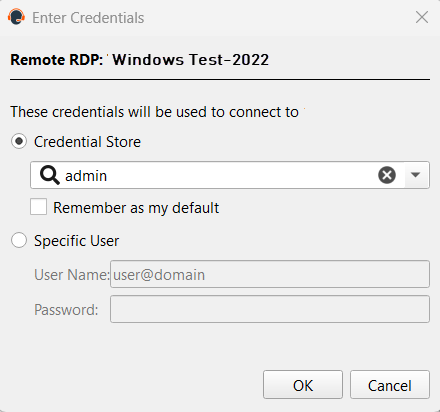
AWS Secrets accounts are available for injection into matching Jump Clients from the representative console. At the time of injection, the Credential Store dialog box displays.
-
For the Credential Store option, click the dropdown and select the appropriate AWS Secrets account.
-
Click OK.
-
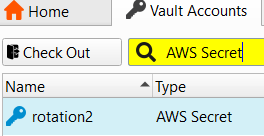
To view all the AWS Secrets accounts available for credential injection, click the Vault tab at the top of the screen.
-
In the Search bar, enter AWS Secret.
A list of only AWS Secret account displays. -
Users with the Inject and Checkout role can also select an AWS Secret account from the list and choose the appropriate option of Check In or Check Out.
Updated 2 months ago
