
Gateway | PRA On-prem
Formerly known as Jumpoint
What is a Gateway?
A Gateway is a secure connection point used in Privileged Remote Access to facilitate access to remote systems without requiring direct public internet exposure, enabling secure, controlled remote sessions.
How is a Gateway useful to my organization?
A Gateway allows administrators to securely manage remote connections through internal networks or firewalls, ensuring protected access to remote systems while maintaining network security.
How do I access the Gateway page?
- Use a Chromium-based browser to sign in to your Privileged Remote Access URL.
This URL is provided in the BeyondTrust welcome email and includes your site URL followed by /login. - From the left menu, click Asset Management.
The Jump Clients page opens and displays by default. - At the top of the page, click Gateway.
The Gateway page displays.
Gateway management
BeyondTrust's Jump Technology enables a user to access computers on a remote network without having to pre-install software on every machine. Simply install a single Gateway agent at any network location to gain unattended access to every PC within that network.
Add new Gateway, edit, delete
Create a new Gateway, modify an existing Gateway, or remove an existing Gateway.
Gateway columns
- Gateway Name: Unique name of the Gateway.
- Type: Displays the settings of the Gateway.
- Last Status: Displays the status in date and time of the Gateway.
- Properties: Displays the detailed information of the Gateway. For example, Hostname and IP addresses .
Uninstall an existing Gateway and download an installer to replace the existing Gateway with a new one. Assets associated with the existing Gateway will use the new Gateway once it is installed.
Gateway Management
BeyondTrust's Jump Technology enables a user to access computers on a remote network without having to pre-install software on every computer.
A Gateway allows a user to upload the Privileged Remote Access Endpoint Client software to computers on remote networks. The networks a Gateway provides access to are collectively called a Jump Zone.
TipWhen an existing Gateway is replaced, its configuration is not saved. The new Gateway must be reconfigured.
Enable network browsing
At the bottom of the Gateway page is the option to Enable network browsing. If checked, a permitted user can view and select systems from the network directory tree. If unchecked, a user can access a system through a Gateway only by entering the system's hostname or IP address. Either way, the user must provide valid credentials to the remote system before gaining access.
Add or edit Gateways
Name
Create a unique name to help identify this Gateway. This name should help users locate this Gateway when they need to start a session with a computer on its same network.
Code name
Set a code name for integration purposes. If you do not set a code name, one is created automatically.
External Asset network ID
On the Security page Access Console settings, when Gateway for External Asset Sessions is set to Automatically Selected by External Asset Network ID, this value is matched against the Network ID property for external Assets returned by the Endpoint Credential Manager to determine which Gateway handles a session.
- The host system should be a system on the same local area network as the systems to which you wish to connect.
- The host system should be a system with high availability.
Comments
Add comments to help identify the purpose of this Gateway.
Gateway platform
Select whether this Gateway will be installed on a Windows or Linux platform. Once the Gateway has been created, this option cannot be changed.
Disabled
If checked, this Gateway is unavailable to make connections.
Clustered
If checked, you can add multiple, redundant nodes of the same Gateway on different host systems. This ensures that as long as at least one node remains online, the Gateway will be available.
Enable SSH method
If you want users to be able to connect to SSH-enabled and Telnet-enabled network devices through this Gateway, check Enable SSH Method.
Enable Protocol Tunnel method
If the Enable Protocol Tunnel Method option is checked, you can make connections from your systems to remote endpoints through this type of Gateway.
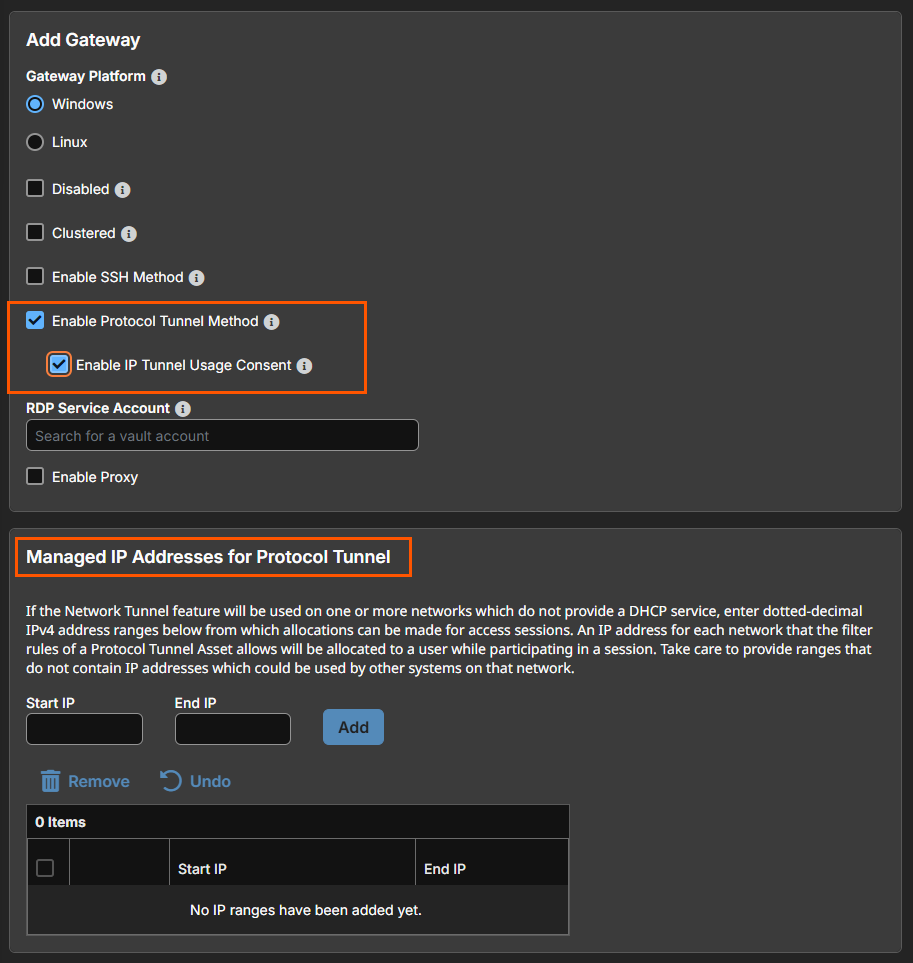
Enable IP Tunnel Usage Consent
If Enable Protocol Tunnel Method is checked, a new option to Enable IP Tunnel Usage Consent displays. Check this option users must approve TCP and UDP connections that pass through active IP Tunnels. Approval can be granted once for the current session, for the duration of the active session, or permanently for both current and future IP Tunnel sessions. When granting approval, users can choose to allow access for a specific Application Path or for Any Process.
Managed IP Addresses for Protocol Tunnel
If Enable Protocol Tunnel Method is checked, a new section to enter Managed IP Addresses for Protocol Tunnel displays. You can enter multiple IP address ranges. This allows using the Network Tunnel feature on networks without DHCP.
For more information, see Database Connections and Network Tunnels .
RDP service account
Under RDP Service Account, select the vault account to be used by the Gateway to run a user-initiated client on the RDP server. This allows you to collect additional event information from an RDP session started with this Gateway. This account in used only if the Remote RDP Asset is configured to enable the Session Forensics functionality. This option is not available for Linux Gateways.
Gateways attempt to close any active network connections to the target system before attempting the connection, for security purposes. A Gateway that coexists on such a server often reports "Network error disconnecting from host" messages when attempting to connect, as it attempts to close a network connection but fails to do so because some other software is actively using that network connection.
Add new Gateway
Enable Proxy
If you check Enable Proxy, you can set up this Gateway to function as a proxy server, allowing it to proxy connections for Assets on the network that do not have a native internet connection, such as POS systems. Using a Gateway as a proxy routes traffic only to the B Series Appliance.
You can enable Proxy on either a standalone Gateway or a Gateway cluster. If you set up a Gateway cluster as a Proxy, then if an endpoint is connected to one Proxy and that system goes down, the endpoint can connect to another Proxy in the cluster.
- In the Comments field, add comments to help identify the purpose of this Gateway.
Optionally, under Proxy Host, you can enter the hostname of the machine on which this Gateway will be installed. Do not start the hostname with http://or https://. IP addresses are not recommended as they might change. The Gateway will automatically detect the hostname if one is not provided. If this is a clustered Gateway, this field does not appear, and the Gateway will automatically detect the hostname on install. If the hostname changes, you may have to redeploy any Assets that use this Gateway as a proxy.
The proxy host and port should be set carefully since any Asset deployed using this Gateway as a proxy server uses the settings available to it at the time of deployment and are not updated should the host or port change. If the host or port is changed, the Asset must be redeployed.
In order for a Gateway to function as a Proxy, its host system cannot reside behind a proxy. The Gateway must be able to access the internet without having to supply proxy information for its own connection.
- If you want users to be able to connect to SSH-enabled and Telnet-enabled network devices through this Gateway, set the Enable SSH Method checkbox.
Under Proxy Port, enter the port through which Assets will connect to this Gateway. If the port changes, you may have to redeploy any Assets that use this Gateway as a proxy.
-
Under RDP Service Account, select the vault account to be used by the Gateway to run a user-initiated client on the RDP server. This lets you to collect additional event information from an RDP session started with this Gateway.
This account in used only if the Remote RDP Asset is configured to enable the Session Forensics functionality. This option is not available for Linux Gateway.
The RDP Service Account setting must not use a local admin account, and must use a domain admin account with privileges on the endpoint including access to remotely connect to the endpoint's C$ share, remotely create and start services on the endpoint machine, and access remote file systems.
For more information, see Remote Desktop Protocol shortcuts.
-
Check Enable Jump Zone Proxy to set up a Gateway to function as a proxy server. This allows it to proxy connections for Assets on the network that do not have a native internet connection, such as POS systems.
Using a Gateway as a proxy routes traffic only to the Appliance.
You can enable Jump Zone Proxy on either a standalone Gateway or a Gateway cluster. If you set up a Gateway cluster as a Jump Zone Proxy and an endpoint is connected to one Jump Zone Proxy, if that system goes down, the endpoint can connect to another Jump Zone Proxy in the cluster.
Under Restriction Type, select No access restrictions to allow Asset connections from any IP address. You can limit allowed connections by selecting Deny access only for the following IP addresses or Allow access only from the following IP addresses, then entering network address prefixes, one per line. Netmasks are optional, and they can be given in either dotted-decimal or integer bitmask format. Entries that omit a netmask are assumed to be single IP addresses.
Group policies
This displays a listing of the group policies which allow users access to this Gateway.
Allowed Users
You can configure allowed users for the group by doing the following steps:
Search for users to add to this Gateway. Users must be added to the Gateway in order to create Assets using that Gateway or to initiate ad hoc sessions through that Gateway. Users are not required to be added to the Gateway to start a session with a pre-existing Asset using that Gateway, so long as they have access granted through Asset Group membership.
In the table below, view existing Gateway users. You can filter the view by entering a string in the Filter by Name text box. You can also delete the user from the Gateway.
To add a group of users to a Gateway, go to Users & Security > Group Policies and assign that group to one or more Gateways.
The edit and delete functionality may be disabled for some users. This occurs either when a user is added by using a group policy or when a user's system Asset Role is set to anything other than the No Access permission.
You can click the group policy link to modify the policy as a whole. Any changes made to the group policy apply to all members of that group policy.
You also can add the individual to the Gateway, overriding their settings as defined elsewhere.
Updated 3 months ago
