
Total PASM Plus workflow across Insights, Password Safe, and Privileged Remote Access
 A workflow for Identity Security Insights, Password Safe, and Privileged Remote Access
A workflow for Identity Security Insights, Password Safe, and Privileged Remote AccessEach product covers part of your privileged access risk on its own. Insights maps identity and access risk, including true privilege paths that cross domains and nonhuman accounts most teams overlook. Password Safe secures and rotates the credentials behind that access. Privileged Remote Access (PRA) controls and records how that access is actually used. Configured together, they map to MITRE ATT&CK and NIST 800-53, and close the gap between managing access and understanding risk.
Scope of this guide
This guide walks through how to configure Password Safe, PRA, and Identity Security Insights to work together, then trace a single third-party access request end to end. It covers the specific settings each product needs, that is, data connectors, Managed Accounts, Smart Rules, Access Policies, and Vault entries, so you can see exactly where each product's configuration connects to the others.
Prerequisites
- You have an Insights account with the Administrator or Analyst role.
- You have an IT Admin role in BeyondInsight and Password Safe (BIPS).
- You have an administrator role in PRA with access to Vault and Access Policies.
- Insights has a data connector configured to at least one identity source, such as Entra ID, on-premises Active Directory, GitHub, or AWS.
- Password Safe and PRA are integrated so PRA can import vault entries from the Password Safe vault.
- The third-party user has a PRA account.
Steps
Step 1: Insights identifies and scores the risk
-
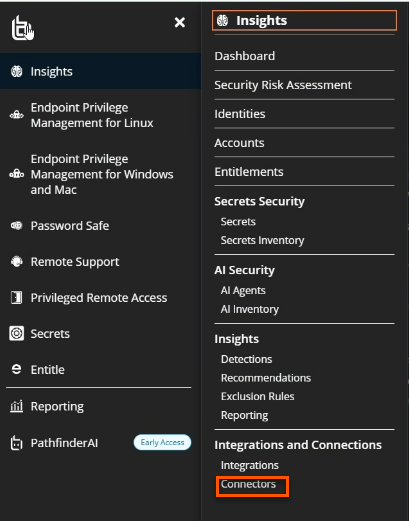
Open the Insights Dashboard and confirm the data connector to the account's identity source (Entra ID, Active Directory, GitHub, or AWS) is active. Go to Settings > Data Connectors to verify.
-
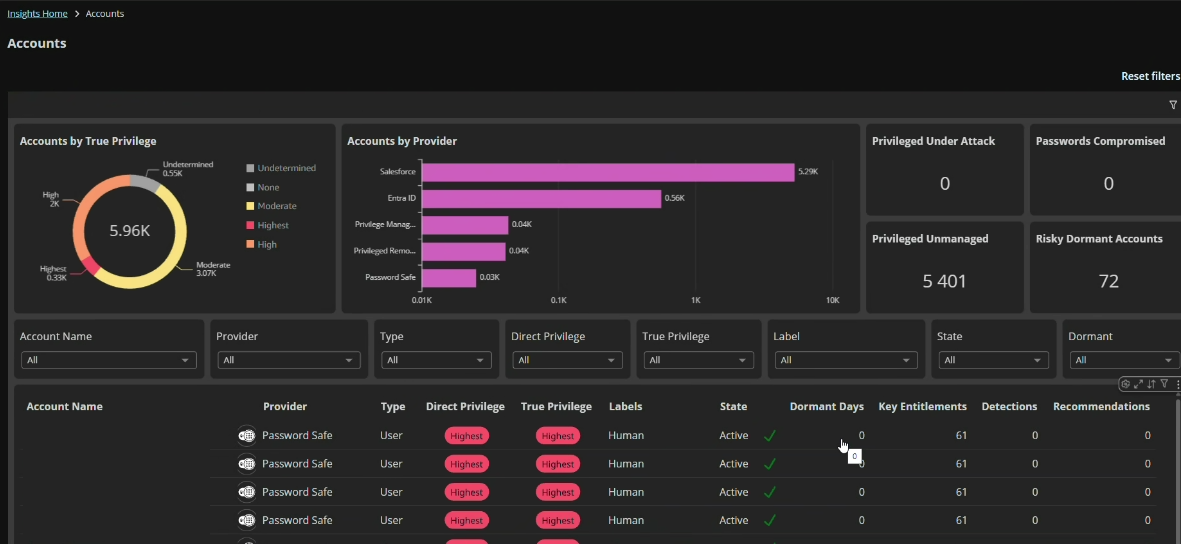
Go to Accounts, locate the flagged account, and review its risk score, detections, and true privilege graph. For example, a dormant admin account that should not be active.
-
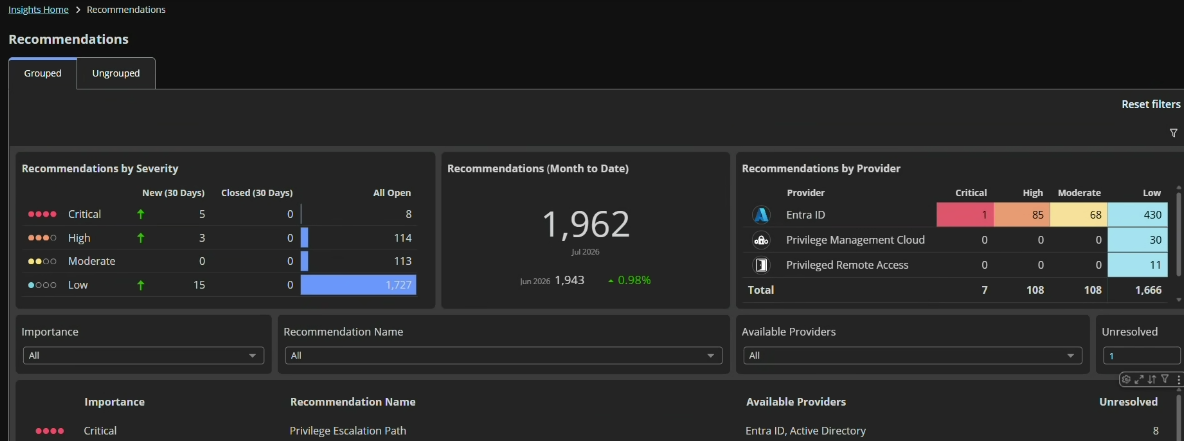
Open Recommendations and check whether Insights has suggested bringing this account under Password Safe management.
Step 2: Password Safe brings the account under management
- In BeyondInsight and Password Safe (BIPS), go to Discovery > Discovery Scanning and run a scan against the account's system to confirm its systems, services, and privileges.
- Go to Password Safe > Managed Systems and add the discovered system as a Managed System.
- Go to Password Safe > Managed Accounts and add the flagged account as a Managed Account.
- Go to Password Safe > Smart Rules and assign the account to a Smart Rule with a rotation policy, such as rotating the password after every check-in.
Step 3: PRA is configured for controlled access
-
Go to Users & Security > Group Policies and confirm the third-party user belongs to the correct Vendor Group.
-
Go to Users & Security > Access Policies and confirm the policy for that Vendor Group grants access to the correct Jump Group for the target system.
-
Go to Vault > Accounts and import the Managed Account from the Password Safe vault as a vault entry, so PRA can inject its credential.
For information about Managed Accounts and Password Safe, see Initiate a discovery job.
Step 4: The session runs under control
- The third-party user signs in to the Access Console and requests access to the assigned Jump Item.
- PRA grants the request and connects the user directly, without a VPN.
- PRA starts recording the session automatically, per the applicable Session Policy.
- PRA injects the managed credential into the session. The user never sees the password.
Step 5: Password Safe and Insights close the loop
- Password Safe closes out the session when the user disconnects.
- Password Safe rotates the Managed Account's password and revokes the third-party user's access.
- Password Safe saves the audit log. PRA retains the session recording for 90 days, or offloads it to your SIEM or local storage.
- Insights updates the account's risk score and true privilege graph to reflect its new managed, monitored status.
Verify the results
- Confirm that the account appears as a Managed Account in Password Safe with an active Smart Rule and rotation policy.
- Confirm that the completed session appears in the Password Safe audit log and the PRA session report, and that the account password rotated after the session closed, see Step 5.
- Confirm that Insights reflects the account's updated risk score, see Step 1.
Next steps
- Onboard any other accounts that Insights flags as unmanaged into the Password Safe vault, so they are included in rotation and Access policies.
- Review the true privilege graph in Insights for any account involved in a high-risk session, to check for escalation paths to other systems or domains.
- Review Insights detections and recommendations regularly to find dormant, nonhuman, or ungoverned accounts before they are used.
Updated about 2 hours ago
