
Discovery: Overview | PS Pathfinder
What is the discovery scanner
The discovery scanner discovers assets, such as systems, databases, applications, or network devices.
How is it useful
The discovery scanner is used to onboard assets into Password Safe.
How do I access discovery scans?
- Sign into app.beyondtrust.io.
The BeyondTrust Pathfinder Home page displays. - At the top right of the page, select your site from the drop-down.
- Select the Password Safe tile from your list of available applications. The Password Safe Home page displays.
- At the top left of the page, click
 > Password Safe > Discovery.
The Scans page displays.
From the menu, you can also:
- Run a new discovery scan (you can also run a new discovery scan by selecting the Discovery Scan container card on the Password Safe Home page)
- View active and completed scans
- View scheduled scans
- View discovery scanners
Scans page
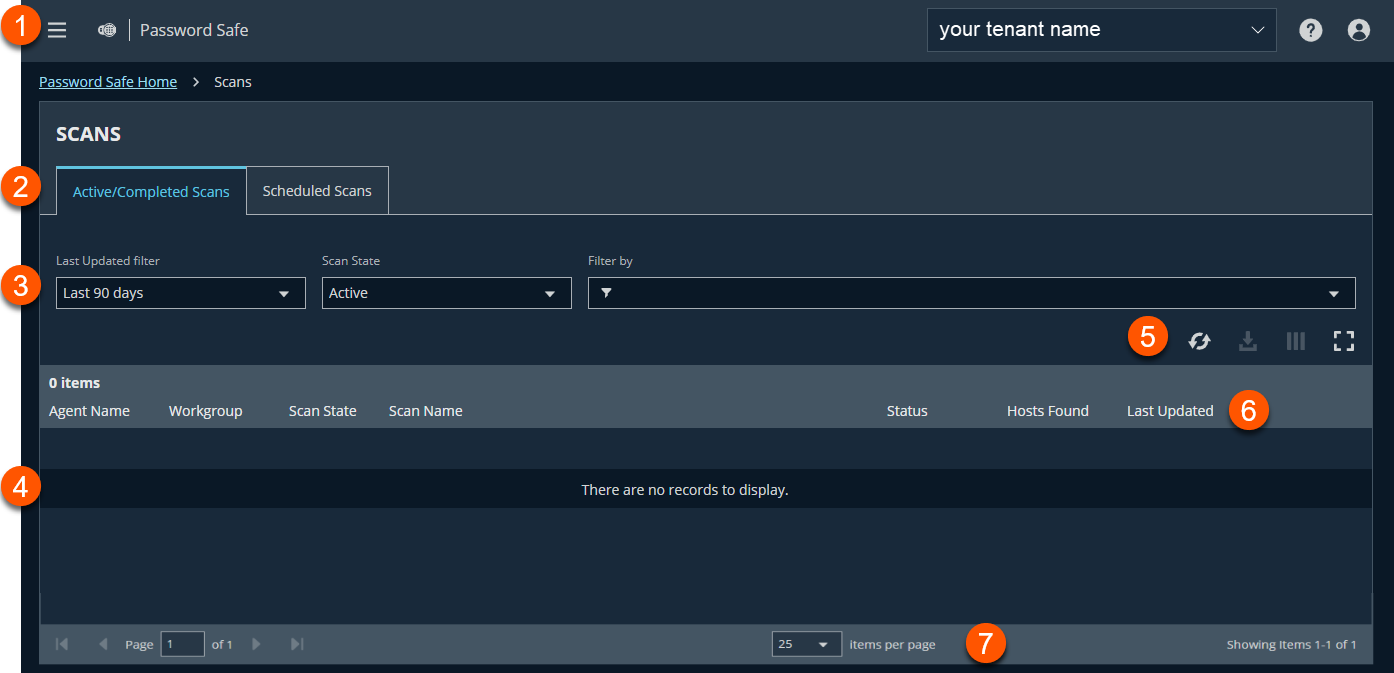
- Administration menu: Access Pathfinder administration pages if you are assigned as an administrator. You can also access all permissioned areas within Password Safe from the menu.
- Tabs: View Active/Completed Scans or Scheduled Scans.
- Filter dropdowns: Select a filter to refine your results.
Filter types
-
Last Updated filter: Filter by last updated timeframe.
-
Scan State: Filter by All, Completed, or Active.
-
Filter by: Filter by Agent Name, Workgroup, Scan Name, Scan Start Time, or Scan End Time.
-
- Scans grid: Displays information based on filter selections.
- Grid display preferences: Set display preferences on the Scans grid using the following options represented by icons above the grid:
- Click
 to refresh the list,
  to download the list to a .csv file,
  to select which columns to display on the page, and
  to expand the grid.
- Click
- Scans list columns:
Column Names
- Agent Name
- Workgroup
- Scan State
- Scan Name
- Status
- Hosts Found
- Last Updated
- Progress
- Hosts In Range
- Created By
- Created
- Smart Rule
- Scan Start Time
- Scan End Time
- Total Scanners
- Scan Template
- Summary
- Scan Elapsed Time
- Processing Elapsed Time
- List navigation options: Navigate in the Scans list.
Manage scan jobs
From the Scans page, you can perform the following:
- View active, completed, and scheduled scans
- Locate specific scans by using the date, status, agent name, workgroup, scan name, start time, and end time filters
- Use the row actions available from the vertical ellipsis menu for a scan to perform the following:
- Open the discovery report for a completed scan
- Stop active scans that are currently running
- View and edit details for scheduled scans
- Run completed and scheduled scans now
- Deactivate scheduled scans
- Reactivate inactive scans
You can view inactive scans by selecting Inactive from the Status filter above the grid. You can still run inactive scheduled scans and completed scans that are linked to inactive scheduled scans by clicking the vertical ellipsis for the scan and selecting Run Scan Now. You can also reactivate inactive scans from the vertical ellipsis menu if desired.
For configuration of Discovery, see Discovery: Configure.
Updated 27 days ago
