
Analytics and Reporting | PS Pathfinder
What are analytics and reporting?
Reporting collects and displays data in a structured format. Analytics examines this data to uncover patterns and generate meaningful insights.
Password Safe contains a data warehouse solution with business intelligence and analytics. This module extracts data from the Password Safe database and then processes the data in Microsoft SQL Server Integration and Analysis Services.
How are analytics and reporting useful?
Using Analytics & Reporting, you can perform the following:
- Run reports on:
- Scanned target details
- Asset details
- Password Safe and Workforce Passwords licensing usage
- User audit activity by user action, username, and IP address
- Password Safe activity, such as:
- Detailed view of all password and session activity
- Password Safe release and update activity
- Scheduled password changes
- Password age for managed accounts
- User and group entitlements
- Smart Rule details
- Assets and managed accounts that are associated with multiple Smart Rules
- Details on whether or not sessions were reviewed, when, and by whom
- Who has admin access to your applications
- Secrets Safe entitlements
- Download reports as the following file types: Word, Excel, PDF, TIFF, CSV (comma delimited).
- Subscribe to reports to have them generated on a schedule and made available for file download from the subscription on the Analytics & Reporting page in Password Safe.
How do I access analytics and reporting?
- Sign into login.beyondtrust.io.
The BeyondTrust Home page displays. - At the top right of the page, select your site from the drop-down.
- Select the Password Safe container card.
The Password Safe page displays. - At the top left of the page, click
 > Password Safe > Analytics and Reporting.
The Analytics & Reporting page displays.
The Analytics and Reporting page
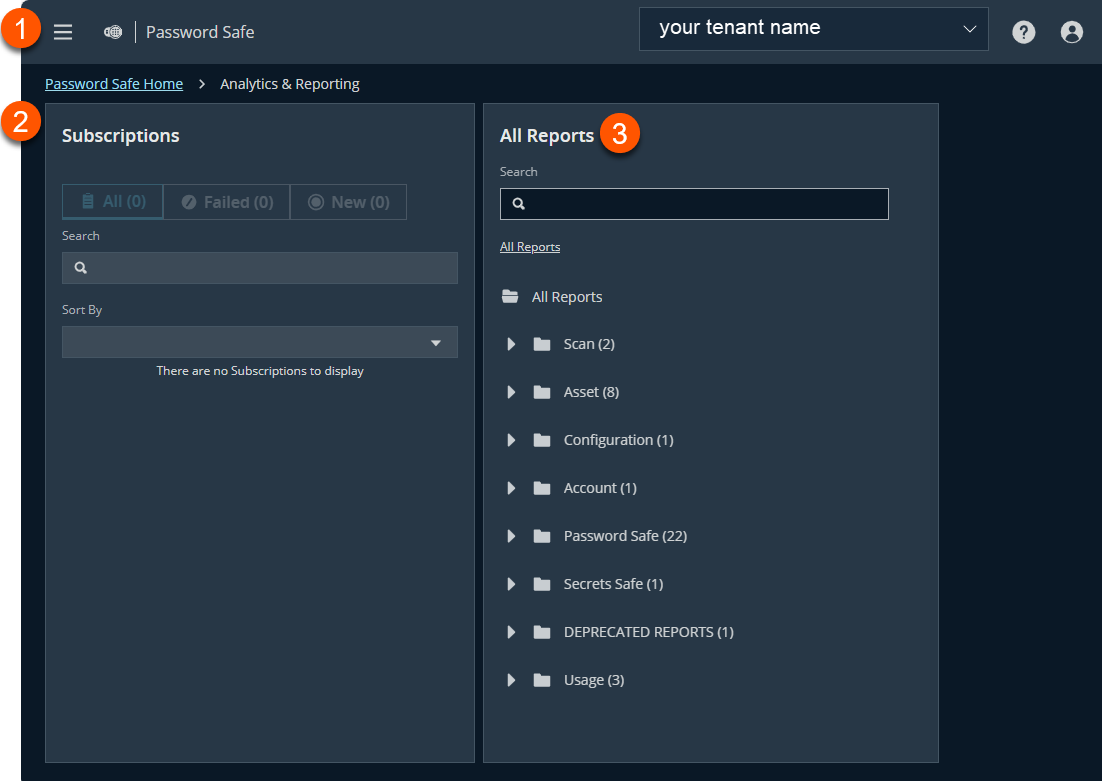
- Administration menu: Access Pathfinder administration pages if you are assigned as an administrator. You can also access all permissioned areas within Password Safe from the menu.
- Subscriptions: Subscribing to reports allows you to set a schedule to automatically run a report and have it available for download.
- All Reports: Search reports or view reports based on folder selection.
Prerequisites
To view reports, users must have read permissions to the Analytics and Reporting and Management Console Access features, which are assigned at the user group level. Administrators can view all reports.
Some report categories are visible only when specific product licenses are detected and if read permissions have been assigned to the user group for specific features, as listed below.
| Report Category | License and Permission Requirement |
|---|---|
| Endpoint Privilege Management | Endpoint Privilege Management license and read permissions for the Endpoint Privilege Management feature |
| Licensing | Read permissions for the License Reporting feature |
| Password Safe | Password Safe license |
| Secrets Safe | Password Safe license |
Report by category
The table below provides a list of reports, with their descriptions, found in each report folder in Analytics & Reporting.
| Report Folder | Report Name | Report Description |
|---|---|---|
| Scan | Discovery | Provides details for the list of targets scanned. |
| Network Discovery | Provides details for the list of targets scanned across multiple scans. | |
| Asset | Assets | Shows the asset details for the selected host machines. |
| Service | Shows the services for the selected host machines. | |
| Software | Shows the software for the selected host machines. | |
| User Account | Shows the user accounts for the selected host machines. | |
| Operating System | Shows the operating systems for the selected host machines. | |
| Port | Shows the ports for the selected host machines. | |
| Windows Events | Shows collected Windows events. | |
| Custom Attributes | Lists assets along with their custom attributes. | |
| Configuration | User Audits | Shows the activity of users by action, user name, IP address, and more, including ability to drill down into each row to view specific details. |
| Account | Database User List | Provides a list of database users with their details. |
| Password Safe | Activity | Contains a detailed history of all Password Safe changes made to the appliance by any user. |
| Password Release Activity | Provides a list of Password Safe password release activity details. | |
| Password Update Activity | Lists details of Password Safe password update activity. | |
| Password Update Schedule | Lists details of upcoming scheduled password updates. | |
| Password Reset-on-Release Reconciliation | Provides auditable evidence that Managed Account passwords have been reset appropriately at session end, for any account configured with the Change password after any release option. The Password Reset-on-Release Reconciliation report now supports a real-time version specifically designed for Cloud deployments. This update includes the latest PageHeader3 and CoverPage3 templates to ensure consistent branding and formatting across all cloud-based reporting. The Password Reset-on-Release Reconciliation report now correctly returns data when filtering by individual change result categories. Previously, the report would only display results when the All option was selected, preventing users from isolating specific password reset outcomes. | |
| Managed Account Password Age | Lists all accounts managed by Password Safe along with the password age details. | |
| Account Password Age by Last Scan | Provides a list of users along with the accounts they have access to. | |
| Service Account Usage | Provides a detailed list of what systems are using a Password Safe service account to start one or more services. | |
| Scheduled Password Change Configuration | Provides details of Password Safe upcoming scheduled password changes. | |
| Password and Session Activity | Provides a detailed transactional view limited to top 50,000 Password Safe password and session activities. | |
| Admin Session Activity | Provides a detailed view of Password Safe admin session activities. | |
| Entitlement by User | Provides a list of users along with the accounts they have access to. | |
| Entitlement by Group | Provides a detailed view of Password Safe group membership and permissions. | |
| Inactive Managed Accounts | Provides a list of accounts that are inactive or not accessed by a requester in a specified number of days. The default number of days is 30. This can be modified. | |
| Application Inventory | Provides a list of application inventory details. | |
| Smart Rule Details | Provides a list of Smart Rules and details by type and category. | |
| Remote Session Activity | Provides a detailed view of Password Safe remote session activities. | |
| Smart Rule Overlap | Shows assets or managed accounts that are selected for management in Password Safe by multiple Smart Rules. Overlapping Smart Rules cause an increase in database updates for account settings, which degrades system performance. | |
| Reviewed Sessions | Provides details on when and who reviewed sessions, and provides a filter to show sessions that have not been reviewed. | |
| Application Audit | Provides a list of who has administrative access to managed applications, by application name, Smart Group, user group, Password Safe role, username, and managed account. | |
| Asset SSH Keys | Discovered and authorized SSH Keys on assets from the latest scan. | |
| IIS Application Pool Account Usage | Detailed list of systems using a Password Safe account for IIS Application Pool management. | |
| Scheduled Tasks Account Usage | Detailed list of systems using a Password Safe account for Scheduled Task management. | |
| Secrets Safe | Secrets Safe Entitlement Report | Provides a list of user groups and the secrets they are entitled to. |
| Usage | Active Users | List application users along with their last login date. |
| System Usage Statistics | Provides a count of unique logins over the selected time period, and the current number of systems and accounts under management. | |
| Workforce Passwords Usage Summary | List of users with the ability to access the Workforce Passwords feature. |
Run reports in BeyondInsight
Using Microsoft Edge, Firefox, or Chrome browsers, you can view all reports from the Analytics & Reporting page in Pathfinder.
To run a report in BeyondInsight:
A drill-through action that opens a new report is limited to 10,000 rows of data by design.
- At the top left of the page, click > Password Safe > Analytics and Reporting.
The Analytics & Reporting page displays. - From the All Reports pane, expand the report folders to locate your desired report, or search for a report using title or description keywords.
- Click the report to open it.
- From the Configure Report pane, select Parameters.
- Enter parameters.
- Click View Report.
While viewing the report, you can add a subscription to it, download it to a file, and export to PDF for printing by clicking the buttons at the top of the report.
Manage report subscriptions in Password Safe
In addition to running reports on demand, you can set up a subscription to reports. Subscribing to reports allows you to set a schedule to automatically run the report and have it available for download from the subscription on the Analytics & Reporting homepage.
Create a report subscription
Subscribe to a report while viewing a report or a saved report view:
-
At the top left of the page, click
> Password Safe > Analytics and Reporting.
The Analytics & Reporting page displays. -
From the All Reports pane, expand the report folders to locate the report, or search for a report using title or description keywords.
-
Click the report.
-
From the Configure Report pane, select Parameters.
-
Enter parameters.
-
Click View Report.
-
Click
 above the report.
 -
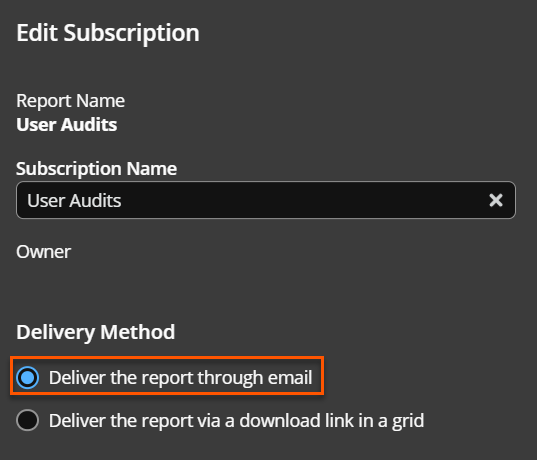
Select Deliver the report via a download link in a grid or Deliver the report through email.
-
Click Next.
-
Enter a subscription file name.
-
Enter the file format.
-
Enter comments.
-
Click Next.
-
Select a delivery schedule frequency from the list.
- If you selected a One Time schedule type, specify a start date and time for the report.
- If you selected a Recurring schedule type:
- Specify an end date if desired.
- Specify a start date and time for the report.
- Select Daily, Weekly, or Monthly for the frequency.
- Set the cadence for the selected frequency.
-
Click Finish.
-
In the View Subscriptions pane, select the New option to view your subscription.
- Add the Processing Elapsed Time and File Format values for the listed reports by clicking Column Chooser above the grid and selecting those columns to display in the grid. To narrow down the reports listed, use the Filter by dropdown to filter the list by Date Generated and File Format.
- Reports generated from subscriptions are stored for 7 days. Reports older than 7 days are purged from the database on a nightly basis. This is not configurable.
Manage report subscriptions
You can view, edit, and delete subscriptions from the Subscriptions pane on the Analytics & Reporting homepage and also from the Subscriptions pane while viewing the report where the subscription was created.
Only subscription owners and administrators can edit and delete subscriptions.
Manage subscriptions directly from the Analytics & Reporting page
Manage report subscriptions directly from the Analytics & Reporting homepage, or from a specific report or saved report view (on-premises only):
- At the top left of the page, click > Password Safe > Analytics and Reporting.
The Analytics & Reporting page displays. - From the All Reports pane, expand the report folders to locate the report, or search for a report using title or description keywords.
- Click the report.
- Under View Subscriptions, select the Subscriptions tab. A list of all subscriptions for that report displays.
- Whether viewing subscriptions directly from the Analytics & Reporting page, or from an individual report, the Subscriptions pane defaults to the All filter. To find a subscription quickly:
- Click Failed or New to filter the subscriptions.
- Search for a specific subscription by typing keywords in the Search box.
- Sort the list of subscriptions using the Sort By dropdown.
View subscription details
To view details for a subscription:
- Locate the subscription you want view details on.
- Click
 > View Subscription Status.
- A window displays showing the owner of the subscription, the delivery type, a description, and the date the subscription was last modified.
Edit a subscription
To edit a subscription:
- Locate the subscription you want to edit.
- Click
 > Edit Options.
 - In the Edit Subscription window, change the settings as needed, clicking Next after you update each page.
- Click Finish to complete wizard.
Delete a subscription
To delete a subscription:
- Locate the subscription you want to edit.
- Click
 > Delete.
 - Click Delete on the confirmation message.
Override the owner of a subscription
If the creator of the subscription no longer has a BeyondInsight account, administrators can override a subscription owner, as follows:
- Locate the subscription you want to override ownership for.
- Click
 > Edit Options.
- An Override check box displays in the Edit Subscription window if the administrator is not currently the owner.
- Check the Override box to set your user account as the owner of the subscription.
- Click Next, updating each page if needed.
- Click Finish.
Updated 3 months ago
