
Troubleshooting | U-Series
Break glass for the local administrator account
By default, the local administrator account you use as the appliance logon account is btadmin, however you might have changed the account name during the appliance configuration.
Issue: There is a database issue where you cannot access the user account through BeyondInsight or Password Safe.
Solution: Open a ticket with BeyondTrust Technical Support for the emergency access procedure which allows a password change, so that you can connect to the appliance via RDP.
Issue: The local administrator account is locked out due to too many logon attempts.
Solution: Wait 20 minutes for the policy to unlock the locked account.
Log file path locations
The following paths to log files should be reviewed when troubleshooting any BeyondInsight Password Safe issue on an appliance:
- C:\Program Files\BeyondTrust\BeyondInsight Gateway Services
- C:\Program Files (x86)\BeyondTrust\BeyondInsight\Logs
- C:\Program Files\BeyondTrust\Password Safe\Password Safe Portal\logs
- C:\Program Files (x86)\eEye Digital Security\Retina CS\Logs
- The path was changed to Beyondinsight from eEye Digital Security\Retina CS in newer images for 2022 or 2016 Appliance.
- Files change location and are dependent on appliance build.
| Issue Type | Log(s) to Review | Location on Appliance |
|---|---|---|
| Appliance Backup log | ApplianceUserInterface.log | C:\Program Files (x86)\BeyondTrust\UVM Appliance\Services\ApplianceUserInterface.API\Service\log |
| BT Updater | Updater.log | C:\ProgramData\BeyondTrust\Updater\Logs or C:\Users\btadmin\AppData\Local\Temp |
| High Availability (HA) | HAMonitoringService.txt | C:\Program Files (x86)\BeyondTrust\UVM Appliance\Services\HighAvailabilityMonitoringService\logs or C:\Program Files (x86)\BeyondTrust\UVM Appliance\HighAvailabilityUtilityServices\logs or C:\Program Files (x86)\BeyondTrust\UVM Appliance\Services\HighAvailabilityMainService\Logs or C:\Program Files (x86)\BeyondTrust\UVM Appliance\Services\HighAvailabilityPartnerService\Logs |
| HTTP Activity (IIS) | u_exYYMMDD.log | C:\inetpub\logs\LogFiles\W3SVC1 |
| Remote Sessions, SSH, RDP, or Application Sessions | PBSM.log | C:\Program Files (x86)\eEye Digital Security\Retina CS\Logs or C:\Program Files (x86)\BeyondTrust\BeyondInsight\Logs |
| SAML | ssoportal_saml | C:\Program Files (x86)\eEye Digital Security\Retina CS\Logs or C:\Program Files (x86)\BeyondTrust\BeyondInsight\Logs |
| Security Update Package (SUPI) | ApplianceSupiService | C:\Program Files (x86)\BeyondTrust\UVM Appliance\Services\ApplianceSupiService\logs |
| Web Console Login Issues / API | Inet pub logs | C:\inetpub\logs\LogFiles\W3SVxx |
| Web Console Login Issues | Webconsole_authenticationxxx.txt | C:\Program Files (x86)\eEye Digital Security\Retina CS\Logs or C:\Program Files (x86)\BeyondTrust\BeyondInsight\Logs |
U-Series Appliance log file bundle
To create an appliance log file(s) to attach to a Support bundle, follow the below steps:
-
In a browser, navigate to https://uappliancename/appliance.
-
Expand the menu and scroll to Features and Services.
-
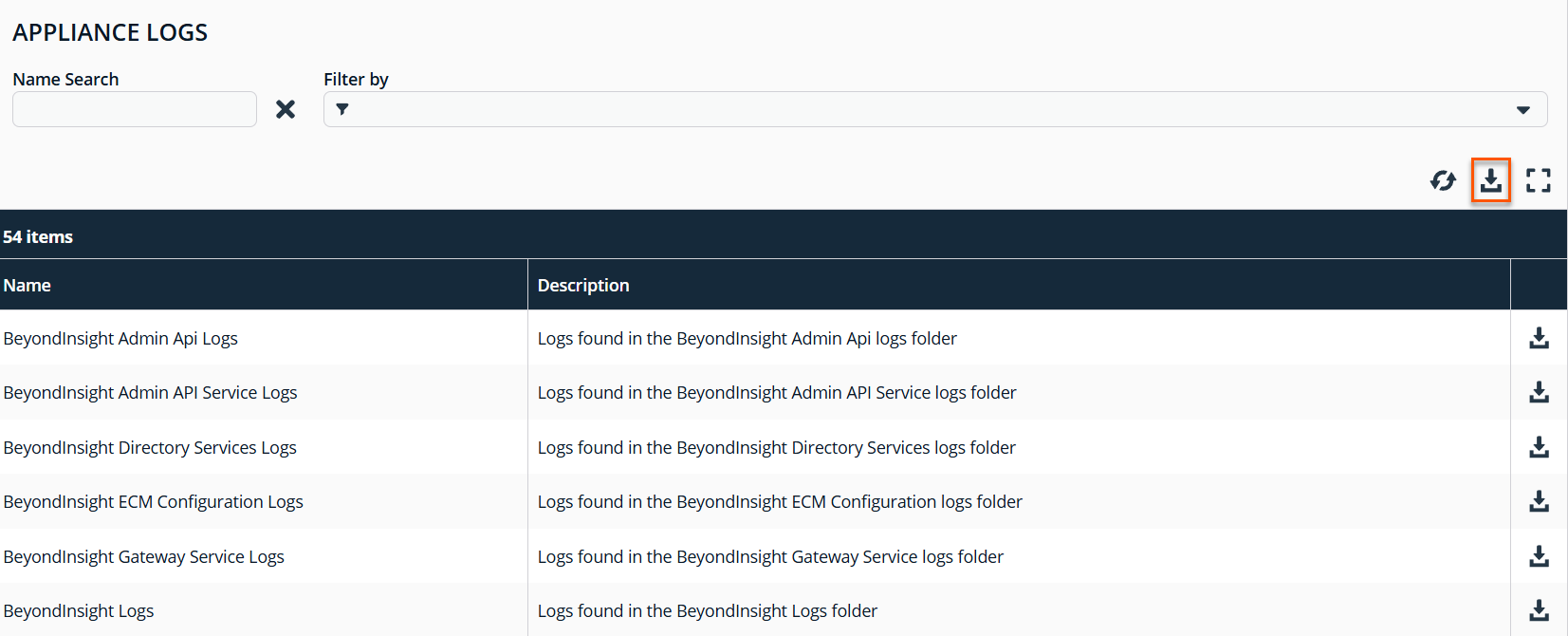
Select Appliance Logs.
-
Search for a specific set of logs, or use the top Download button to download all logs.
-
This creates a .zip file to include to a Support Package bundle.
These steps only apply for Appliance Maintenance version 4.0 and above
Create BeyondInsight Support Package
To create a Support Package to send to Technical Support, do the following:
-
From the home page on the toolbar, click About
 .
. -
In the Support Tools section, click Generate Support Package.
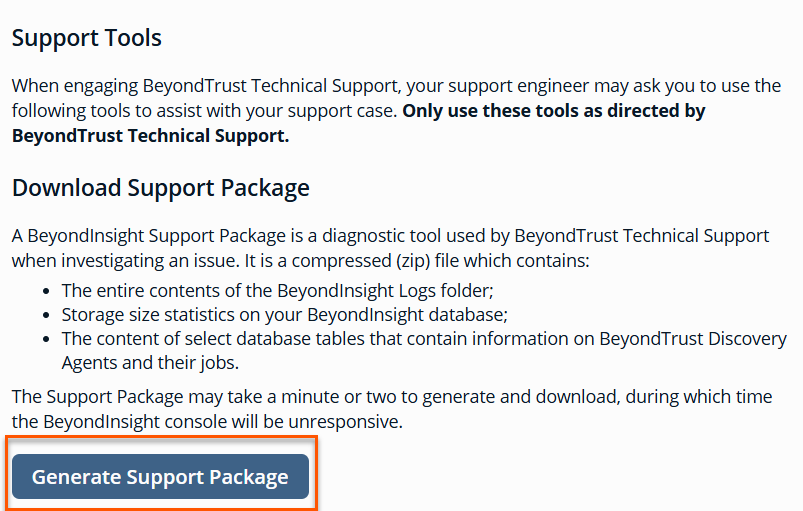
The following message displays:
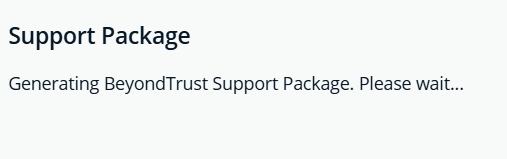
- It takes several minutes to create the package.
- A BeyondInsight_SupportPackage_date_xxxx.zip file is created in the Downloads folder which you can send to Technical Support.
Updated about 1 month ago
