
Credential caching for offline access | PS
We are introducing credential caching in the following areas:
- Secrets Safe
- Password Safe
- Requests
- Approvals
- Sessions of managed accounts
This ensures reliable access in disconnected or limited‑connectivity environments. With this enhancement, users are able to retrieve credentials even when the application cannot establish a connection to the Password Safe server.
Prerequisites
- Administrator must enable credential caching in Password Safe and set cache duration. The default value is 24 hours. The credential caching setting applies to Secrets Safe only and specifies the amount of time cached credentials are available. The cache availability for Password Safe is governed by the access policy.
- Users need to authenticate first, then choose which items they want available offline by adding or removing them from their offline list. Only the credentials they cache ahead of time are accessible when the app has no network connection.
- Must have Password Safe version 25.3 or later.
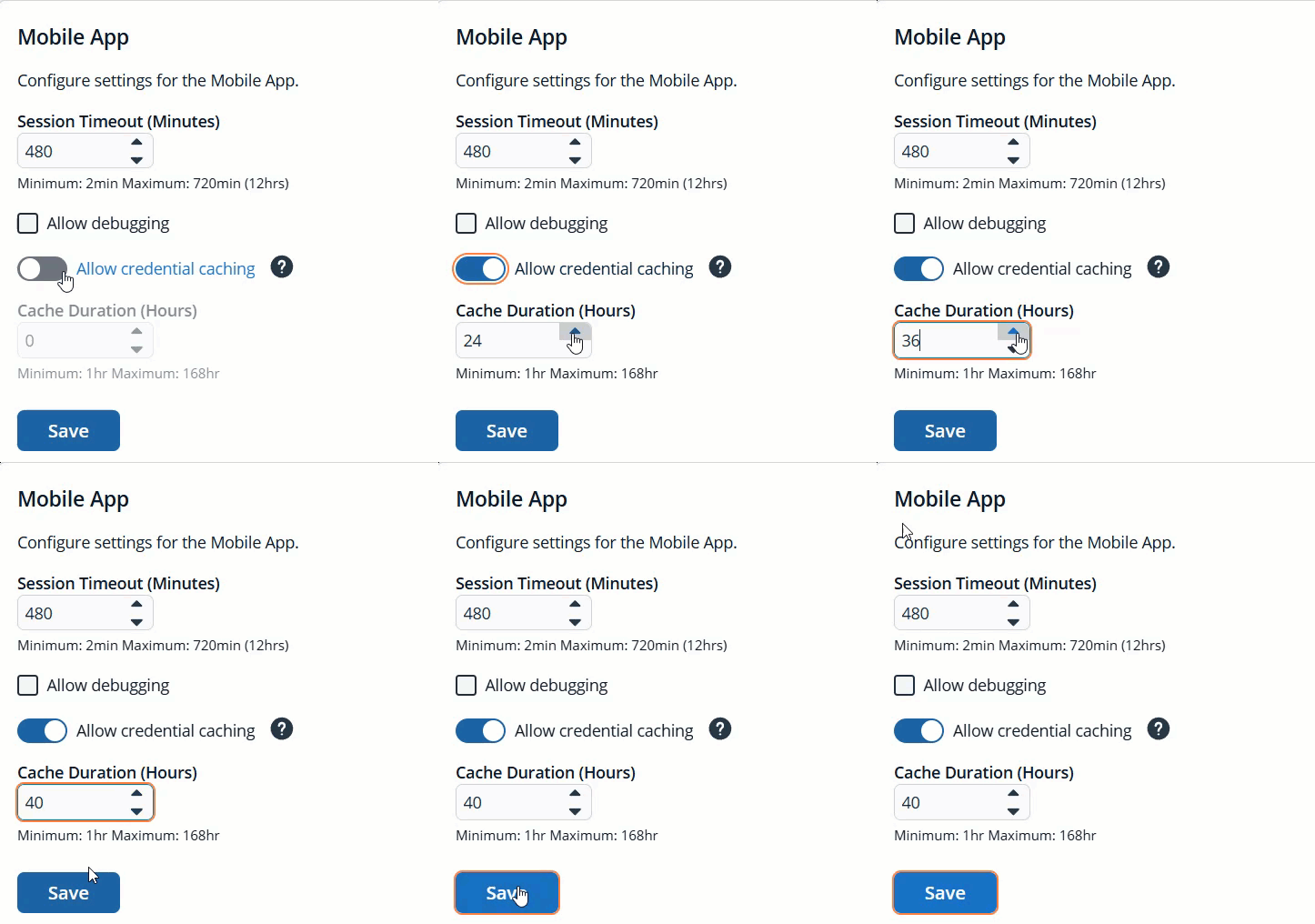
To enable Allow credential caching, do the following:
- From the left menu, click
 .
.
The Configuration page displays. - Under System, select Site Options.
The Site Options page displays. - From the Mobile App section, move the Allow credential caching slider to the right to enable credential caching.
- Click Save.
Save to offline mode
To save to offline mode, do the following:
-
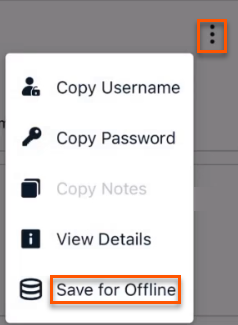
Locate the item you want to set to offline data, right click the ellipsis and click Save for Offline.
-
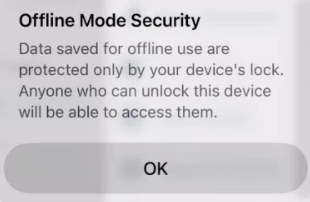
The first time you save an item, the following warning dialog box displays:
- Click OK.
The item is added to offline data.
When offline data is available, a new option displays on the Log on screen.
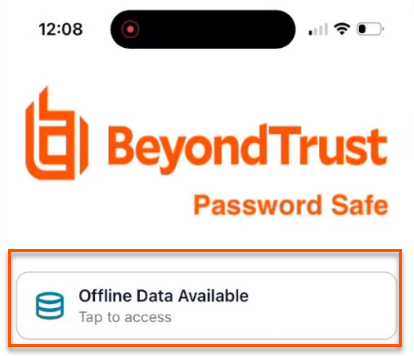
When you tap the Offline Data Available option, you use cached credentials to access device identification (for example, Face ID). If you have multiple instances of Password Safe, this view shows an aggregated list of all available offline data from every instance.
Remove offline items in Password Safe
To remove an item from offline data in Password Safe, do the following:
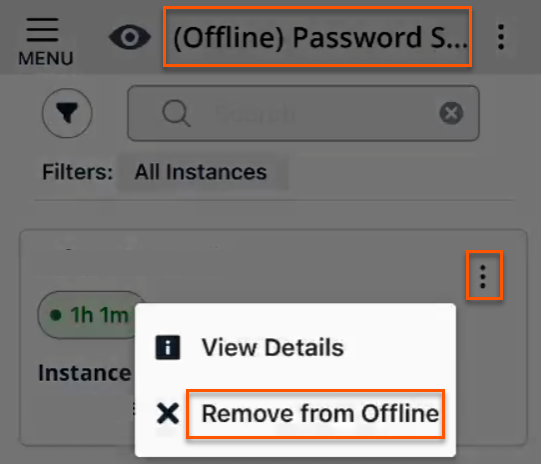
- From the Offline-Password Safe section, locate the offline item you want to remove.
- Click the vertical ellipsis.
- Click Remove from Offline.
-
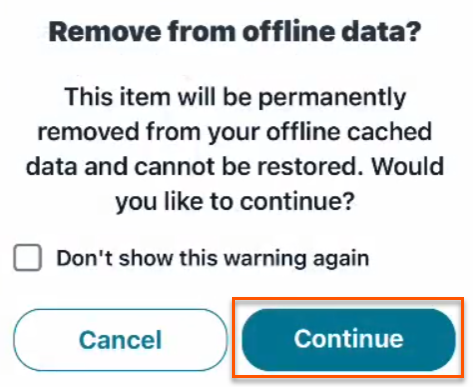
The following warning dialog box displays.
-
Click Continue.
Password Safe is removed from offline data.
Updated 3 months ago
