
Directory credentials | PS Pathfinder
What is a directory credential?
A directory credential is a username and password (or other authentication data) that provides access to an account within a directory service, such as Microsoft Active Directory (AD), LDAP, or Azure AD.
How is it useful?
Directory credentials make it easier and safer to control who can access what within an organization, while enabling automation and compliance through integration with products like Password Safe.
A directory credential is required for querying Active Directory (AD), Entra ID, and LDAP. It is also required for adding AD, Entra ID, and LDAP groups and users in BeyondInsight. Follow the steps below for creating each type of directory credential.
How to access the Directory Credentials screen
- At the top left of the page, click
 > Password Safe > Configuration.
The Configuration page displays. You can also click the Configuration container card on the Password Safe page. - Under Role Based Access, click Directory Credentials.
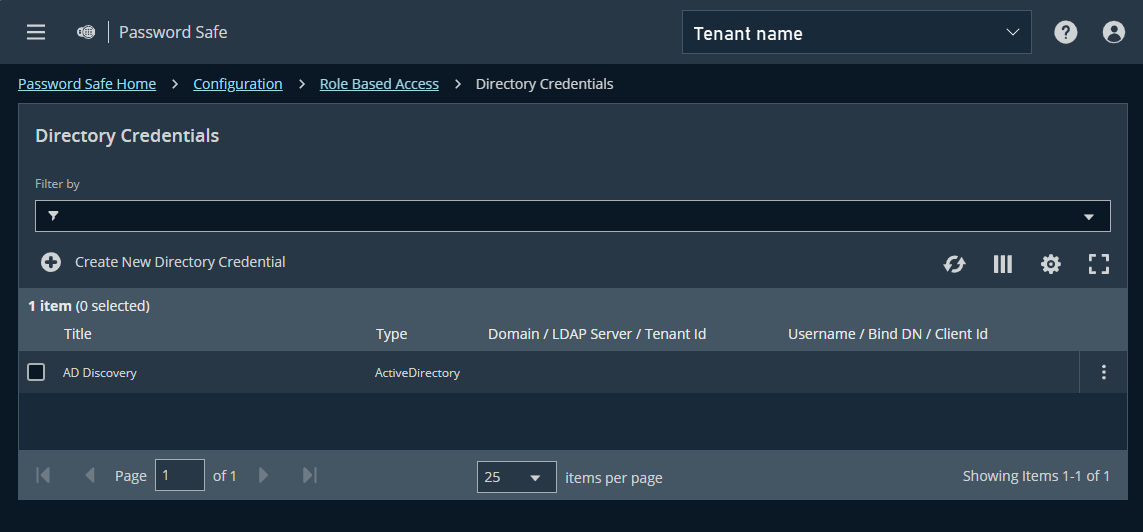
Directory Credentials page
Create a directory credential:
- At the top left of the page, click > Password Safe > Configuration.
The Configurationpage displays. You can also click the Configuration container card on the Password Safe page. - Under Role Based Access, click Directory Credentials.
- Click + Create New Directory Credential.
- Select the Directory Type and follow the steps below that are applicable for that type.
Create an Active Directory credential
- Select Active Directory for the Directory Type.
- Provide a name for the credential.
- Enter the name of the domain where the directory and user credentials reside.
- Enable the Use SSL option to use a secure connection when accessing the directory.
If Use SSL is enabled, SSL authentication must also be enabled in the configuration tool.
- Enter the credentials for the account that has permissions to query the directory.
- Click Test Credential to ensure the credential can successfully authenticate with the domain or domain controller before saving the credential.
- Click Create Credential.
Create an LDAP credential
- Select LDAP for the Directory Type.
- Provide a name for the credential.
- Enter the name of the LDAP server where the directory and user credentials reside.
- Enable the Use SSL option to use a secure connection when accessing the directory.
If Use SSL is enabled, SSL authentication must also be enabled in the configuration tool.
- Enter the credentials for the account that has permissions to query the directory.
- Click Test Credential to ensure the credential can successfully authenticate with the domain or domain controller before saving the credential.
- Click Create Credential.
Create an Entra ID credential
- Select Microsoft Entra ID for the Directory Type.
- Select a credential scope: Public or US Government (supports Azure GCC High). The scope cannot be changed after the directory credential is created.
- Provide a name for the credential.
- Paste the Client ID, Tenant ID, and Client Secret that you copied when registering the application in your Entra ID tenant.
- Click Test Credential to ensure the credential can successfully authenticate with the domain or domain controller before saving the credential.
- Click Save Credential.
Only one credential is supported per Entra ID tenant.
Edit a directory credential
- At the top left of the page, click > Password Safe > Configuration.
The Configurationpage displays. You can also click the Configuration container card on the Password Safe page. - Under Role Based Access, click Directory Credentials.
- Locate the credential in the grid.
- Click
 > Edit.
 - Make the changes required.
For AD or LDAP credentials, if you change the Domain or LDAP Server, enable or disable the Use SSL option, or update the Username or Bind DN, you must change the password. Click Change Password to display fields to enter and confirm the new password.
- Click Test Credential to ensure the edited credential can successfully authenticate with the domain or domain controller before saving the credential.
- Click Save Credential.
Syncing Microsoft Entra ID Users and Groups into Password Safe on Pathfinder
Most organizations already keep track of their people in Microsoft Entra ID. That's where teams are grouped, and where access is taken away when someone leaves. Password Safe on Pathfinder can now use that same information. Instead of building a second list of users and groups by hand, you can let Entra ID tell Password Safe who your users are and what teams they belong to.
Why this matters
When you manage people in two places, the two lists slowly drift apart. Someone changes teams in Entra ID, but their old access stays in Password Safe. Someone leaves the company, but their Password Safe group is never updated. Each gap is a small risk, and over time those risks add up.
Using Entra ID groups in Password Safe closes those gaps. You make the change once, in Entra ID, and Password Safe follows along. This saves time for your admins and helps make sure people only have the access they need.
What changed for Pathfinder
Before version 26.3, Password Safe on Pathfinder supported only local groups, similar to its support for local users. When the Entra SAML assertion included a valid groups claim, Password Safe matched the values in that claim to local BI groups based on group name.
This behavior continues in current releases, but with expanded support. Password Safe now matches the groups claim to both local and Entra-type groups. In addition, group synchronization can automatically maintain user-to-group memberships between logins, ensuring group memberships remain current without requiring users to authenticate before updates take effect.
Password Safe on Pathfinder now offers the same Entra ID features as Password Safe Cloud. You can connect Password Safe to your Entra ID tenant, add Entra ID groups, and give those groups access to the parts of Password Safe they need.
How it works
To set this up takes the following steps to get it working:
- An admin connects Password Safe to Entra ID. This is done with a directory credential, which gives Password Safe permission to look up users and groups in your Entra ID tenant. It only reads information. It doesn't change anything in Entra ID.
- The admin picks which Entra ID groups to bring into Password Safe. You don't need to add every group in your company, only the ones that need Password Safe access. After a group is added, Password Safe copies its members from Entra ID and keeps them in sync.
- The admin decides what each group can do. A new group starts with no access at all. The admin gives it access to certain features and Smart Groups, and assigns roles such as the ability to request passwords or approve requests. Everyone in that Entra ID group gets that same access.
- The users sign in to Pathfinder with their Entra ID account, the same way they already do. Password Safe sees that they signed in through Entra ID and sets them up as Entra ID users, with the access their groups allow.
What your users experience
For most users, nothing feels different. They sign in with their work account, and Password Safe opens with the access they need. When their team changes in Entra ID, their access in Password Safe changes too.
A few situations are worth knowing about:
-
A user sometimes signs in with a local password instead of Entra ID. This sometimes is called a domainless IdP. Password Safe still knows who they are. It uses their existing account and doesn't create a second one. Their group access stays the same until the next time they sign in with Entra ID.
For more information about domainless IdP, see Configure IdP by importing metadata.
-
A user signs in through another sign-in provider, such as Okta. Password Safe sets them up as a local user, the same way it always has. The Entra ID features only apply to people who sign in through Entra ID.
Keeping a clear record
Password Safe now records a User Type for every sign in. It shows whether the person is a local user, an Active Directory user, an LDAP user, or an Entra ID user. You can find it in the details of each sign in on the User Audits page. This makes it much easier to review activity during an investigation or an audit.
Getting started
To start using Entra ID groups in Password Safe on Pathfinder, you need:
- A Password Safe on Pathfinder site where users already sign in with Entra ID.
- An admin who can manage users and directory credentials in Password Safe.
- Someone who can register an app in your Entra ID tenant.
For more information on how to create directory credential accounts, see Role-Based Access | PS Pathfinder.
Updated about 9 hours ago
