
Create and edit directory credentials | BI Cloud
What is a directory credential?
A directory credential is a username and password (or other authentication data) that provides access to an account within a directory service, such as Microsoft Active Directory (AD), LDAP, or Azure AD.
How is it useful?
Directory credentials make it easier and safer to control who can access what within an organization, while enabling automation and compliance through integration with products like Password Safe.
A directory credential is required for querying Active Directory (AD), Entra ID, and LDAP. It is also required for adding AD, Entra ID, and LDAP groups and users in BeyondInsight. Follow the steps below for creating each type of directory credential.
Create a directory credential
To create a directory credential in BeyondInsight:
- Use a browser to sign in to your BeyondInsight/Password Safe URL.
This URL is provided in the BeyondTrust welcome email and includes your site URL followed by /login. - From the left menu, click
 .
.
The Configuration page displays. - Under Role Based Access, select Directory Credentials.
The Directory Credentials page displays. - Click + Create New Directory Credential.
- Select the Directory Type and follow the steps below that are applicable for that type.
Create an Active Directory credential
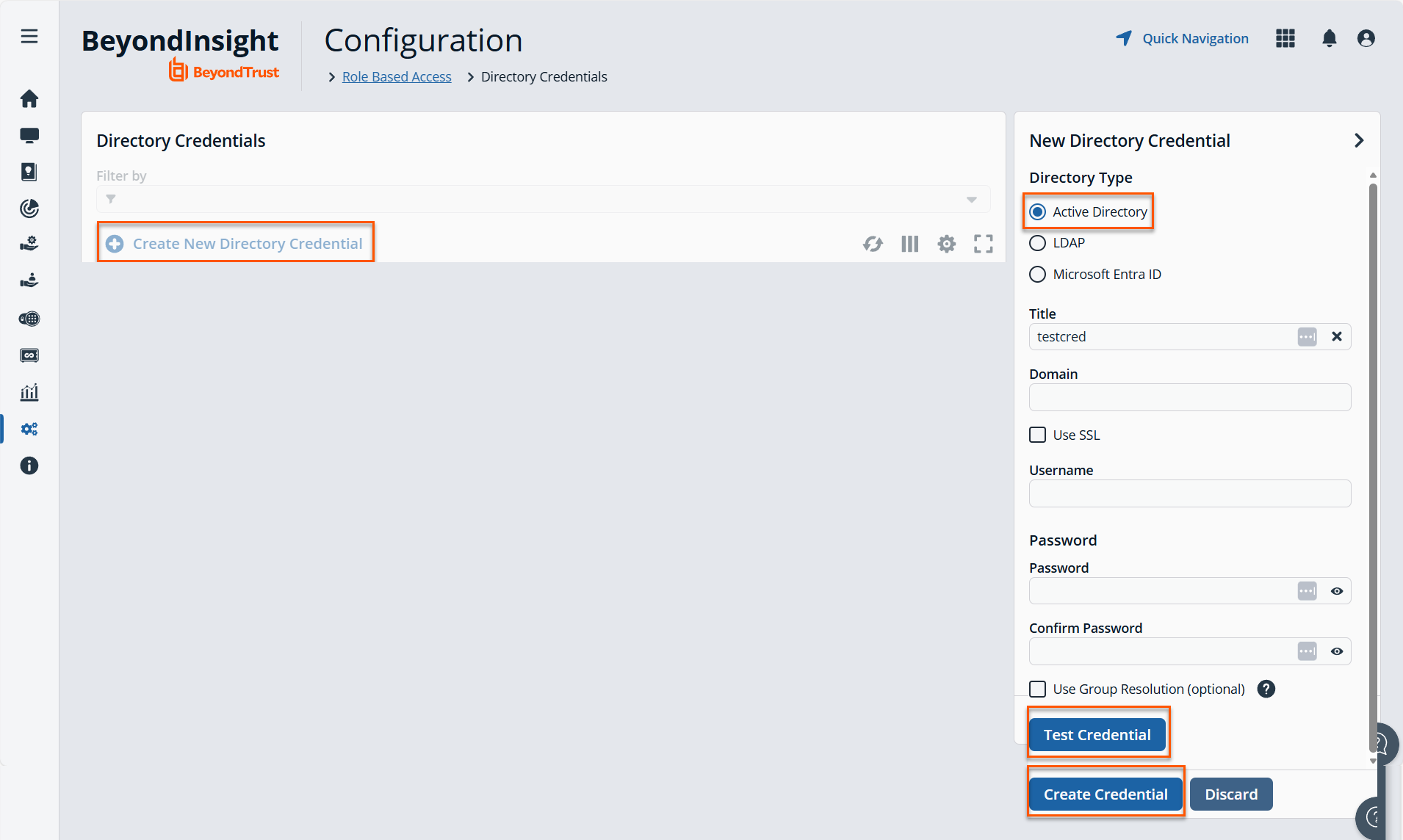
- Under Directory Type, select Active Directory.
- Provide a title for the credential.
- Enter the name of the domain where the directory and user credentials reside.
- Enable the Use SSL option to use a secure connection when accessing the directory.
If Use SSL is enabled, SSL authentication must also be enabled in the BeyondInsight configuration tool.
- Enter the credentials for the account that has permissions to query the directory.
- Enable the Use Group Resolution option to use this credential for resolving groups from the directory.
Only one credential can be set for group resolution per domain or server.
-
Click Test Credential to ensure the credential can successfully authenticate with the domain or domain controller before saving the credential.
-
Click Create Credential.
Create an LDAP credential
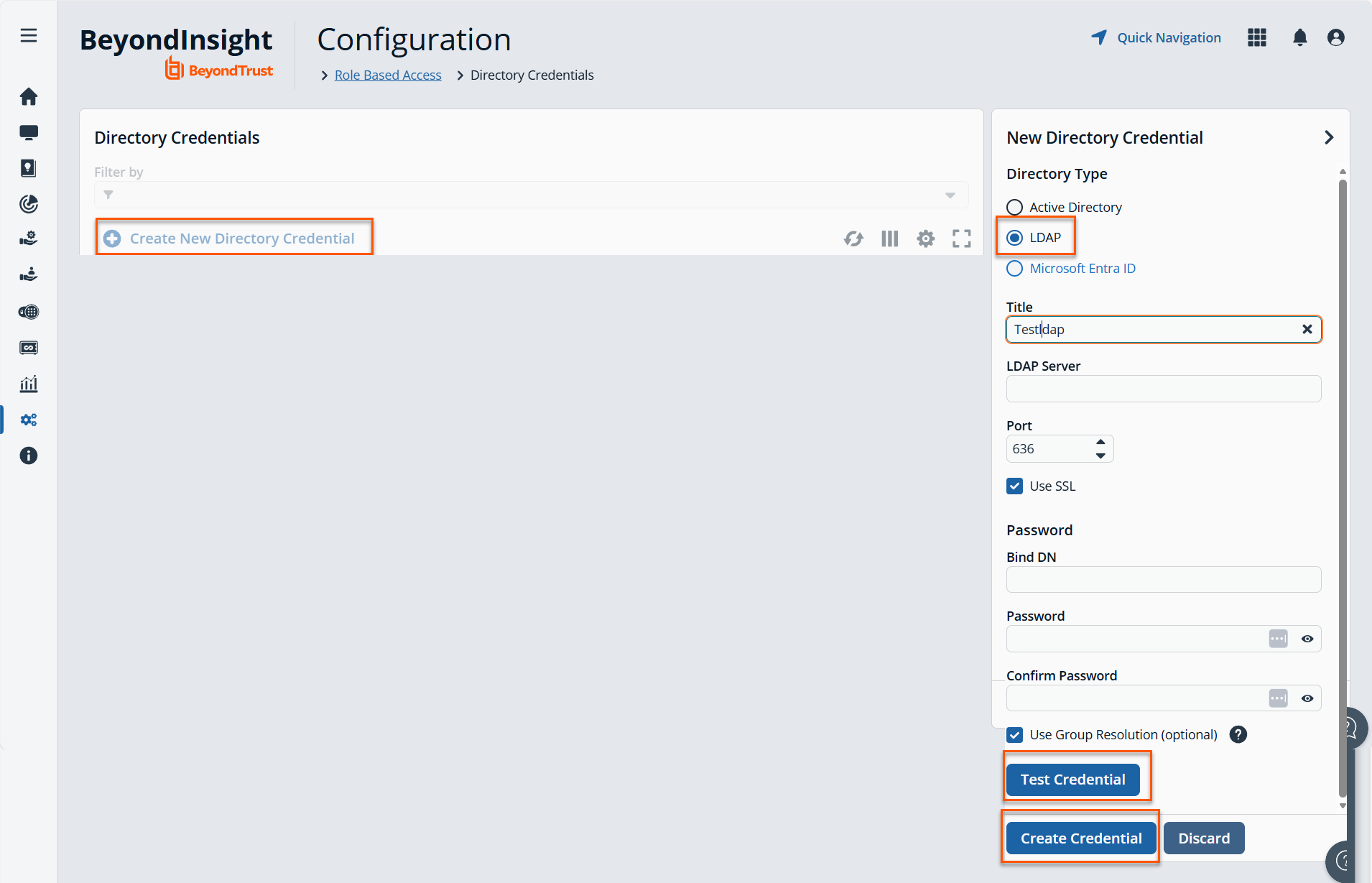
- Under Directory Type, select LDAP.
- Provide a name for the credential.
- Enter the name of the LDAP server where the directory and user credentials reside.
- Enable the Use SSL option to use a secure connection when accessing the directory.
If Use SSL is enabled, SSL authentication must also be enabled in the BeyondInsight configuration tool.
- Enter the credentials for the account that has permissions to query the directory.
- Enable the Use Group Resolution option to use this credential for resolving groups from the directory.
Only one credential can be set for group resolution per LDAP server.
-
Click Test Credential to ensure the credential can successfully authenticate with the domain or domain controller before saving the credential.
-
Click Create Credential.
Create an Entra ID credential
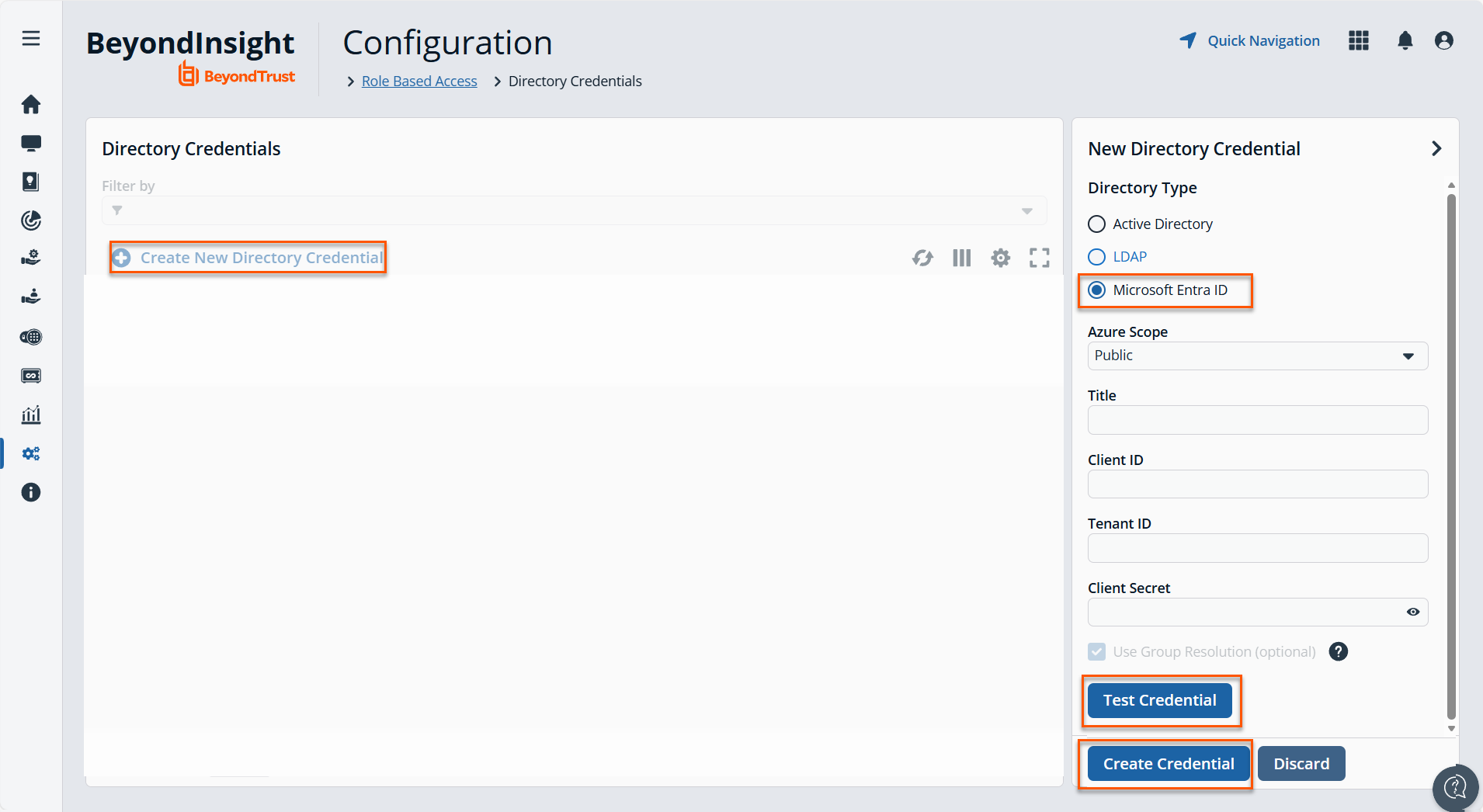
- Under Directory Type, select Microsoft Entra ID.
- Select a credential scope: Public or US Government (supports Azure GCC High). The scope cannot be changed after the directory credential is created.
- Provide a name for the credential.
- Paste the Client ID, Tenant ID, and Client Secret that you copied when registering the application in your Entra ID tenant.
- Enable the Use Group Resolution option to use this credential for resolving groups from the directory.
Only one credential is supported per Entra ID tenant.
-
Click Test Credential to ensure the credential can successfully authenticate with the domain or domain controller before saving the credential.
-
Click Save Credential.
Edit a directory credential
- Use a browser to sign in to your BeyondInsight/Password Safe URL.
This URL is provided in the BeyondTrust welcome email and includes your site URL followed by /login. - From the left menu, click .
The Configuration page displays. - Under Role Based Access, select Directory Credentials.
The Directory Credentials page displays. - Locate the directory credential in the grid.
- Click
 > Edit.
 - Make the necessary changes.
For AD or LDAP credentials, if you change the Domain or LDAP Server, enable or disable the Use SSL option, or update the Username or Bind DN, you must change the password. Click Change Password to display fields to enter and confirm the new password.
- Click Test Credential to ensure the edited credential can successfully authenticate with the domain or domain controller before saving the credential.
- Click Save Credential.
Updated 3 months ago
