
Assets: Configure | BI On-prem
Prerequisite
Before you configure Assets, ensure you understand what Assets are and the benefits they provide, see Assets: Overview.
Configure Functional Account Requirements in Azure
Follow the steps below to set up Entra ID for use with BeyondTrust Password Safe.
- Create enterprise application
- Configure app registration
- BeyondTrustPassword Safe configuration
- Create a second enterprise application
Accounts can be managed with or without multifactor authentication enabled in Azure.
Create enterprise application
Create this enterprise application to map to the Application (Client) ID for the functional account.
- In Microsoft Azure, go to Enterprise Applications and select New application.
- Select Create your own application.
- Name your application, select the application type (App you're developing) and click Create.
- Update the name if necessary, select the Supported Account Types (this directory only) and click Register.
- Under Properties, disable Assignment required and Visible to users, and click Save.
Configure app registration
- In Overview section, copy the Application (Client) ID and Directory (Tenant) ID. These are needed later to configure the Password Safe functional account.
- In the Authentication section, enable Allow public client flows, and click Save.
- In the Certificates and secrets section, click New client secret. Enter the Description, an expiration date, and click Add.
- Copy the secret Value. This is needed later to configure the Password Safe functional account.
The value is displayed only once, immediately after adding the new secret.
- In the API permissions section, add Microsoft Graph, and select type Application permissions.
- Add Microsoft Graph application permission UserAuthenticationMethod.ReadWrite.All, Domain.Read.All, Group.Read.All, and User.EnableDisableAccount.All.
- If User.Read is not already added, select Delegated permissions and add it.
- Click Add Permissions.
- Click Grant admin consent for for your organization, and click Yes on the confirmation message.
- From the main menu, select Roles and administrators, then select the Helpdesk administrator role.
- Click Add assignments, then assign the application to the Helpdesk administrator role.
This completes configuration in Microsoft Azure. The remaining steps are done in BeyondTrust Password Safe.
BeyondTrust Password Safe configuration
-
From the left menu, click
 .
.
The Configuration page displays. -
Under Privileged Access Management select Functional Accounts.
The Functional Accounts page displays. -
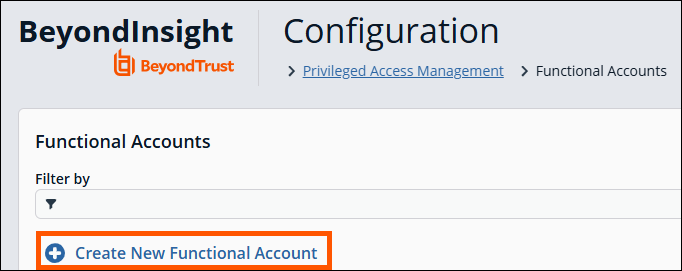
Click Create New Functional Account.
-
For the Entity Type, select Directory.
-
For the Platform, select Microsoft Entra ID.
-
Select the Azure scope: Public or US Government (supports Azure GCC High).
-
Enter the Username in UPN format.
-
Enter the previously saved values for the Application (Client) ID, Tenant ID, and Client Secret.
-
Set the Alias.
-
Click Create Functional Account.
-
From the left menu, click
 .
.
The Managed Systems page displays. -
Click Create New Managed System.
-
For the Entity Type, select Directory.
-
For the Platform, select Entra ID.
-
Enter the Domain, select the Functional Account created above, and select the Account Name Format.
-
Click Create Managed System.
The Managed Account can be created manually or by using a Smart Rule.
Create the Managed Account manually.
- Select the Managed System created above.
- Click
 the the right of the Managed System.
 - Select Create New Managed Account.
- Enter the Username in UPN format, and enter ObjectId for the User and UPN.
Create the Managed Account using a Smart Rule
- Accounts can be onboarded by using Group Name or UPN (starts with/ends with) filters.
For more information on using Smart Rules, see Smart Rules.
Asset Tools
BeyondInsight provides a set of tools to help you organize assets for scanning.
Depending on the number of assets that you want to scan or the critical nature of some of your assets, consider organizing the assets using address groups or Active Directory queries which can be part of a Smart Rule.
The following list provides examples on ways you can use these tools:
- Create an IP address group that organizes assets by a range of IP addresses, including CIDR notation and named hosts.
- Use an Active Directory query that will organize assets by organizational unit. Create a Smart Rule and use the query as your selection criteria.
- Change the properties for assets, and then use the attributes as the selection criteria in the Smart Rule.
Scans can return a lot of information. To help you review scan results, you can create filters and set preferences on the Assets page to easily review scan results.
Create an address group
When creating a Smart Rule, you can create an address group to use as an IP address filter. An address group can contain included or excluded IP addresses. IP addresses are entered as a
- Single IP address
- IP range
- CIDR Notation
- Named host
- The BeyondInsight user must be a member of the Administrators group or be assigned the Full Control permission on the Asset Management and the applicable Smart Rule Management feature(s) to be able to create and edit Smart Rules.
- Users assigned Read Only permissions on these features may only view the details of Smart Rules.
Create an Always address group
You can create an address group and name it Always. The Discovery Scanner is designed to recognize this address group name and includes the group in every scan, regardless if the group is selected in the scan job. The address group can include and exclude IP addresses.
The next time a scan runs, the address group is synchronized with the Discovery Scanner. The IP addresses, whether they are included or omitted, are considered part of the running scan.
ExampleIf the Always address group is configured with 10.10.10.60 and buffett-laptop (omitted), it scans 10.10.10.50 and buffett-laptop. The results are as follows:
- The scan includes 10.10.10.60 since this IP address was added to the Always address group.
- The scan excludes buffett-laptop since this asset was explicitly omitted in the Always address group.
- 10.10.10.50 is scanned as usual.
If an asset was scanned and later added to the Always address group as Omit, the asset is not scanned but might be displayed in the report. This only occurs with some reports.
- From the left menu, click .
The Configuration page displays. - Under Discovery Management select Address Groups.
The Address Groups page displays. - Click Create New Address Group.
- Enter a name for the address group, and then click Create Address Group.
- Select the address group, and then from the right pane, click Create New Address to manually add the IP addresses. Or, click Import Addresses to import them into the group using a file.
- If manually adding the addresses:
- Select the type from the list: Single IP Address, IP Range, CIDR Notation, or Named Host.
- Enter the IP addresses, CIDR Notation, or host name, depending on which type you selected.
- Enable Omit this entry to excluded addresses.
- Click Create Address.
- If importing the addresses:
- Enable the Overwrite all existing addresses option, if desired.
- Click Drop File to upload the import file.
- Click Upload File.
The list in your import file depends on your particular needs. The list can contain all IP addresses that you wish to exclude. To exclude IP addresses, use the format: 192.x.x.x (1).
The image shows an example of how a CIDR Notation, an excluded IP address, and excluded named hosts are displayed after importing.
Create a Smart Rule based on an address group
When configuring an address group, you can choose to create a Smart Rule based on the address group.
- From the left menu, click .
The Configuration page displays. - Under Discovery Management select Address Groups.
The Address Groups page displays. - From the Address Groups pane, click
 for the address group.
 - Select Create Smart Rule.
- Enter a name for the Smart Rule.
- Select the appropriate option to make the Smart Rule available to all user groups, or to administrators only.
- Click Create Smart Rule.
- A message stating Smart Rule has been created for this Address Group appears.
To view this new Smart Rule:
- From the left menu, click .
The Configuration page displays. - Under General select Smart Rules.
The Smart Rules page displays. - Navigate to the new Smart Rule.
Create a Directory Query
You can create an Active Directory or LDAP query to retrieve information from Active Directory or LDAP to populate a Smart Rule. To work with directory queries, the BeyondInsight user must be a member of the Administrators group or assigned the Asset Management permission.
Create a new directory query or clone an existing query as follows:
-
From the left menu, click
.
The Configuration page displays. -
Under Role Based Access select Directory Queries.
The Directory Queries page displays. -
Click Create New Directory Query
or
Click
next to an existing query and select Clone. -
From the Directory Type list select Active Directory or LDAP.
Cloned queries keep the same directory type as the query being cloned.
-
Enter a name in the Title field.
-
Select a stored credential for running this query
or
Click Create New Credential to be taken to the Directory Credentials page where you can add a new one.
At minimum, the credential must have Read permissions on the computer assets you are enumerating.
- Enter the directory path for the Query Target, or click Browse to search for a path and add it.
- Select a scope to apply to the container.
- Select an object type.
- Enable or disable the Dynamically refresh results each use option.
- Provide a Name and Description or use the * wild card character to match multiple values for the Basic Filter.
- Click Test to ensure the query returns expected results.
We recommend you preview results before saving the query.
- Click Create Directory Query.
- A warning message displays the following: Creating or modifying Directory Queries can have a significant impact to the onboarding Smart Rules that use this query. Are you sure you want to save this Directory Query?
- Click Confirm to create the query.
- Click Cancel to return to the query form to make changes.
- If you did not test the query (step 15), a warning message displays the following: Are you sure you want to save this Directory Query without previewing the results?
- Click Confirm to create the query without testing it.
- Click Cancel to return to the query form to make changes or test the query before saving it.
Update a directory query
Update an existing directory query as follows:
- From the left menu, click .
The Configuration page displays. - Under Role Based Access select Directory Queries.
The Directory Queries page displays. - Click to the right of the query.
- Select Edit from the menu.
- Modify query details as necessary, and then click Test to ensure the query returns expected results. We recommend you preview results before saving the query.
- Click Update Directory Query.
- A warning message displays the following: Creating or modifying Directory Queries can have a significant impact to the onboarding Smart Rules that use this query. Are you sure you want to save this Directory Query?
- Click Confirm to update the query.
- Click Cancel to return to the query form if wish to make changes.
- If you did not test the query after making changes, a warning message displays the following: Are you sure you want to save this Directory Query without previewing the results?
- Click Confirm to save the updated query without testing it.
- Click Cancel to return to the query form if you wish to make changes or test the query before saving it.
If you’re changing the Query Target, we recommend testing the query before saving the changes to ensure the changes are working the way you expect. Any Smart Rules using that query will use the new target list the next time the rule processes.
Directory attributes
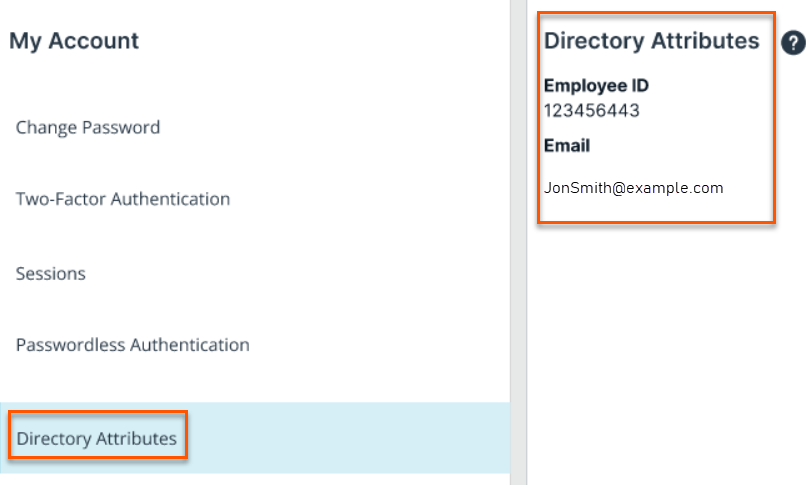
If the current logged in user has synced directory attributes, the directory attributes display when you click Directory Attributes on the Account Settings panel. If you do not have synced directory attributes, the following message displays: Directory Attributes have not been setup for this account.
Attributes and Attributes Types
Attributes can be used to label assets, and you can set attributes for each asset in a group using a Smart Rule. BeyondInsight ships with a default set of attributes that can be customized, except for the Criticality type, and you can also add new attribute types and attributes to meet your requirements.
Add a new attribute type
- From the left menu, click .
The Configuration page displays. - Under General select Attributes.
The Attributes page displays. - Click + Add New Attribute Type.
- Type a name for the attribute type.
- Press the Enter key.
Add a new attribute
- Click
 to the left of the desired attribute type to expand its attributes.
 - Click + Add New Attribute.
- Type a name for the attribute.
- Press the Enter key.
Attributes enhancements
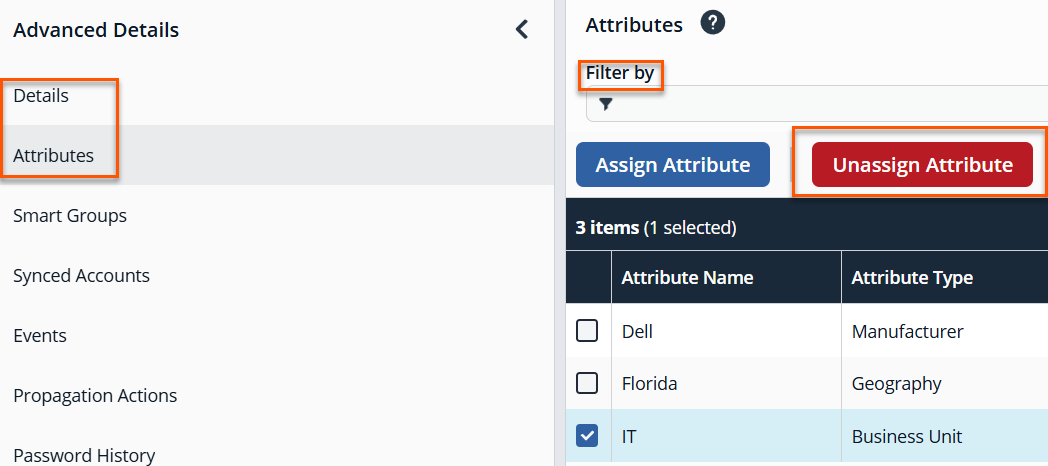
To improve administrative efficiency and streamline workflows, an editable Attributes section has been added to the Advanced Details panel. This applies to the Managed Account and Asset settings. This enhancement allows users to view and update asset and managed accounts attributes directly, without navigating away from the current page.
Key Changes
-
The Details & Attributes (current data) tab has been renamed to Details (current data) to reflect its updated scope.
-
Custom attributes no longer appear in the Details tab within the Advanced Details panel. Instead, they are now accessible and editable in the new Attributes section.
-
There are also two new columns added to the table: Attribute Name and Attribute Type. These columns support filtering to facilitate faster data access and management.
-
In previous versions, the only way to assign or unassign attributes from assets or managed accounts was via smart rules. Now, there is an Unassign Attribute button available.
-
A new informational message has been added to the Attributes configuration page for managed accounts and assets. This message includes a link that directs users to the relevant configuration page for additional details.
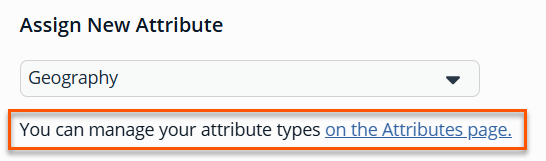
For this message to display, you need the Full Control permission set on the Attribute Management feature.
These updates provide a more centralized and intuitive experience for managing asset and managed account metadata, aligning with user expectations and administrative workflows.
Updated 3 months ago
