
SNMP Trap and Syslog Event Forwarding | BI
BeyondInsight, Discovery Scanner, Password Safe, and Endpoint Privilege Management products can forward the following:
- SNMP traps using versions 1, 2, or 3
- Events through a syslog daemon
With this forwarding function, it is feasible to integrate critical event information directly into a NMS, SIM, NAC, or other log consolidation, or event management systems.
A standard SNMP MIB, EEYE-REM_EVENT-MIB.MIB, is available for decoding traps at the destination and is located at C:\Program Files (x86)\BeyondTrust\BeyondInsight. On a U-Series Appliance with Server 2016, the path is slightly different: either C:\Program Files (x86)\eEye Digital Security\Retina CS, or C:\Program Files (x86)\Security Scanner\Help\Snmp\.
This MIB is valid for BeyondInsight and Discovery Scanner.
You can configure SNMP and syslog event forwarding settings from the Connectors page. Both protocols work for all data aggregated by BeyondInsight and Discovery Scanner.
Enable SNMP event forwarding (On-premises only)
-
In BeyondInsight, go to Configuration > General > Connectors.
-
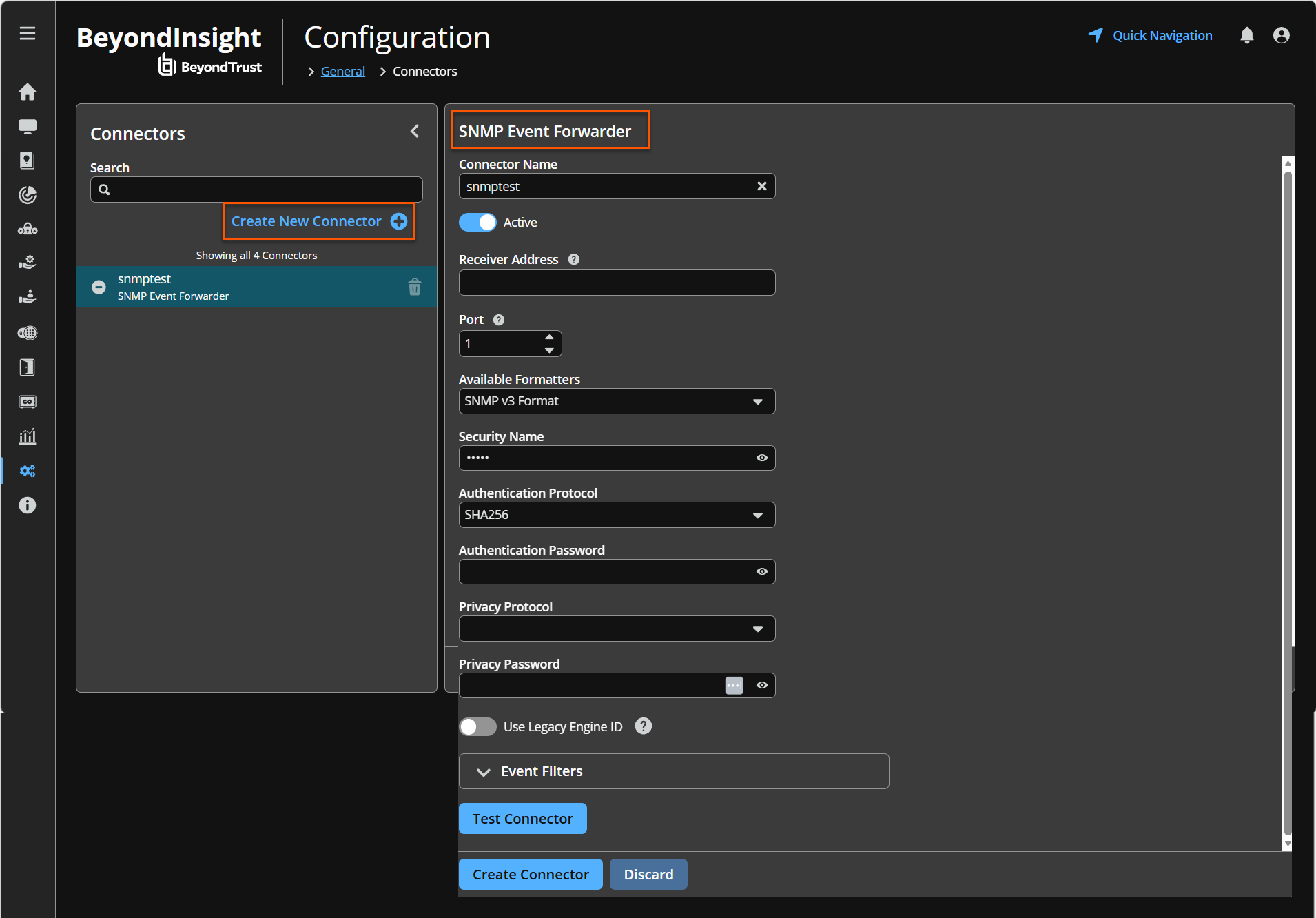
From the Connectors pane, click Create New Connector.
-
Enter a name for the connector.
-
Select SNMP Event Forwarder.
-
Leave Active (yes) enabled.
-
Select an Available Formatters. Available options are: SNMP v1 Format, SNMP v2 Format, SNMP v3 Format.
-
Provide a Security Name.
-
Provide the Authentication Protocol. In version 26.2, SHA‑256 and SHA‑512 are available options.
-
Provide the Authentication Password.
-
Select a Privacy Protocol from the dropdown box.
-
Provide a Privacy Password.
-
Select the Event Filters you want to trap.
-
Click Test Connector to send a test event message.
-
Click Create Connector.
Enable Syslog event forwarding
- In BeyondInsight, go to Configuration > General > Connectors.
- From the Connectors pane, click Create New Connector.
- Enter a name for the connector.
- Select Syslog Event Forwarder under Connector Type.
- Click Create Connector to open Syslog Event Forwarder pane.
- Leave Active (yes) enabled.
- Provide the required details for the syslog server:
- Select the Available Output Pipeline:TCP, TCP-SSL, or UDP.
- Enter Host Name and Port.
- Select an output format: NewLine Delimited, Tab Delimited, or Comma Delimited.
- Select an optional syslog Facility from the list.
- Select Format Specification.
- Select the events that you want to forward.
- Click Test Connector to determine if event is successful.
- Click Create Connector.
If an event is received from Password Safe Cloud, a Resource Zone can now be associated with any connector that sends data using syslog. If selected, Password Safe Cloud proxies the syslog data through the Resource Brokers associated with that Resource Zone.
Updated 3 months ago
