
Understanding Session and Group policy behavior | PRA
Introduction
Why Session and Group policy logic exists
When you support users in real-world scenarios, you manage multiple variables such as who connects, which endpoint they access, and how the session starts. With the help of Session policies, you can control which tools are made available (or not available) based on two major factors:
- What Group Policy (or Policies) a user is a member of
- Which Session Policy (or Policies) are active based on where they are sourced from
Because Privileged Remote Access (PRA) must accommodate a wide range of use cases and scenarios, it includes logic that evaluates and applies every relevant setting and configuration.
To remove the guesswork from how PRA determines and assigns these settings, this document explains how Session Policy Logic and Group Policy Logic work.
We begin with Key terms, and then Session Policies.
Key terms
| Term | Definition |
|---|---|
| Session policy | A rule set that controls which tools and actions are available in a support session (for example, Screen Sharing mode, File Transfer, Command Shell, Registry Editor, and more). You can apply policies to users, and Jump Items to tailor permissions by scenario. |
| Not Defined | A deliberate “no answer yet.” If a permission is Not Defined in a higher priority policy, BeyondTrust continues checking lower priority policies until it finds an explicit Allow or Deny. |
| Group policy | Group policies define permissions and settings for groups of users, enabling administrators to standardize and streamline access control. |
| System | For the context of this article, system refers to PRA and the logic checks that take place on its Secure Remote Access Appliance. |
Session Policies
Session policies set rules that controls which tools and actions are available in a support session (for example, Screen Sharing mode, File Transfer, Command Shell, Registry Editor, and more). Session Policies can come from many different areas in PRA such as:
- Jump Item Session Policies
- Group Policies
- User Assigned Session Policies
Important informationStarting in 25.3 and higher, Access Invite Session Policies take precedent over Jump Item Session Policies
WarningOrder of evaluation is fixed and must be followed. The system processes policies in a defined sequence, and you cannot change or bypass this order.
If more than one Session Policy can be active, how can we be certain which session policy tools will take effect over others in any given situation?
For example, an Access Console user may connect to an endpoint that has a Jump Item Session Policy where several tools are set to Deny, while at the same time that Representative belongs to a Group Policy where those same tools are set to Allow. In cases like this, how does PRA determine which session policy takes precedence? Is enforcement all-or-nothing, or is it evaluated on an individual tool basis?
Privileged Remote Access uses a defined set of logic rules that evaluate a user against each individual tool. These rules follow a sequence of checkpoints to determine whether access should be Allowed or Denied. The next section explains how the system evaluates these tools, per policy, and determines how they get applied.
Session Policy evaluation overview
Privileged Remote Access assesses every tool by checking policy sources in a specific order, stopping as soon as it encounters a policy that provides a defined Allow or Deny value.
The first defined result of Allow or Deny locks that answer and blocks the answers from subsequent session policies from taking effect. The impact of this logic is that the first Session Policy that sets a tool to Allow or Deny always takes precedence.
If a tool is set to Not Defined, the system continues to the next checkpoint to look for an Allow or Deny decision.
Session Policy evaluation order summary
1. Jump Item Session Policy
The system first checks the Jump Item Session Policy for an Allow or Deny decision.
Apply a session policy at the endpoint object to enforce rules on which tool can be used or not whenever someone connects to that Jump Item. Jump Item level session policies have the highest priority among the policy types that participate in the session*.
If a tool is explicitly set to Allow or Deny, that decision applies.
If a tool is set to Not Defined, the system moves to the next Session Policy checkpoint to seek out if an answer (Allow or Deny) needs to be applied.
2. Session Policy defined by Group Policy
If the system finds that there are still tools set to Not Defined at the Public Portal Session Policy level, the system check continues on to the Session Policy defined by Group Policy.
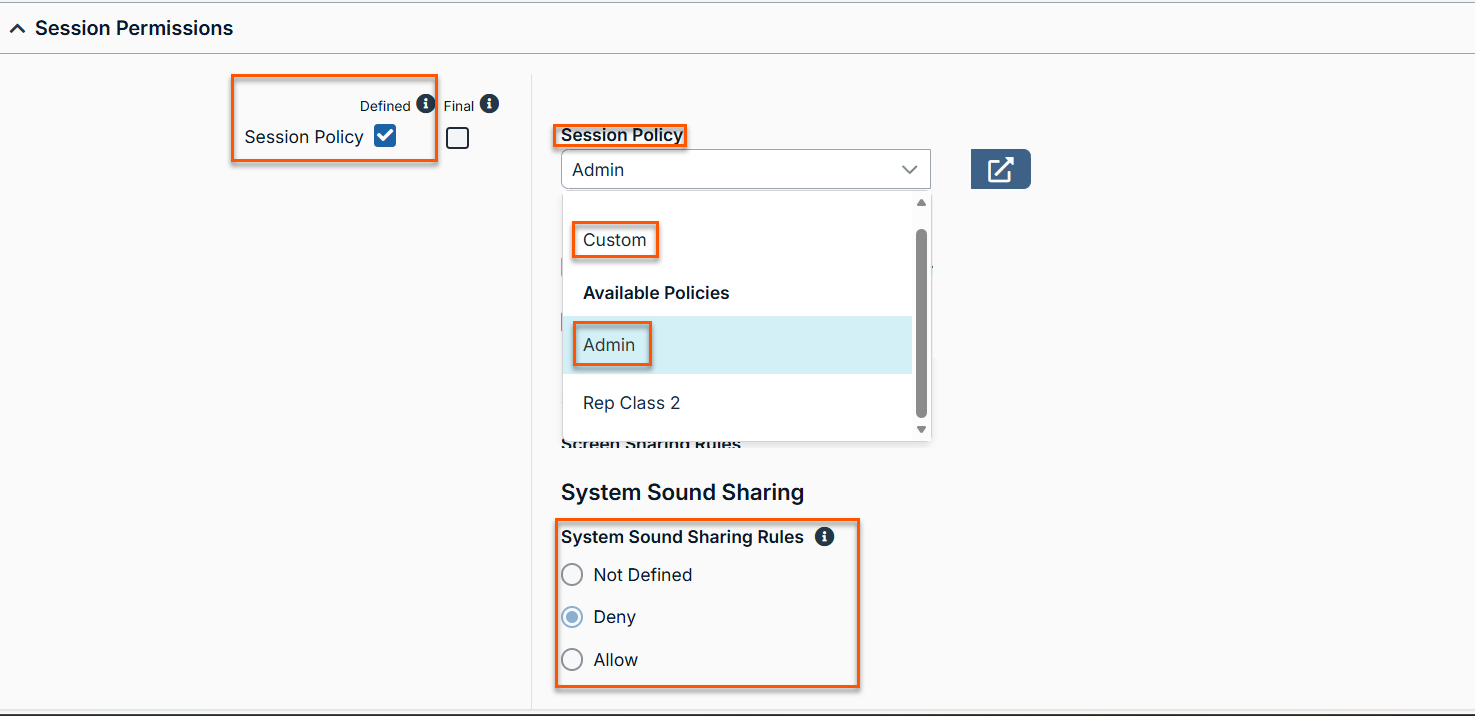
There are two options available for configuring a Session Policy at the Group Policy level. You can:
- Select an existing session policy and reuse it or
- Create a custom session policy within a group policy itself.
To verify which session policy is defined in a group policy:
- Go to User & Security > Group Policies.
- Expand Session Permissions.
- Locate the Session Policy setting.
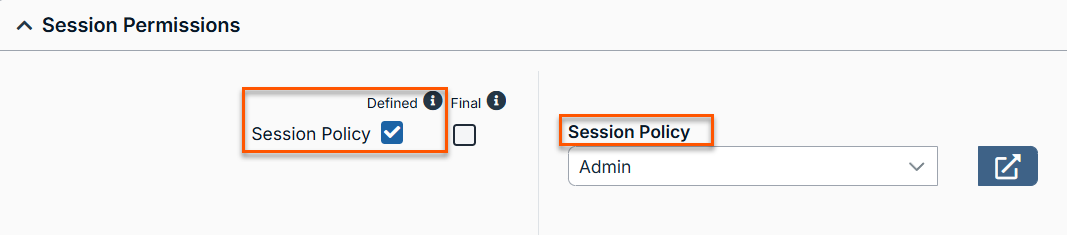
Best practiceWe recommend creating your Session Policies separately first, then applying it to the Group Policy configuration. This gives admins transparency of what is actually applied by providing context to how it relates to the appropriate Group Policy (Level 2 Support Session Policy → Level 2 Support Group Policy).
If you want to create a Session policy right from within your Group Policy configuration page, simply select Custom from the Session Policy drop-down and define your Session policy permissions for each tool.
3. Session Policy defined at the User Level
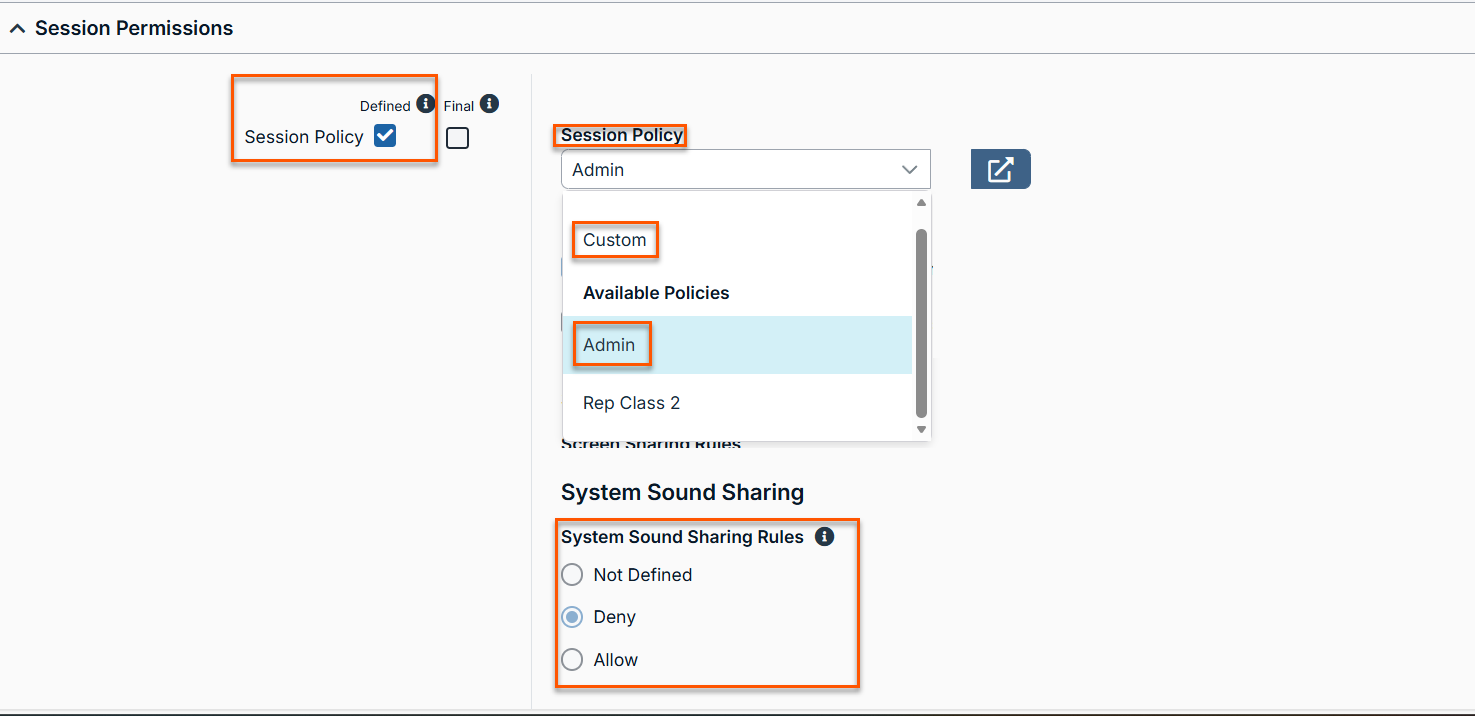
If the system still does not find an Allow or Deny decision for a specific tool, it will continue its search and checks the Session Policy defined at the User level.
At this level, you can do the following:
- Apply an existing session policy, or
- Create a custom session policy for the individual user.
User-level session policies allow you to define Allow, Deny, or Not Defined for each tool under the Session Policy section.
Best practiceIt is a best practice to define most user behavior through group policies for scalability and greater efficiency. Try to avoid direct user assignments whenever possible unless for rare exceptions.
4. Global Default Policy (Fallback)
If none of the previous checkpoints return an Allow or Deny decision, the system applies the Global Default Policy. The Global Default Policy cannot be deleted or be set to Not Defined. The system requires this policy to ensure that a decision is always available.
The Global Default Policy does the following:
- Acts as a required fallback mechanism in the event a tool is set to Not Defined throughout the entire Session Policy check process.
- Always returns Deny by default **
- Does not support Not Defined.
Important information
- If a session policy decision comes from the Global Default Policy, treat it as a warning. This result indicates a policy gap that you should review and address.
- **By default PRA sets all answers to Deny for the Global Default Policy. Review your Global Default settings to confirm these settings have not changed during onboarding or from a previous admin.
Session Policy examples
Below are some examples highlighting how the system decides what to do for each tool according to the Session Policy evaluation order summary.
Example 1: File Transfer tool
Given the following example:
- The File Transfer tool is set to Yes for Group Policy.
- The File Transfer tool is set to No for Global Default.
- The File Transfer tool is set to Not Defined for Jump Item.
Outcome: The Access Console user can use the file transfer tool in a PRA session.
Reasons why: If we use the checkpoint hierarchy list, the first item in the list, Jump Item, is set to Not defined. We move to the next list item, Group Default Policy, which is set to Yes. Even though Global Default Policy is set to No, the first valid answer takes precedence, which in this scenario is Group Default Policy.
Example 2: Registry tool
Given the following example:
- The Registry tool is set to No for Group Policy.
- The Registry tool is set to Not Defined for Global Default Policy.
- The Registry tool is set to Yes for Jump Item.
Outcome: The Access Console user is able to use the file registry tool in a PRA session.
Reasons why: Using the checkpoint evaluation order, the first item in the list, Jump Item, is set to Yes. Since this is the first item in the checkpoint and the first valid answer, the policy is applied. While this setting would rarely be applied in the real world, we wanted to use this as an example to highlight and reinforce the impact of the logic on what gets applied.
Important informationUse the Session Policy Simulator. If you want to audit or confirm how session policies are applied in any given scenario, run the simulator to identify which policy provided the winning decision.
Hopefully by now you have a better handle on how Session Policy logic applies to real world scenarios. To keep things simple, we used examples where a representative was part of one Group Policy only.
In reality, many organizations have representatives that are members of multiple Group Policies.
How does PRA resolve situations when these settings conflict with one another? That is the purpose of our next section in understanding how Group Policies logic works.
Group policy permissions
Group policies define permissions and settings for groups of users. They help administrators standardize and streamline access control across the environment, not only for session policies but for all configuration areas (/login and the Access Console).
Because a user can be part of multiple group policies, the system uses a specific evaluation logic to determine how to apply the correct settings in each scenario.
Multiple Group assignments evaluation logic
Whenever a user signs in to /login or an Access Console user, the system evaluates them against any Group Policy they are a part of. If the system finds that a user is part of two or more Group Policies, all applicable settings get applied. For example, if a user is part of a Server Support Team Group Policy along with a Database Engineering Team Group Policy, then they will inherit answers from both Group Policies.
| Group Policy List | Description |
|---|---|
| Server Support Team | Production Server Jump Group |
| Database Engineering Team | Database Jump Group |
What happens if a user is part of two or more Group Policies that contain conflicting answers, like in the example below?
| Group Policy List | Description |
|---|---|
| Server Support Team | Invite External Users: Deny |
| Server Support Manager | Invite External Users: Allowed |
In this context, the system triggers an evaluation process that reviews the user against all of the Group Policies they are a part of from top to bottom. Because the system checks the Group Policies from top to bottom, it applies the configuration of the Group Policy that answered last for the specific setting.
As the result, the following logic is applied:
| Group Policy List | Description |
|---|---|
| Server Support Team | |
| Server Support Manager | Invite External Users: Allowed (Applied) |
In the previous example, we saw how the system decides what to apply when we have binary answers (Allow or Deny).
Let’s see how this logic plays out when three Group Policies with three distinct configuration options are available for one user.
Example: John Doe belongs to three group policies
| Group Policy | Session and Team Report Access |
|---|---|
| Tier 1 Server Support | Not Allowed. |
| Server Support Manager | View Their Jump Groups Sessions. |
| PRA Admin | View All Sessions. |
Outcome: John Doe receives View All Sessions reporting permissions.
Reason why: Because the system processes group policies in order and applies the last defined result.
Important informationJust like Session Policies, if configuration settings of all applicable Group Policies return Not Defined, the system looks at the user’s account for answers.
Group Policy Logic Bypass: The Final Checkbox
In some occasion, an admin may have a unique edge case scenario where all Group Policies are set according to expectations with the exception of one or more particular settings. In the scenarios an admin may not want to configure an entirely new Group Policy just to accommodate a change of one setting.
Instead, an admin can take advantage of the Final Checkbox. This allows an admin to bypass the Group Policy order logic and set that answer to take precedence over other competing Group Policies a member is a part of.
To illustrate, let’s say John Doe is getting trained to become the new Windows Server Support Manager. To prepare for the final steps of taking the new role, John Doe is added to the Windows Server Support - Manager Group Policy. To be safe, admins decide to turn on Final Checkbox on some of the settings applied in the Windows Server Support Group Policy. This way, John Doe still inherits all configurations and permissions needed to be a successful manager, while giving admins the ability to apply less privileged settings from another Group Policy.
Example: Policy check with Final setting
John Doe signs in and belongs to the following reporting groups:
| Group Policy name | Description |
|---|---|
| Windows Server Support | Reporting permissions are defined for View Only Their Sessions and Final setting is selected. |
| Windows Server Support Lead | Reporting permissions are defined for View Their Jump Group Sessions. (Ignored) |
| Windows Server Support Manager | Reporting permissions are defined for View All Sessions. (Ignored) |
Outcome: As a result of the logic, John Doe inherits the setting from Windows Server Support Group Policy- View Only Their Sessions. All other group policies he belongs to are ignored for this setting.
Reason why: Because there is a Final setting in Windows Server Support group, this takes precedence and wins even though it is not the last group policy to answer.
Tip
- Order policies carefully. Use Change order to arrange group policies. Place least permissive policies higher and more permissive policies lower if you want broader access to apply last.
- Favor group policies over user policies. Define most user behavior through group policies for scalability, and reserve direct user assignments for exceptions.
- Use the Session Policy Simulator. If the effective result is unexpected, run the simulator to identify which policy provided the winning decision.
Key takeaways:
- Session Policy Check Process: Privileged Remote Access determines which session tools can be applied for a user during a remote access session. It performs a Session Policy Check that evaluates all available tools from the various session policy sources in a defined order. This order controls which policies are applied first and ultimately determines which actions and tools are allowed.
- Group policy order matters. When a user belongs to more than one group policy, the system applies them top to bottom. The policy that answers last takes precedent, unless a higher policy marks a setting as Final.
- Final setting: This only applies to the users who are part of the Group Policy which contain a Final setting. When selected, Final overrides permissions from lower placed policies. If you select Final checkbox on two or more Group Policy settings, the first final read takes precedent.
Updated about 2 hours ago
