
Vault reports | PRA Pathfinder
What is Vault reporting?
Vault reporting provides insights into the activity and management of privileged accounts stored in BeyondTrust Vault. It tracks actions such as:
- Account creations and deletions
- Credential check-ins and check-outs
- Personal credential used
- Password rotations and changes
How is Vault reporting useful?
Vault reporting helps administrators monitor account activity, ensure compliance with security policies, and identify potential risks or anomalies in account usage, ensuring secure and efficient management of privileged credentials.
How do I access the Vault page?
- Sign into app.beyondtrust.io.
The BeyondTrust Home page displays. - From the main menu, click Privileged Remote Access > Reports.
The Reports page opens and the Access tab displays by default. - Click the Vault tab.
The Vault tab displays.
The Vault page
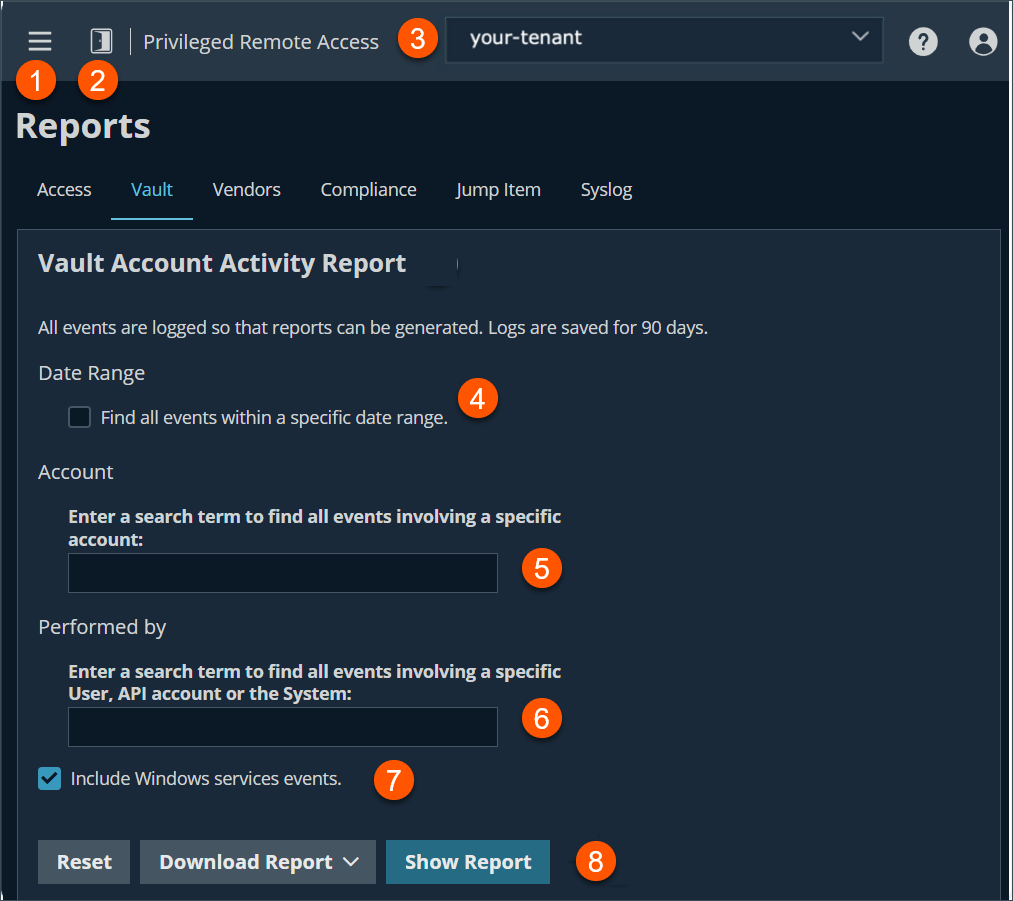
- Left menu: Easy access to all pages in Privilege Remote Access, including Status, Consoles & Downloads, My Account, Configuration, Jump, Vault, Console Settings, Users & Security, Reports, Management, and Appliance pages.
- Status: Opens the Status page.
- Header: Change your tenant site, manage your profile, and access documentation.
- Date Range: View all events within a specific date range.
- Account: View all events associated with a specific account.
- Performed by: View all events involving a specific user, API account, or the system.
- Include Windows service events: If enabled, displays all Window service account rotation events.
- Report options: Allows you to choose the following options:
- Reset: Resets all selected items.
- Download Report: Allows you to download the report in various formats (CSV or Excel).
- Show Report: Displays the report based on the criteria you select.
How to generate a Vault report
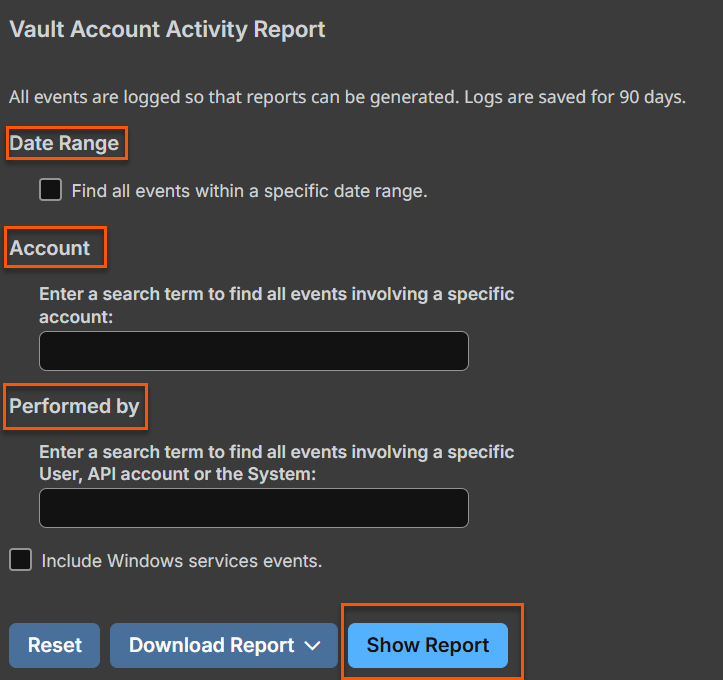
Date range
Select a start date for which to pull reporting data. Then select either the number of days for which to pull your report or an end date.
Account
To see all events involving a specific BeyondTrust Vault stored account, type in the account name, or select the account from the dynamic pop-up list.
Performed by
To see all events involving a specific privileged user, API account, or the System, type in the account name, or select the account name from the dynamic pop-up list.
Include Windows services events
Check the Include Windows services events option to include events related to service account rotation.
Vault account activity report results
Because users can be granted separate access to use and check out accounts, the Vault Account Activity Report distinguishes between the two. This allows administrators to tell the difference between a user who is able to view the account's password and a user who is only able to inject credentials in a session.
In the Vault Account Activity Report Results, the Data column shows information associated with the event. The Credentials Checked Out event contains a Details link in the Data column when credentials are checked out while in a session. This link redirects to the Support Session Detail Report in which the credentials were used.
If the credentials are checked out from Admin interface, then no Details link is present in the Data column.
The Data Service column appears in the reporting results when the Include Windows services events option is enabled. Any errors that occur with service account rotation events are shown in this column.
The report provides the following information:
- Timestamp: The date and time the event occurred.
- Account: The account name used with the event.
- Event Type: The type of event which occurred, such as a credentials checked in or checked out, or password rotated.
- Performed By: The user who triggered the event.
- Data: Relevant system information message, for example if a password rotation failed, the error message is indicated.
- Endpoint: The system where the event the event occurred.
- Data Service: This column appears in the reporting results only when the Include Windows services events option is enabled. Any error messages that occur with service account rotation events are shown in this column.
- Events are logged in order to generate reports, and these logs are saved for 90 days.
- Non-administrative users may experience a more limited user experience depending on the access granted to them by their administrator. For example, a Vault user with limited permissions may potentially see only the Accounts, Vault, and Reports , Vault tabs.
- If a user has been anonymized in an effort to follow compliance standards, the Vault Account Activity Report may display pseudonyms for user data or may indicate information has been deleted. To learn more about data anonymization and deletion for compliance efforts, see Compliance reports.
Download/Show Report
Once your filter criteria are selected, you can either download the report in a spreadsheet or show the report in a HTML browser.
To download the report, click Download Report and select the format you want, either Microsoft Excel or a comma separated value (CSV).
To show the report in a HTML browser, click Show Report.
Updated 19 days ago
